Does Dropbox have a folder password feature?
Dropbox can password-protect shared links on paid plans, but it cannot put a password on a folder itself. Anyone signed in with access can open the folder contents.

GiliSoft File Lock Pro
GiliSoft File Lock Pro is a folder / file locker which protects user's privacy and important data from theft, loss or leaks.

Very often we use Dropbox for secure storage and access your files and folders on any device. But many users worry that too much information will lead to information leakage and the danger of being peeped. Read on and get quick fixes.
In this part, we will show you how to set passwords for Dropbox on Windows and Mac. Most of the methods available protect your share link from prying eyes. But if you are looking for ways to make a folder private, we recommend you to use the third-party software in Method 2.
Dropbox has a password protection function. This function is designed for sharing links. If you share the folder with password protection, only specific people can access the file. Others need to fill in the password if they want to view the document. Follow the easy steps to set a password for share link:
Step 1. Visit Dropbox.com and sign in to your account.
Step 2. Find the file or folder you want to share. And then select the Share option beside the folder.
Step 3. Click Link Settings.
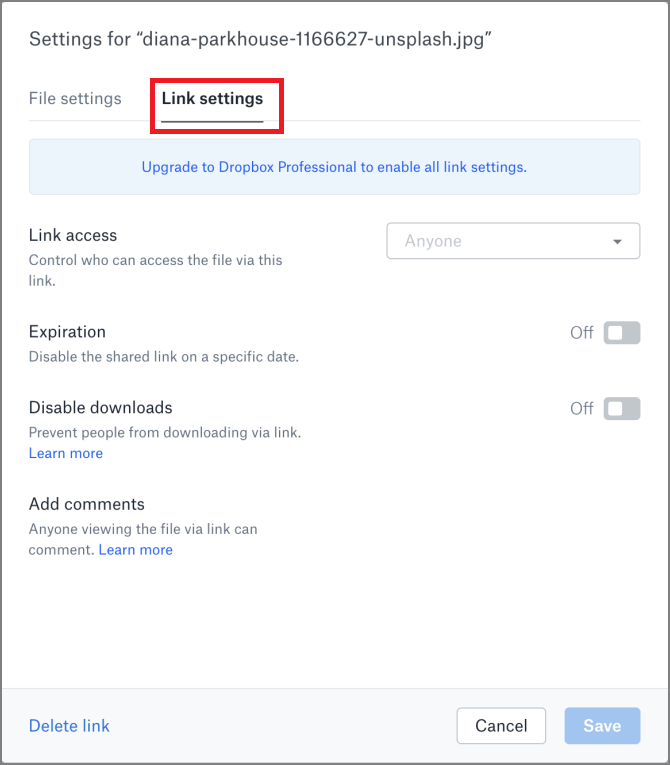
Step 4. Select Only people with the password.
Step 5. Navigate to Set a password and type the password to protect the shared link.
Step 6. Click Save Settings.
Step 7. Send the password protection link to another user on Dropbox or you can copy and paste the shared link to email.
Dropbox doesn't have such features to password-protect your folder into private. Don't worry. GiliSoft File Lock Pro is an easy and reliable folder lock tool to protect Dropbox folders with passwords. You can download the software, lock the folder with a password on your local Dropbox sync folder, and then let it upload to Dropbox.
Check more features of GiliSoft File Lock Pro:
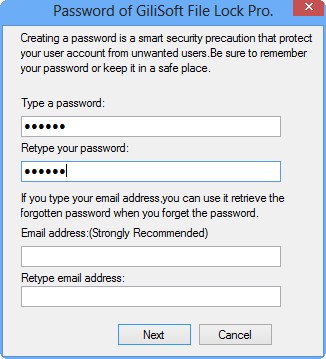
Step 1. Launch GiliSoft File Lock Pro, enter the valid email, and set password to register.
Step 2. Click Protecting File under the Local Disk. Select Protect File(s), Folder or Drive from the right panel, and add the Dropbox folder you want to protect.
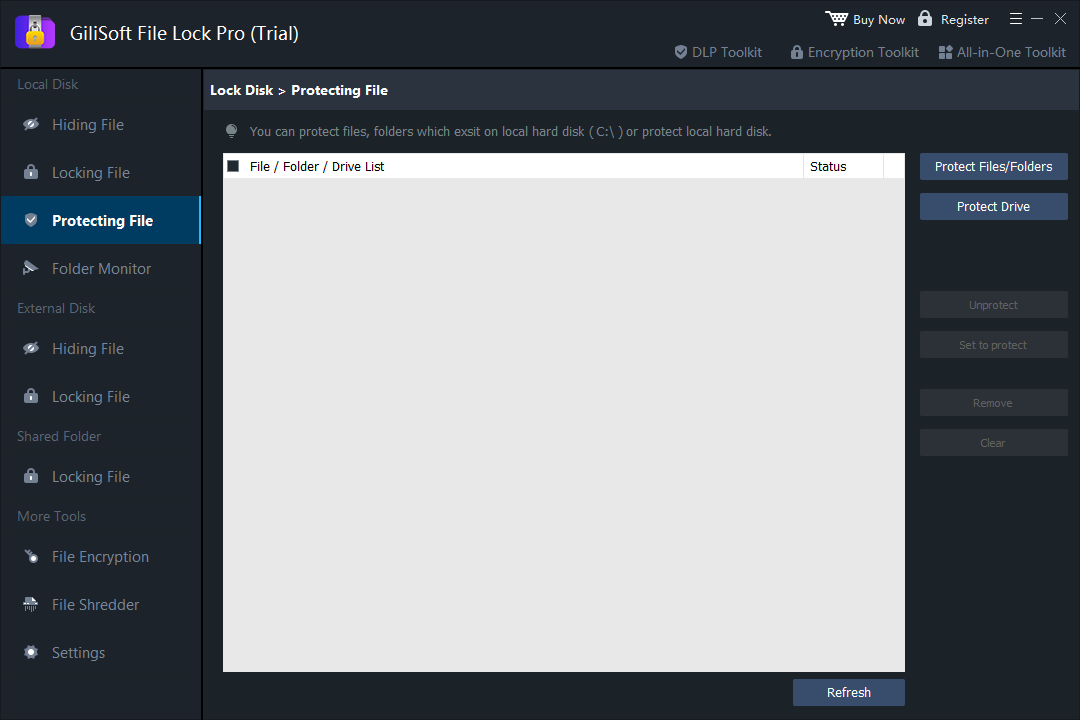
Step 3. Check and confirm the files, folder, and drive that you want to protect.
Notes: If you want to unprotect the selected files, folder, or drive, tick the target data and click on the Unprotect button.
Even though you have sent the shared link, you can also control the file to be expired by setting the expiration date.
Step 1. Go to Dropbox.com and sign in to your account.
Step 2. Select the Share button next to the file or folder name.
Step 3. Click Link Settings.
Step 4. Go to Expiration and click the toggle to turn it on.
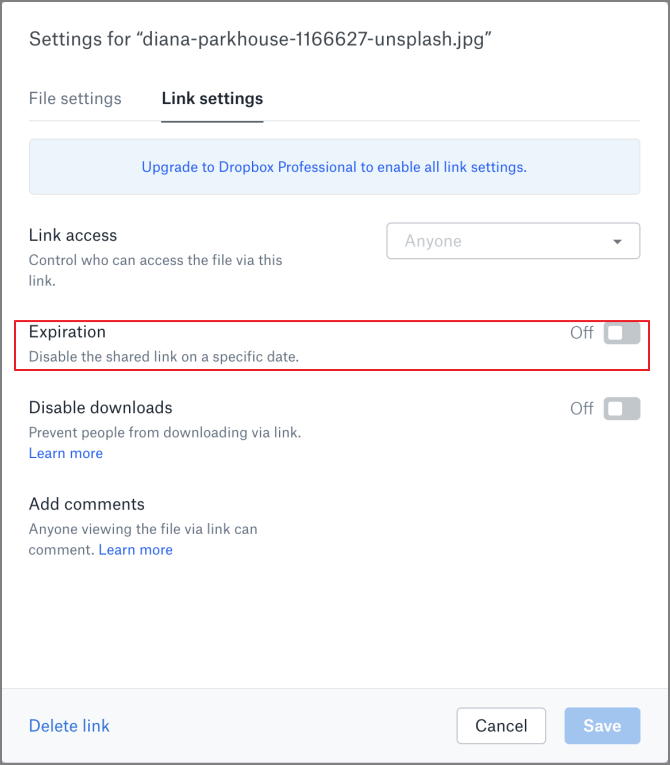
Step 5. Select the date that you want the shared link to expire.
Step 6. Click Save.
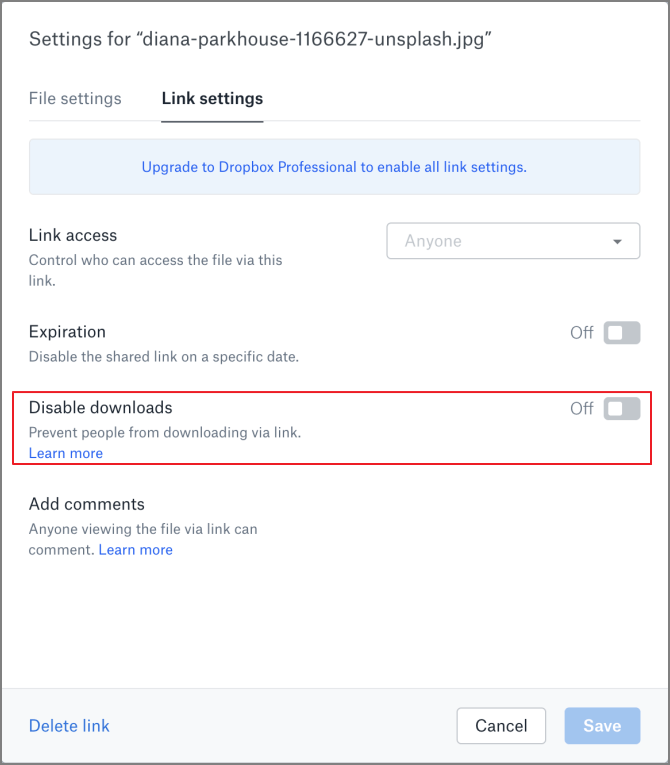
If your file or folder doesn't need to be downloaded, you can disable the download option to prevent easy downloading. Recipients can only preview the file.
Step 1. Sign in to dropbox.com.
Step 2. Select the files you want to share.
Step 3. Hover on the file name and click the Share button.
Step 4. Click Settings and toggle the Disable download to On.
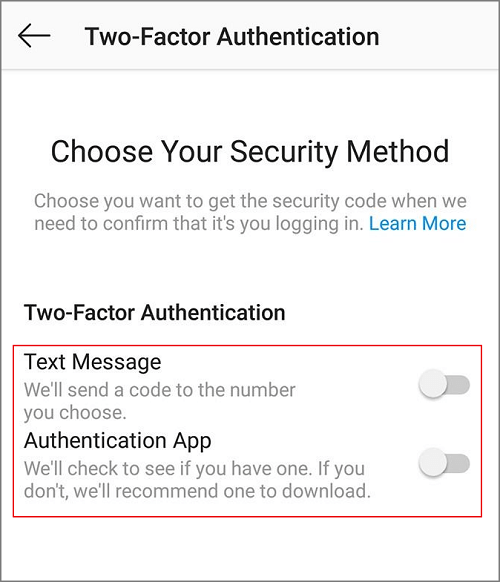
Two-factor authentication is a second layer of security over a password or PIN code. After logging in with a password, you enter a digital verification code sent to your mobile device to prove your identity.
Step 1. Sign in to your Dropbox account.
Step 2. Click your avatar.
Step 3. Go to Settings > Click Security tab > Toggle the two-step verification to On.
Step 4. Click Get Started and re-enter the password.
Step 5. Choose the way to get the security code: text message or authentication app.
Unless the computer users, more and more mobile users prefer to store data on phone. So how to set a password for Dropbox? Check simple steps as follows:
Step 1. Open the Dropbox app.
Step 2. Open the file you want to set a password for the shared link, preview the file.
Step 3. Tap the "..." icon in the top right corner.
Step 4. Tap Manage Access > View Link Settings > Link Access > People with Password.
Step 5. Set a password and click Done.
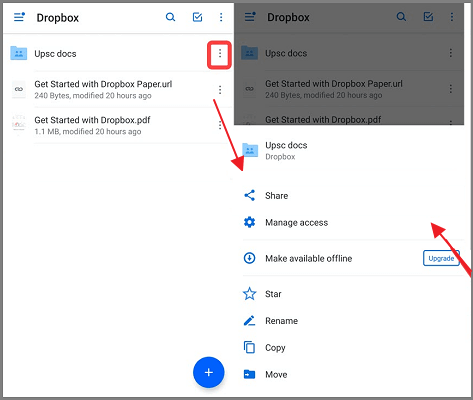
Step 1. Open the Dropbox app.
Step 2. Preview a file and tap the "..." option on the top right corner.
Step 3. Tap the Share button, click Manage Access and click View link settings.
Step 4. Turn on the expiration option.
Step 5. Choose date to expire shared link.
Step 6. Click Done.
There are 5 ways to make your data protected on Windows and Mac, 2 ways on Android. Hope these quick fixes can prevent your data from prying eyes. And if you want the folder itself to stay private no matter where it is synced, lock it locally with GiliSoft File Lock Pro before Dropbox uploads it.
Dropbox can password-protect shared links on paid plans, but it cannot put a password on a folder itself. Anyone signed in with access can open the folder contents.
Shared-link passwords are a Dropbox Professional and Business feature. For a free alternative, lock the local Dropbox folder with File Lock Pro before it syncs.
The local lock stops people on your PC from opening the synced folder. Files already uploaded to Dropbox still need shared-link settings for online access control.
Combine a shared-link password, an expiration date, and two-factor authentication. Lock the local copy with File Lock Pro if the folder also sits on a shared PC.
Use GiliSoft File Lock Pro to password protect local Dropbox sync folders, hide private files, and control access on local, USB, and network drives from one Windows interface.