Can Windows put a password on a shared folder?
Windows sharing relies on account permissions, not a folder password. Anyone with permission can open the files. File Lock Pro adds a real password prompt to LAN shared folders.

GiliSoft File Lock Pro
GiliSoft File Lock Pro is a folder / file locker which protects user's privacy and important data from theft, loss or leaks.

We all share information at our workplaces, institutions, and companies, etc.
Shared folders are highly practical but can also lead to privacy issues and data leaks. This can become a problem for you. To avoid such possibilities, we recommend you password protect a shared folder. It will save you from any breach of privacy. We will guide you on how to password protect a shared folder in Windows 10/11.
Not a technology geek? We have got you. We are going to demonstrate step by step how to create a folder and share it.
Step 1. First of all, create a folder by right-clicking anywhere on your screen and selecting "New" and then "Folder". Transfer all the data you want to share to this folder.
Step 2. Then, right-click on the folder that you have created and select "Properties" shown at the end of the menu.
Step 3. A box will open showing you different options. Click on "Sharing" and go to the "Advanced Sharing" option.
Step 4. Mark the "Share this folder" option in the advanced sharing window.
Step 5. This will lead you to the "Sharing Permissions" box. Add the person or the group you want to share your folder with. You can choose to give full control or read-only access depending on your preference.
Step 6. The default setting of permission is "Everyone". If you want to share the folder with a specific audience, go to Add and then "Advanced" to add their details.
Step 7. Go to the "Find Now" option to choose the individual or group you are sharing the folder with.
Step 8. Select the desired control option and click "Apply" and then "OK". Now select "Apply" and "OK" on the advanced sharing window.
Step 9. On the properties window, hit the "Share" button and then select the new user or group name from the drop-down list and select "Add". Click Share and close. Your folder is now shared on the network.
Now, we are going to give you an easy way out. There is a shortcut to password protect a shared folder in Windows 10/11. GiliSoft File Lock Pro is the foolproof way to password protect a shared folder conveniently. With a diverse range of features, this tool ensures smooth performance and great security. Let's have a look at its features.
Hide files, folders, and drives: GiliSoft File Lock Pro can hide selected confidential files and folders on local or external storage. Test the protection from the user accounts and Windows modes used in the real workflow.
Lock files/folders/drives: You can password-protect any type of files and folders on a local disk or external (USB) disk. You can put a password to a folder and add any confidential files to it to keep them safe. You can also lock your folders on USB with a master password and client password.
Folder/disk monitoring: You can monitor a disk or a folder and its sub-folders when changing and writing anything. Any changes made by a user can be tracked using the GiliSoft file lock tool.
Protect files/folders/drives: It is easy to password protect your important files, folders & drives. It is possible to read the write-protected files, but nobody will be able to modify, delete (even shift delete), or rename it without a password.
Files/folders encryption: Yes, it is possible. Encrypt files and folders into GFL format or EXE format files with AES encryption algorithm. You can open EXE encrypted files or folders on other computers.
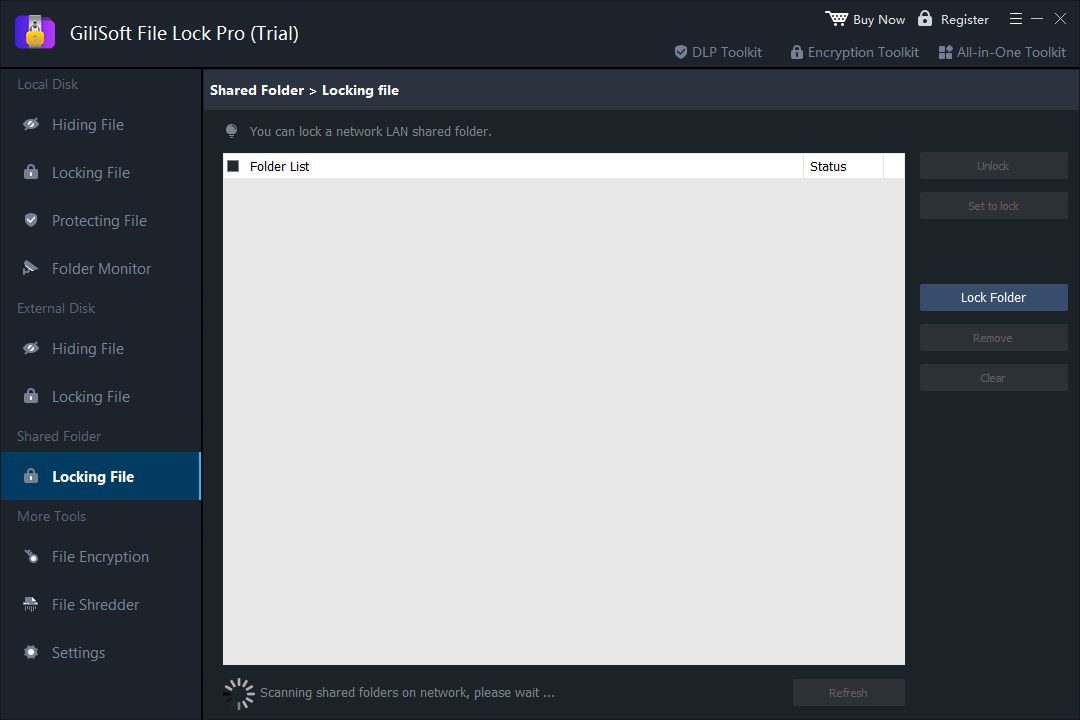
Lock LAN shared folder: Limit access to the folders shared on the network by putting a password on them using the Lock LAN shared folder feature.
Step 1. Run GiliSoft File Lock Pro, and select "Locking File" under the module of "Shared Folder".
Step 2. If the shared folder appears in the folder list, click the "Set to lock" button to lock. If you have not found the shared folder, click "Lock Folder" to lock the shared folder you want to password protect.
Step 3. Click "Lock" to let the locking process start.
We have given you the simple software to password protect a shared folder in Windows 10/11. It is super important to keep your files and data secure. You can freely share your laptop with others if your folders are password protected. We recommend you try GiliSoft File Lock Pro as it is extremely efficient. It is going to be your best buy.
Windows sharing relies on account permissions, not a folder password. Anyone with permission can open the files. File Lock Pro adds a real password prompt to LAN shared folders.
The lock is applied on the computer that shares the folder. Users who access it over the network are asked for the password before the folder opens.
Yes. File Lock Pro locks LAN shared folders directly on a normal Windows PC, so no Windows Server or domain setup is required.
Yes. Once the shared folder is locked, network users cannot open, copy, modify, or delete its contents without the password.
Use GiliSoft File Lock Pro to password protect shared folders, hide private files, and control access on local, USB, and network drives from one Windows interface.