
How to Password Protect a Google Drive Folder on PC and Android
 GiliSoft Editorial Team | Updated July 27, 2026 | Google Drive Privacy Guide
Google Drive does not add a separate folder password to every ordinary folder. Access normally follows the Google account and the sharing permissions applied to each file or folder. A shared link may restrict viewers, but it is not the same as encrypting the uploaded file itself.
Use Google Drive permissions when the goal is controlled collaboration. Encrypt the source locally before upload when the cloud copy itself should remain password protected after download.
Can You Add a Password to a Google Drive Folder?
Google Drive controls normal folders through account access and sharing roles rather than a second password field. Choose the protection method that matches the real task.
Private Drive folder
Keep General access set to Restricted and add only named Google accounts.
Controlled shared link
Limit the audience and review editor, viewer, download, and resharing permissions.
Protected document
Use the source application's password or encryption option before upload when available.
Locally encrypted package
Create an encrypted file on Windows, test it, and upload only that protected output.
Method 1. Restrict a Google Drive Folder
This is the best method when named people still need to collaborate inside Google Drive.
Open the folder's sharing settings
Select the folder in Google Drive and open Share. Confirm that you are signed in as the owner or an account allowed to manage access.
Set General access to Restricted
A restricted folder is available only to people who have been explicitly added. Avoid publishing a broad link for private material.
Add named people and choose roles
Assign Viewer when editing is unnecessary. Grant Editor only to people who genuinely need to change or reorganize the contents.
Review download and resharing options
Use available sharing settings to reduce copying, downloading, printing, or access changes where the file type and account support them.
Test with another account
Open the folder from a different signed-in account or private browser session to confirm that unauthorized users are denied.
Sharing restrictions control Google Drive access. They do not turn an ordinary uploaded file into a separately encrypted file.
Method 2. Encrypt Files Before Uploading to Google Drive
Use this method when the uploaded item should require a separate password after it is downloaded to a Windows PC.
GiliSoft File Lock Pro
Create an encrypted GFL file for protected storage or a password-protected EXE package for Windows delivery. Google Drive receives the completed encrypted output, not the open source.

Open File Encryption
Launch File Lock Pro, choose More Tools, and open File Encryption.
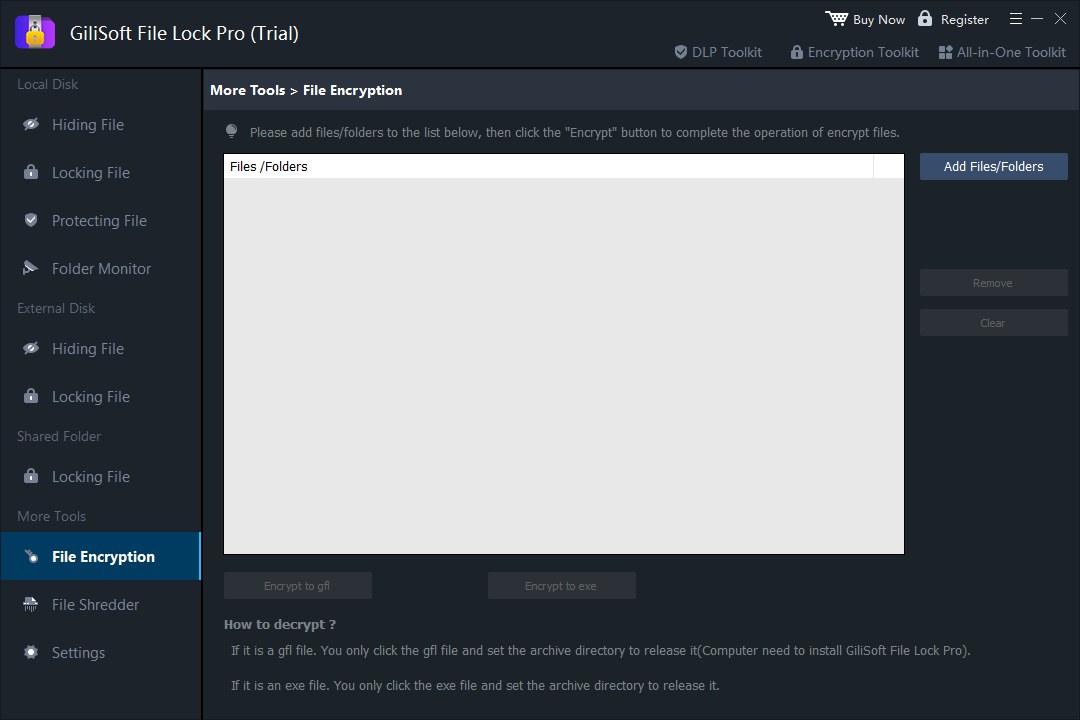 Add the files or folders that will be encrypted before Google Drive upload.
Add the source files or folder
Keep the readable source outside the Google Drive sync folder while preparing the encrypted copy.
Choose GFL or EXE output
Use GFL for encrypted storage opened with File Lock Pro. Use EXE for a self-extracting Windows package, after confirming that the destination permits executable files.
Save and test the package
Open the completed output with its password and confirm that all expected files can be recovered.
Upload only the encrypted output
Move the tested package into the Google Drive sync folder or upload it through the website, then verify the cloud copy.
Password Protect Google Drive Files on Android
On Android, begin with Drive sharing controls: keep the folder Restricted, add only named accounts, and remove access when collaboration ends. For an individual document or archive, apply the file's own password protection before uploading when the mobile app provides that option.
If a file was encrypted as a GFL or EXE package on Windows, keep it as protected storage in Drive and open it later from a compatible Windows environment. Never place the password in the file name, description, or nearby Drive document.
Google Drive File Security Tips
- Use a unique Google account password and enable two-step verification.
- Review Drive sharing permissions before sending a link.
- Remove access for people who no longer need the folder.
- Keep the encryption password outside Google Drive.
- Maintain a separate backup and test that it opens.
Google Drive Folder Password FAQs
Can I put a separate password on a normal Google Drive folder?
Google Drive normally protects folders through account access and sharing permissions. Encrypt files before upload when a separate content password is required.
Does Restricted sharing stop every form of copying?
No. Use the strictest practical role and upload encrypted output for material that should not remain an ordinary readable file.
Can I password protect Google Docs directly?
Google Docs relies on account and sharing permissions. Export a local file and protect it before upload when a separate password is needed.
Will Google Drive upload an encrypted file?
Google Drive can store a completed encrypted package like another file, subject to account policies and file restrictions.
Conclusion
Use Restricted sharing for collaboration with named Google accounts. Use local encryption when the cloud copy itself should require a separate password after download. For sensitive projects, combine both.
Encrypt files before uploading them to Google Drive
Create and test the protected package locally, then upload only the encrypted output.
View GiliSoft File Lock Pro