
How to Password Protect a OneDrive Folder in Windows 11/10
 GiliSoft Editorial Team | Updated July 27, 2026 | OneDrive Folder Protection Guide
OneDrive does not add a separate password field to every ordinary folder. Personal Vault is the built-in option for selected sensitive files in personal OneDrive, while sharing permissions control who can open a normal shared folder.
If you want the downloaded cloud copy itself to require a separate password, encrypt it locally before upload. This guide compares all three decisions so you do not mistake synchronization or a shared link for file encryption.
Can You Password Protect a OneDrive Folder?
Use Personal Vault for protected access inside OneDrive
Microsoft describes Personal Vault as a protected area in personal OneDrive that requires strong authentication or a second identity-verification step. It automatically relocks after inactivity. Personal Vault is intended for personal OneDrive accounts and may not be available in every market.
This is the convenient choice when you want to continue opening files normally through OneDrive while adding another sign-in step around a selected folder.
Encrypt locally before upload for an independent protected file
Local encryption changes the file that is uploaded. File Lock Pro can package selected files or folders as an encrypted GFL file or a password-protected EXE package. OneDrive then stores the encrypted output rather than the readable source file.
This approach is useful when the uploaded object itself should remain password protected after download. Keep the password separately and test the encrypted package before removing or archiving the original.
How to Use OneDrive Personal Vault
The exact buttons can vary between the OneDrive website and Windows app, but the setup follows the same basic sequence.
Open Personal Vault
Sign in to your personal OneDrive account and open the Personal Vault folder. If it has not been configured, select the option to get started.
Verify your identity
Follow the Microsoft prompt and confirm your identity using one of the available methods, such as an authenticator, code, PIN, face, or fingerprint.
Move important files into the vault
Add the documents, photos, or other files that need the extra OneDrive access step. Confirm that synchronization finishes.
Lock Personal Vault
Use the lock command when you are finished, or allow Personal Vault to relock after inactivity. Open it again to confirm that identity verification is required.
Personal Vault belongs to personal OneDrive. For a work or school account, follow your organization's Microsoft 365 security and retention policies.
How to Encrypt Files Before Uploading Them to OneDrive
Use this method when you want the OneDrive copy to be an encrypted package instead of an ordinary document, photo, video, or folder.
GiliSoft File Lock Pro
Create encrypted GFL files for protected storage or password-protected EXE packages for Windows delivery. Encryption is performed locally before the output is placed in the OneDrive sync folder.

Open File Encryption
Launch File Lock Pro, choose More Tools, and open File Encryption.
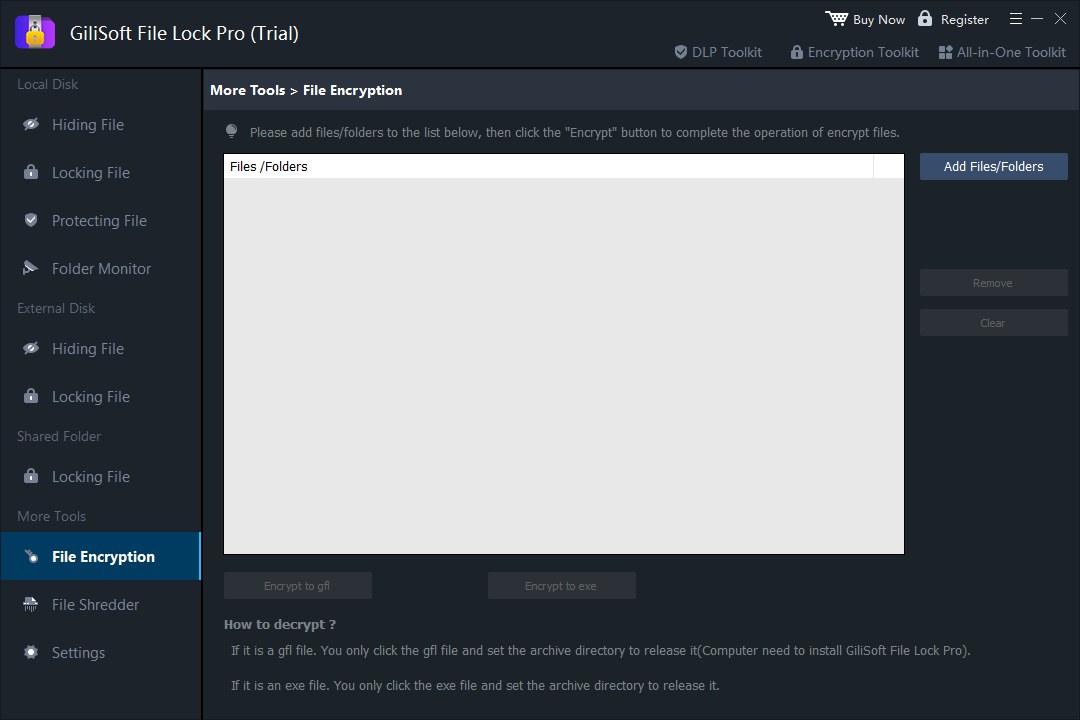 Use the File Encryption workspace to add the files or folders that will be packaged before upload.
Add the source files or folder
Select Add Files/Folders, choose the sensitive content, and verify the list before continuing. Keep the readable source outside the OneDrive sync folder while preparing the encrypted copy.
Choose GFL or EXE output
Choose GFL when the encrypted package will be opened with File Lock Pro. Choose EXE when you need a self-extracting Windows package. Set a strong password that is not stored beside the encrypted file.
Save and test the encrypted package
Save the output to a temporary local folder, open it with the password, and confirm that the expected files can be recovered before continuing.
Upload only the encrypted output
Move the tested GFL or EXE package into the OneDrive sync folder. Wait for synchronization to complete, then verify the uploaded item from OneDrive.
Useful OneDrive File Security Tips
- Use a unique Microsoft account password and enable multi-step verification.
- Review OneDrive sharing permissions before sending a link.
- Remove access for people who no longer need a shared file or folder.
- Do not place the encryption password in the same OneDrive folder as the encrypted package.
- Keep a separate backup of important encrypted files and verify that you can open it.
- Do not delete the only readable original until the encrypted output has been tested.
OneDrive Folder Password FAQs
Does OneDrive Personal Vault encrypt files?
Personal Vault adds strong authentication or another identity-verification step around a protected OneDrive area. If you specifically want to upload a separately encrypted file, create the encrypted package locally before upload.
Can I use Personal Vault with OneDrive for Business?
Microsoft currently documents Personal Vault for personal OneDrive accounts. Work and school accounts use organization-managed Microsoft 365 security and sharing controls.
Should I upload a GFL file or an EXE file?
GFL is the cleaner choice for encrypted storage when File Lock Pro is available to decrypt it. EXE is intended for a self-extracting Windows package. Some organizations restrict executable files, so confirm the destination policy first.
Will OneDrive sync an encrypted file?
OneDrive can synchronize a completed encrypted package like another file, subject to the account's file policies and available storage. Finish and test encryption before placing the output in the sync folder.
Conclusion
Personal Vault is the simplest way to add another identity check around selected files in personal OneDrive. Local encryption is the better fit when the cloud copy itself should be a password-protected GFL or EXE package. The two methods can also be combined: encrypt the file locally, then store that encrypted output in Personal Vault.
Password protect sensitive OneDrive files
Use Personal Vault for convenient protected access, or upload a tested encrypted package when the cloud file itself needs a separate password.
View GiliSoft File Lock Pro