

How to Password Protect a USB Flash Drive
A USB drive is easy to lose, lend, or leave connected to the wrong computer. This guide compares four practical ways to protect portable files and shows how to create a password-protected secure area on a flash drive without replacing the device.
For an ordinary USB flash drive on Windows, GiliSoft USB Encryption offers the most direct workflow: choose the USB drive, define the secure-area size, set a password, and open protected files through a mounted virtual drive. BitLocker can encrypt an entire removable drive on supported Windows editions, while encrypted archives suit a small set of files and hardware-encrypted USB drives suit higher-assurance environments.
A USB Password Should Protect Encrypted Data
A password prompt by itself is not the same thing as encrypted storage. The useful question is what happens to the data behind that prompt.
When password protection is backed by encryption, stored data is transformed so it cannot be read normally without the correct access process. Kingston makes the same distinction in its discussion of software- and hardware-encrypted storage: the password controls access, while encryption protects the underlying data.
Background reading: Kingston: How to securely password protect files and drives.
Compare Four Ways to Password Protect a USB Flash Drive
| Method | Best for | Protection scope | Setup |
|---|---|---|---|
| GiliSoft USB Encryption Recommended | Using an existing USB with both public and private files | Password-protected secure area | Easy |
| BitLocker To Go | Encrypting the whole removable drive on a supported Windows edition | Entire drive | Moderate |
| Password-protected archive | Sending or storing a small, fixed collection of files | Selected archive | Moderate |
| Hardware-encrypted USB | Organizations and users buying dedicated high-assurance storage | Entire device | Easy, higher cost |
Password Protect a USB with GiliSoft USB Encryption
Use this method when you want to reuse a normal USB flash drive and keep shareable files separate from confidential files.
Best for existing USB drives and mixed public/private storageBack up important USB files, connect the flash drive, and open GiliSoft USB Encryption.
Select the target USB drive. Adjust the divider to choose how much space belongs to the password-protected Secure area and how much remains in the Public area, then click Install.

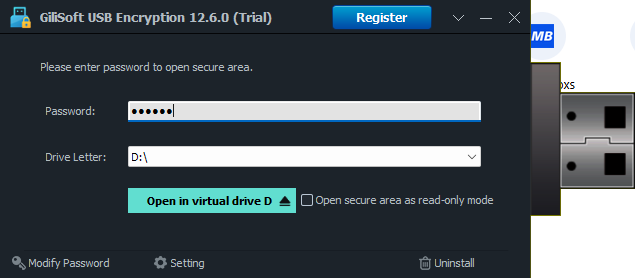
Open the USB encryption agent, enter the password, choose a virtual drive letter, and open the secure area. Enable read-only mode when you only need to view protected content without changing it.
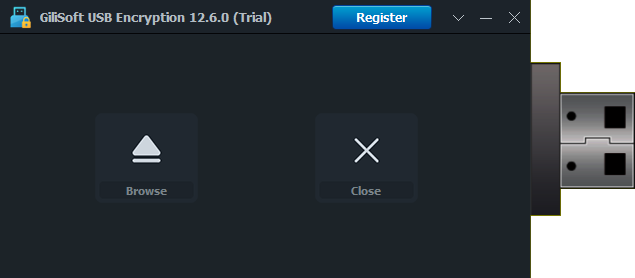
Choose Browse after the secure area opens, work with files through the mounted drive, and close it when the protected session is finished.
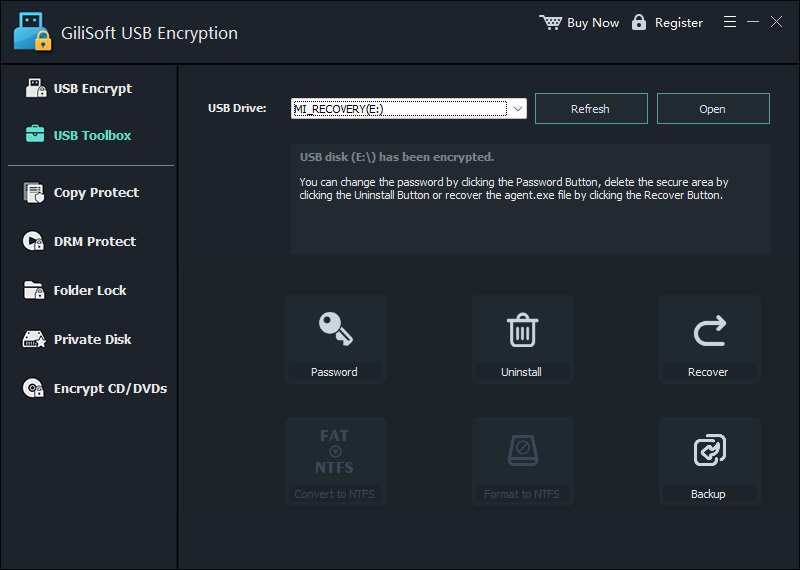
Use USB Toolbox to change the password, back up the USB agent, recover the agent when needed, or remove the secure-area installation. Keep a separate backup of important files before maintenance operations.
Why this method is practical
- Works with an existing USB drive.
- Keeps public and protected files on one device.
- Uses a familiar mounted-drive workflow.
Before you begin
- Back up irreplaceable data first.
- Keep the password separate from the USB.
- Test access before relying on the drive while traveling.
Encrypt the Entire USB Drive with BitLocker To Go
Use BitLocker when your Windows edition provides removable-drive encryption and everyone using the drive can work with that access model.
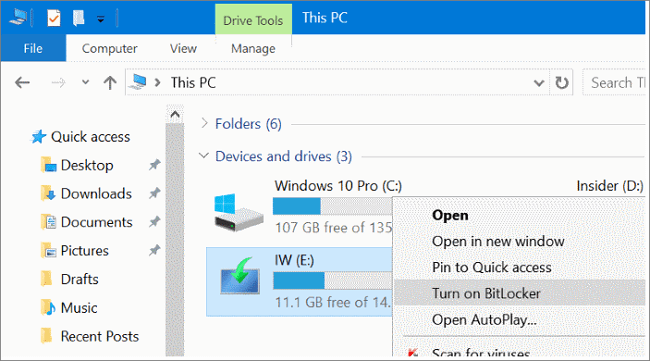
Best for whole-drive encryption in supported Windows environmentsIn File Explorer, right-click the USB drive and choose Turn on BitLocker.
Choose password-based unlocking, create a strong password, and save the recovery key somewhere other than the USB drive.
Select the encryption scope and compatibility mode that fit how the USB will be used, then start encryption and allow it to finish before removing the device.
Strengths
- Built into supported Windows editions.
- Protects the entire removable drive.
- Includes a recovery-key workflow.
Tradeoffs
- Availability depends on the Windows edition and environment.
- The drive does not retain a separate ordinary public area.
- Recovery-key handling becomes part of the security process.
Protect Selected USB Files with an Encrypted Archive
Use a password-protected archive when only a small collection of files needs protection and those files do not change frequently.
Best for a fixed group of documentsCreate a new archive with a tool that supports encrypted, password-protected archives.
Add the files, choose the encryption settings, enter a unique password, and create the archive directly on the USB or copy it there afterward.
Test extraction on another computer before deleting any unprotected source copy.
Strengths
- Useful for a small number of files.
- Easy to send as one package.
- Does not repartition or reconfigure the USB.
Tradeoffs
- Files outside the archive remain unprotected.
- Changing files requires reopening or rebuilding the archive.
- The workflow is less convenient for daily USB use.
Use a Hardware-Encrypted USB Drive
Choose dedicated encrypted storage when the security requirement justifies buying a purpose-built device rather than protecting an ordinary USB with software.
Best for high-assurance and managed environmentsHardware-encrypted USB drives perform authentication and encryption through hardware built into the device. They can offer stronger resistance to certain attacks and may include controls designed for regulated or centrally managed environments. The tradeoff is higher purchase cost and less freedom to reuse USB drives you already own.
For personal files, office documents, travel storage, and mixed public/private use on an existing USB, a software-created secure area is often the more practical starting point. For regulated data or formal security requirements, evaluate the device certification, password-attempt controls, recovery process, and organizational policy before purchase.
Which USB Protection Method Should You Choose?
You already own the USB
Use GiliSoft USB Encryption to create a protected area while retaining public storage.
You want the whole drive encrypted
Use BitLocker To Go when it is supported by your Windows environment.
You only have a few fixed files
An encrypted archive can be sufficient when the collection rarely changes.
You have formal security requirements
Evaluate a purpose-built hardware-encrypted USB and its certification and recovery policies.
USB Password and Recovery Best Practices
Use a long, unique password
Prefer a memorable passphrase that is not reused for email, Windows, or cloud accounts.
Keep recovery information elsewhere
Do not store the only recovery key, password note, or backup on the same USB drive.
Test on another computer
Confirm that the protected area or encrypted files open correctly before travel or delivery.
Remember that encryption is not backup
Maintain another copy because encryption cannot prevent hardware failure, corruption, or accidental deletion.
Frequently Asked Questions
Can I password protect a USB flash drive without BitLocker?
Yes. GiliSoft USB Encryption creates a password-protected secure area on an existing USB drive and can leave a public area available for ordinary files.
Can public and protected files stay on the same USB?
Yes. The GiliSoft workflow separates a public area from a password-protected secure area on the same device.
Is a password-protected ZIP file enough?
It may be enough for a small, fixed collection. It is less convenient when files change frequently or when the rest of the USB also needs protection.
What happens if the USB drive is lost?
Files placed in the protected area require the correct access process. Files left in the public area remain ordinary readable files, so store confidential material only in the secure area.
Can I open the protected area like a normal drive?
Yes. After password verification, GiliSoft USB Encryption mounts the secure area using a selected virtual drive letter.
Does USB encryption replace a backup?
No. Keep a separate backup to protect against loss, corruption, accidental deletion, and device failure.