

A video locker is not one specific technology. On a Windows or Mac computer, it usually means hiding or password-locking local video files. On a phone, it normally means moving videos into a protected photo folder. If the video must leave your device, encryption or controlled playback is the more relevant choice.
Which Video Locker Should You Use?
How to Lock Videos on Windows 11 or Windows 10
GiliSoft File Lock Pro can hide video files from normal browsing, require its master password before locked content can be opened, and protect files from unwanted modification or deletion. You can protect one video, a folder containing a collection, or the drive where private footage is stored.
- Open File Lock Pro and enter the master password.
- Choose Local Disk, then select Hiding File, Locking File, or Protecting File according to the result you need.
- Add the video, folder, or drive, then apply the selected protection.
- Test the result from Windows File Explorer before closing the original project.
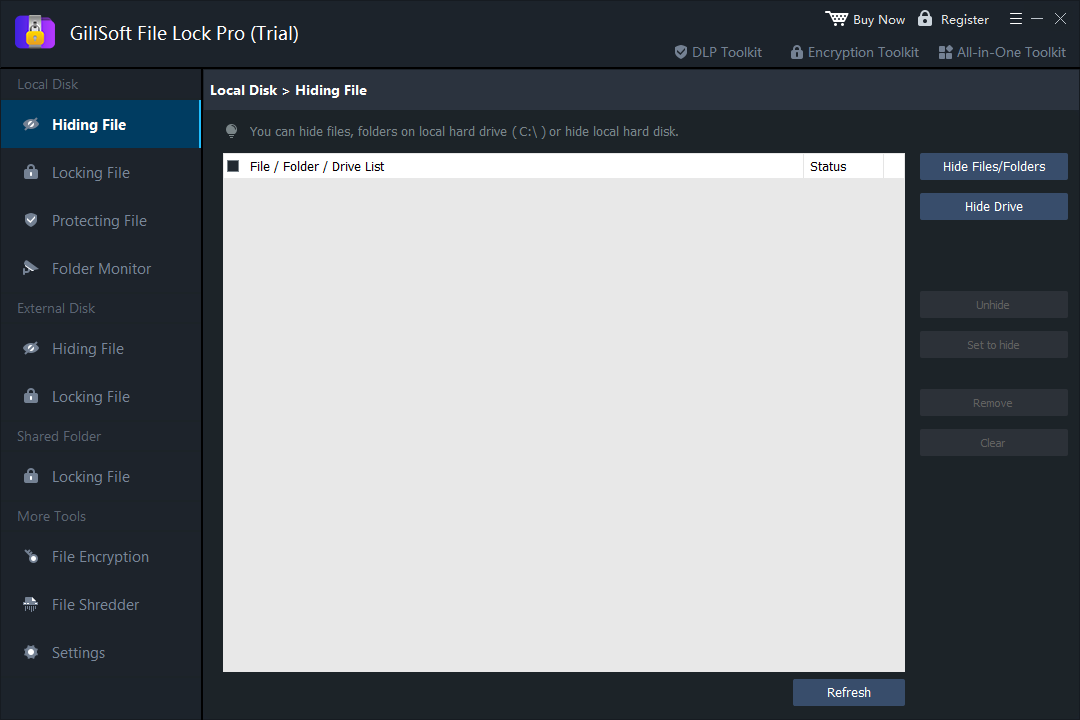 Hide videos or an entire local video folder from ordinary browsing.
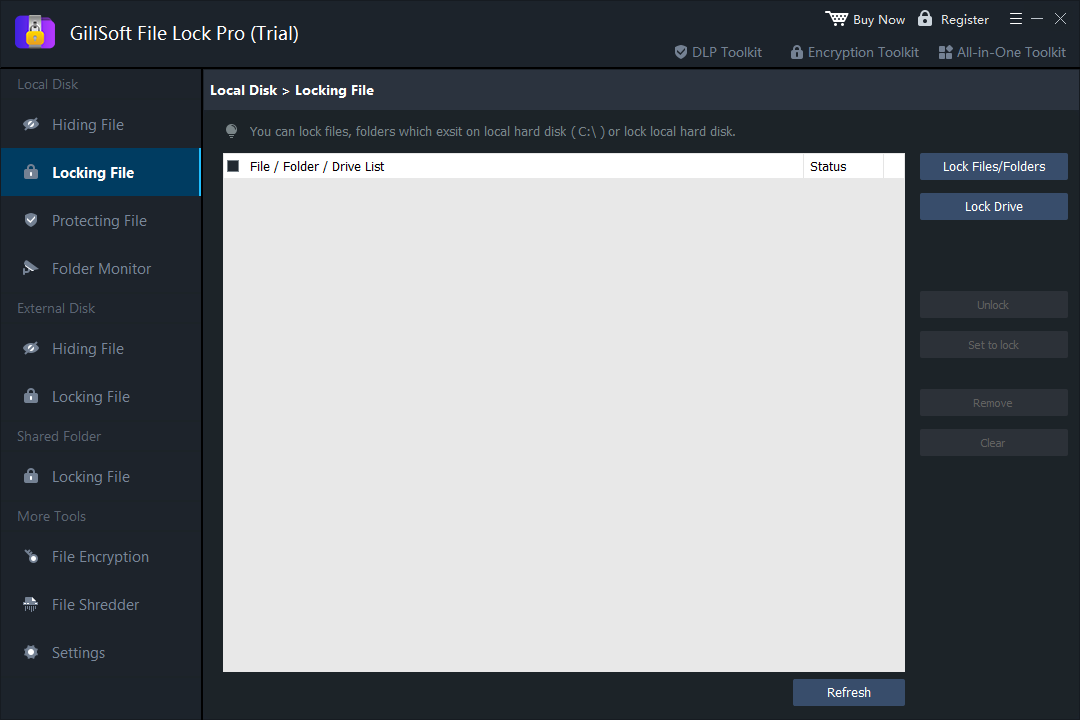 Lock videos, folders, or drives behind the File Lock Pro password.
Keep private videos local
File Lock Pro works on files already stored on the Windows PC, external drive, or shared folder. It is suitable for family videos, personal recordings, private project footage, and archives that should remain offline and out of ordinary view.

How to Lock Videos on macOS
For videos stored locally on a Mac, GiliSoft File Lock Pro for Mac provides a dedicated interface for hiding and locking files and folders. Put related clips into one folder when you want one clear protection rule for a complete project or personal collection.
- Open File Lock Pro for Mac and unlock the application.
- Choose the file-hiding or file-locking tool.
- Add the video files or their parent folder.
- Apply protection and confirm the result in Finder.
See GiliSoft File Lock Pro for Mac for supported controls and current download information.
How to Hide Videos on iPhone or iPad
Apple Photos can move selected videos to the Hidden album. On supported iOS and iPadOS versions, access to that album can be protected with Face ID, Touch ID, or the device passcode.
- Open Photos and select the private video.
- Open the More menu and choose Hide.
- Confirm that the video appears in the Hidden album under Utilities.
- Review the Photos settings for Hidden album visibility and authentication.
Keep a separate backup before deleting or moving irreplaceable footage. Phone privacy features and labels can vary by operating-system version.
How to Lock Videos on Android
Many Android phones provide either Google Photos Locked Folder or a manufacturer-specific secure folder. The exact name differs, but the practical flow is similar: choose the videos, move them into the private area, and protect that area with the phone's screen lock or account security.
- Open Google Photos or the private-gallery tool supplied with the phone.
- Find Locked Folder, Secure Folder, or the equivalent private area.
- Select the videos and move them into that area.
- Check backup behavior before removing the originals.
Protect Videos Before Uploading or Sharing
A phone album or local file lock stops casual access on your own device, but it does not control a normal video after you send it. Choose the delivery tool according to the job:
| Need | Recommended GiliSoft tool |
|---|---|
| Send a password-protected video file | Any Video Encryptor |
| Reduce copying from delivered media | Copy Protect |
| Control playback passwords, devices, watermarking, and revocation | Video DRM Protection |
Video Locker FAQs
Can I lock only one video?
Yes. On Windows or Mac, select the individual file. On mobile devices, move only the chosen video into the private album or secure folder.
Does changing a file extension lock a video?
No. Renaming MP4, MOV, AVI, or another extension does not add meaningful access protection.
Will a locked phone folder protect a video after I share it?
No. A shared ordinary video becomes a separate copy. Encrypt or package it for controlled delivery before sending.
Should I hide, lock, or encrypt a video?
Hide it when the main goal is privacy from browsing, lock it when access should require a password, and encrypt or DRM-protect it when the file must be stored or delivered in a protected form.
Lock private videos on your Windows PC
Use GiliSoft File Lock Pro to hide selected videos, password-lock folders, and keep personal footage stored locally.
View GiliSoft File Lock Pro