
For Text to Speech, finish the wording and punctuation before selecting a voice.
GiliSoft VoiceLab Help Center
VoiceLab User Guide for Windows
Follow the real VoiceLab workflow to generate speech, convert recorded voices, create authorized custom voices, organize the voice library, and review processing tasks.
Before you begin
Choose the task first, then prepare only the source material that task needs. Keep output in a separate folder until the generated result has been reviewed.
For Voice Conversion, use an audio or video file with a clear voice, or record from the microphone.
Create a custom voice only from a voice sample you own or have permission to use.
VoiceLab displays the available balance and the point use associated with processing tasks.
1. Generate speech from text
Use Text to Speech when the source is a script rather than an existing recording.
- Open Text to Speech and enter or import the text.
- Choose a target voice and use preview to check its tone.
- Adjust the speaking speed when the default pacing does not suit the script.
- Select the output folder and review the displayed point rule.
- Choose Generate, then open Tasks to follow the result.
Short punctuation and paragraph tests make it easier to correct pronunciation and pacing before processing a long script.
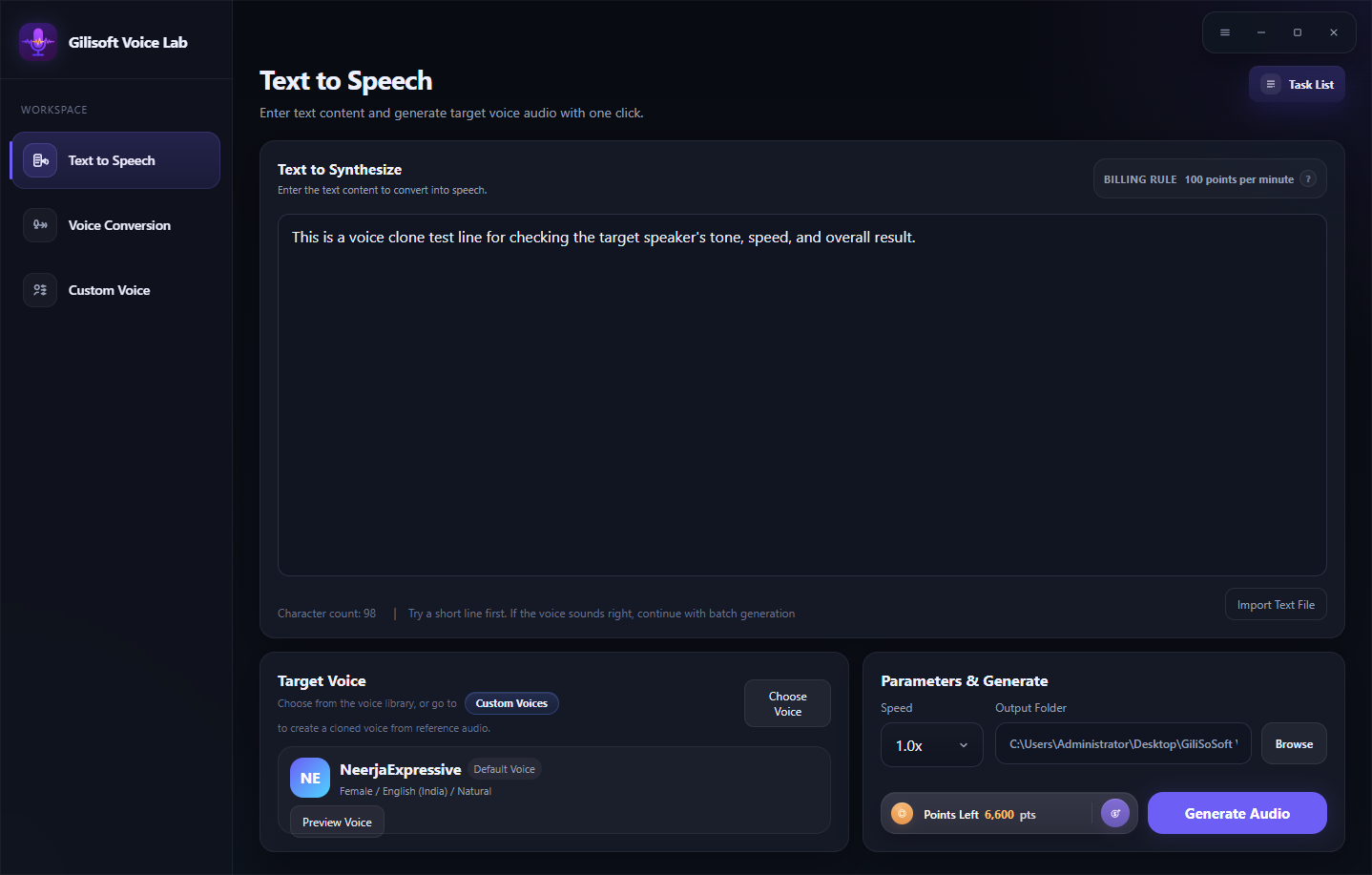 Enter text, choose a voice, preview it, and generate the speech file
2. Convert a voice from audio, video, or microphone input
Voice Conversion starts with recorded speech and applies the selected target voice.
- Open Voice Conversion.
- Upload the source audio or video, or record a source clip with the microphone.
- Choose and preview the target voice.
- Set the speed and output folder.
- Generate the result and review it from the task list.
Use a clean source with one clear speaker. Background music, overlapping voices, and heavy noise can make the converted result harder to judge.
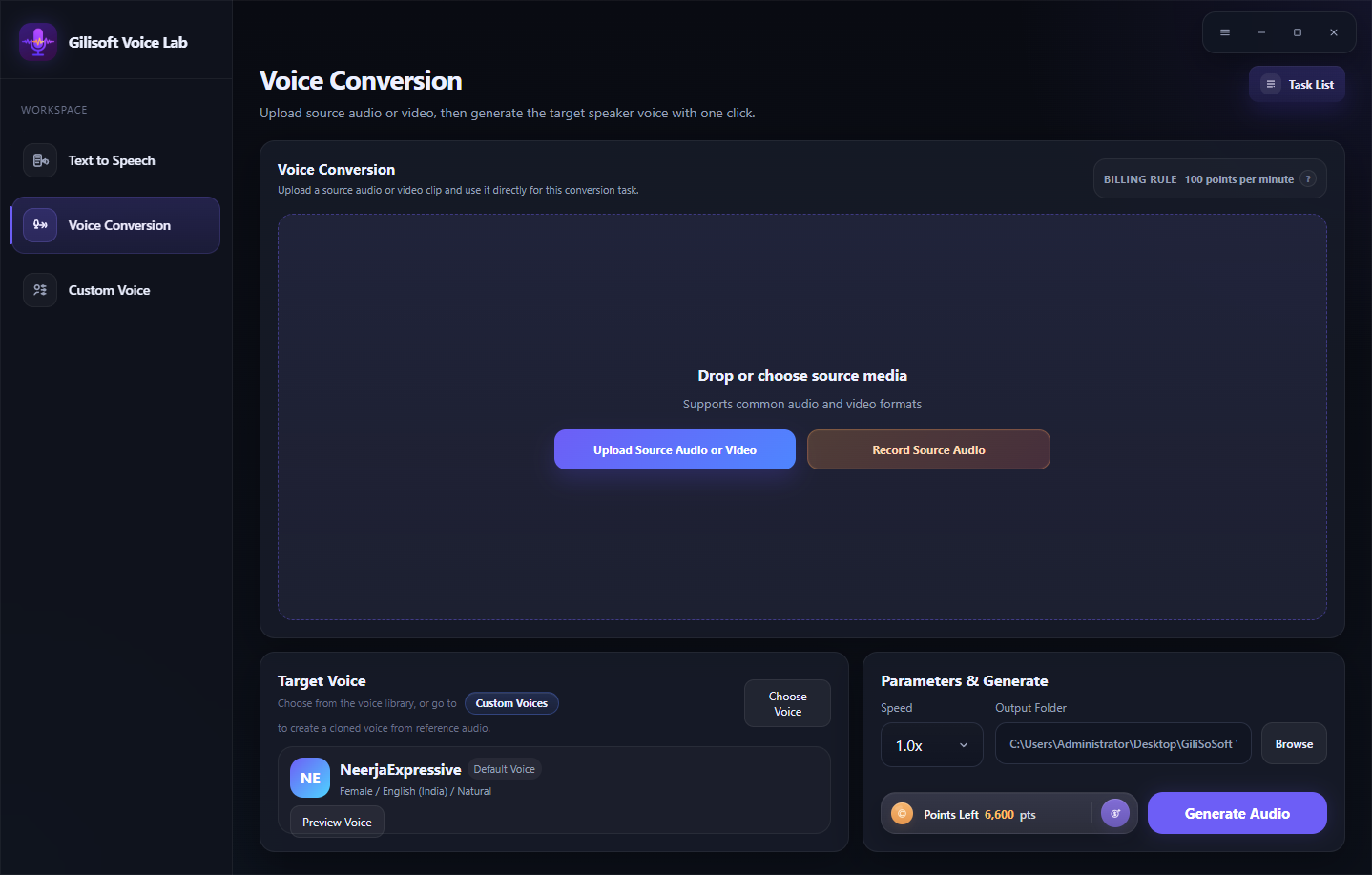 Add the source voice, select a target voice, and create the converted result
3. Create an authorized custom voice
Custom Voice lets you create a reusable voice entry from a permitted reference recording.
- Open Custom Voice and choose Create Voice Clone.
- Upload an authorized audio or video sample, or record a short reference clip.
- Enter the voice name, language, and useful tags.
- Listen to the sample again and confirm it is clear.
- Create the voice and find it later under My Voices.
The recorder shown in VoiceLab is designed for a short reference clip. Follow the current on-screen duration guidance and avoid recordings with several speakers.
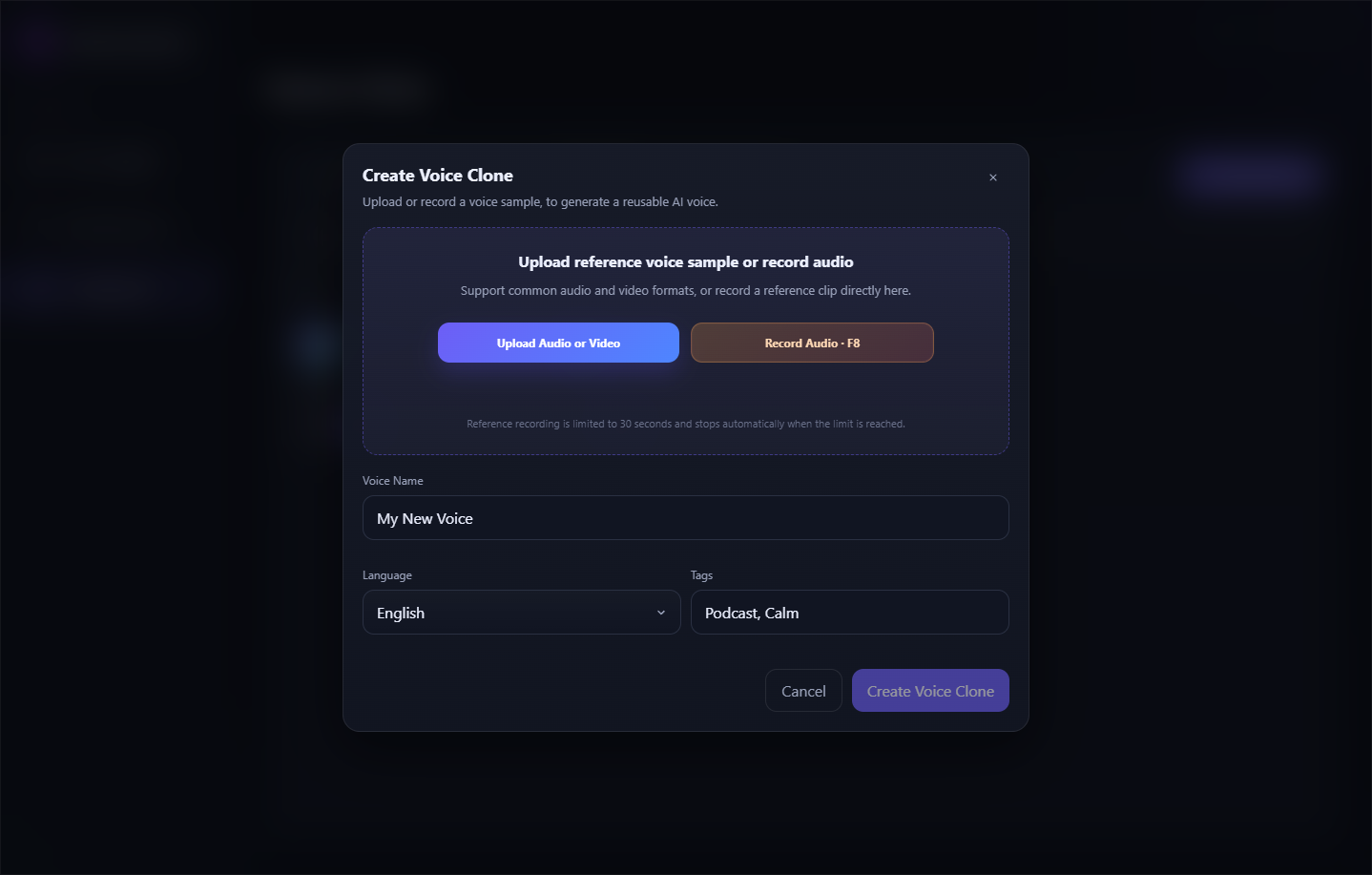 Provide an authorized sample and identify the custom voice clearly
4. Choose and manage voices
Preview a voice before using it, and keep frequently used voices organized so repeated projects remain easier to manage.
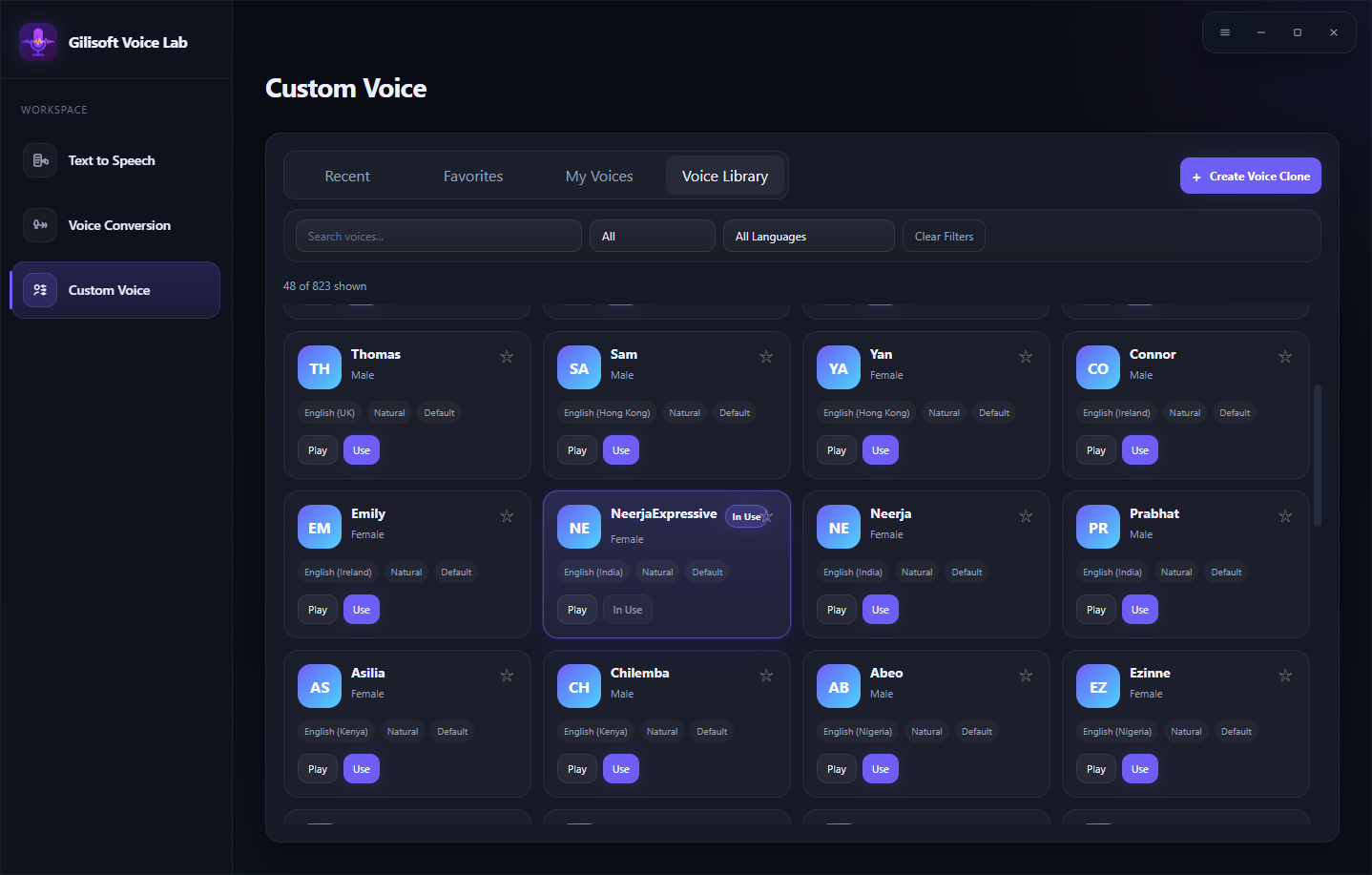
Browse the Voice Library
Search or filter available voices, play a sample, add a favorite, and choose Use when the voice fits the task.
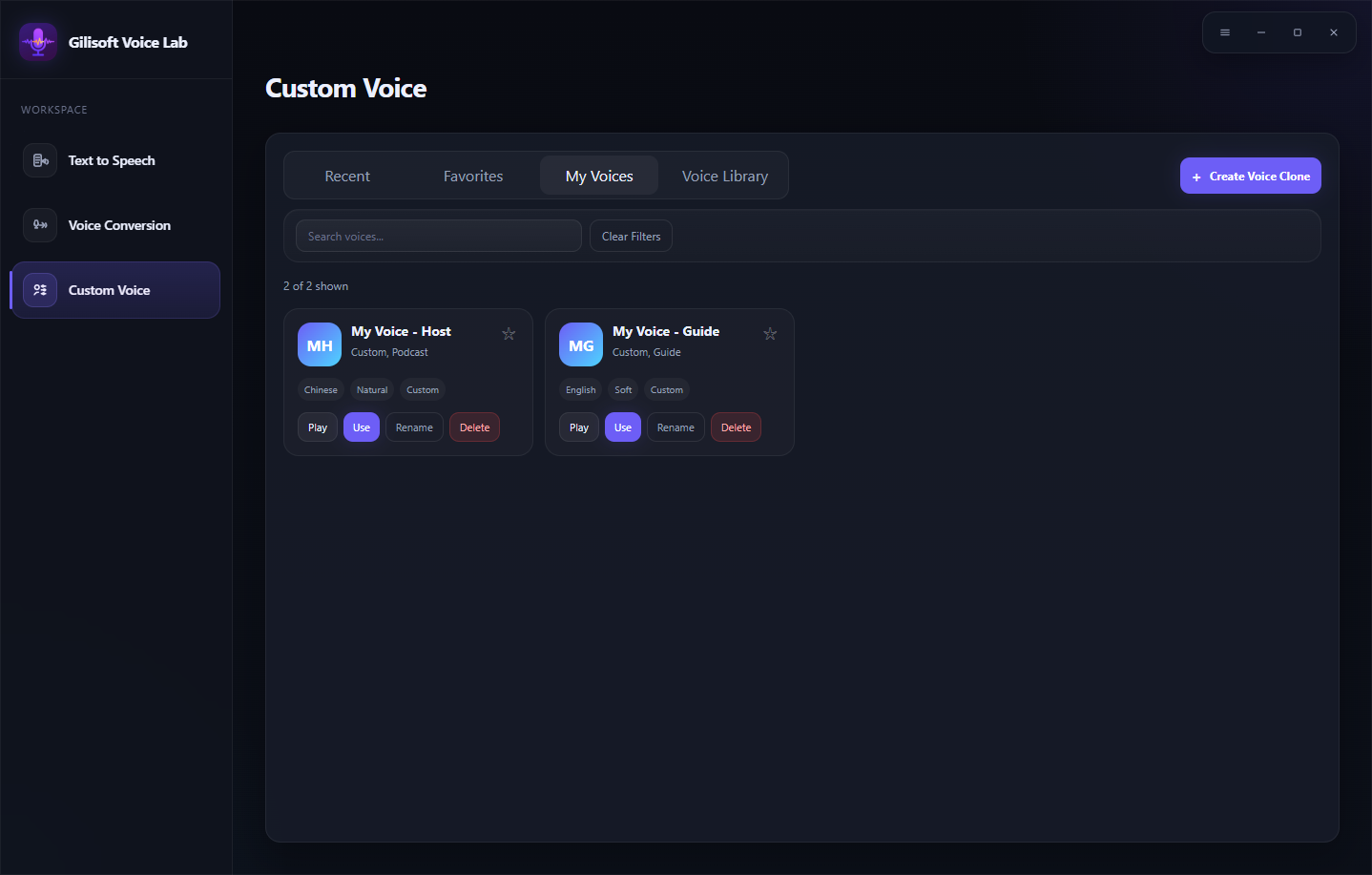
Manage My Voices
Preview, use, favorite, rename, or remove the custom voices associated with your account.
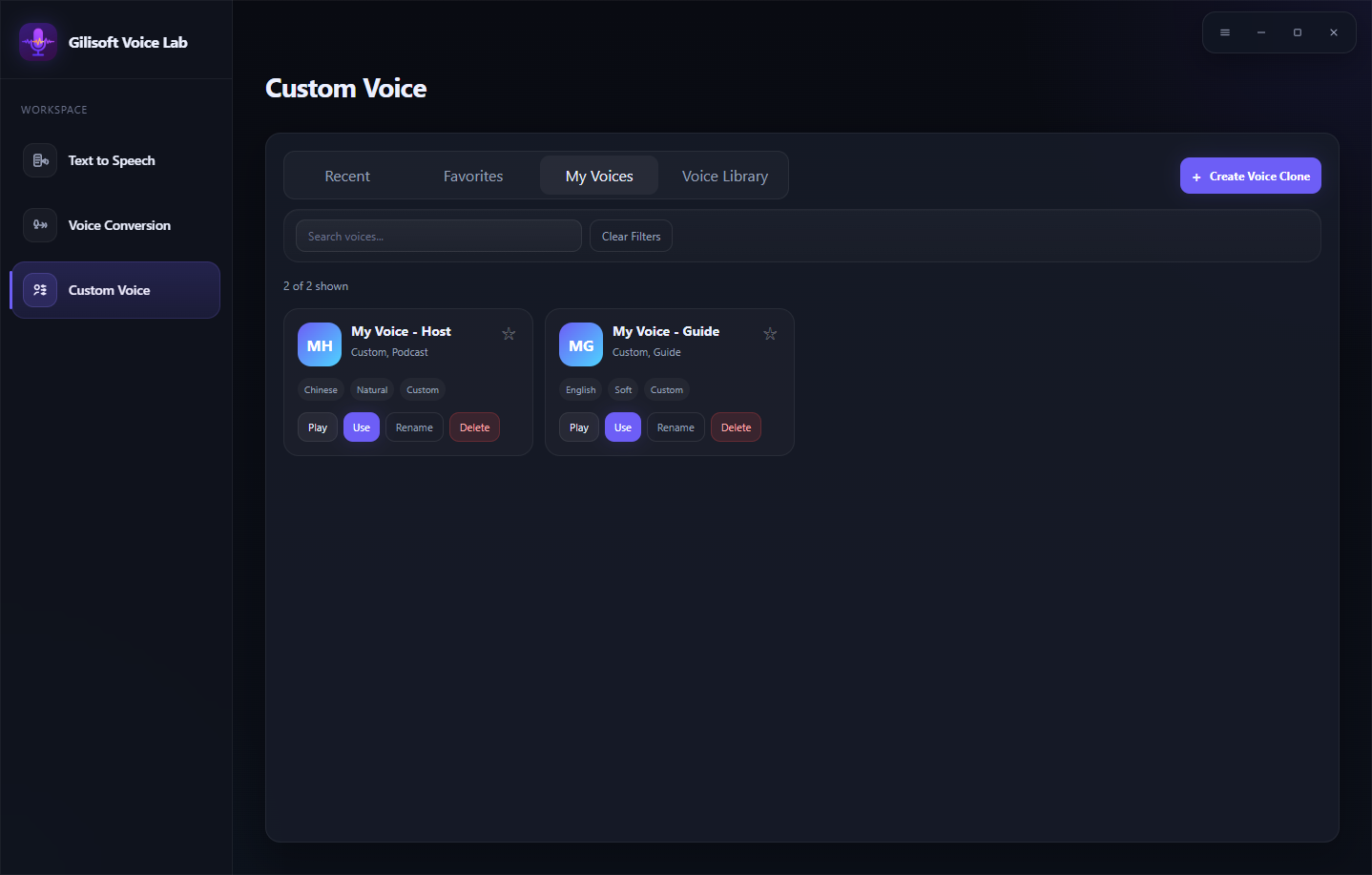
Keep custom voices organized
Use search, recent items, favorites, and descriptive names to find the correct voice quickly.
5. Review generated tasks and results
The Tasks page keeps processing details in one place after generation begins.
- Open Tasks from the VoiceLab navigation.
- Filter by status or task type when the list becomes longer.
- Review the source, selected voice, time, point use, and current status.
- Open task details or the finished result when processing completes.
- Use retry only after correcting the source or settings that caused a problem.
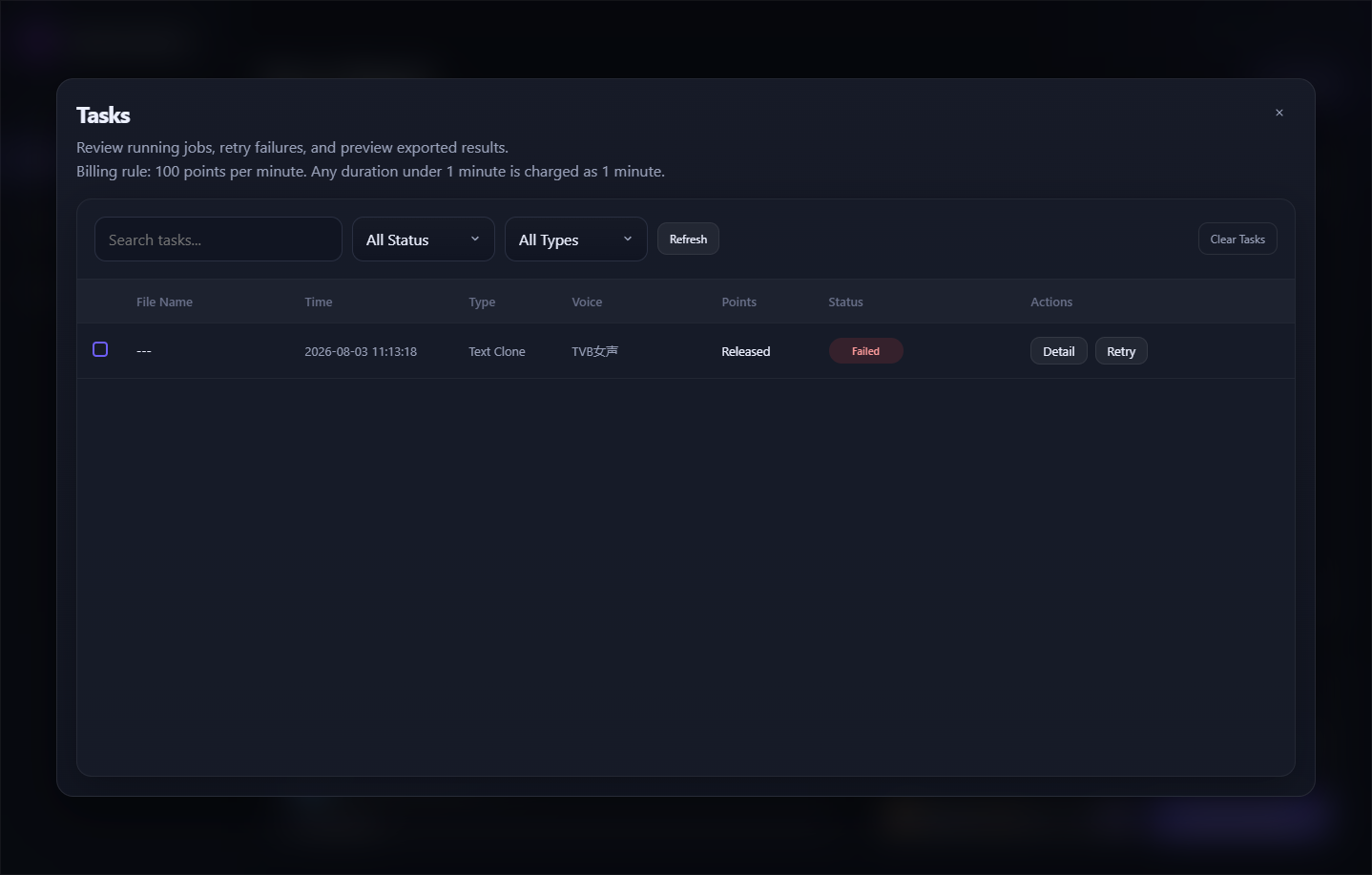 Filter and review Text to Speech, Voice Conversion, and custom voice tasks
Final VoiceLab checklist
Confirm these points before using a generated result in a project.
VoiceLab troubleshooting and FAQ
What can I use as the source for Voice Conversion?
The workspace provides source upload for audio or video and a microphone recording option.
Can I reuse a custom voice?
Yes. After creation, it appears under My Voices and can be previewed and selected for later tasks.
How do I choose a suitable voice?
Search or filter the Voice Library, play the available preview, and favorite useful choices before starting a longer task.
Where do I see processing status?
Open Tasks to filter jobs by status or type and review details, point usage, results, or retry options.
Does VoiceLab show point use?
Yes. The interface displays an available balance and task-related point information before or after processing.
What makes a good custom voice sample?
Use a short, clear, single-speaker recording without background music or overlapping voices, and only use a voice you are authorized to reproduce.
Generate and manage voice content with VoiceLab
Download VoiceLab to test a short script or recording, preview the selected voice, and review the result before processing a complete project.


