
WMV to MP3 Converter for Windows
A WMV file can contain video and an audio stream. Converting WMV to MP3 keeps the sound but not the picture, which is useful for a lecture, voice clip, or music track you want to play separately.
Quick answer
Open the WMV in GiliSoft Video Converter, confirm the original plays with sound, select an MP3 audio output profile, and choose a destination folder. Convert one file and listen to the beginning, middle, and end of the MP3 before processing a batch.
Match the Output to the Destination
| Goal | Recommended setting | Verification |
|---|---|---|
| Speech or lecture | Moderate MP3 bitrate and correct language track | Voices remain clear without needless file size |
| Music or performance | Higher-quality MP3 setting and correct channels | No clipping, dropouts, or collapsed stereo |
| Several audio tracks | Preview and choose the intended stream | Language or commentary matches the requested output |
How to Convert WMV to MP3
- Play the WMV source.
Confirm that it contains audible sound and note the duration. If the recording has more than one language or track, check which one you need.
- Load the file.
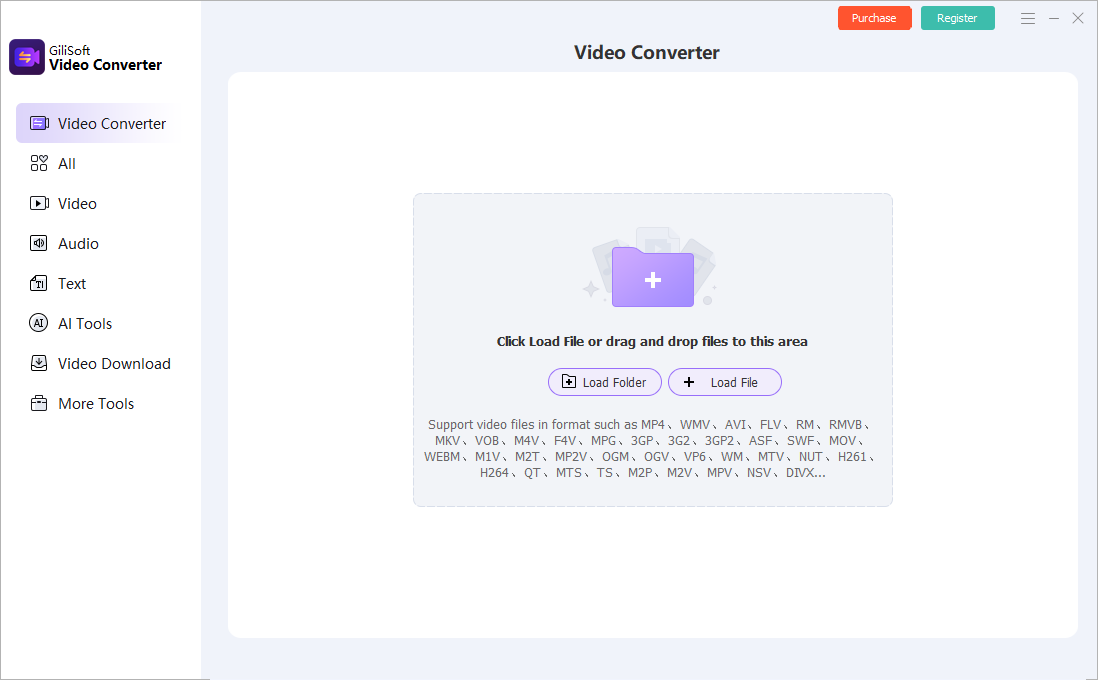
In GiliSoft Video Converter, open Video Converter and click Load File, or drag the WMV into the workspace.
- Choose MP3 output.
Select an MP3 audio profile rather than a video format. If the source exposes multiple audio streams, choose the intended one before export.
- Set the destination and convert.
Choose a separate output folder. Use a bitrate and channel setting appropriate for speech or music, then start conversion.
- Listen to the MP3.
Check the opening, a quiet passage, a loud passage, and the ending. Confirm the duration and that no expected audio is missing.
Keep the Audio You Actually Need
MP3 re-encodes the audio; increasing its bitrate cannot recover detail missing from the WMV source. Use a short sample to compare speech clarity, music dynamics, channels, and file size before a large batch.
For a recording with multiple languages or commentary tracks, verify the chosen stream in the exported MP3. Keep the WMV original because MP3 does not retain its video picture.
What WMV to MP3 Conversion Cannot Do
Renaming .wmv to .mp3 does not convert the file. Conversion also cannot create audio if the WMV has no soundtrack, repair severe recording distortion, or preserve its video frames and subtitles.
WMV to MP3 FAQ
Can I rename a WMV file to MP3?
No. Changing the extension does not extract or encode the audio. Convert the WMV audio stream to an MP3 file instead.
What if the WMV file has no sound?
Play the original WMV first and check whether it contains an audible audio stream. A converter cannot create a missing soundtrack.
Does the MP3 keep the video picture?
No. MP3 is an audio-only format. Keep the WMV original if you need the picture.
Which MP3 settings should I choose?
Use a bitrate and channel setting suitable for speech or music, convert a short sample, and listen to the result before a large batch.