GiliSoft MarkEase for Windows

Batch Photo Cleanup for Repeated Image Sets

Group similar photos, test representative files, remove repeated watermarks, dates, logos, labels, or small distractions, and export reviewed results without overwriting the originals.

  • Multiple-file import
  • Repeated cleanup tasks
  • Controlled batch exports
  • Exception review
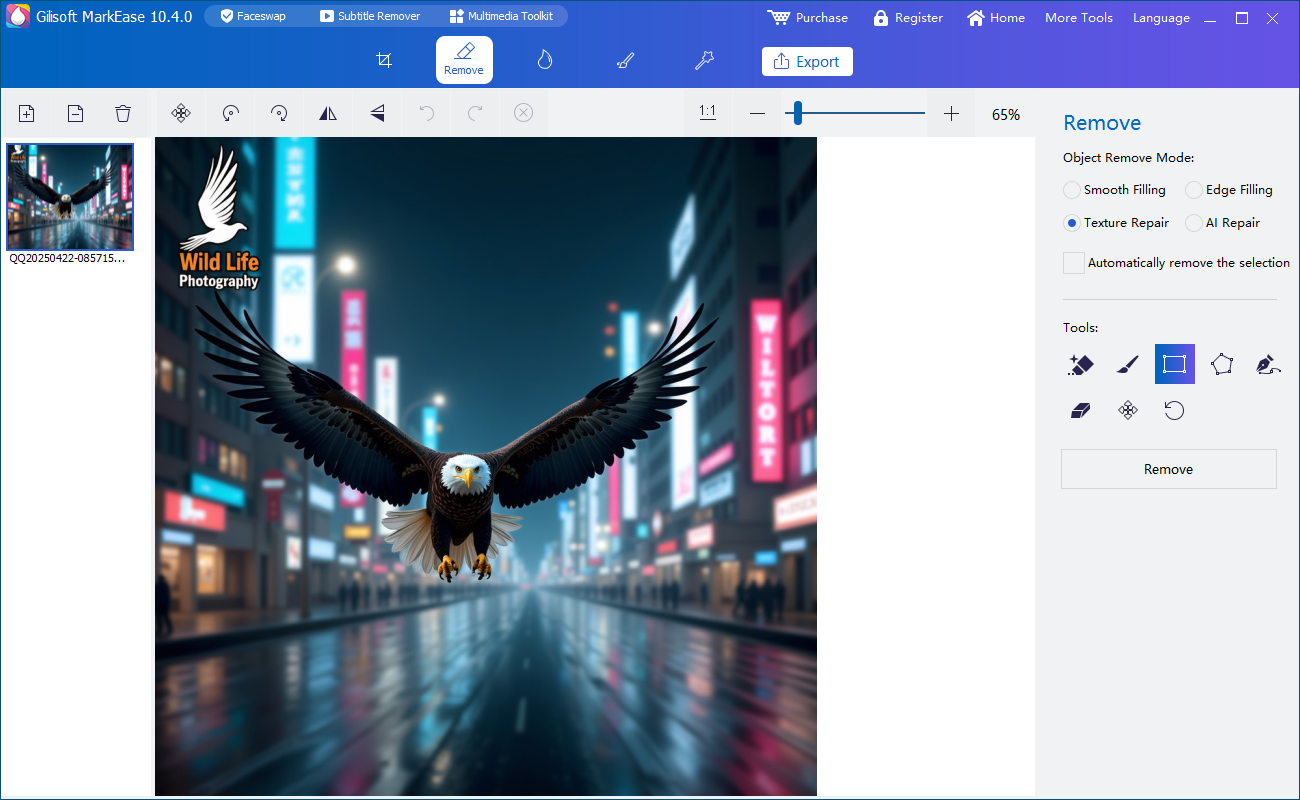
GiliSoft MarkEase main workspace with Add Files support for photo setsAdd files, test a group, export reviewed results

What Is Batch Photo Cleanup Software?

Batch photo cleanup software reduces repetitive setup when several images need similar watermark, date, logo, label, object, or export work.

Quick answerGiliSoft MarkEase supports batch-oriented photo processing. The reliable workflow is to group compatible images, test easy and difficult representatives, run only the approved group, export to a separate folder, and review outputs instead of assuming one selection fits every photo.

Batch processing works best when the unwanted element repeats in the same relative position and the photos share dimensions, orientation, framing, and similar background conditions. It is less suitable for a folder containing unrelated people, objects, shadows, camera angles, and image sizes.

Batch does not mean unattended perfection. Cleanup reconstructs selected pixels from surrounding context. A mask that works over sky can damage a face, product, sign, or patterned wall in another image.

Which Photo Cleanup Jobs Are Good Batch Candidates?

Repeated corner watermarks

The same authorized logo or text mark appears at a consistent location and scale across exported images.

Camera date stamps

Photos from one camera share dimensions, orientation, font, and timestamp position, with representative backgrounds tested first.

Template-generated labels

A catalog, property, event, or documentation system placed the same old label on a controlled image set.

Consistent screenshots

Captures use the same application size and overlay position, and the covered UI regions are similar enough for reviewable repair.

Repeated export preparation

Compatible photos need the same output folder, format, naming convention, or finishing workflow after cleanup.

Multiple marks within one set

Separate photo groups can each use a verified cleanup setup rather than mixing all files into one universal batch.

Poor candidates for one repeated batch

Unique photobombers, different foreground objects, variable shadows, mixed portrait and landscape orientation, watermarks that move, and overlays crossing different faces or product details usually require smaller groups or individual editing.

Group Photos Before You Run the Batch

The most important batch decision happens before processing. Build groups whose files genuinely share the same cleanup geometry and risk.

DimensionsSeparate images with different pixel width and height; a fixed region can move when canvas sizes change.
OrientationKeep portrait, landscape, rotated, and mirrored files in separate groups unless the workflow accounts for them.
Mark positionCheck the watermark's distance from each edge, scale, opacity, and whether responsive exports repositioned it.
Background typeSeparate plain sky and walls from faces, clothing, products, architecture, text, foliage, and patterned surfaces.
Image qualityGroup originals separately from screenshots, compressed downloads, scans, and resized derivatives.
Risk levelProcess client masters, legal records, irreplaceable archives, and public web images under different review requirements.

Use three representative tests

Choose an easy photo, a typical photo, and the hardest photo from each group. A batch is ready only when all three results are acceptable at 100% size and the exported format, resolution, color, and file name meet the project requirements.

How to Run a Batch Photo Cleanup Job with MarkEase

MarkEase provides an `Add File(s)` workflow for image sets. Prepare the batch so repeatable work stays efficient without sacrificing the originals or difficult exceptions.

  1. Copy the approved source setPreserve the original folder and create a clearly named working set for the specific cleanup job.
  2. Split files into compatible groupsUse dimensions, orientation, mark position, background type, and risk level to avoid one oversized mixed batch.
  3. Test easy, typical, and difficult examplesOpen representative images in GiliSoft MarkEase, make the cleanup selection, and inspect every reconstructed area at full size.
  4. Add the approved image groupUse the multiple-file workflow only after the representative tests confirm the operation and output settings.
  5. Export to a separate destinationKeep source and output paths distinct, use predictable names, and prevent silent overwrite of master photos.
  6. Review outputs and isolate exceptionsCheck the finished images, move failures into an exception group, and repair complex faces, text, objects, or backgrounds individually.
GiliSoft MarkEase main workspace for adding multiple photo files
The MarkEase main workspace accepts multiple files; group compatible images and test representative cases before processing the complete set.
GiliSoft MarkEase software box

Test a real image set with MarkEase

Download the Windows trial, prepare one compatible group, verify representative files, and inspect exported results before expanding the batch.

Download MarkEase Trial

Batch Cleanup vs Individual Photo Editing

MethodBest useAdvantageTrade-off
GiliSoft MarkEase batch workflowCompatible image sets with repeated cleanup and export requirementsReduces repeated file setup and keeps work in a photo-focused Windows applicationStill requires grouping, representative tests, and output review
Individual MarkEase editingUnique people, objects, shadows, and mixed backgroundsEach selection can match the actual imageSlower for large repeated sets
Crop a compatible setEvery mark lies on the same expendable edgeUses genuine remaining pixels without reconstructionChanges composition and may not suit mixed dimensions
Re-export from the sourceThe original application or template can generate clean images againPreserves true pixels and avoids repair artifactsSource projects or historic states may be unavailable
Professional automationLarge controlled productions needing scripts, layers, masks, and detailed exception rulesProvides deeper automation and custom quality controlsRequires more setup, skill, testing, and maintenance

Why batch repairs still need inspection

Adobe, Microsoft, and GIMP documentation emphasizes selection, contextual replacement, source control, and refinement. A repeated selection can encounter different image content in every file, so the automation should never replace visual quality control.

Editing principles consulted: Adobe Content-Aware Fill, Adobe sampling controls, Microsoft Generative Erase, and GIMP Heal documentation.

Batch Photo Cleanup Quality Control

Input count recordedKnow how many files entered each group and how many outputs and exceptions were produced.
Originals protectedKeep master files outside the output path and verify that duplicate names cannot overwrite them.
Watermark fully removedCheck outlines, shadows, glow, anti-aliased edges, and disconnected logo parts.
Subjects remain intactInspect faces, hair, hands, text, products, architecture, chart lines, and other high-value detail.
Output properties verifiedConfirm dimensions, orientation, format, compression, color, transparency, metadata, and file naming.
Exceptions isolatedMove failures into a separate queue rather than repeatedly applying the same batch setup.

Review every output or use a documented sampling plan

For client masters, product listings, archives, and small sets, inspect every file. For a large controlled set, define sampling frequency, automatic checks, exception rules, acceptance criteria, and who approves release. Always review files where the selected region intersects faces, text, product detail, or complex patterns.

Batch Photo Cleanup Software FAQ

Does GiliSoft MarkEase support batch photo cleanup?

Yes. MarkEase supports batch-oriented processing for repeated image cleanup tasks when several photos need similar removal and export work.

Which jobs are best for batch processing?

Repeated corner watermarks, dates, logos, labels, and overlays work best when images share dimensions, orientation, mark position, and background characteristics.

Can different people and objects be removed automatically from a mixed folder?

Not reliably with one repeated selection. Unique people, objects, shadows, and backgrounds usually require separate groups or individual masks.

Can portrait and landscape photos be processed together?

Only when the operation correctly accounts for orientation and relative position. Separating them is safer when a fixed watermark location is involved.

Should every batch output be inspected?

Review every output for high-value work, or use a documented sampling plan plus mandatory exception review for large controlled sets.

Should originals be overwritten?

No. Preserve the original set and export cleaned files into a separate folder.

Test a Batch Photo Cleanup Job with MarkEase

Group compatible images, test easy and difficult representatives, protect the originals, export to a separate folder, and review every exception.