
How to Convert Scanned PDF to Word on Windows
A scanned PDF contains page images. Ordinary PDF-to-Word conversion may preserve pictures of text without making them editable; OCR is the step that recognizes characters.
Quick answer
Check whether text can be selected. If not, run OCR in GiliSoft Formathor, export the recognized document to Word, and compare the result with the original scan before editing.
Before You Start
- Use a complete, upright scan with legible text and consistent page orientation.
- Keep a separate source copy and write Word output to a new folder.
- Identify languages, multiple columns, tables, handwritten notes, and low-quality pages that may need extra review.
Choose the Right Route
| Situation | Approach | What to verify |
|---|---|---|
| Words cannot be selected | Use OCR before Word export | Output contains editable characters |
| Two-column or tabular scan | Review reading order manually | Rows and paragraphs follow the source |
| Poor photo or handwriting | Improve source or transcribe manually | Critical facts are not guessed by OCR |
Convert Scanned PDF to Word on Windows: Step by Step
- Confirm the PDF is image-only
Try selecting a sentence; if the entire page behaves as one picture, use OCR.
- Run recognition
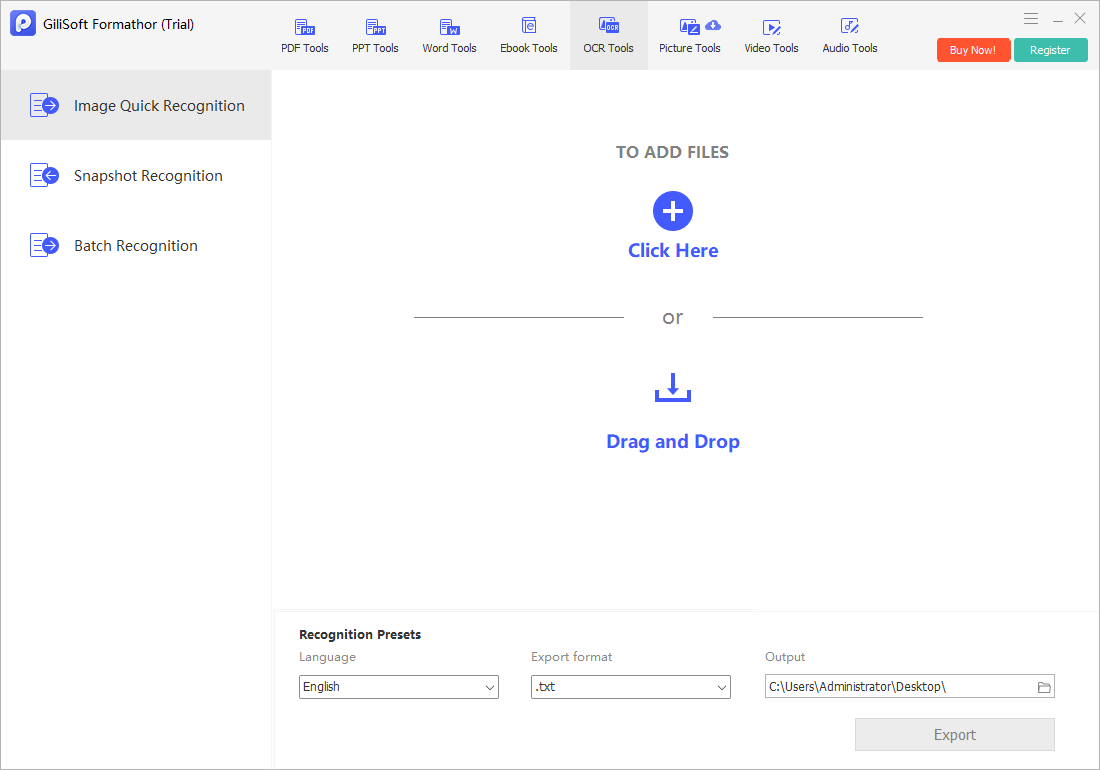
Open Formathor’s OCR-oriented workflow and choose an appropriate language or text-layer option where available.
- Export to Word
Use the PDF-to-file output that creates a Word document rather than only a searchable PDF.
- Compare and repair
Check headings, paragraph order, tables, images, symbols, and page breaks in Word beside the original scan.
Check the Result Before Sharing
- Proofread names, addresses, measurements, and amounts.
- Check the first, middle, and last pages as well as difficult layouts.
- Confirm the output is actual editable text, not just embedded page images.
Limits and Common Mistakes
Recognition accuracy depends on scan quality and layout. A text-layer PDF is searchable, but it is not the same deliverable as a Word document.
Frequently Asked Questions
Why is my Word file still an image?
The conversion likely carried through the scanned page without OCR; run recognition first.
Can I keep the exact PDF layout?
Not reliably. Word reflows text and tables, so complex pages usually require cleanup.
Can handwritten notes be converted perfectly?
Handwriting is especially error-prone; verify it manually against the scan.