
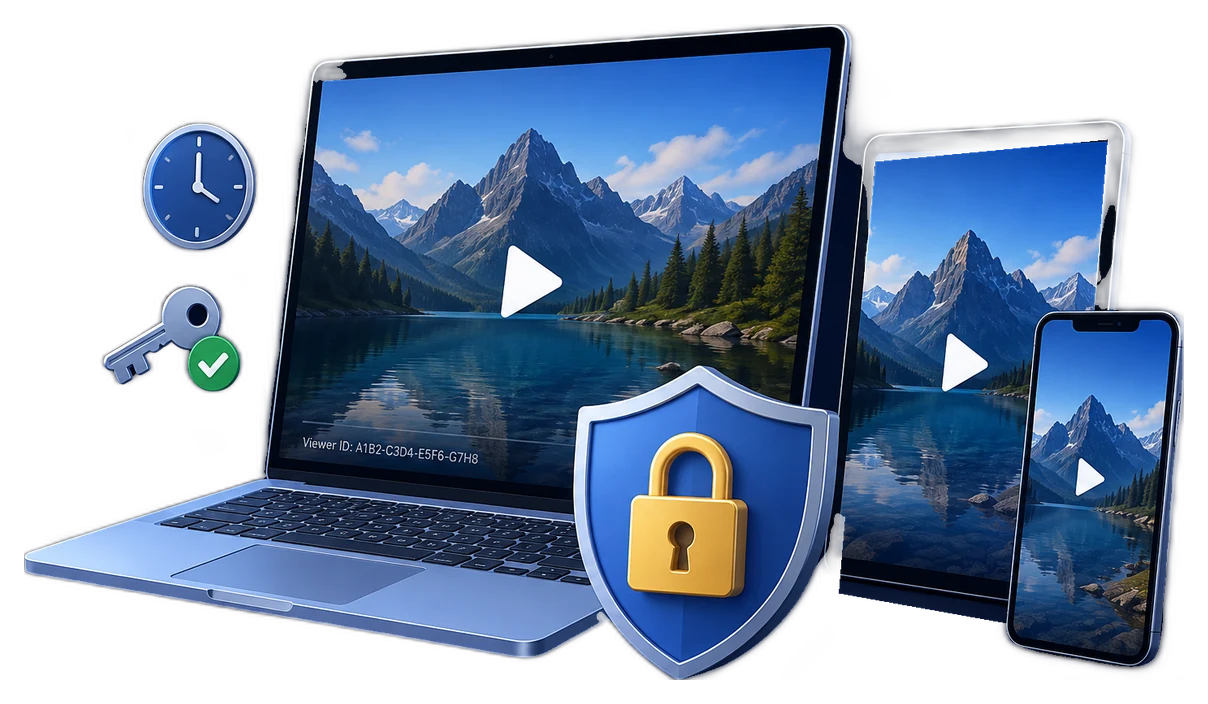
Video expiration is an entitlement decision, not just a date
Disabling video access after expiration means making playback fail when a viewer's approved entitlement ends. The trigger may be a calendar date, a number of days after first access, a maximum play count, the end of a subscription, completion of a course, or an administrator's decision to revoke access early.
The control has to follow the delivery model. An LMS can lock an expired enrollment. A streaming service can reject an expired signed token. An identity provider can disable an account and revoke sessions. None of those actions automatically reaches an ordinary MP4 that the viewer already downloaded. Downloaded or offline video therefore needs file-level playback rules if it must remain controllable after leaving the portal.
Choose the expiration model that matches the business rule
Fixed calendar end date
Best for a course cohort, event replay, client review, product launch, or contract that ends for everyone at a known time.
Duration from first access
Best when each buyer or learner receives the same viewing period but begins on a different day.
Playback or preview limit
Best for rentals, paid previews, evaluation copies, or material that should be watched only a defined number of times.
Account or enrollment validity
Best for LMS, membership, and employee portals where access follows an active account, group, subscription, or enrollment.
Device-bound validity
Best when an offline package should remain on an approved PC or USB kit rather than travel with a shared password.
Manual early revocation
Best as an exception path when a user leaves, a payment is reversed, a password leaks, or access must stop before the planned date.
What actually stops working when access expires?
| Delivery method | What expires | What happens to a downloaded copy | Best use |
|---|---|---|---|
| LMS course validity | Enrollment or course availability | An open file already saved outside the LMS is not automatically disabled | Assigned learning, progress, and completion records |
| Signed streaming URL or token | The request token or signed playback URL | Normally no reusable open download is provided | Authenticated online streaming |
| Portal account or session | User account, refresh token, or application session | Files already copied outside the portal need separate controls | Employee, subscriber, and partner portals |
| Ordinary MP4 download | Only the link or portal entitlement | The existing local file normally keeps playing | Content with no post-download control requirement |
| GiliSoft protected package | Configured playback password, date, usage, device, or blacklist rule | The protected local package keeps enforcing its configured playback gate | Paid, downloaded, partner, field, and offline delivery |
Docebo distinguishes a true enrollment expiry from a soft deadline that may still allow course access after the date. Microsoft likewise notes that revoking identity access can involve several layers because access tokens and application sessions do not all end at the same instant. These are useful reminders: define the exact behavior you expect, not merely the date shown in an admin panel.
A reliable expiration and revocation workflow
- Define the entitlement eventWrite down what ends access: a fixed date, first-play duration, play count, subscription cancellation, course completion, contract end, or administrator action.
- Keep each viewer or cohort identifiableIssue individual or batch-specific playback passwords instead of one permanent credential shared by every buyer, employee, or member.
- Choose the primary expiry ruleApply the date window, validity period, playback count, or preview rule that directly matches the commercial or training promise.
- Add device and traceability controls where justifiedUse PC or USB binding for controlled offline delivery and a viewer watermark when accountability matters.
- Retain the project recordsStore the project ID, encryption key, credential register, time zone, issued passwords, and approved devices in an administrator-controlled location.
- Test before releaseConfirm playback before the deadline, at the boundary, after expiry, while offline when allowed, and after an individual password is revoked.
- Use the early-revocation path when necessaryDisable the related portal or LMS account, then blacklist the affected GiliSoft playback password when the project uses online verification.
Use GiliSoft when the video must stay controlled after download
GiliSoft Video DRM Protection is designed for the part of the journey that account permissions alone do not solve: a protected video has already been downloaded or delivered for offline playback, but its viewer, duration, device, and reuse still need rules.
Build the expiry rule into the protected viewing workflow
Protect the video on Windows, create playback passwords with the required validity settings, add play or preview limits where appropriate, bind playback to an authorized PC or USB drive, place a dynamic viewer watermark on screen, and keep an online blacklist available for individual early revocation.
Platform note: protection and password administration run on Windows. Protected content can play on supported Windows, macOS, Android, and iOS playback platforms, so the viewing audience is not limited to Windows.


Where time-limited playback is most useful
Paid courses and coaching
Give learners a defined study or replay window without distributing a permanently open lesson file.
Membership video libraries
Align downloaded member content with an active subscription and retain a path for cancellation or abuse cases.
Contractor and partner training
End access when the engagement finishes, while supporting offline viewing during the approved project period.
Client review and approval
Limit confidential demos, campaign cuts, product previews, and draft presentations to the review schedule.
Rental and event replay
Use a fixed window or viewing limit for recordings whose value depends on temporary access.
Compliance and certification
Match playback validity to a training cycle, certification period, or role assignment, then remove access during offboarding.
Common expiration mistakes
The local open video may keep playing after the link disappears.
Early revocation then disrupts everyone or becomes impossible to attribute.
Some learning platforms display a due date while still allowing late access.
Revoking an identity token may not instantly close every separate application session.
The deadline must behave consistently at the boundary and under the intended connectivity mode.
Administrators need durable project records to manage credentials and revocation later.
Expiration test checklist
Video access expiration FAQ
Can a protected video stop playing automatically on a fixed date?
Yes. Use a validity or end-date rule when creating the playback credential, then test the protected package before and after the deadline.
Can I revoke one viewer before the scheduled expiration?
Yes, when the project uses the relevant online verification workflow. Give viewers individual credentials so the affected playback password can be blacklisted without disabling everyone else.
Does deleting the download link disable a video already saved on the viewer's device?
Not if it is an ordinary open video file. A protected package with file-level playback rules is needed when access must remain controlled after download.
Does expiration require a constant internet connection?
That depends on the selected protection and verification mode. Offline playback can be supported under configured local rules, while live blacklist checks require connectivity at the relevant verification point.
Can protected videos be watched on Mac, Android, or iPhone?
Protection and password administration run on Windows. Protected content can play on supported Windows, macOS, Android, and iOS playback platforms.
Can access be extended after the original period?
Yes. Manage the viewer's credential according to the project workflow and issue or update access only after the renewal, course extension, or contract change has been approved.
Research and implementation references
- MicrosoftRevoke user access in Microsoft Entra ID for the difference between disabling identity access, revoking tokens, disabling devices, and ending application sessions.
- MicrosoftRefresh tokens in the Microsoft identity platform for token expiry, revocation, and reauthentication behavior.
- DoceboSetting time validity for courses for fixed validity, days from enrollment or first access, soft deadlines, and expired-course behavior.
- CloudflareSecuring Stream videos for signed tokens and limited-time online playback.
- NISTLeast privilege for restricting access to the minimum resources and duration required for an assigned task.
Make the end of access enforceable
Use Video DRM Protection when a paid, training, membership, client, or contractor video must remain governed after it has been downloaded or delivered offline.