
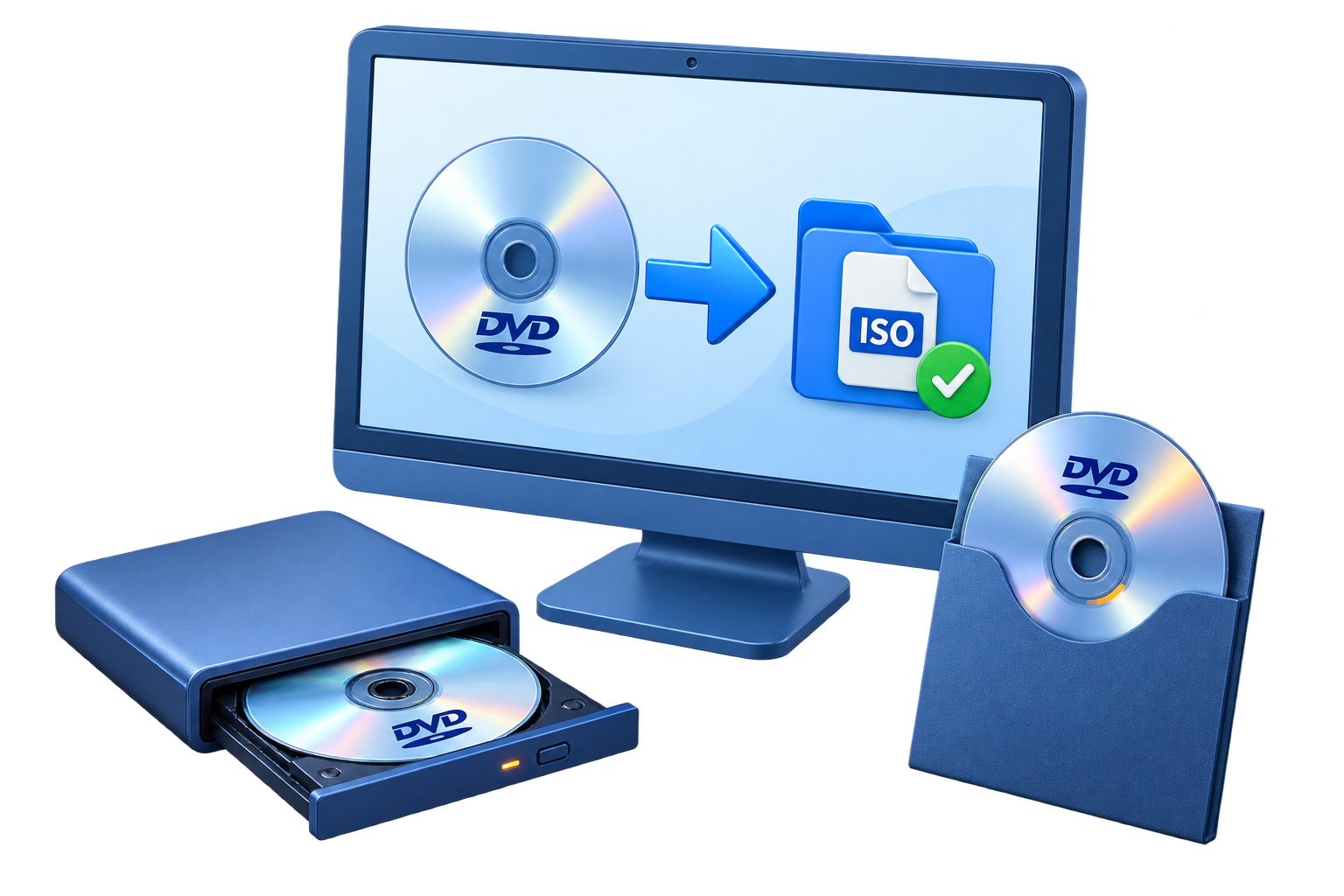
Choose the Right DVD Backup Format
Pick the output by how you will store and use the copy. Home DVD Copy preserves DVD structure; it does not turn the disc into a standalone MP4 video.
ISO image
One file is easier to catalog, move, and store as a disc backup.
DVD folder
Keep the VIDEO_TS structure accessible without mounting an ISO.
Blank disc
Make a physical copy or restore a saved ISO or DVD folder.
Prepare Before You Start
Check the source disc
Confirm the DVD is readable and that you own it or are authorized to copy it.
Check the destination
Allow enough disk space for an ISO or folder, or insert compatible blank media for a disc copy.
Free the optical drive
Close any player or disc utility that may be holding the source or burner open.
Plan a playback test
Choose how you will mount the ISO, inspect the folder, or play the copied disc.
Back Up a DVD on Windows
Check the original
Insert an authorized DVD, confirm it reads correctly, and decide whether you need an archive file, folder, or new disc.
Select DVD Copy and the source
Open GiliSoft Home DVD Copy, choose the DVD Copy workspace, and select the source optical drive.
Set the destination
Choose ISO image, DVD folder, or compatible blank disc. For an ISO, enter the output location and filename.
Run the copy
Confirm the selected source and output before starting; keep the disc and drive available until the job ends.
Test the result
Mount the ISO, inspect the VIDEO_TS folder, or play the copied disc before treating the backup as complete.
 DVD Copy workspace: choose the source drive, then set Image File and ISO when creating an ISO backup.
Where Home DVD Copy Fits
Use GiliSoft Home DVD Copy to preserve an existing DVD as an ISO, DVD folder, or another disc. To put unrelated video files onto a new DVD with a menu, use Movie DVD Creator instead. To create an MP4, use a video conversion workflow rather than a disc-copy workflow.
Troubleshooting Checklist
- The source DVD is not detected: check the optical drive, clean the disc gently, and close any player using it.
- The ISO or folder copy will not start: check free disk space, write permission, output path, and the selected source drive.
- The backup seems incomplete: compare the resulting ISO size or VIDEO_TS contents with the source, then retry from a readable disc.
- The copied disc will not play: confirm the blank media and burner are compatible, then test playback in another DVD player.
- The ISO will not mount or open: verify that the copy completed and test the file with a compatible ISO-mounting tool.
Frequently Asked Questions
Is an ISO the same as an MP4?
No. An ISO preserves a disc image, while MP4 is a video file for playback on compatible devices.
Can I burn a saved ISO or DVD folder to a disc?
Yes, Home DVD Copy supports restoring an ISO image or DVD folder to compatible blank DVD media.
Should I keep the original DVD?
Yes. Keep the original until the backup has been opened and tested for the way you intend to use it.