

Quick Answer
Choose the Protection Boundary
| Risk or need | Protection boundary | Important limitation |
|---|---|---|
| Lost or stolen powered-off laptop | Full-disk encryption with pre-boot authentication | Recovery and startup compatibility must be planned |
| Only selected work folders are private | File or folder encryption | Other disk data remains outside that boundary |
| Shared computer with application restrictions | File Lock Pro or access-control workflow | Access controls are not the same as full storage encryption |
| Data copied to USB drives | Separate removable-drive encryption | Laptop encryption does not automatically protect exported copies |
Prepare the Laptop Before Encryption
Verify the backup
Store important files independently and open representative documents rather than trusting a completed copy message.
Prepare recovery
Create and test the recommended recovery media before changing a bootable Windows partition.
Check power and disk health
Use AC power and resolve storage errors, unstable controllers, or unexpected shutdowns first.
Encrypt the Windows Laptop Step by Step
Back up the laptop
Copy important files to independent storage and open representative files to verify the backup.
Prepare recovery media
Create the recommended bootable recovery path and store it separately before changing the system disk.
Confirm the system-drive layout
Identify the Windows system disk, connected data disks, free space, and any multi-boot or unusual partition arrangement.
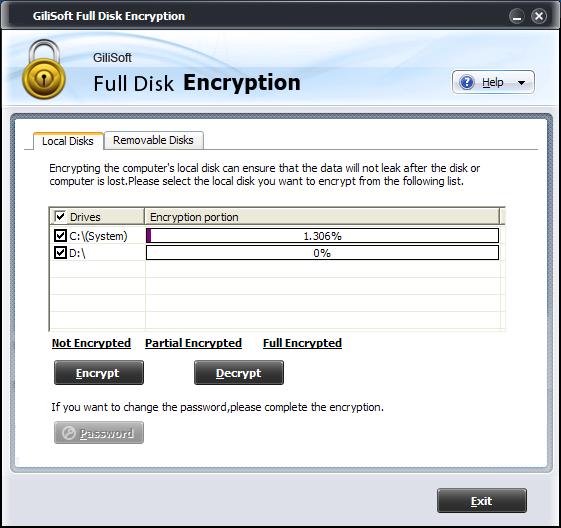 Review the detected disks and confirm the system-drive layout before making changes.
Select the disk and set the password
Open GiliSoft Full Disk Encryption, select the correct local disk, choose Encrypt, and create a strong unique password.
Let encryption finish without interruption
Keep the laptop connected to power and do not force shutdown, sleep, or storage removal while processing is active.
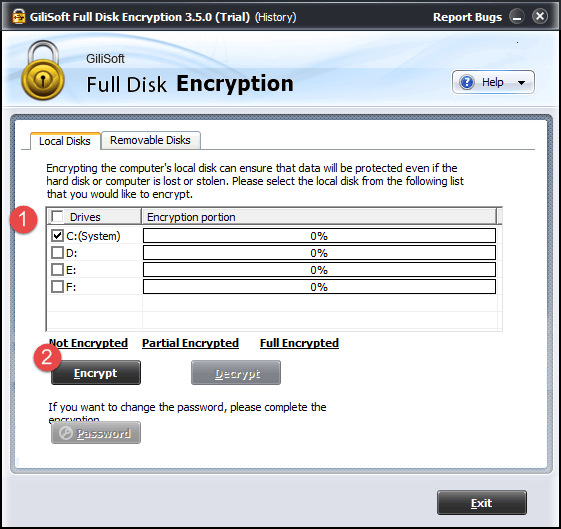 Select the intended local disk, choose Encrypt, and confirm the password only after checking the target.
Restart and verify pre-boot access
Reboot the laptop, follow the password prompt, confirm Windows starts normally, and keep the tested recovery path available.
Verify Startup and Recovery
Pre-boot prompt
Restart from a powered-off state and confirm the expected authentication prompt appears.
Windows startup
Enter the correct password and verify Windows, applications, and required data disks open normally.
Recovery media
Keep the tested bootable recovery path accessible to the authorized owner or administrator.
Recovery records
Store passwords, ownership details, and recovery instructions separately from the laptop.
Decrypt Only with the Same Care
Decryption rewrites protected storage and also needs uninterrupted power, the correct target, and a verified backup. Start it only when there is a clear operational reason, then allow the process to finish.
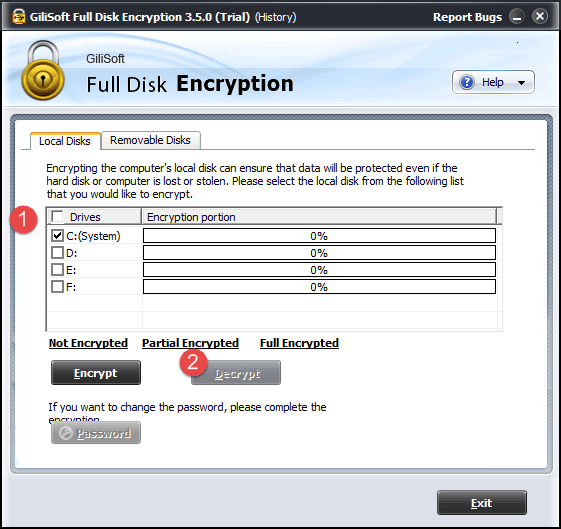 Confirm the disk and password before starting decryption, and keep the laptop powered until completion.
Common Laptop Encryption Mistakes
- Encrypting the only copy of important files.
- Starting without bootable recovery media or a documented recovery route.
- Selecting the wrong disk because drive letters and labels were not checked.
- Running on battery power or allowing sleep and shutdown during processing.
- Forgetting removable drives and exported copies outside the encrypted laptop.
- Assuming full-disk encryption protects an already unlocked Windows session from malware or misuse.
Laptop Encryption FAQ
Should I encrypt the whole laptop or only selected folders?
Use full-disk encryption when the device itself may be lost, stolen, or accessed offline. Use file or folder protection when only selected content requires a separate boundary.
How long does laptop encryption take?
Time varies with disk size, used space, storage speed, hardware condition, and system activity. Keep the laptop powered and plan the change outside critical working hours.
Can encryption replace a backup?
No. Encryption protects confidentiality; it does not restore a failed disk, corrupted file system, accidental deletion, or forgotten password.
What happens if Windows cannot start?
Use the recovery media and procedure prepared before encryption. Recovery planning must be tested before the system disk is changed.
Does full-disk encryption protect files after login?
It mainly protects data at rest while the disk is locked. Malware or an unauthorized person using an already unlocked session requires separate controls.
Can every Windows laptop use the same workflow?
No. Firmware, boot mode, storage controller, disk layout, multi-boot configuration, and organization policy can affect compatibility. Test before broad deployment.