
System and preinstalled apps
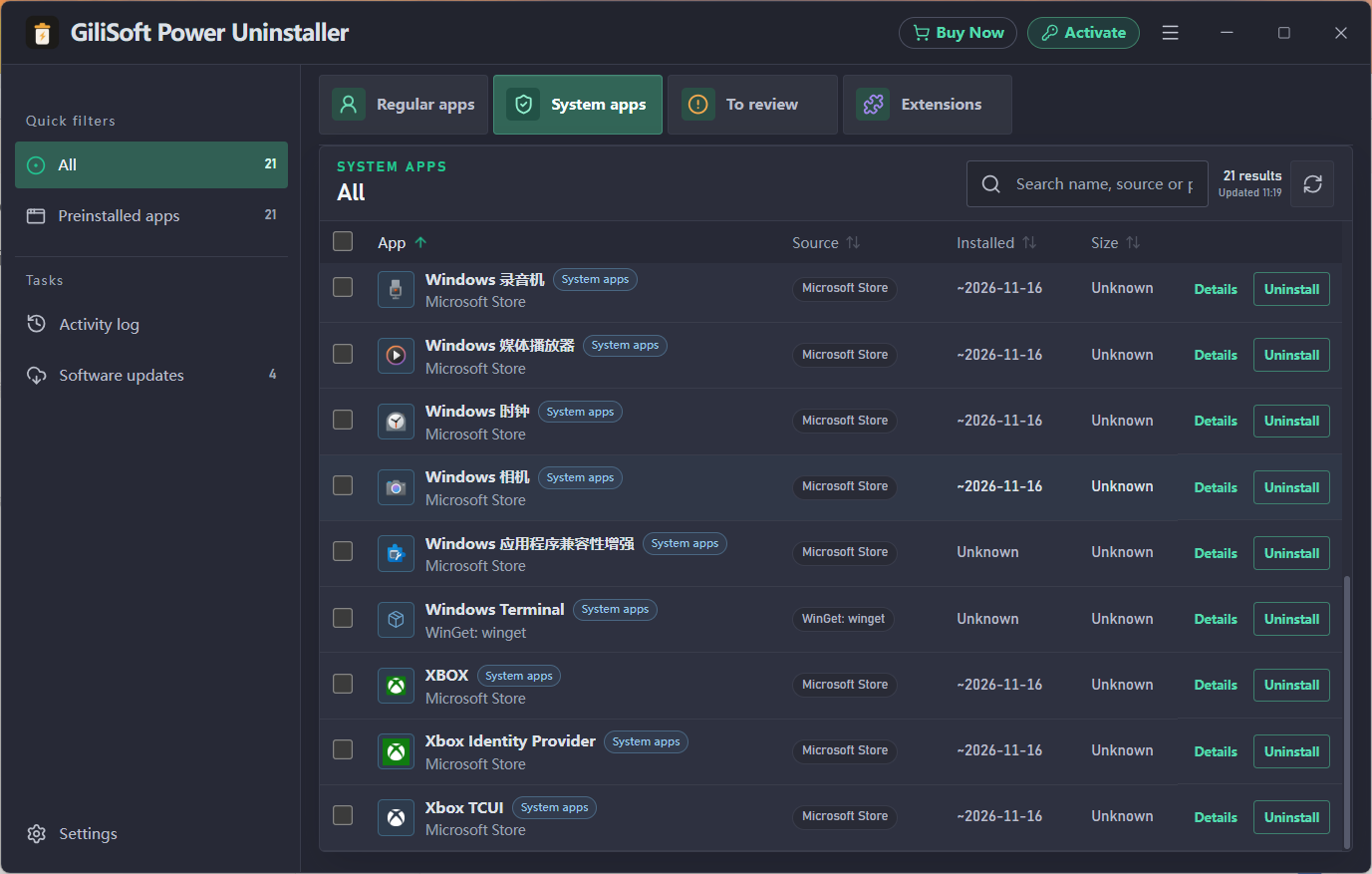
Open System apps to review Windows and preinstalled components. Confirm the app name and purpose before uninstalling a component that another Windows feature may depend on.
Use GiliSoft Power Uninstaller to find installed software, remove unwanted apps, clean leftovers, manage browser extensions, and keep applications up to date.

Power Uninstaller brings regular apps, Windows system apps, Microsoft Store apps, portable programs, browser extensions, and software updates into one Windows maintenance tool.
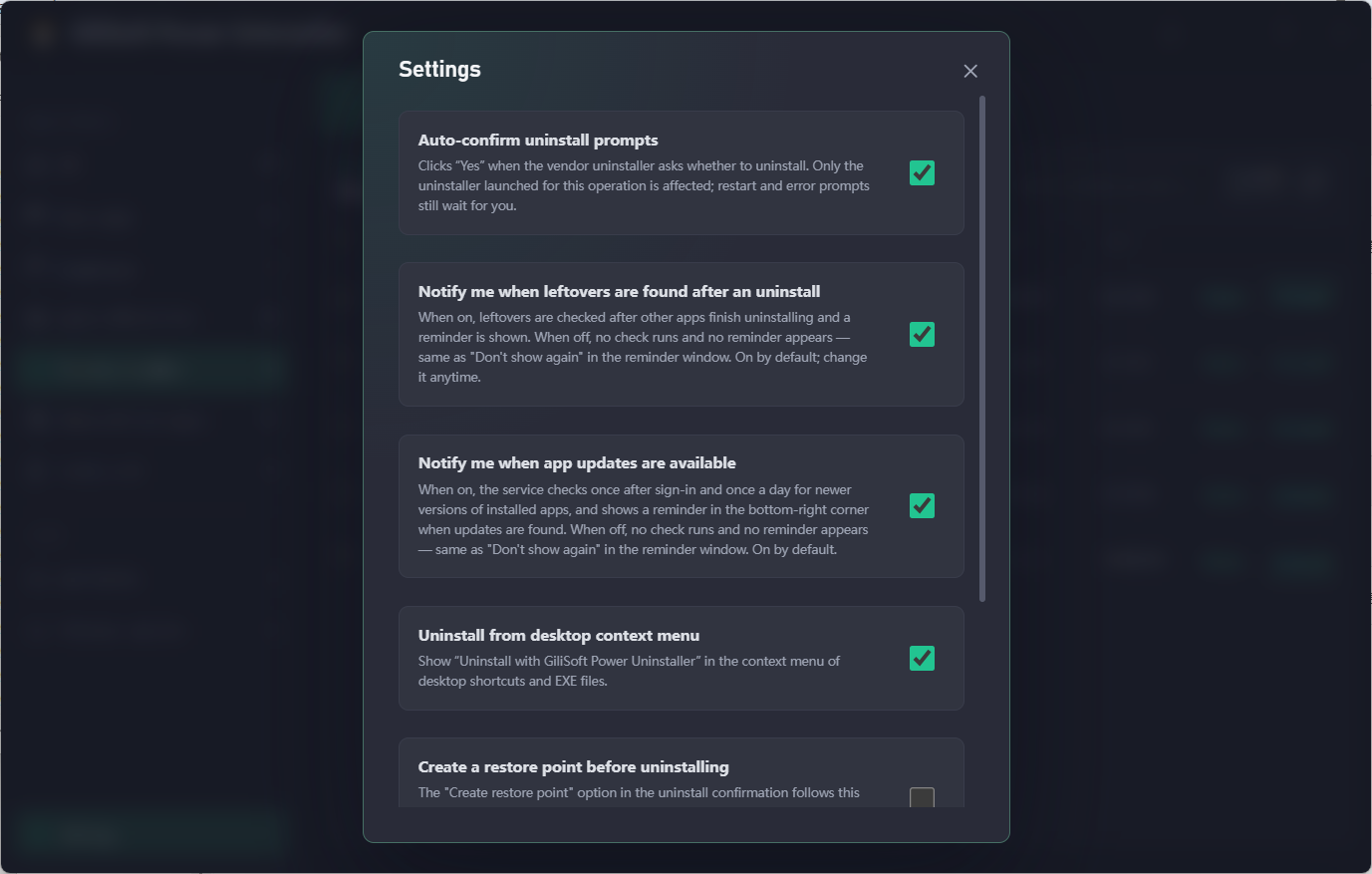
Open the relevant category, search or filter for an app, select Uninstall, choose the safety and cleanup options, and review the completion report. Use Settings to control automatic prompts, notifications, context-menu access, and restore point behavior.
| View | Use it for | What to check |
|---|---|---|
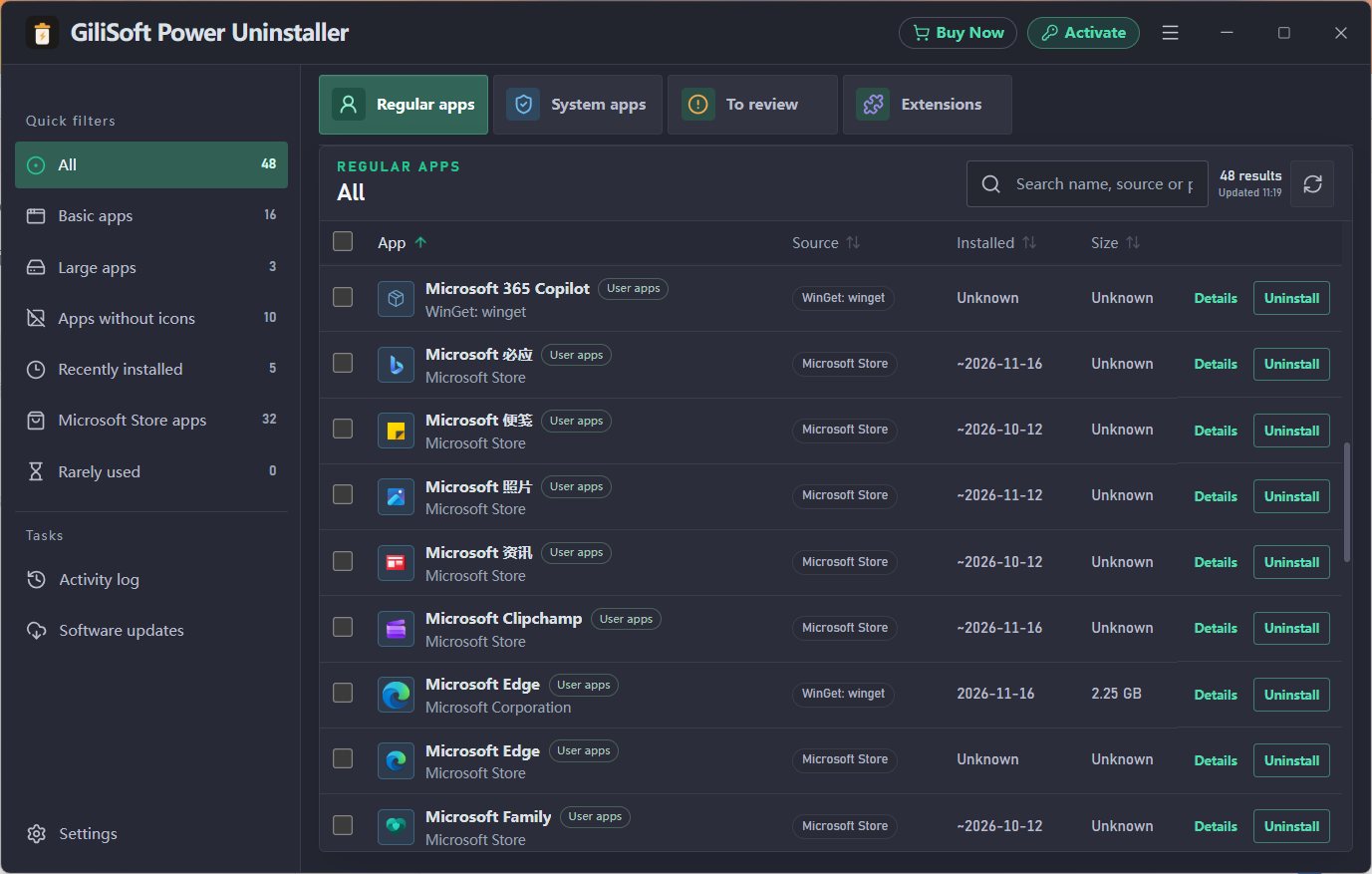
| Regular apps | Desktop apps, Store apps, large apps, and recently installed apps | Source, installed date, size, and app name |
| System apps | Windows and preinstalled components | Whether the component is needed by Windows or another feature |
| To review | Portable apps and install clues | Portable location and whether the app has its own uninstaller |
| Extensions | Chrome and Edge browser extensions | Browser, version, enabled status, and extension ID |
| Software updates | Apps with a newer version available | Current version and new version before updating |
Open Regular apps and use the search box or a quick filter such as Large apps, Recently installed, Microsoft Store apps, or Apps without icons. Select the row you want to review.
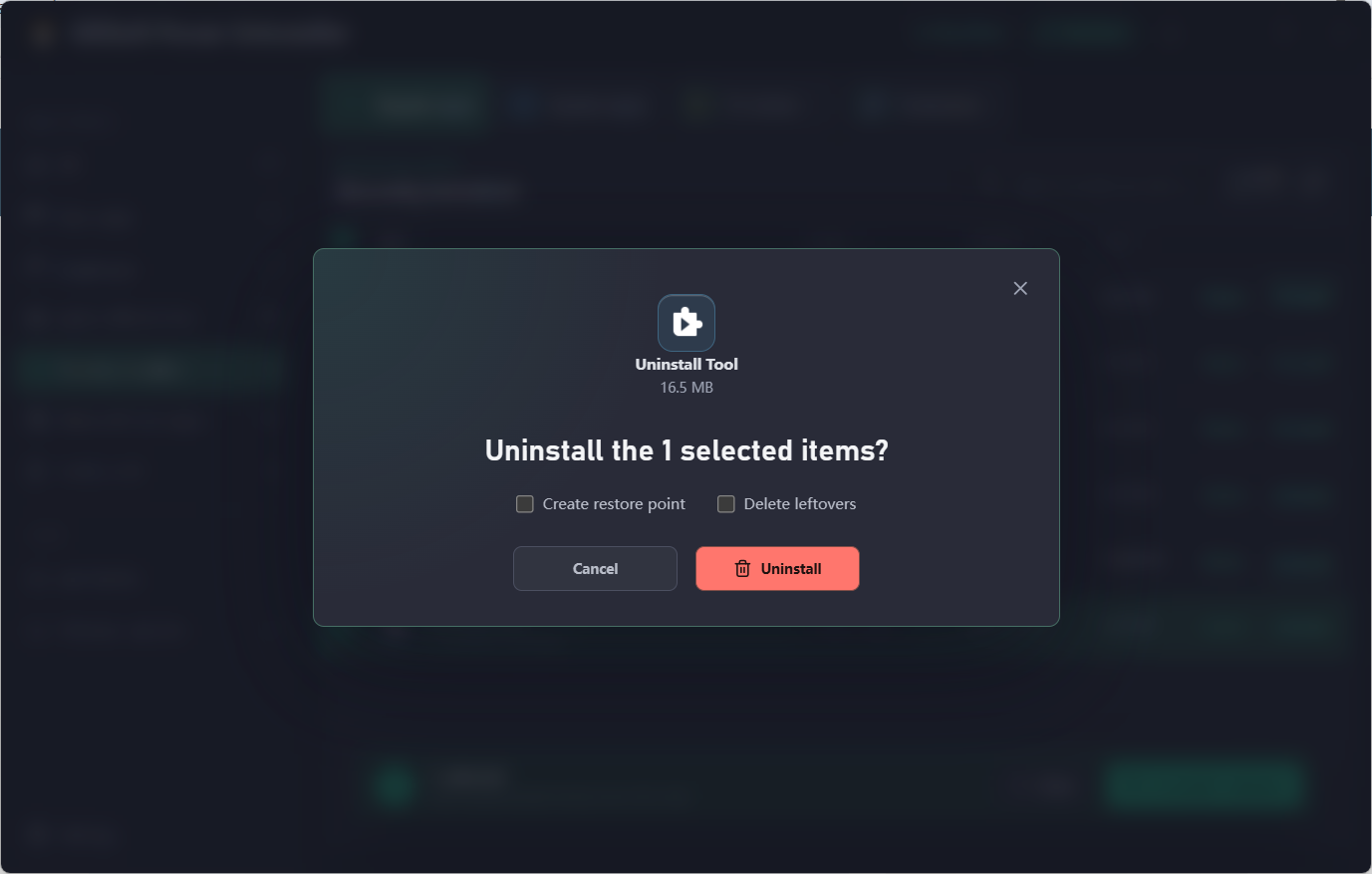
Select Uninstall. Before starting, choose whether to create a Windows restore point and whether to delete leftovers after the vendor uninstaller finishes.
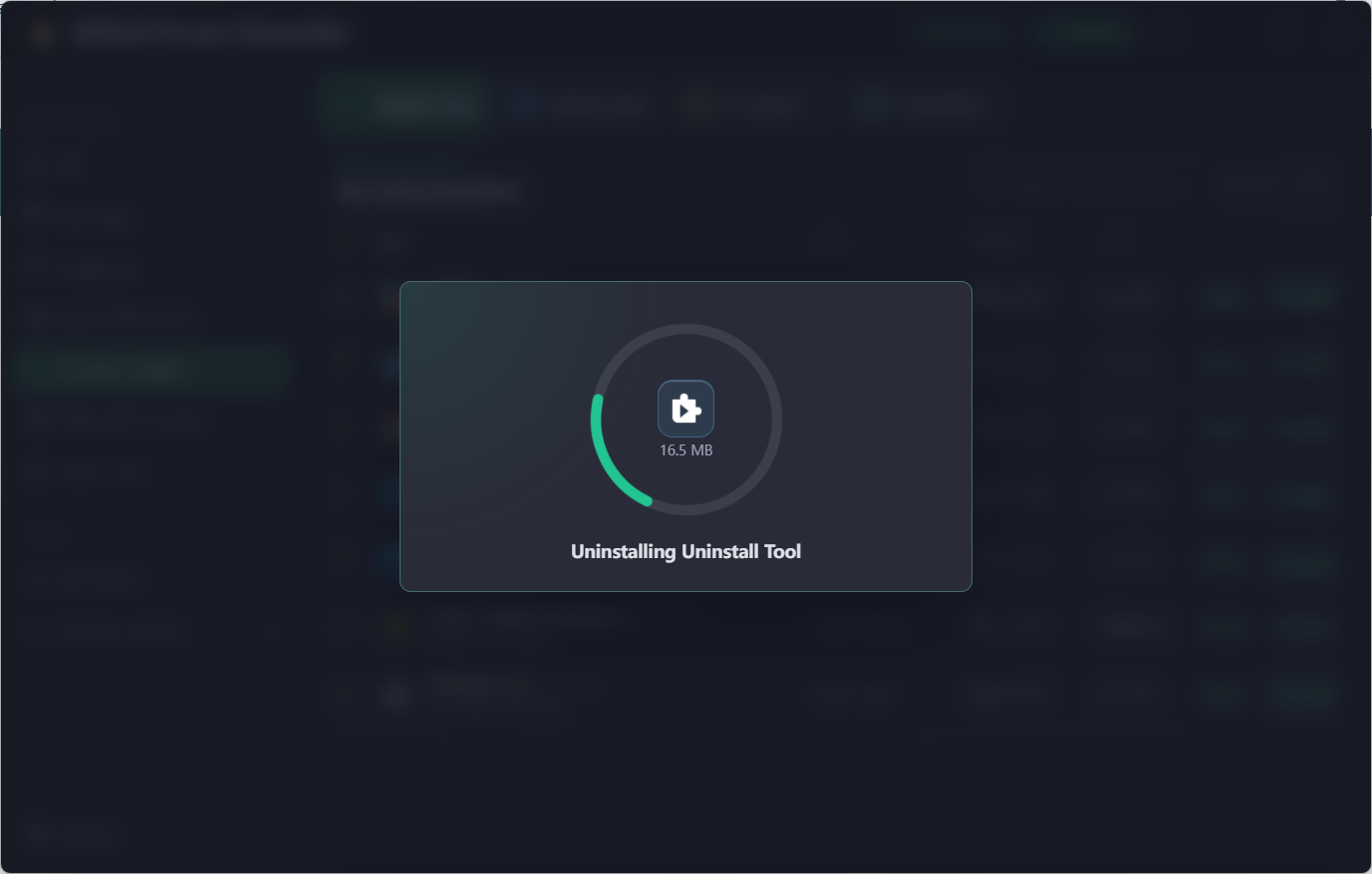
Let the vendor uninstaller complete. Keep the application and related prompts open until Power Uninstaller shows that the operation has finished.
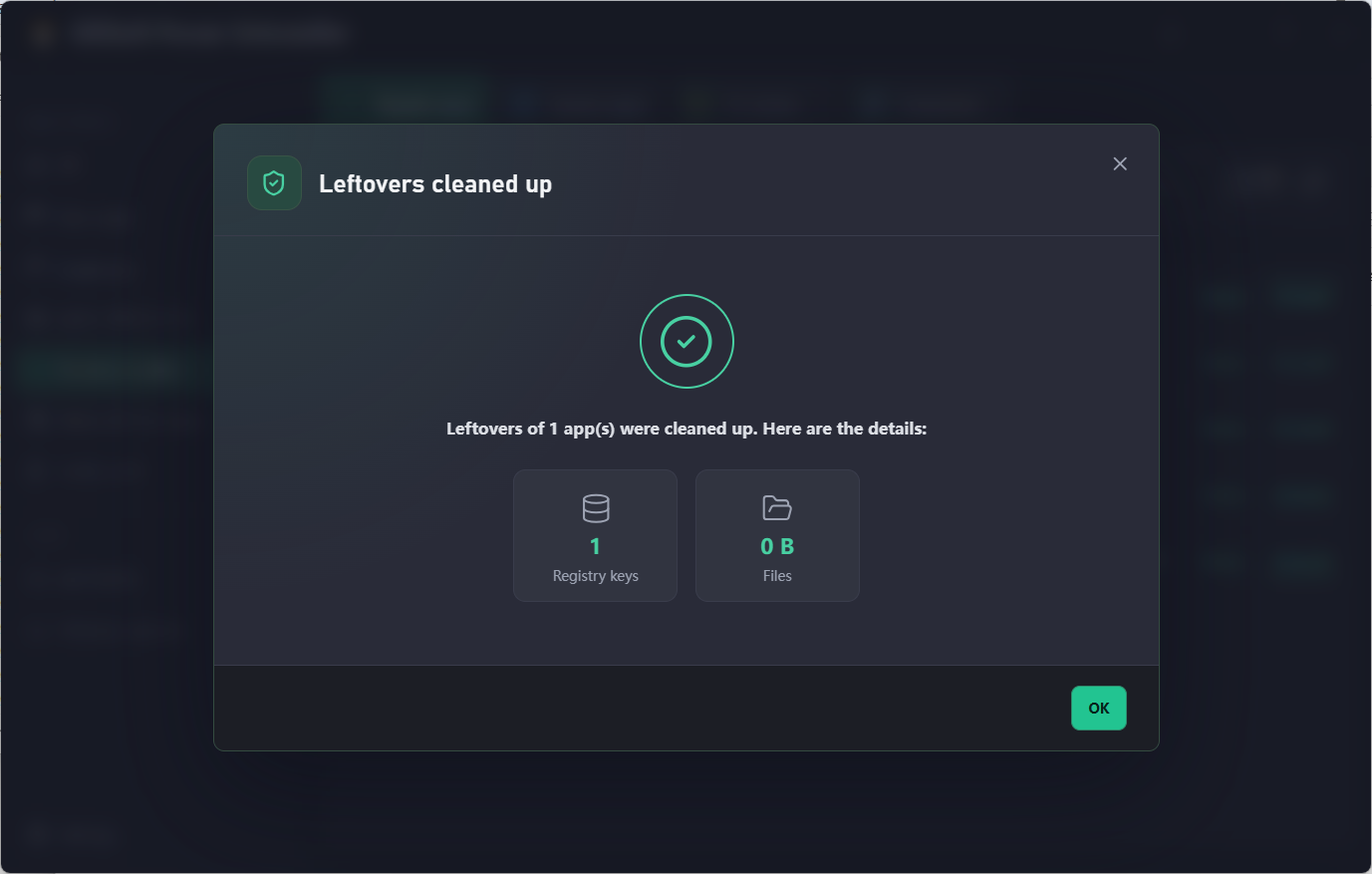
When the operation is complete, review the number of registry keys and files cleaned. If something still appears in the list, refresh the app view and check whether it is a separate installation or component.
Open System apps to review Windows and preinstalled components. Confirm the app name and purpose before uninstalling a component that another Windows feature may depend on.
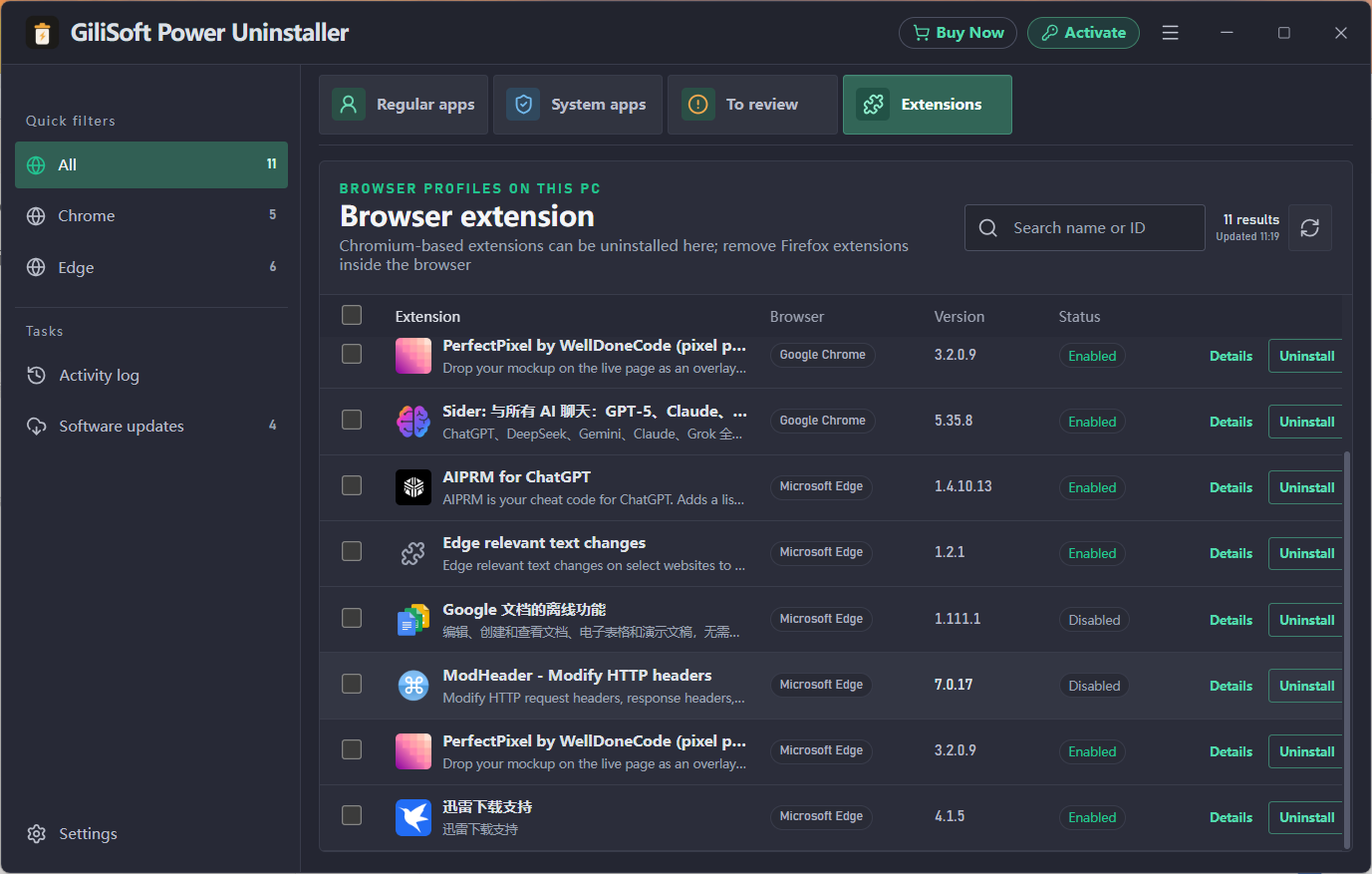
Open Extensions, choose the browser, and review the extension name, version, browser, and enabled status before selecting Uninstall.
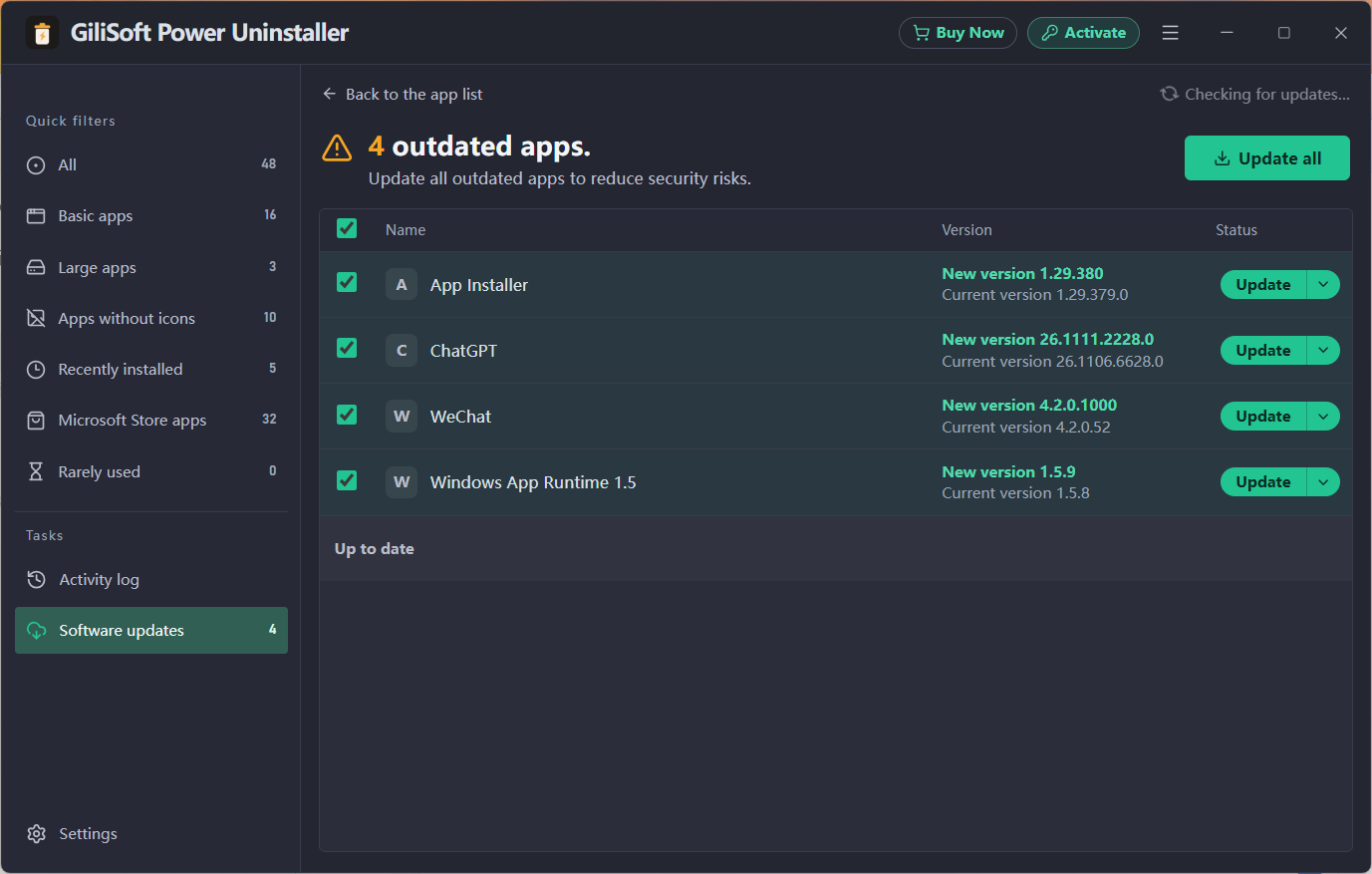
Open Software updates from the Tasks section. Select the apps you want to update, compare the current and new versions, then choose Update or Update all. Keep work saved before updating software.
Open Settings to decide how Power Uninstaller behaves during routine maintenance.
Power Uninstaller targets leftovers associated with the selected app. Review the result and keep a backup of important data before uninstalling.
System apps and preinstalled apps have their own view. Review the app name and purpose before removing a Windows component.
Open Extensions, choose Chrome or Edge, review the browser, version, and status, then select the extension you want to remove.
Open Software updates to review outdated apps and use Update or Update all where available.
It creates a Windows restore point before the uninstall when the option is selected or enabled by default in Settings.
Use Power Uninstaller to review, uninstall, clean, and update software from one place.