

How to Crop a Video Without Losing Quality
Cropping can improve the composition of a video, but it removes part of the picture. The practical goal is to avoid additional visible loss from unnecessary upscaling and heavy compression.
Quick answer
Keep the original file, crop only the unwanted edges in GiliSoft Video Editor, and check how many pixels remain. Export at a suitable size without stretching the crop beyond its useful resolution, then compare the saved video with the source. Cropping itself cannot preserve the pixels outside the selected frame.
What quality can a crop preserve?
A 1920 × 1080 video cropped by 240 pixels on each side leaves a 1440 × 1080 picture. Exporting it at 1920 × 1080 scales those remaining pixels up; it does not bring the discarded detail back. This example also changes the aspect ratio from 16:9 to 4:3, so choose an output shape deliberately rather than stretching it.
| Decision | Likely result | What to check |
|---|---|---|
| Remove encoded black borders | Most useful picture detail may remain. | Confirm the bars are in the video, not added by the player. |
| Crop deeply into the picture | Faces, UI text, and fine detail have fewer source pixels. | Preview at the final display size before exporting. |
| Enlarge or heavily compress the crop | The export may look softer or show artifacts. | Use a suitable output size and compare a short sample. |
Crop a video in GiliSoft Video Editor
- Start with the original video
Keep an untouched copy. Repeatedly exporting and cropping an already compressed file can add avoidable loss.
- Open the crop controls
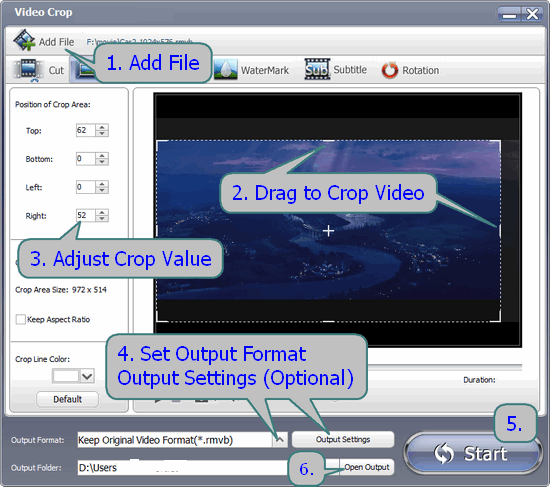
Add the file in GiliSoft Video Editor and open Crop. Use the preview to mark the area you want to keep.
- Set the frame and aspect ratio
Remove unwanted borders first. Check the crop position across the entire clip so moving subjects, titles, or controls do not leave the frame.
- Choose output settings
Select a destination format and resolution that fit the remaining crop and where the video will be watched. Avoid stretching a 4:3 crop to 16:9.
- Export a sample and compare
Inspect fine text, faces, edges, and motion in the saved file at the intended viewing size. Widen the crop or revise export quality if it looks soft.
Check the export before publishing
Compare a short section of the cropped export side by side with the source. Look at small text and facial detail, then inspect movement near the new frame edges. A larger resolution number is not proof of better detail after cropping.
FAQ
Can I crop a video with no quality loss at all?
The removed area is lost from the exported picture, and many exports re-encode the remaining image. You can minimize additional visible loss by cropping modestly, avoiding unnecessary enlargement, and checking the export.
Does cropping always make the saved video blurry?
No. Blur becomes more noticeable when a small remaining area is enlarged or the output is compressed too heavily. A crop that removes only unwanted borders may retain most useful detail.
How do I remove black bars without distorting the video?
First check whether the bars are encoded in the file. If they are, crop to the picture edges, preserve the resulting aspect ratio, and preview the export. Bars added only by a player or output mismatch may need a playback or export adjustment instead.
Should I export at the original resolution?
Not automatically. Base the output size on the pixels remaining after the crop and the delivery requirements. Upscaling to the source dimensions does not restore removed detail.


