

Private photos, personal records, work documents, financial files, and project folders can be exposed when a computer is shared or briefly used by someone else. Windows and macOS include basic ways to conceal files, while dedicated software adds password-controlled hiding and a clearer restore process.
This guide explains what each method actually does. Basic hidden attributes reduce casual visibility; they do not encrypt the content. FileVault protects a Mac disk at rest; it does not hide one folder. Use GiliSoft File Lock Pro when selected files and folders need managed hiding with authorized access.
Why Hide Files or Folders?
Hiding is useful when the goal is to reduce accidental discovery of private content on a shared or temporarily accessible computer.
- Keep personal photos and journals out of ordinary browsing.
- Separate confidential work documents from public project folders.
- Reduce accidental changes to archive or reference files.
- Prepare a shared computer without exposing every local folder.
- Keep selected files out of normal Finder or File Explorer views.
Which File-Hiding Method Should You Use?
| Method | Platform | Best for | Protection level |
|---|---|---|---|
| GiliSoft File Lock Pro | Windows / Mac | Selected private files and folders | Password-controlled managed hiding |
| File Explorer Hidden attribute | Windows | Basic casual concealment | Easy to reverse |
| attrib command | Windows | Scriptable Hidden/System attributes | Easy to reverse |
| Finder / chflags | Mac | Basic visibility control | Easy to reverse |
| FileVault | Mac | Encrypting the startup disk at rest | Strong disk encryption, not selective hiding |
Method 1. Hide Files and Folders on Windows with File Lock Pro
File Lock Pro provides a dedicated Local Disk > Hiding File area for selected files, folders, or drives. Use it when a reversible Windows Hidden attribute is not enough.
- Open GiliSoft File Lock Pro and enter the master password.
- Choose Local Disk, then select Hiding File.
- Select Hide Files/Folders or Hide Drive.
- Choose the private item and confirm it appears in the list.
- Check File Explorer to confirm the item is no longer visible in ordinary browsing.
- To restore it later, select the item in File Lock Pro and choose Unhide.
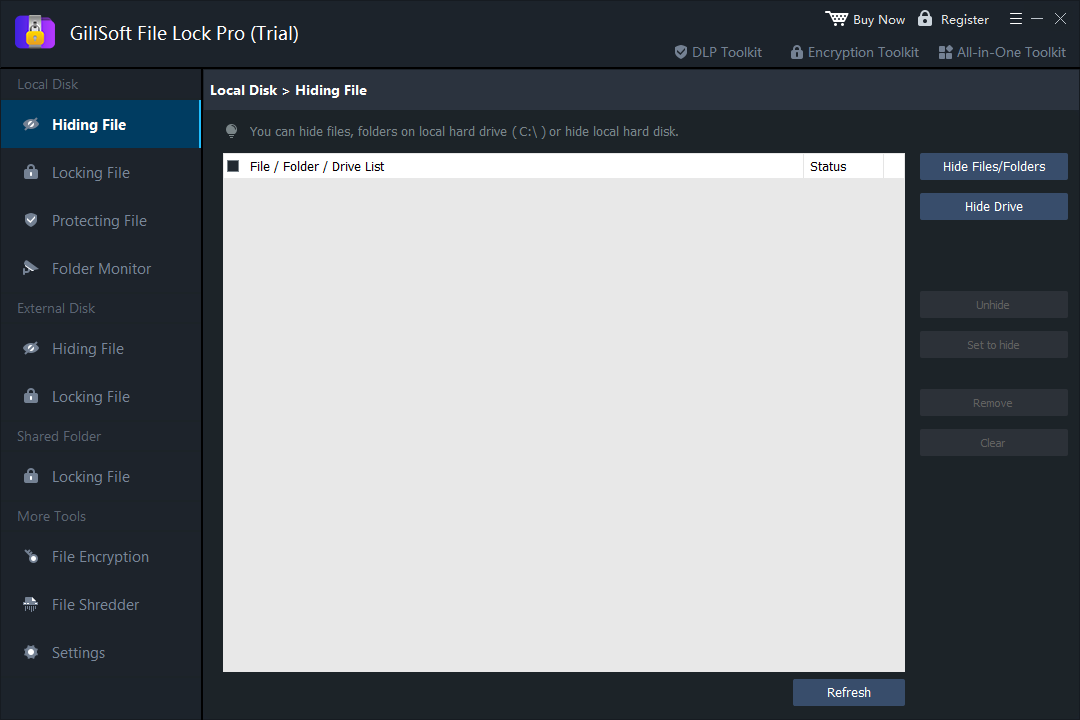 Manage hidden local files, folders, and drives from one password-controlled list.
Hide selected Windows content with a clear restore path
File Lock Pro also supports locking, protection against changes, external-drive hiding, shared-folder locking, monitoring, encryption, and secure shredding.

Method 2. Hide a File in Windows with File Explorer
Windows can mark a file or folder as Hidden. This is convenient for basic organization, but anyone who enables Hidden items can reveal it.
- Right-click the file or folder and choose Properties.
- On the General tab, select Hidden.
- Choose Apply.
- For a folder, choose whether to apply the change only to the folder or also to its subfolders and files.
- Select OK, then confirm File Explorer is not configured to show hidden items.
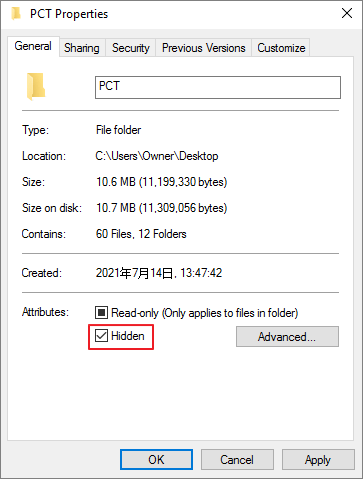 Apply the Hidden attribute from the file or folder Properties window.
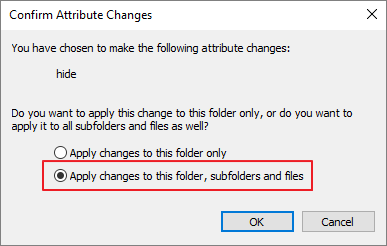 Choose whether the attribute should also apply to subfolders and files.
Method 3. Hide Files or Folders with the attrib Command
Command Prompt can apply Hidden and System attributes to an exact path. Quotation marks support paths and names that contain spaces.
- Search for Command Prompt and open it.
- Enter attrib +h +s "D:\Private Folder", replacing the sample path with your actual file or folder.
- Press Enter and verify the result in File Explorer.
- For one file, include its full name and extension.
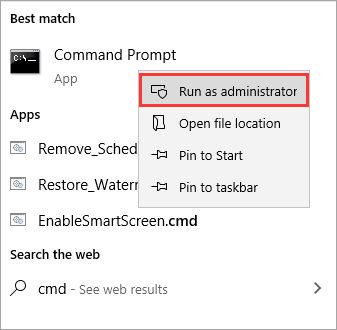 Open Command Prompt before applying attributes to the exact path.
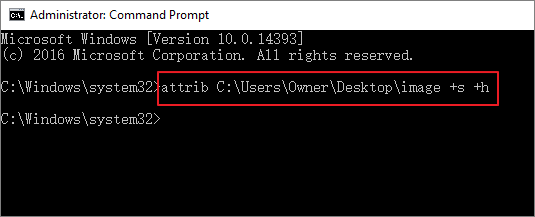 Use +h and +s for basic attribute-based concealment.
How to Unhide Files or Folders on Windows
Restore a File Explorer hidden item
- In File Explorer, temporarily enable View > Show > Hidden items.
- Right-click the faded hidden item and open Properties.
- Clear Hidden and apply the change.
Restore an attrib-hidden item
Enter attrib -h -s "D:\Private Folder", using the same path that was hidden. If File Lock Pro hid the item, restore it inside File Lock Pro instead.
Method 4. Hide Files and Folders on Mac with File Lock Pro
GiliSoft File Lock Pro for Mac provides dedicated actions for hiding files and folders, plus an authorized unhide process.
- Open File Lock Pro for Mac and enter the application password.
- Choose the file-hiding or folder-hiding task.
- Add the private item you want to conceal.
- Confirm it is hidden from ordinary Finder browsing.
- Use the Unhide task inside File Lock Pro when the item should be visible again.
 Choose and hide a private folder from the Mac application.
 Restore authorized visibility from the Unhide interface.
Method 5. Use Finder and Terminal Visibility Controls on Mac
Pressing Command + Shift + . in Finder toggles the display of items that are already hidden. It does not turn a normal file into a hidden file.
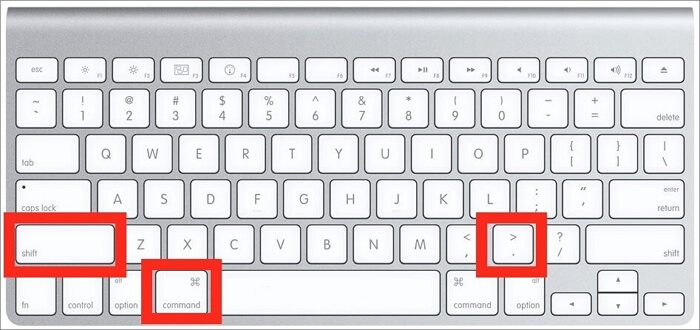 Use Command + Shift + . to switch the visibility of existing hidden items in Finder.
To hide a specific item with Terminal, enter chflags hidden "/path/to/Private Folder". To restore it, enter chflags nohidden "/path/to/Private Folder", then reopen Finder. Dragging the item into Terminal can help insert its exact path.
Method 6. Use FileVault for Full-Disk Protection on Mac
FileVault encrypts the Mac startup disk so data is protected when the Mac is powered off or an unauthorized person tries to access the disk. It does not selectively hide one file or folder while you are signed in.
- Open System Settings.
- Go to Privacy & Security, then locate FileVault.
- Choose Turn On FileVault and follow the recovery instructions.
- Store the recovery information safely and allow encryption to complete.
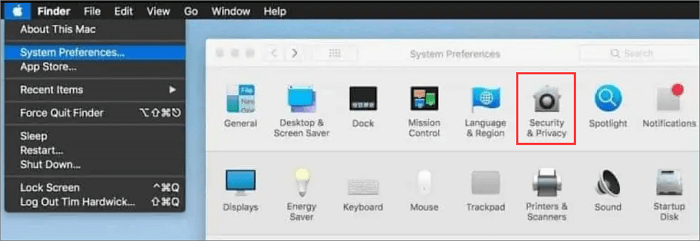 Open the Mac privacy and security settings before locating FileVault.
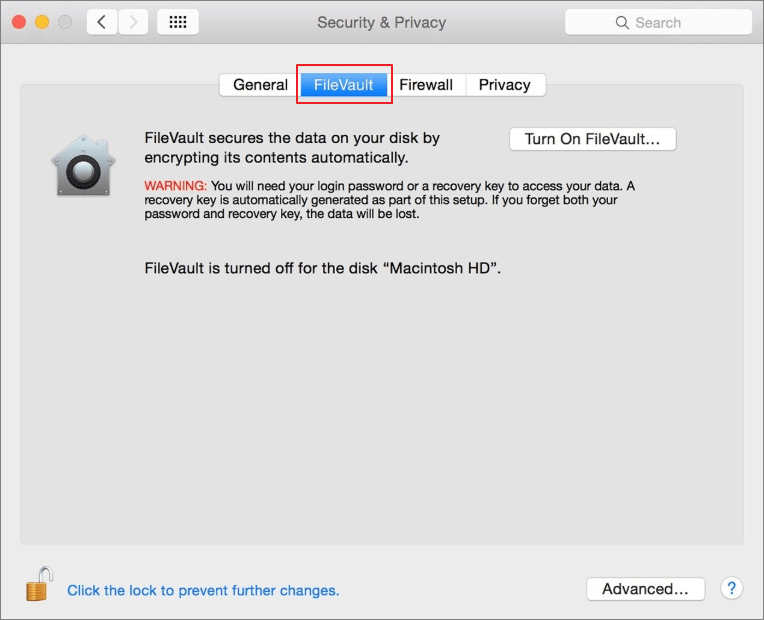 Enable FileVault when the goal is full startup-disk encryption rather than selective hiding.
File and Folder Hiding Checklist
- Decide whether you need casual concealment, password-controlled hiding, or disk encryption.
- Keep a backup of important files before changing visibility or security settings.
- Test how to restore visibility before hiding irreplaceable data.
- Use quotation marks around paths that contain spaces.
- Do not treat a Windows Hidden attribute or Mac hidden flag as encryption.
- Use the same software that hid an item to restore it later.
Keep Private Files Out of Ordinary View
Choose GiliSoft File Lock Pro for Windows or Mac when selected files and folders need managed, password-controlled hiding.
View File Lock Pro