

Keep Photo Cleanup on Your Windows PC
Local processing avoids sending routine photo edits to an online cleanup service, but privacy still depends on where originals, temporary copies, exports, and backups are stored.
Quick answer
Use GiliSoft MarkEase on the Windows PC that holds the authorized source image. Work from a duplicate, restrict the project folder, make a focused cleanup selection, and save the result to a controlled output location.
Plan a Local Photo Cleanup Workflow
| Situation | Recommended approach | Check carefully |
|---|---|---|
| Personal or client portrait | Use a restricted local working folder | Consent, backup, and export access |
| Internal product or business image | Keep source and derivative versions separate | Approved owner and retention period |
| Shared Windows computer | Use the correct account and permissions | Recent files, previews, sync folders, and removable media |
Photo Cleanup Steps in MarkEase
- Prepare a controlled workspace
Confirm permission to edit the photo, copy it into an access-controlled local folder, and keep the untouched original read-only or separately backed up.
- Open only the approved image
Load the highest-quality authorized copy in GiliSoft MarkEase. Avoid cloud-synced or shared output folders when the image must remain internal.
- Make a focused cleanup
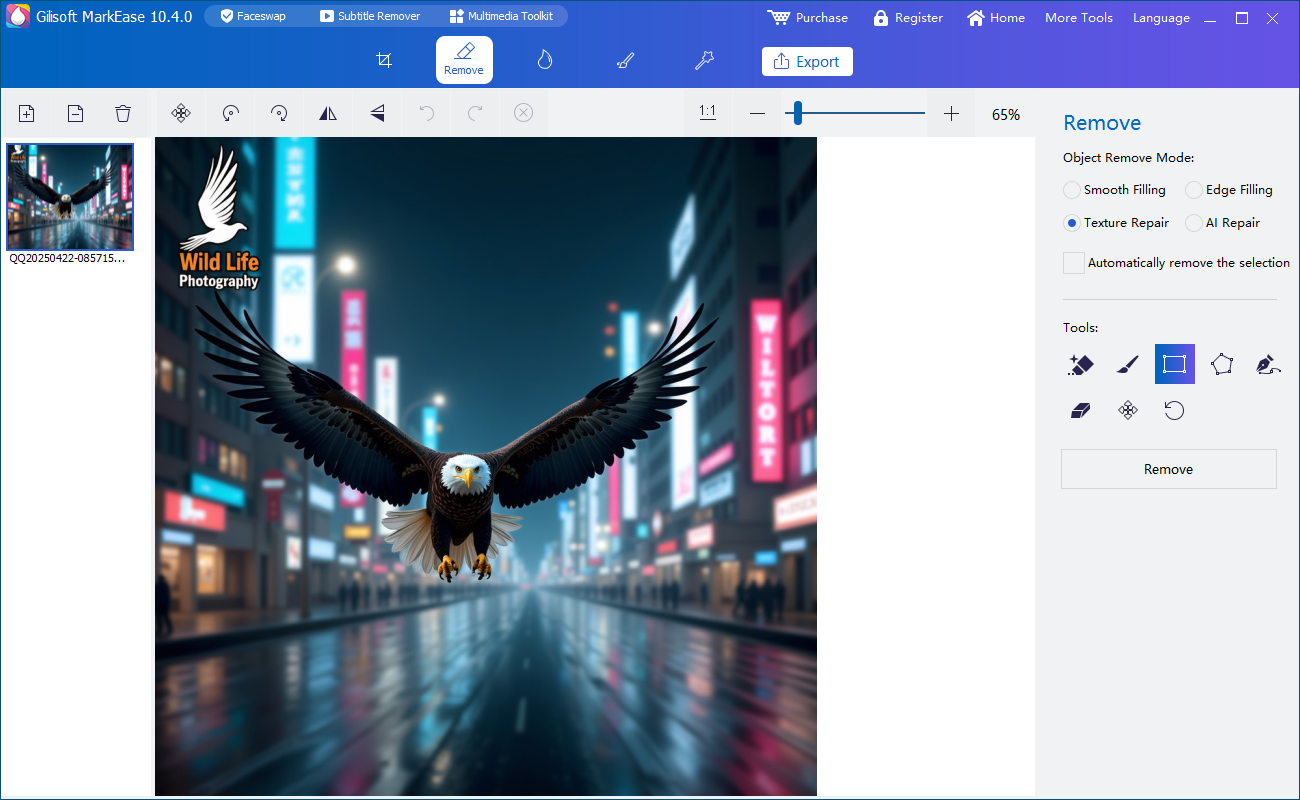
Zoom in and select only the unwanted mark or small object. Preview the reconstructed area and repeat with a tighter selection if texture or edges look unnatural.
- Export and close the loop
Save a new derivative with a clear name, inspect it at full size, remove unnecessary working copies under your retention policy, and confirm the destination is not automatically shared.
See the MarkEase user guide for the full removal, crop, annotation, filter, and export workflow.
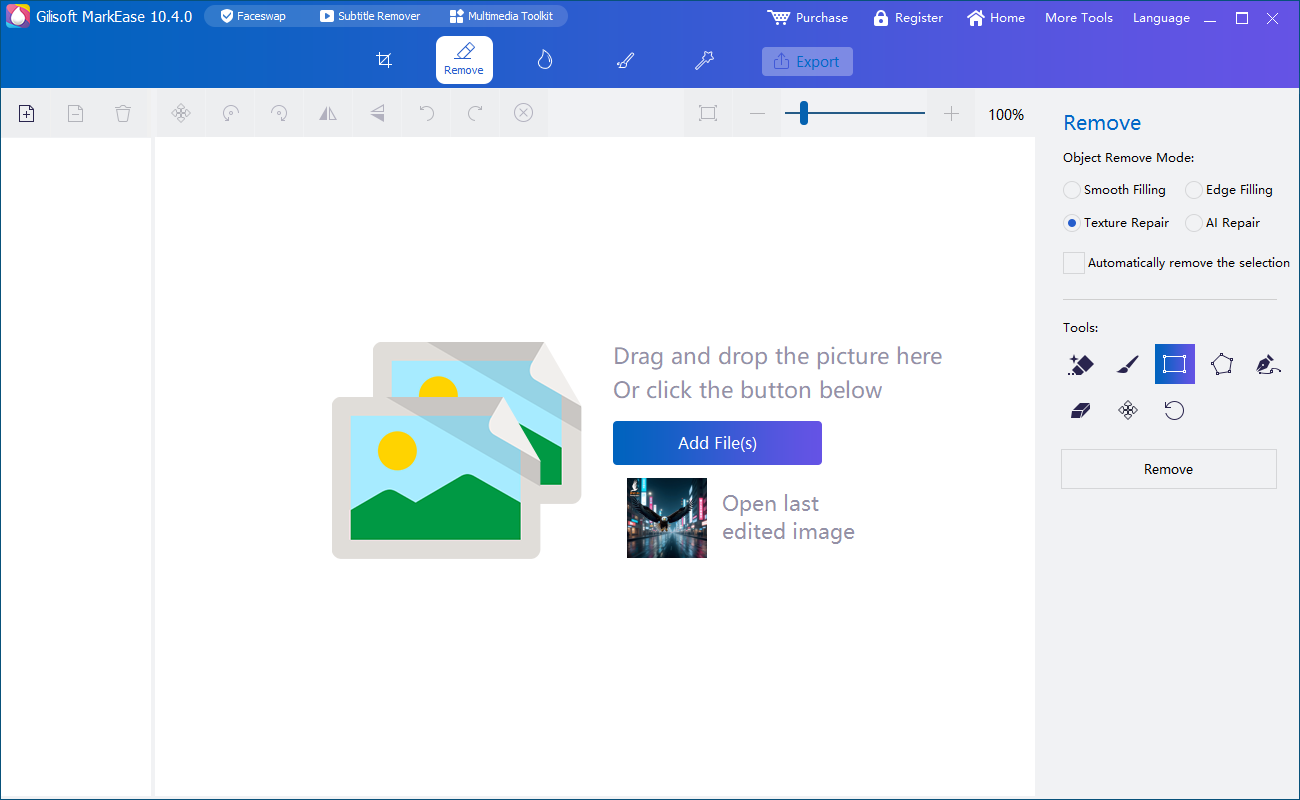
GiliSoft MarkEase Interface
These real product screenshots show the local image workspace and focused removal task.
Review Before You Deliver the Photo
- Compare the derivative with the untouched original at full size and normal viewing size.
- Look for blur, repeated texture, color seams, halos, and damaged edges.
- Keep filenames and folders clear so the edited copy cannot be mistaken for the original.
- Confirm the subject, client, or asset owner authorized the edit and destination.
Frequently Asked Questions
Does MarkEase require uploading routine cleanup photos?
The product page describes local Windows photo cleanup. Check your own storage, backup, and sync settings because other software may still copy files.
Should I delete the original after editing?
Usually no. Keep an authorized original according to your retention and backup policy until the derivative is approved.