
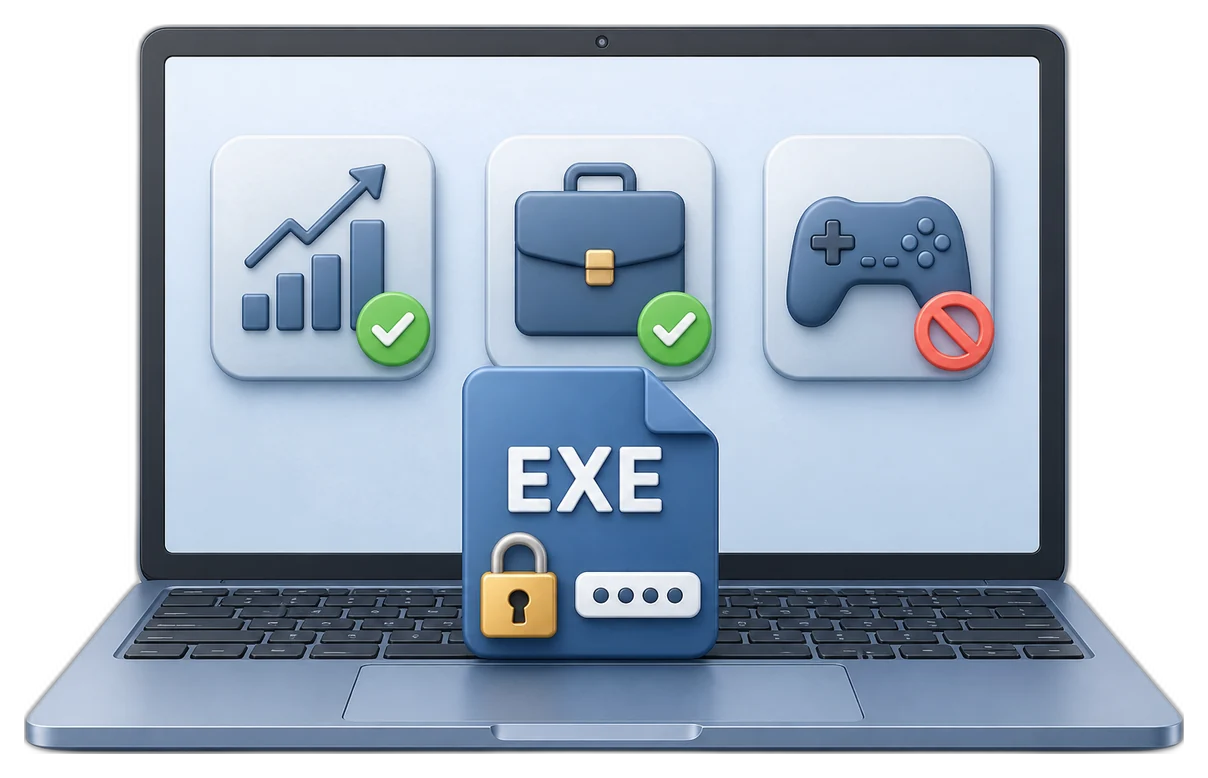
How to Lock Apps with a Password on Windows 11/10
App locking is most useful on a shared PC when selected software should remain installed but require approval before launch. Protect the real executable and avoid critical Windows components.
Quick answer
Use Password Verification when an application should remain available to approved users after they enter a password. Use Direct Block only when the app should not launch through the protected rule. Protect the actual executable, test with a noncritical app, and keep recovery settings available.
Choose the right Windows app-access method
| Method | Best for | Limit |
|---|---|---|
| EXE Lock Password Verification | Shared PCs where approved users may open an app | Focused launch control, not a full identity system |
| EXE Lock Direct Block | Preventing ordinary launch of a selected app | Recovery must be tested first |
| Windows account or Family Safety | User-level family and sign-in controls | Does not add a separate password to every desktop app |
| Windows AppLocker | Managed enterprise application policy | Requires supported editions and administration |
| App's own password | Protecting data inside a supported app | Availability depends on that application |
How to lock an app with a password
- Set the release password and recovery email.
Use a unique password and verify recovery before adding applications.
- Choose a noncritical test app.
Avoid Windows sign-in, security, update, recovery, and accessibility components.
- Add the actual desktop executable or supported Store app.
Do not protect only a shortcut.
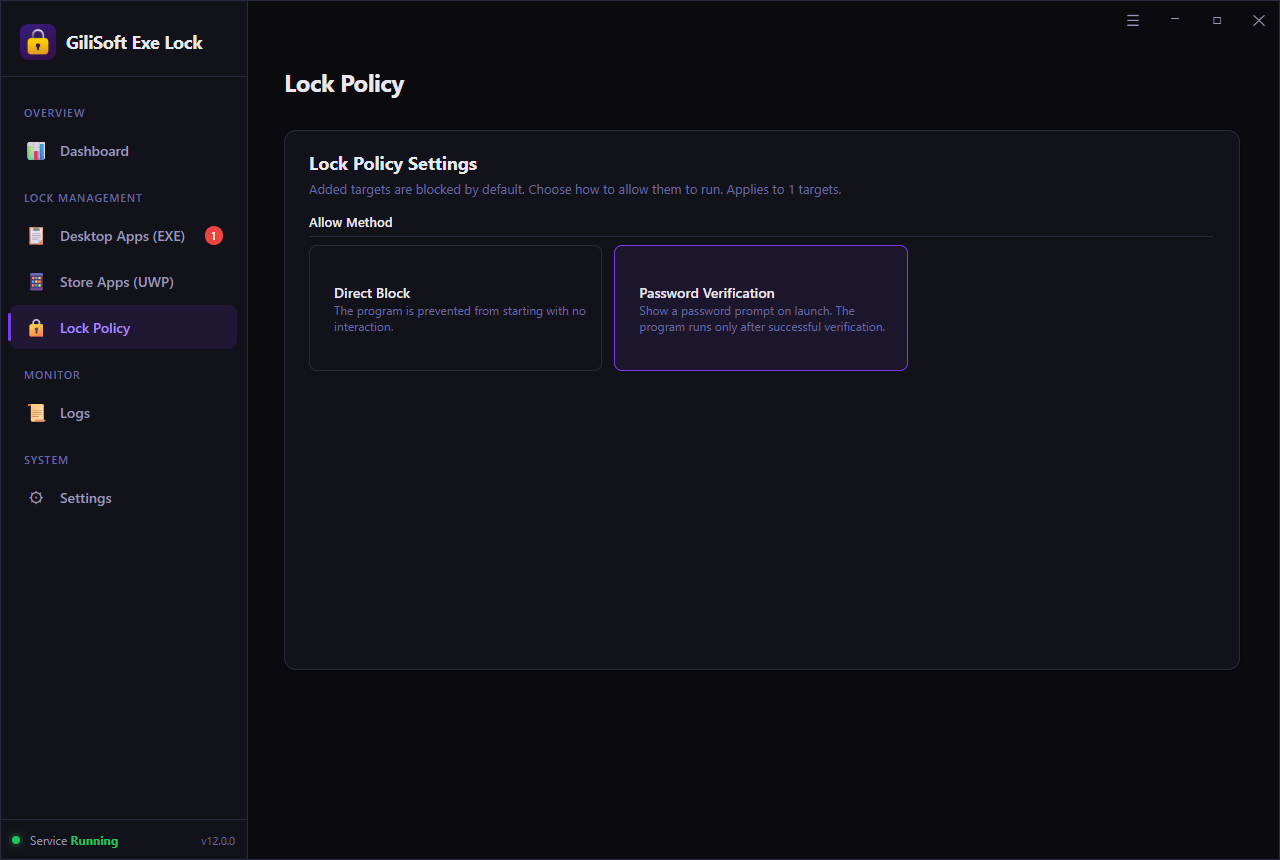
- Select Password Verification.
Use Direct Block only when no normal approval prompt should be offered.
- Close EXE Lock and test the launch.
Confirm the prompt, successful approval, failed attempts, and removal of the rule.
Avoid common application-locking mistakes
- Do not reuse the Windows sign-in password as the app-release password.
- Do not lock Task Manager, File Explorer, security software, or recovery tools during initial testing.
- Protect the executable path rather than one shortcut.
- Retest after the protected application updates to a new path or executable.
- Keep an authorized administrator recovery procedure outside the locked app.
Frequently asked questions
Can I lock an app with a password on Windows 11?
Yes. GiliSoft EXE Lock can prompt for a password when supported desktop applications and selected Microsoft Store apps are launched.
Is locking a shortcut enough?
No. Protect the actual executable or supported app entry, because another shortcut or direct executable path may bypass a shortcut-only restriction.
Should I lock antivirus or Windows system apps?
No. Blocking security, sign-in, update, recovery, or critical system components can make Windows unstable or prevent recovery.
What is the difference between Password Verification and Direct Block?
Password Verification allows approved users to continue after entering the password. Direct Block denies the launch without presenting that normal approval path.
Can EXE Lock replace Windows accounts or AppLocker?
No. Use Windows accounts, Family Safety, or managed AppLocker policies for broader identity and enterprise controls. EXE Lock is a focused launch-control tool.