Quick answer: how do you lock desktop apps on Windows 11?

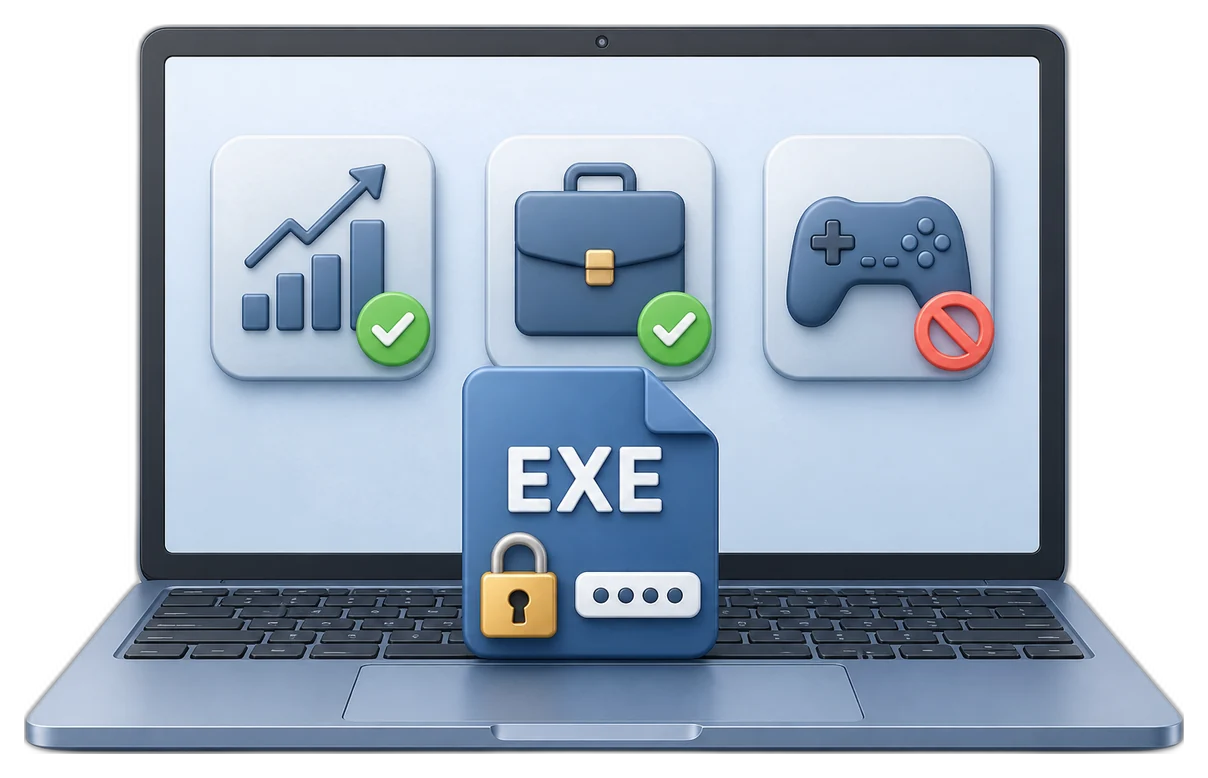
Add the program to Desktop Apps (EXE) in GiliSoft EXE Lock. Choose Password Verification when an authorized person may approve access, or Direct Block when the program must not run. The application remains installed on the PC.

Compare Windows 11 app-locking methods

Choose by the result you need: a password prompt on one shared PC, centrally managed policy rules, family restrictions, or basic account separation.

MethodBest forAccess controlMain consideration
GiliSoft EXE LockShared home, classroom, front-desk, and office PCsPassword Verification or Direct Block for selected desktop appsConfigure the rules on each protected Windows PC
Windows AppLockerOrganizations using administrator-managed policiesAllow or deny rules for users and groupsPolicy-oriented; it does not provide a simple password-on-launch prompt
Microsoft Family SafetyParents managing a Microsoft family groupBlock apps and set app or game time limitsDesigned for family accounts rather than business approval
Standard Windows accountSeparating everyday users from administratorsReduces administrative privilegesDoes not selectively password-gate every installed desktop app

Recommended for selected apps on one Windows 11 PC

GiliSoft EXE Lock keeps the program installed while controlling launch. It also provides Temporary Unlock, an app whitelist, blocked-attempt records, and recovery email settings.

GiliSoft EXE Lock product box

Before you lock a desktop app

These checks reduce the chance of locking a Windows component or losing administrative access.

Test a nonessential program

Start with a normal desktop app that Windows does not need for sign-in, security, networking, or maintenance.

Set recovery details

Create the startup or release password and add a recovery email before protecting important business software.

Review the whitelist

Keep Windows essentials and approved support tools outside the protected app list.

How to lock desktop apps on Windows 11

The steps below use the current GiliSoft EXE Lock interface and real product screens.

1

Set the password, recovery email, and whitelist

Open Settings. Set the password used to enter EXE Lock and authorize protected applications. Add a recovery email, then review the app whitelist.

  • System-protected items remain separated from custom entries.
  • Approved desktop apps can be added to the user whitelist.
EXE Lock settings with password recovery and app whitelistSettings, recovery, and whitelist. Select the image to enlarge.
2

Add the desktop EXE program

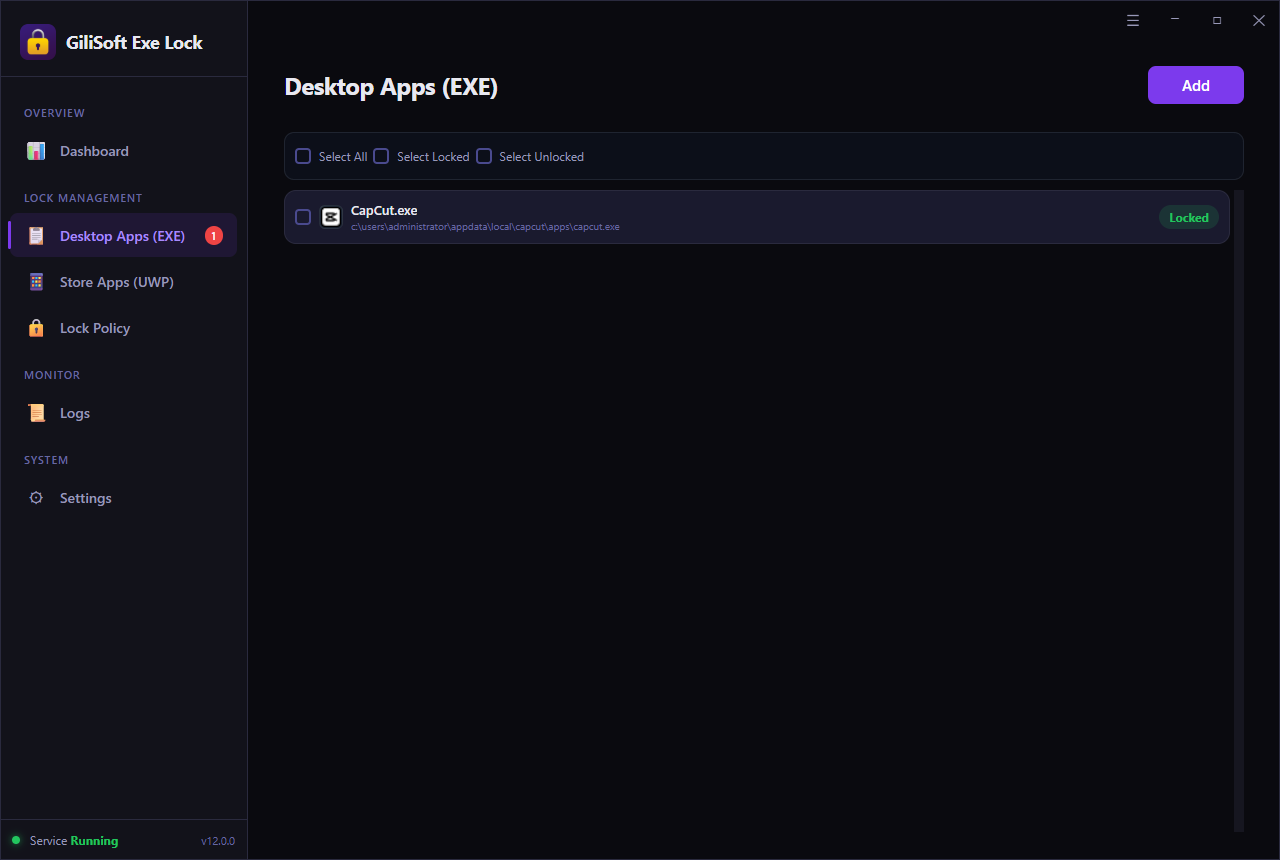
Open Desktop Apps (EXE), select Add, and choose the executable. Confirm its name and path so the rule covers the program users actually launch.

Microsoft Store software has a separate Store Apps (UWP) list.

Adding a desktop EXE program to GiliSoft EXE LockDesktop app list with a protected executable.
3

Choose the launch policy

Direct Block prevents the selected program from starting. Password Verification permits launch only after the correct password is entered.

  • Use Direct Block for prohibited games, chat tools, or admin utilities.
  • Use Password Verification for supervised or occasional access.
Direct Block and Password Verification options in EXE LockTwo launch policies for different access requirements.
4

Test the rule and review blocked attempts

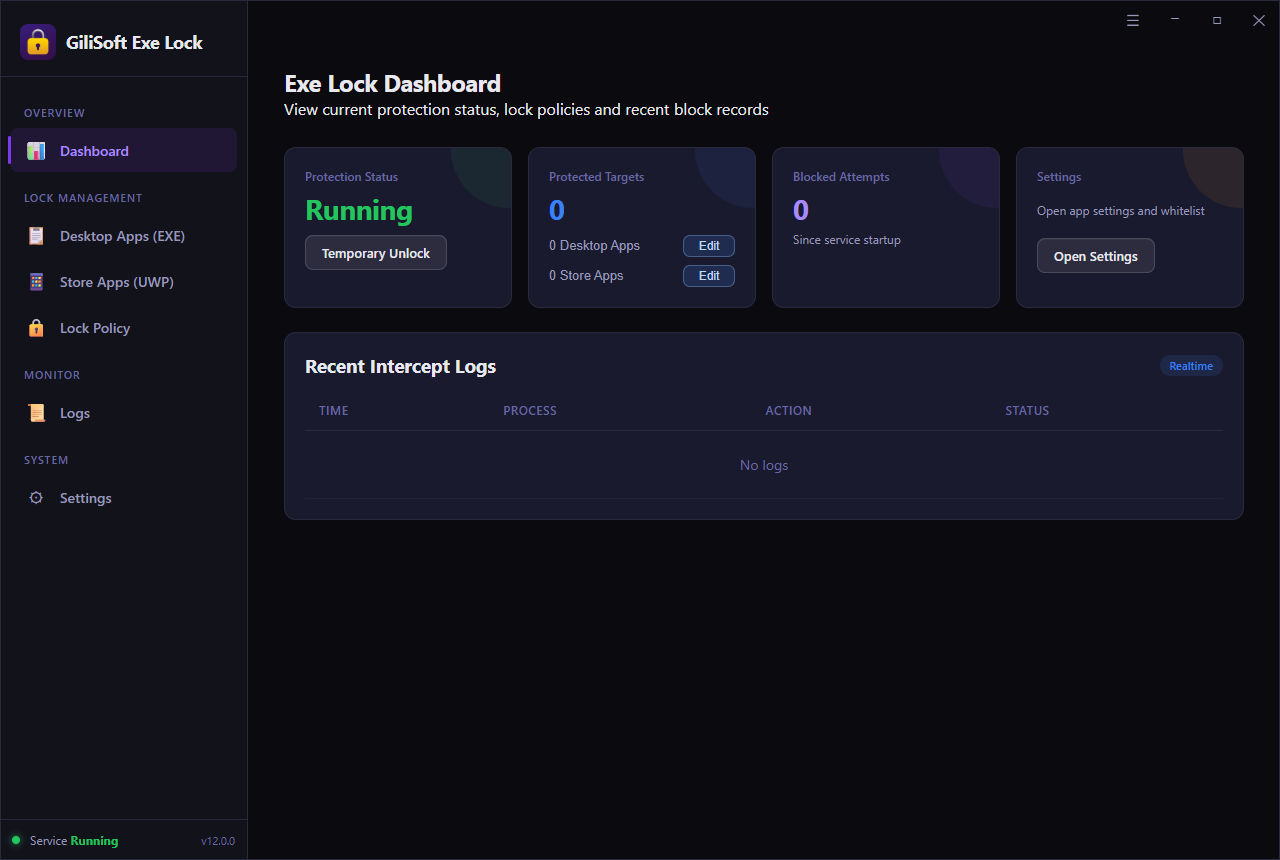
Launch the protected program from its normal shortcut and executable path. Return to the dashboard to confirm the protected target and blocked-attempt count. Use Temporary Unlock during supervised maintenance or updates.

EXE Lock dashboard showing protection status and blocked attemptsDashboard, protection status, and recent intercept records.

Direct Block or Password Verification?

Password Verification

The application stays available, but launch requires the EXE Lock password.

Use for accounting, remote support, paid software, and supervised access.

Direct Block

The selected application is stopped without asking the user for a password.

Use for games, unauthorized chat apps, risky tools, and prohibited software.

Windows 11 built-in options

AppLocker

AppLocker can create allow and deny rules for executable files, scripts, installers, DLLs, and packaged apps, with rules assigned to users or groups. It is suited to administrator-managed environments.

Microsoft Family Safety

Family Safety can block an app for a selected family member and set app or game time limits. It fits household accounts, not password approval for a shared business PC.

Standard user accounts

A standard account limits administrative changes, but it does not automatically prevent every installed application from opening.

Why avoid casual registry edits

Registry and policy edits are easy to apply too broadly. Use documented Windows controls or a dedicated app-locking interface, and test changes first.

Desktop apps commonly locked on shared PCs

Finance and business software

Require approval before opening payroll, accounting, inventory, customer-record, or reporting applications.

Remote-support and admin tools

Restrict remote clients, uninstallers, maintenance utilities, and system configuration tools.

Games, launchers, and chat apps

Keep classroom, front-desk, family, or employee computers focused without uninstalling software.

Licensed production software

Protect paid editing, design, engineering, and publishing applications on shared workstations.

Avoid these app-locking mistakes

Locking Windows components

Do not add sign-in, security, update, networking, or system-critical processes.

Testing only one shortcut

Also test Start menu entries, executable paths, file associations, and normal update behavior.

Using Direct Block unnecessarily

Choose Password Verification when legitimate supervised use still needs to remain possible.

Skipping recovery setup

Verify the recovery email before applying restrictions to an important workstation.

Windows 11 desktop app lock FAQ

Can I lock a desktop app without uninstalling it?

Yes. EXE Lock leaves the program installed and applies the selected rule when someone tries to launch it.

Can an authorized user still open a locked app?

Yes. Choose Password Verification, or use Temporary Unlock during supervised maintenance.

Does it also support Microsoft Store apps?

EXE Lock provides separate areas for traditional Desktop Apps (EXE) and supported Store Apps (UWP).

Can I review failed launch attempts?

The dashboard and logs show blocked-attempt counts and recent intercept activity.