Use account permissions
Open the folder's Properties > Security tab and assign permissions to specific Windows accounts. This is useful on a shared PC, but it is account-based rather than a password attached to the folder.


Windows 11 offers several ways to restrict folder access, but they solve different problems. This guide explains when to use account permissions, an encrypted ZIP or 7z archive, EFS, BitLocker, or GiliSoft File Lock Pro for a folder you open and update regularly.
Windows 11 does not include a built-in command that gives one ordinary folder its own password prompt. Permissions separate Windows accounts, encrypted archives protect static copies, EFS ties encryption to a Windows account on supported editions, and BitLocker protects a drive rather than one folder.
For a folder that must stay in place and remain easy to update, File Lock Pro provides the most direct workflow: add the folder to Locking File, then use the File Lock Pro master password to manage access.
| Method | What it protects | Separate folder password | Best for |
|---|---|---|---|
| Windows permissions | Access between Windows accounts | No | Shared PCs where every user has a separate account |
| ZIP or 7z archive | A compressed copy of the files | Yes | Sending or archiving files that are not edited often |
| EFS | Files tied to a Windows account certificate | No | Supported Pro/Enterprise editions with certificate backups |
| BitLocker | An entire drive or compatible device | No folder-only password | Protecting data if a laptop or drive is lost |
| GiliSoft File Lock Pro | Selected files, folders, and drives | Master-password control | Direct local folder locking, hiding, and anti-change rules |
Open the folder's Properties > Security tab and assign permissions to specific Windows accounts. This is useful on a shared PC, but it is account-based rather than a password attached to the folder.
Use 7-Zip or another archive tool to create a password-protected copy. It is practical for sending files, but repeated extraction and recompression makes it awkward for daily work.
EFS can encrypt files for the current Windows account on supported editions. Back up the encryption certificate and recovery key before relying on it. Windows 11 Home does not include EFS.
BitLocker is appropriate when the whole system drive, data drive, or removable drive needs protection at rest. It is broader than a password lock on one folder.
File Lock Pro keeps the folder in its existing location and provides separate workspaces for locking, hiding, and preventing unwanted changes. Start with Locking File when the folder should stay visible but unauthorized users must not open it.
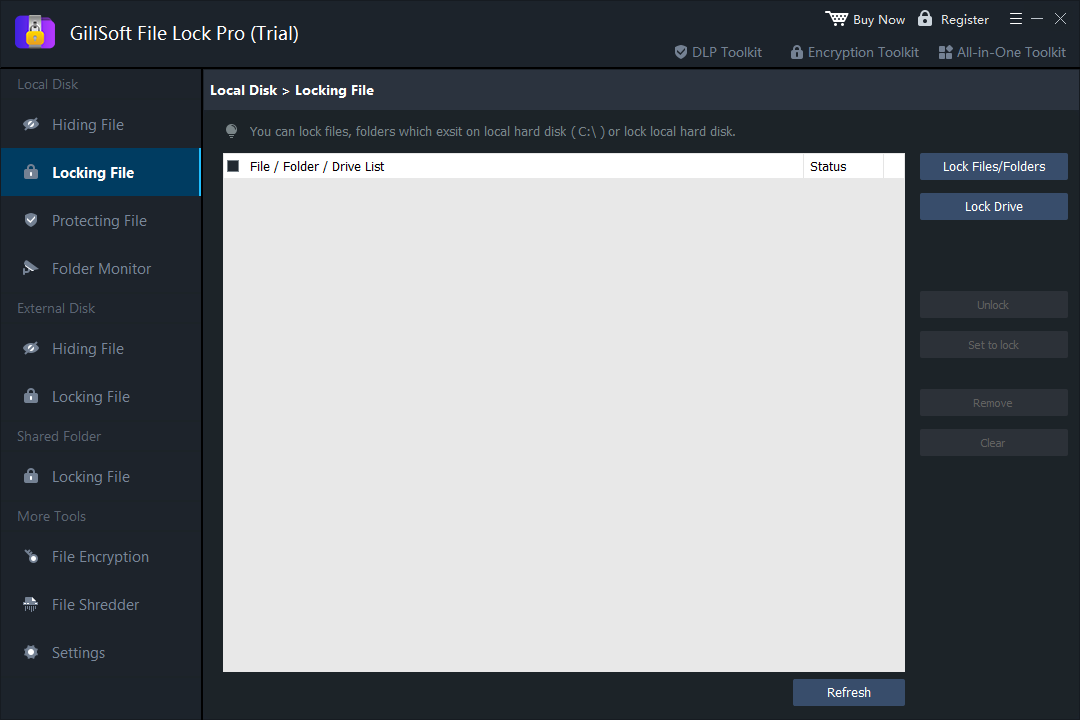
These three File Lock Pro functions are related, but they are not interchangeable. Choosing the right mode makes the result easier to understand and avoids over-protecting a folder.
Choose this when people may know the folder exists but should not open it without authorization. It is the closest match for the search intent 鈥減assword protect a folder in Windows 11.鈥?/p>
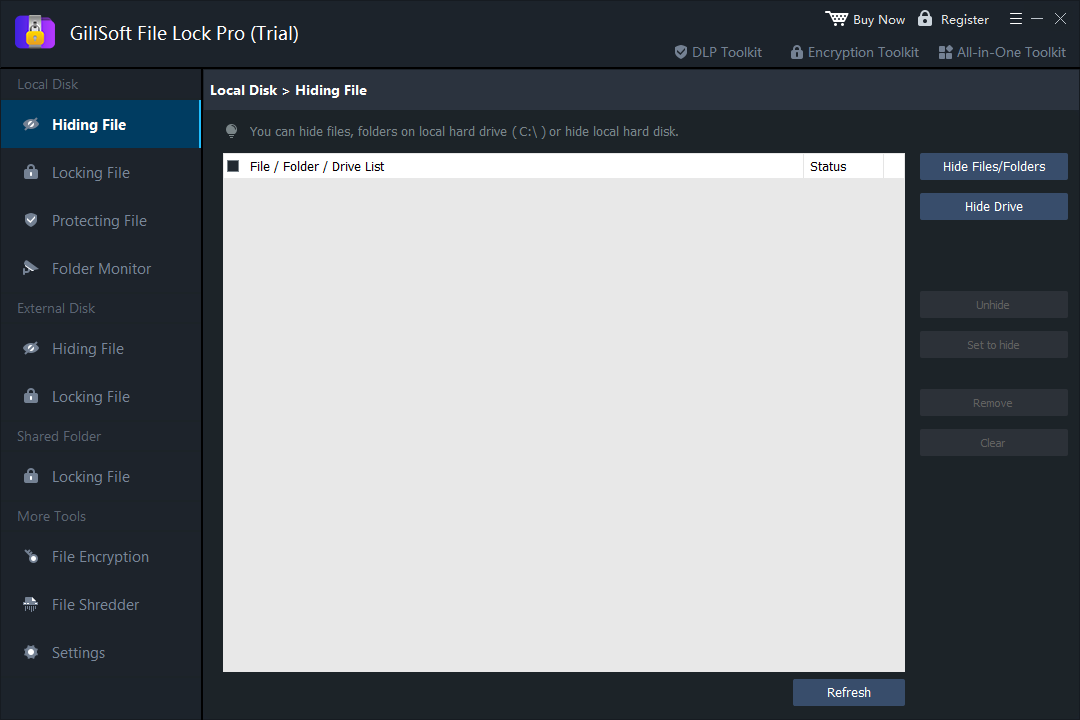
Use this for private photos, diaries, personal videos, financial records, or other folders that should not be casually discovered on a shared computer.
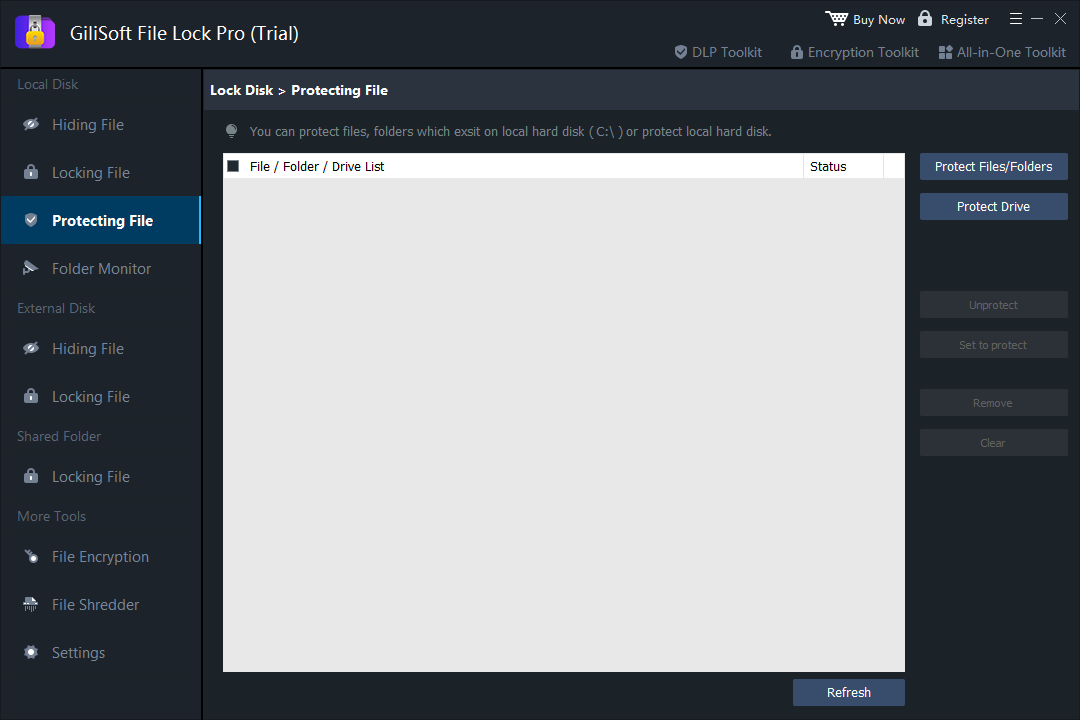
Use this for templates, finished projects, shared reference files, or business folders that users may see but must not modify or remove.
Keep personal photos, private videos, diaries, and records away from casual browsing by other household members.
Restrict HR documents, contracts, invoices, project files, and customer records stored on a Windows workstation.
Lock or hide selected folders on removable storage without applying the same rule to every file on the device.
Prevent accidental renaming, deletion, overwriting, or editing of approved templates and completed work.
Password protection does not replace a backup. Maintain a recoverable copy before changing access rules.
Use a recovery email you control and store the master password securely.
Confirm locking, unlocking, restart behavior, and removable-drive behavior before protecting irreplaceable data.
Choose Lock, Hide, or Protect according to the real job rather than applying every restriction at once.
No simple built-in command adds an independent password prompt to one ordinary folder. Windows provides account permissions, EFS on supported editions, encrypted archives, and drive encryption.
No. Windows 11 Home does not include EFS folder encryption.
No. Hiding removes the folder from normal views, locking restricts access, and encryption transforms data into unreadable form. Choose according to the threat you need to address.
Yes. Its External Disk workspaces can lock or hide files and folders on supported removable storage.
In locking mode the folder can remain visible. Use Hiding File when it should disappear from ordinary browsing.
Use Protecting File and apply the relevant anti-change rule instead of hiding the folder or blocking all access.


Enter your email address to get our latest newsletter