

Why Windows 11 Home Is Different
Many instructions for Windows folder encryption are written for Pro, Enterprise, or Education editions. On Windows 11 Home, the EFS option labeled Encrypt contents to secure data is normally unavailable. Windows 11 Home may offer Device Encryption on supported hardware, but that protects the device or volume rather than placing a separate password on one folder.
Windows also supports compressed archives, but its built-in archive tools are not a complete password-encrypted folder workflow. That leaves four realistic approaches, each suited to a different job.
Compare Folder Protection Methods
| Method | What it protects | Password experience | Best use |
|---|---|---|---|
| File Lock Pro | Selected folders, files, drives, USB storage, and shared folders | Master password controls locked items | Folders opened and updated regularly |
| NTFS permissions | Files and folders on an NTFS drive | Uses Windows accounts, not a separate folder password | Shared PCs with separate user accounts |
| Encrypted archive | A compressed copy of the folder | Password is entered when the archive is opened | Sending or storing a fixed copy |
| Device Encryption | The Windows device or supported system volume | Unlocks through the Windows sign-in and recovery process | Protecting data if a laptop is lost or stolen |
Method 1: Password Lock a Folder with File Lock Pro
This is the clearest option when one selected folder should remain on the PC and continue to be used normally, but unauthorized users should not be able to open or change it.
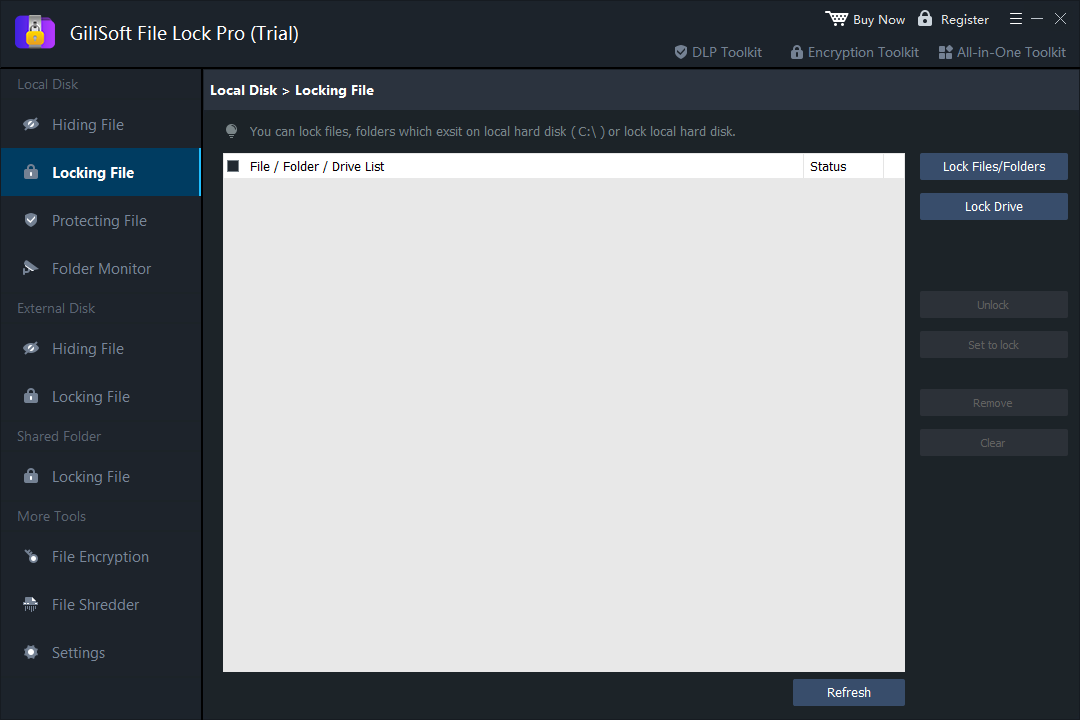
- Open GiliSoft File Lock Pro and enter the master password.
- Choose Local Disk, then open Locking File.
- Click Lock Files/Folders and select the folder you want to protect.
- Apply the lock, then test opening, renaming, moving, and deleting the folder from File Explorer.
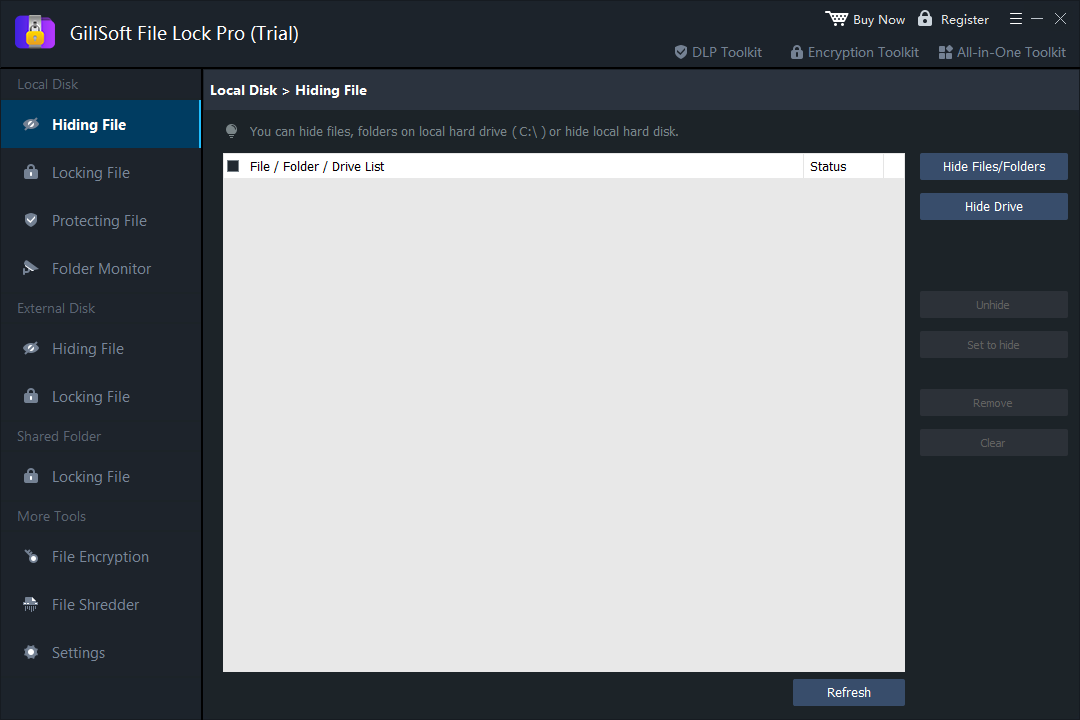
Hide the folder when it should not appear in normal browsing
Choose Hiding File instead when privacy matters before anyone even tries to open the folder. Hidden items are removed from ordinary File Explorer browsing and standard Windows search results until restored through File Lock Pro.
Method 2: Limit Access with Windows User Permissions
If every person uses a separate Windows account, NTFS permissions can restrict which accounts may read or change a folder. Right-click the folder, open Properties > Security, review the listed users or groups, and grant only the permissions each account needs.
This is account-based access control rather than a standalone folder password. An administrator or the folder owner can usually change permissions, and inherited permissions may change when content is moved. It works best on a properly managed shared PC, not as a simple privacy password between people who share one Windows login.
Method 3: Create a Password-Encrypted Archive
An encrypted 7z or ZIP archive is useful when the folder has become a finished package that you want to store or send. Create the archive with a trusted tool that supports AES encryption, set a strong unique password, test extraction, and only then decide whether the unprotected source should remain.
This method is less convenient for a folder that changes every day because files must be extracted, edited, and archived again. Windows 11 can open several archive formats, but Microsoft notes that encrypted archive operations are not supported by the built-in archive feature, so a third-party archive utility is required for this method.
Method 4: Protect the PC with Device Encryption
Some Windows 11 Home computers support Device Encryption. Check Settings > Privacy & security > Device encryption. When available and enabled, it helps protect the device data if the computer is lost or the drive is removed.
Device Encryption does not create a separate password for one folder after an authorized user signs in. Use it for lost-device risk, and combine it with folder-level controls when people who can use the PC should still be kept out of selected private folders.
Which Method Should You Choose?
Folder Protection Checklist
- Keep a verified backup outside the protected folder.
- Use a strong password that is not reused elsewhere.
- Store recovery details separately from the protected files.
- Test open, edit, rename, move, delete, and restore behavior.
- Avoid locking Windows and application system folders.
- Confirm USB and shared-folder behavior on every required PC.
Windows 11 Home Folder Password FAQ
Can Windows 11 Home put a password directly on a normal folder?
Not with a dedicated built-in one-click folder password command. The practical choices are account permissions, an encrypted archive, supported device encryption, or folder-locking software.
Why is “Encrypt contents to secure data” greyed out?
That option belongs to Encrypting File System (EFS), which is not included with Windows 11 Home. It is associated with Pro, Enterprise, and Education editions.
Can File Lock Pro protect a folder on a USB drive?
Yes. File Lock Pro includes controls for folders on local disks, external disks, USB storage, and shared folders. Test the protected folder on every computer where it will be used.
Is hiding a folder the same as encrypting it?
No. Hiding removes the item from ordinary browsing, locking controls access, and encryption transforms the stored data. Choose according to the threat you are addressing.
Microsoft References
Password Protect Selected Folders on Windows 11 Home
Lock or hide private folders on local disks, USB storage, and shared Windows PCs with GiliSoft File Lock Pro.