The shared PC is not visible
Confirm both PCs are on the trusted network, the host profile is Private, and Network discovery plus File and printer sharing are enabled.

Windows 11 can restrict a shared folder with user accounts, share permissions, and NTFS permissions. If you want a separate password prompt for the shared folder itself, GiliSoft File Lock Pro provides a second method designed for LAN folders.
Windows does not assign an independent password directly to an ordinary shared folder. Its built-in method asks visitors to sign in with an account on the host PC, then checks that account against the folder's share and Security permissions.
Use Method 1 when each person can have a Windows account and individual access level. Use Method 2 when you want File Lock Pro to add its own password-based lock to a selected LAN shared folder.
This is the native Windows 11 method. The host computer authenticates the visitor's Windows account, while share and NTFS permissions decide whether that person can read or change the files.
Use this approach when you want a File Lock Pro password on the shared folder instead of relying only on Windows account credentials. The Windows share can stay in its current location; File Lock Pro scans accessible LAN shares and adds the selected folder to its locking list.
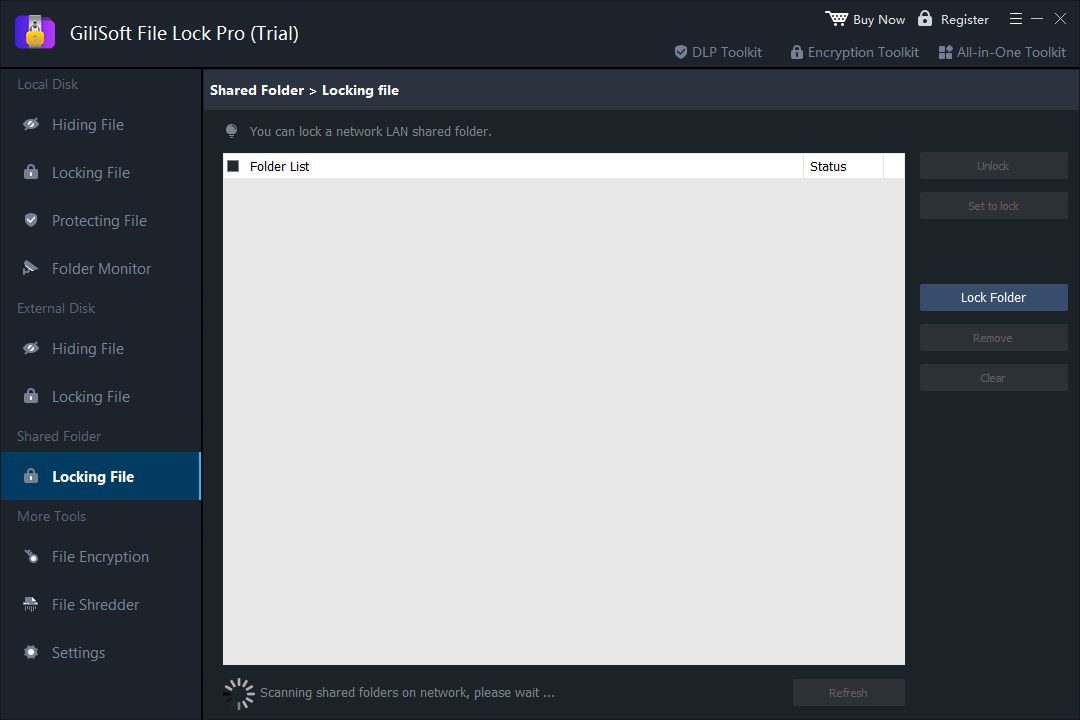
Important: File Lock Pro adds its own access control. Windows network sharing, account permissions, firewall rules, and backups remain separate layers and should still be configured correctly.
| Method | Authentication | Per-user access | Separate folder password | Best use |
|---|---|---|---|---|
| Windows share + NTFS permissions | Host PC account | Yes | No | Teams with managed Windows accounts |
| GiliSoft File Lock Pro | File Lock Pro master password | Administrator-managed lock | Yes | A direct password lock for selected LAN folders |
| BitLocker | Drive or device unlock | No folder-level LAN policy | No | Protecting a drive when the PC is offline or lost |
| Encrypted archive | Archive password | No | Yes | Sending a static group of files, not a live shared folder |
Confirm both PCs are on the trusted network, the host profile is Private, and Network discovery plus File and printer sharing are enabled.
Use an account and password from the host PC. Do not substitute the visiting PC's Windows Hello PIN. Check the username format and host account password.
Review both Advanced Sharing permissions and the Security tab. The account needs permission at both layers for the requested action.
Open Credential Manager, review Windows Credentials for the host PC, remove the outdated entry, and reconnect with the correct account.
Test the UNC path first: \\PC-NAME\ShareName. Make sure the host is awake, reachable, and still sharing the folder under that name.
Do not enable the obsolete SMB1 protocol for a normal Windows 11 share. Use supported SMB2/SMB3 networking and fix discovery, credentials, or permissions instead.
Give each person only the Read or Read/Write access needed for the task.
Use strong Windows account and File Lock Pro master passwords, plus a recovery email you control.
Verify open, create, rename, overwrite, and delete behavior from another PC before relying on the setup.
Permissions and passwords are not backups. Maintain a recoverable copy outside the live shared folder.
Do not expose a Windows file share directly to the public internet. Use a VPN for remote access.
Install supported Windows updates and current File Lock Pro releases.
Not as a separate folder password. Windows authenticates a host-PC account, then applies share and NTFS permissions.
Use credentials for an account on the computer hosting the shared folder.
Usually no. The PIN is tied to sign-in on one device; network sharing normally expects the host account password.
Yes. The effective access is constrained by both share permissions and NTFS permissions.
BitLocker protects a drive at rest. Once Windows has unlocked the drive, network-share access is still controlled separately.
Yes. Its Shared Folder workspace can scan available LAN folders and add a selected folder to the lock list.


Enter your email address to get our latest newsletter