Personal or unknown storage
Files can leave a managed PC on flash drives, portable SSDs, memory cards, or phones presented as storage.

Stop uncontrolled file copying to flash drives and external disks without breaking approved office workflows. Use storage restrictions, trusted-device rules, read-only access, and event review as one practical Windows endpoint policy.
A USB flash drive can move a large collection of contracts, source files, customer records, photos, or reports in a few minutes. The risk is not limited to malicious theft: staff may copy data to a personal drive for convenience, reuse an unknown device, or take work home without the protection expected by company policy.
The useful question is therefore not simply "Are USB ports enabled?" It is: which device may connect, what kind of data access is permitted, and how will the organization verify what happened? Microsoft's current device-control model follows the same logic by separating device groups, allow or deny behavior, read/write/execute access, exclusions, and audit events.
Files can leave a managed PC on flash drives, portable SSDs, memory cards, or phones presented as storage.
Support, manufacturing, media, finance, and field teams may still need approved removable media for legitimate transfer tasks.
A front desk may need all unapproved drives blocked, while a media team may still need an approved company drive or read-only access.
Without event review, administrators cannot readily distinguish a denied attempt, an approved device, or a policy mistake.
NIST's guidance on portable storage recommends combining procedural, physical, and technical controls. For ordinary Windows office PCs, that translates into a simple operating model rather than a single "disable USB" switch.
Restrict unknown removable storage so an unapproved device cannot become the easiest copy-out path.
Use read-only when staff may consume files but should not write company data back to the device.
Whitelist named company drives and keep ownership, purpose, and replacement records.
Review allowed and blocked activity, then test the policy after Windows or hardware changes.
Windows includes several native paths, but they solve different pieces of the problem. Select the method by the level of granularity, deployment effort, and day-to-day exception handling your organization can support.
| Method | What it does well | Operational fit |
|---|---|---|
| Removable Storage Access policy | Deny read, deny write, or deny all access for storage classes through Windows policy. | Useful for managed Pro, Enterprise, and Education environments with clear class-wide rules. |
| Device installation restrictions | Prevents installation of selected devices or device classes before normal use. | Useful when IT already manages hardware IDs and Group Policy, but replacement-device handling needs care. |
| Microsoft Defender Device Control | Supports device groups, allow/deny behavior, exclusions, access permissions, and auditing. | Strong enterprise option where the required Microsoft subscription and endpoint management are already in place. |
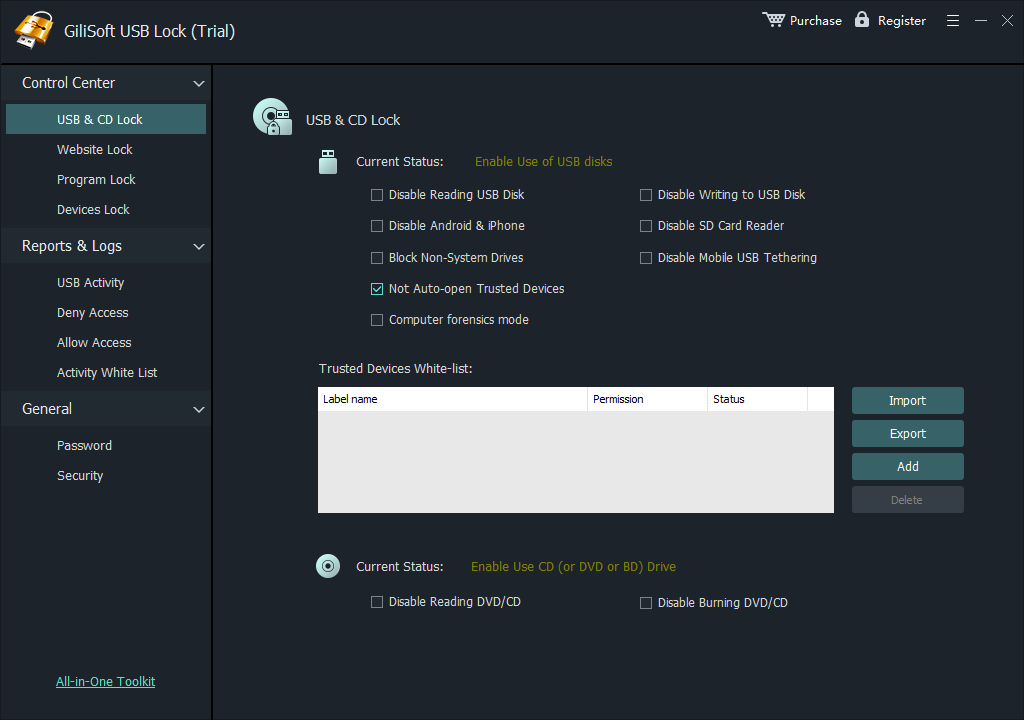
| GiliSoft USB Lock | Provides local Windows controls for removable storage, trusted-device whitelisting, reusable export/import, and access logs. | Practical for offices and shared PCs that want a direct interface without building policy XML. |
| USB Encryption | Protects files stored on an approved removable drive if the device is lost or carried outside the office. | Use alongside endpoint control for authorized portable data; it does not replace USB access policy. |
GiliSoft USB Lock is designed for the policy work administrators repeat most often: restrict unknown storage, allow an approved company drive, reuse that trusted-device list on another PC, and inspect access events. It also keeps storage control separate from unrelated USB peripherals, so the policy can focus on the actual data-transfer channel.
Restrict unapproved removable storage, then add trusted company drives to the whitelist. After testing the list, export it and import it on other managed PCs so approved transfers continue without opening access to every USB drive.
Allow only named company drives for approved exports, then encrypt any portable files that legitimately leave the office.
Deny write access or block removable storage completely where users have no business reason to copy local files.
Whitelist high-capacity company drives and review the list regularly rather than granting broad access to every device.
Restrict storage in software, control physical access to the machine, and document any maintenance media used by support staff.
List teams, PCs, device owners, transfer purposes, and data types before choosing a restriction.
Confirm keyboards, mice, printers, cameras, and other required devices still work as intended.
A trusted device should have an owner, business reason, approval date, and review date.
Keep the USB Lock password and recovery information with authorized staff, not everyday users.
Test one approved drive and one unknown drive on every policy group before broad deployment.
Recheck controls after Windows updates, hardware replacement, role changes, or an incident.
No. If the risk is file copy to removable storage, target the storage channel first. A blanket port shutdown can also disrupt keyboards, mice, printers, cameras, and support devices.
Yes. Add the company drive to the GiliSoft USB Lock whitelist, export the validated list, and import it on other PCs that need the same rule.
It is useful when employees must receive files from a controlled drive but should not copy company files back to removable storage.
USB Lock controls device and transfer access on the Windows endpoint. Use GiliSoft USB Encryption when approved portable files also need password protection at rest.
USB Lock includes controls for removable storage and related transfer channels. Test the exact phone, reader, card, and connection mode used in your environment.
Logs support review, but they should sit inside a documented policy with owners, approvals, testing, retention, and incident-response procedures.
Primary documentation for device groups, default enforcement, access permissions, exclusions, and audit behavior.
Primary documentation for deny-read, deny-write, and deny-all removable-storage access settings in Windows.
Primary guidance for allowing or preventing installation of hardware devices on managed Windows computers.
NIST guidance emphasizing procedural, physical, and technical controls for portable storage use.
Guidance on encryption and backups for data held on computers and removable media.
Restrict unknown devices, preserve approved USB workflows, reuse trusted-device lists, and review access events with GiliSoft USB Lock.