
Remove Personal Data Before Selling a Laptop
Selling a laptop is a whole-device handoff, not a routine history cleanup. Back up what you need, remove account authorization, decide whether the storage will stay with the computer, and use a reset or sanitization process appropriate to the device and data sensitivity.
Quick answer
Back up and verify your files, sign out of cloud and licensed services, remove organizational management, and use the supported Windows reset or an approved media-sanitization process for the storage type. GiliSoft Privacy Protector can help clean selected local traces or files before handoff, but it should not be presented as a substitute for whole-device sanitization.
Choose a Handoff Level
| Situation | Recommended approach | Check carefully |
|---|---|---|
| Laptop stays in your household | Separate accounts and reset if appropriate | Cloud sign-in, browser profiles, and recovery access |
| Laptop sold with its storage drive | Use supported reset or validated sanitization | SSD behavior, encryption state, and verification |
| High-sensitivity or managed device | Follow organizational clear, purge, or destroy policy | Chain of custody and documented evidence |
| Storage drive removed before sale | Keep or sanitize the drive separately | Installable OS and buyer expectations |
Step-by-Step Workflow
- Inventory and back up the laptop
List local and synchronized data, export anything required, and verify the backup from another location before deleting or resetting the computer.
- Sign out and remove authorization
Sign out of browsers, cloud storage, email, password managers, subscription software, and device-management services. Deauthorize applications where licensing requires it.
- Review selected files and traces
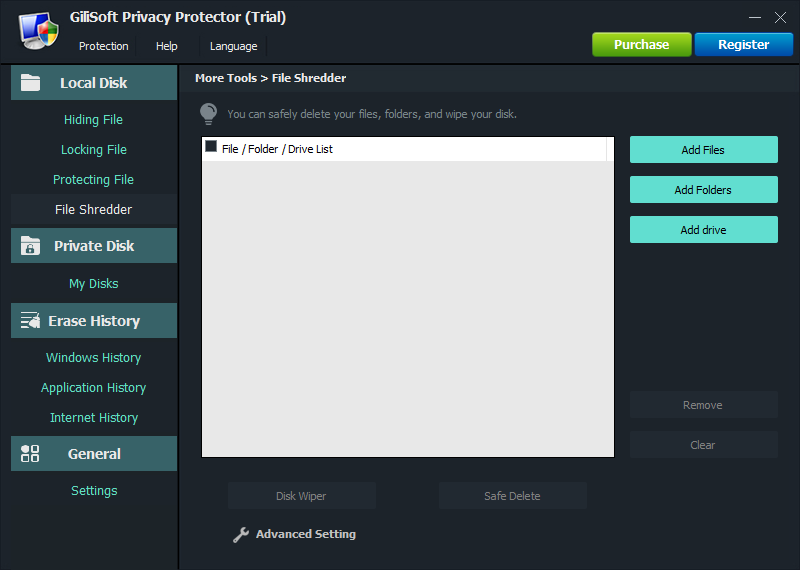
When useful before the final reset, use GiliSoft Privacy Protector to review supported histories and selected files. Do not rely on this step as the complete handoff process.
- Reset or sanitize for the storage type
Use the supported Windows reset options for ordinary resale, or a validated media-specific sanitization process when the sensitivity or policy requires stronger assurance.
- Verify the buyer-start experience
Confirm the computer starts at initial setup without your account, files, recovery keys, organization enrollment, or active service sessions.
For every product control and supported cleanup category, see the Privacy Protector user guide.
GiliSoft Privacy Protector Interface
These real product screenshots connect the guidance to the local Windows workflow.

Review Before You Finish
- Sign out of browsers, cloud services, and work accounts when the computer will change hands.
- Check synchronized devices and cloud dashboards separately; deleting a local record may not delete its cloud copy.
- Keep a verified backup of anything you may need before clearing history or shredding selected files.
- Test the result from a standard user account and restart the PC when the workflow calls for it.
Frequently Asked Questions
Is deleting files and emptying the Recycle Bin enough?
No. That is ordinary deletion and is not a complete resale or media-sanitization workflow.
Should I factory-reset a laptop before selling it?
For ordinary resale, use the currently supported Windows reset process after backup and sign-out. Higher-risk devices may require an organization-approved sanitization method.
What happens to OneDrive or other cloud files?
Sign out and unlink the device carefully. Deleting a synchronized file can also delete its cloud copy, so verify backup and sync behavior first.
Can Privacy Protector sanitize the whole device?
Use it for supported local traces and selected files. Whole-device handoff requires reset or media-specific sanitization and verification.