
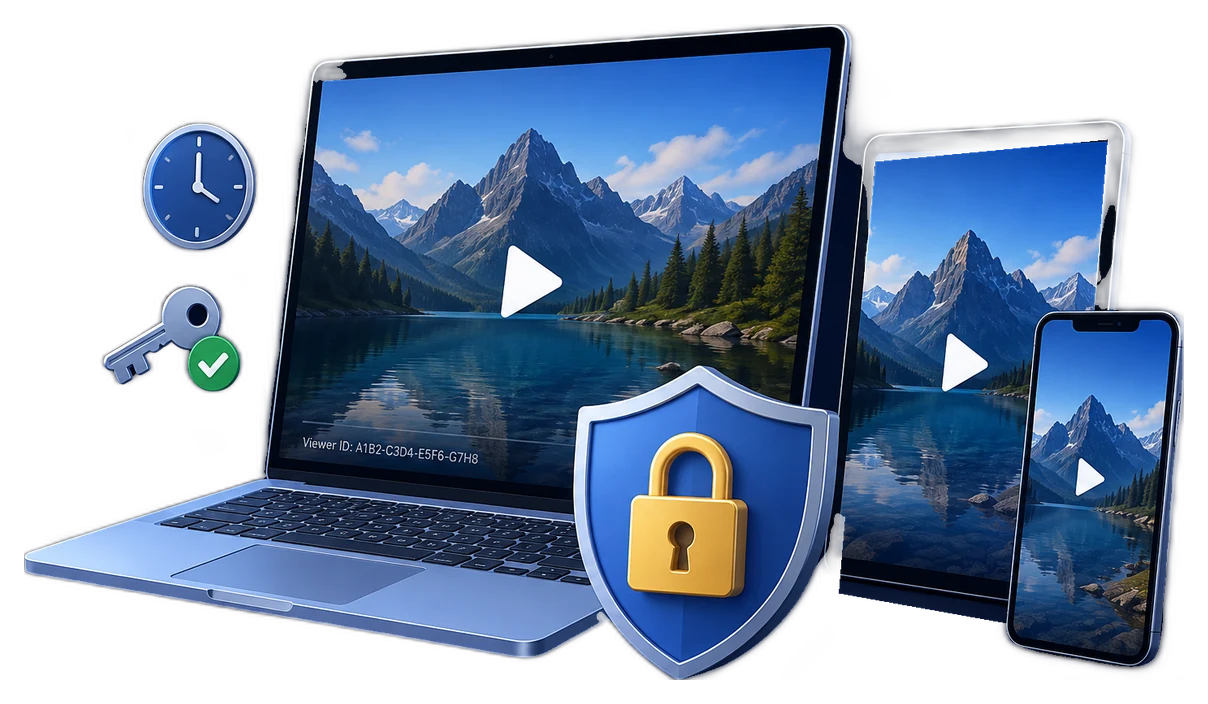
Secure Video Lessons for Students
Student access is more varied than a single licensed office PC. Lesson protection should account for shared devices, assistive needs, unstable connectivity, and the risk of losing access just before an assignment is due.
Quick answer
For downloadable lessons, GiliSoft Video DRM Protection can package videos and issue Playback Passwords. Pilot the viewing workflow with real student devices and preserve accessible alternatives.
Design for Student Access First
| Situation | Approach | Check before release |
|---|---|---|
| Shared school computer | Avoid personal PC Binding by default | Account rotation and lab policies |
| Home computer | Test supported package and player | Operating system and replacement device |
| Low-connectivity learner | Verify offline viewing before distribution | Password and blacklist behavior offline |
| Student needing captions or transcript | Prepare the accessible material and test it | Do not block required learning access |
How to Protect and Deliver the Videos
- Prepare the teaching version
Remove answer keys and staff-only material. Provide captions, transcript, or accessible alternative that matches the lesson.
- Create the protected lesson package
Add approved videos in GiliSoft Video DRM Protection, set a recognizable Project ID, save the Encryption Key, and select a workable password mode.
- Set proportionate restrictions
Use a watermark or expiration only if it serves the school policy. Avoid binding that prevents normal shared-device or home-device use.
- Pilot with student-like conditions
Test the package on the expected Windows or other supported player, with and without internet, and check caption access, password recovery, and support response.
The Video DRM Protection user guide shows the matching settings, password maker, and supported package workflow.
Product Interface for This Workflow
Use the actual GiliSoft Video DRM Protection screens to confirm project settings, protected output, and viewer credentials.
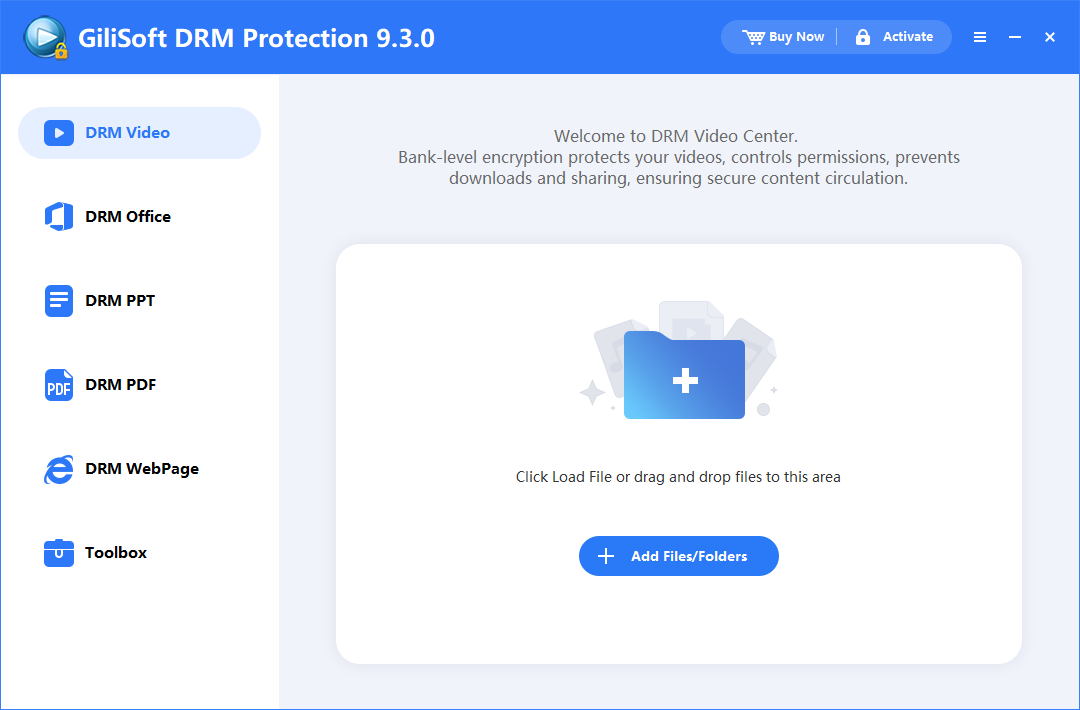


Check the Viewer Experience
- Keep the publisher Encryption Key and Project ID separate from the viewer Playback Password.
- Test the completed GEM or EXE package in the supported playback environment, not just the original source video.
- Check expiry, device changes, caption or transcript access, and a reachable support route.
- When using an online blacklist, confirm it was configured before release and verify the next online check.
Frequently Asked Questions
Is PC Binding appropriate for every student?
No. Shared labs, family devices, and hardware changes can make it impractical. Pilot it before adoption.
Does the DRM tool replace captions or transcripts?
No. Prepare accessible learning materials separately and verify students can use them alongside the protected video.