GiliSoft Video DRM Protection User Guide

How to protect videos with DRM playback rules

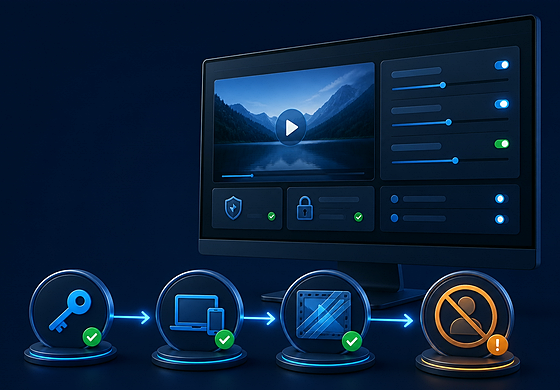
Add videos or supporting content, configure playback passwords and device binding, add watermark and anti-copy controls, export the protected package, and manage viewer access after delivery.

Playback passwordsPC and USB bindingDynamic watermarksPassword blacklist
Home > How to Use > Video DRM Protection

Choose the DRM task you need

Understand the four DRM access values

Encryption Key

The publisher keeps this key. It connects the protected project with playback passwords created later.

Playback Password

This is sent to an authorized viewer and is entered when protected content opens.

Machine Code

PC-binding mode uses the viewer computer's machine code to create a password for that device.

Project ID

This publisher-facing label helps identify the correct project and encryption key when access must be managed later.

Do not send the Encryption Key to viewers. Keep it with the Project ID in the publisher's secure project records.

Part 1: Create the protected DRM package

1. Select the content protection task

Start with video protection, or choose the relevant content workflow when a delivery also contains PDF, Office, PPT, or web materials.

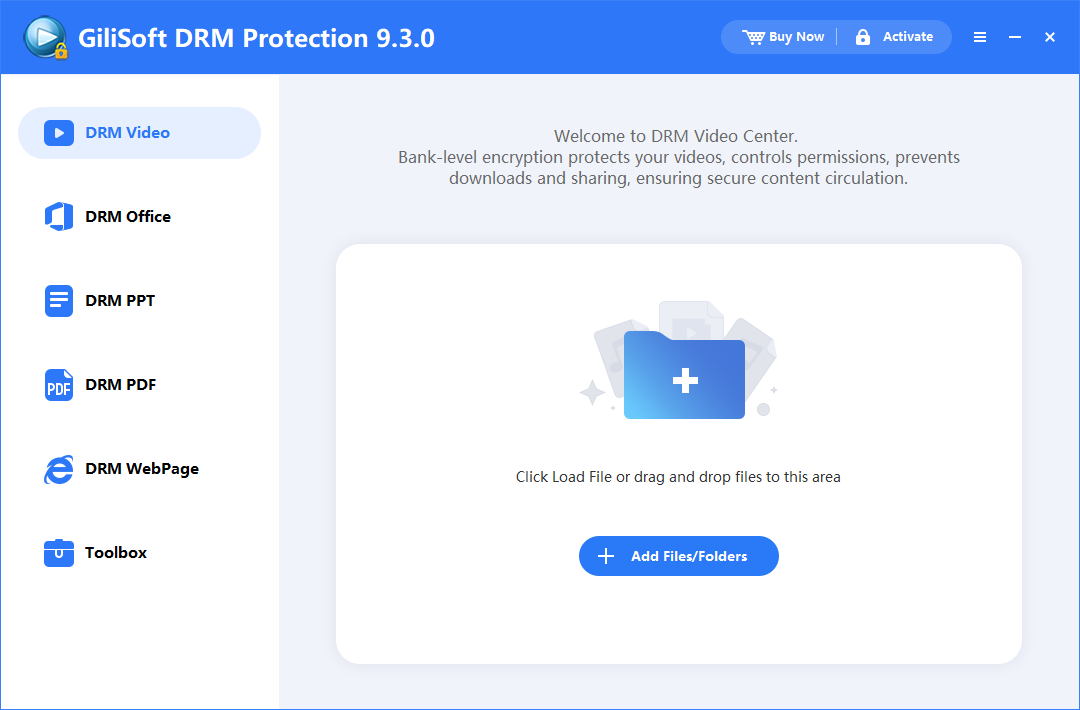
1Open GiliSoft Video DRM Protection.
2Select the appropriate protection workflow for the source content.
3Add the files that belong in the protected delivery package.
4Review the file list before configuring playback rules.

2. Configure encryption and playback settings

Choose how viewers will be authorized and keep the project information needed for future password creation.

1Set a recognizable Project ID.
2Save the Encryption Key securely with the project record.
3Choose the fixed-password, device-binding, storage-binding, or preview mode required by the delivery.
4Review the playback prompts, limits, and package settings.

3. Add watermark and anti-copy controls

Configure controlled playback settings that discourage copying, screen capture, virtual-machine misuse, and unapproved viewing environments.

1Enable the anti-copy and anti-capture options required by the project.
2Configure fixed or dynamic watermark text for viewer traceability.
3Review virtual-machine and playback-environment checks.
4Keep only the restrictions appropriate for the intended viewers.

4. Export the protected package

Create the delivery file only after the encryption key, binding mode, watermark, access limits, and anti-copy rules are ready.

1Choose the protected GEM or EXE output required for delivery.
2Select the output location and confirm the package name.
3Create the protected package and keep the source project information.
4Test the completed package before sending it to viewers.

Choose the right password or binding mode

Fixed Playback Password

Use one password when approved viewers may open the package on more than one computer and device-specific control is unnecessary.

Simple shared access

PC Binding

Create a playback password from one viewer's machine code so that password works with the authorized computer.

One computer, one password

USB Disk Binding

Keep playback associated with the selected USB delivery device when protected content should not be copied away and used normally elsewhere.

Controlled removable-media delivery

CD Binding

Associate playback with the delivered optical media when training or licensed content is distributed on CD or DVD.

Controlled disc delivery

Part 2: Create and manage viewer access

Viewer opens package
Machine code appears
Publisher creates password
Viewer enters password

5. Create a playback password

Generate access for a viewer, customer, course group, or delivery batch after the protected package has been created.

1Select the matching project and enter its saved Encryption Key.
2For PC Binding, enter the Machine Code shown on the viewer's computer.
3Set play count, expiration date, preview limits, or viewer watermark text when needed.
4Create the Playback Password and send only that password to the authorized viewer.

6. Revoke a leaked or cancelled password

The online blacklist lets the publisher disable a playback password without rebuilding every protected package already delivered.

1Configure the online password blacklist URL before packaging protected content.
2Open the blacklist management page or tool.
3Add the leaked, expired, refunded, or otherwise revoked playback password.
4Save the list so future online verification rejects that credential.
Blacklist control depends on the URL being configured in the protected project before delivery.

7. Use player and supporting DRM tools

Use the toolbox for player preparation, password tasks, project utilities, and other supporting work around protected delivery.

1Open the toolbox after the core package settings are complete.
2Choose the player or password utility required by the project.
3Keep player branding and viewer instructions consistent with the protected package.
4Test the complete viewer experience before release.

Why a protected video may not play

Check the password and project values

  • The Playback Password must belong to this protected project.
  • The saved Encryption Key must match the original package.
  • PC Binding requires the correct viewer Machine Code.
  • Play count, expiration date, and preview limits must still permit access.

Check delivery and verification

  • Confirm the password is not present in the online blacklist.
  • Make sure the protected file downloaded or copied completely.
  • Confirm the current PC, USB device, or disc matches the selected binding mode.
  • Retest the package with the authorized GiliSoft playback workflow.

Video DRM Protection FAQ

Is the Encryption Key the viewer password?

No. The publisher keeps the Encryption Key and uses it to create Playback Passwords for authorized viewers.

When is a Machine Code required?

It is required when PC Binding is used to create a password for one authorized computer.

Can a leaked password be disabled?

Yes. Add it to the configured online password blacklist so future verification rejects it.

Can playback be tied to USB or disc media?

Yes. USB Disk Binding and CD Binding are available for controlled physical-media delivery.

Can viewer-specific watermark text be added?

Yes. Watermark text can be included when creating access so protected playback carries visible viewer or project information.

Why should I keep the Project ID?

It helps identify the right project and Encryption Key when new passwords or access changes are needed later.

More video DRM guides

Protect videos before paid, training, or external delivery

Package content with playback passwords, binding rules, watermarking, blacklist control, and authorized viewing.

View Video DRM Protection