

Startup Manager for Windows: Control Startup Apps
Startup apps run automatically when you sign in. Disabling unnecessary entries can reduce login delays and background activity, but startup management works best when every change is recognizable, reversible, and measured.
Quick answer
Open Settings > Apps > Startup or Task Manager > Startup apps. Sort by status and startup impact, disable one nonessential app at a time, restart, and verify the result. Keep security, backup, synchronization, accessibility, driver, and required work tools enabled unless you know exactly what they do.
What a Startup Manager Controls
A startup app is not the same as a Windows service, driver, scheduled maintenance task, or program that starts only when you open it. Windows Settings and Task Manager show registered startup applications; other launch mechanisms require separate investigation.
| Startup item | Typical decision | Reason |
|---|---|---|
| Security or endpoint protection | Usually keep enabled | Provides protection from sign-in onward |
| Backup and file synchronization | Keep if continuous protection is required | Disabling can delay backups or synchronization |
| Chat, game launcher, media helper | Often optional | Can usually be opened manually when needed |
| Printer, touchpad, GPU, or audio utility | Review carefully | The driver may work, but controls or shortcuts may not |
| Unknown publisher or broken path | Investigate before changing | Could be leftover software or a security concern |
Manage Startup Apps with Windows
- Take a baseline.
Note the time from power-on to a usable desktop and check Task Manager for persistent CPU, disk, or memory activity after sign-in.
- Open the startup list.
Use Settings > Apps > Startup, or open Task Manager and select Startup apps for status and startup impact.
- Identify each publisher and purpose.
Do not disable an unfamiliar entry only because its impact is High. Check its installed location and publisher first.
- Disable one group of optional apps.
Turn off launchers and helpers you do not need immediately. Disabling is preferable to deleting files or editing the registry.
- Restart and compare.
Confirm that sign-in is faster and required hardware, security, backup, and work apps still behave correctly.
Review Startup Items with GiliSoft Total Repair
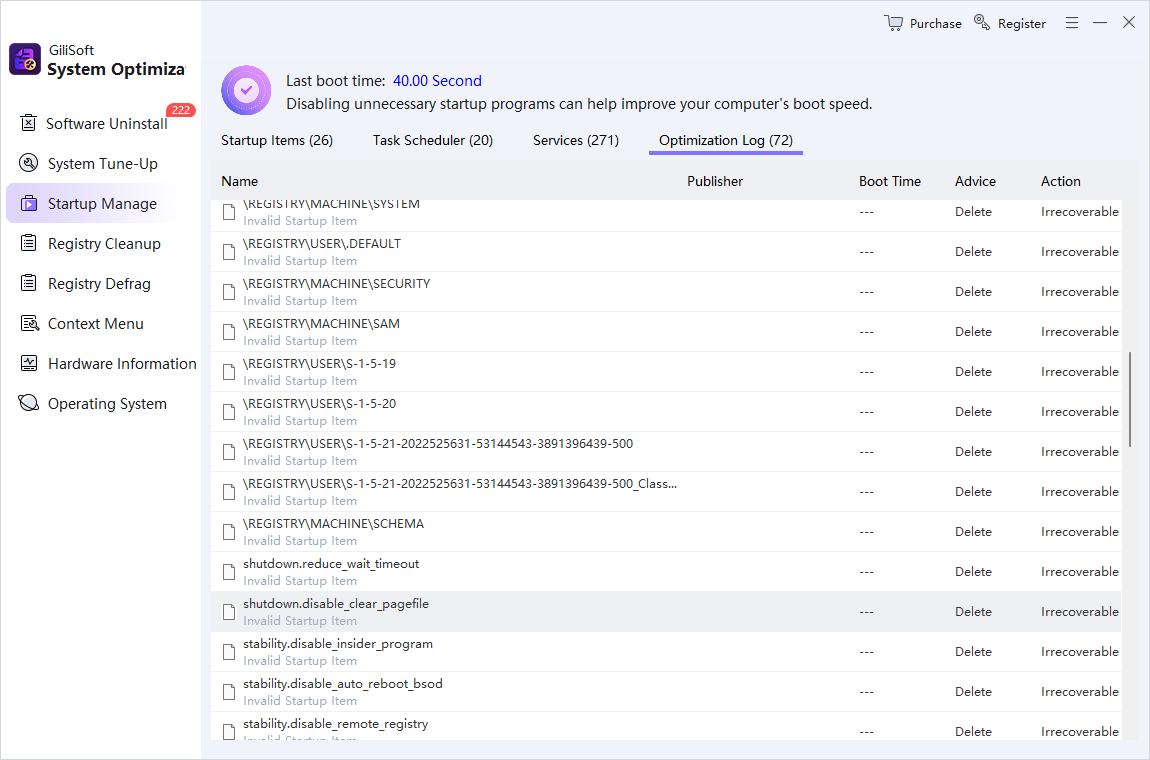
GiliSoft Total Repair includes PC Optimization > Startup Manage for reviewing startup items alongside scheduled tasks, services, and optimization history. Use the broader view carefully; the presence of an entry is not itself an error.
- Open Startup Manage.
Close important work and create a restore point before broader system changes.
- Review Startup Items first.
Prioritize recognizable nonessential apps and invalid paths rather than bulk-disabling everything.
- Treat scheduled tasks and services separately.
These can be required by Windows, security tools, hardware, or business software.
- Make a small reversible change.
Change a limited set, restart, and test before continuing.
- Use the optimization log.
Keep a record so a change can be traced and reversed if an app or device stops behaving correctly.
When an App Is Missing or Keeps Returning
An app may use its own “start with Windows” setting, a shortcut in shell:startup or shell:common startup, a scheduled task, or a service. If a disabled entry returns, update or uninstall the owning app instead of repeatedly deleting registry values.
For startup conflicts, Microsoft documents a clean-boot process that temporarily disables non-Microsoft services and startup apps. Record every change and restore normal startup afterward.
Startup Apps Are Not the Only Cause of Slow Boot
Investigate storage health, low free space, pending updates, drivers, malware, sign-in scripts, and failing hardware when disabling optional apps makes little difference. A startup manager cannot compensate for an unhealthy drive or an update loop.
Windows Startup Manager FAQ
Where are startup apps in Windows 11?
Open Settings, select Apps, and then Startup. For more detail, right-click Start, open Task Manager, and select Startup apps. Task Manager also displays the measured startup impact when data is available.
Is it safe to disable startup apps?
Usually, if the item is a nonessential app you recognize and can open manually later. Keep security, accessibility, backup, synchronization, hardware, and required business tools enabled unless you understand the consequence.
Does disabling a startup app uninstall it?
No. Disabling prevents the app from launching automatically when you sign in. The program remains installed and can normally be opened manually or enabled again later.
Why is an app missing from the Startup apps list?
It may manage startup inside its own settings, use a Startup folder shortcut, run as a service, use a scheduled task, or have a broken registration path. Identify its launch mechanism before changing it.
Will a startup manager make Windows boot instantly?
No. Startup apps are only one part of boot time. Updates, storage performance, drivers, services, malware, sign-in tasks, and hardware can also cause delays.
Should I disable Windows services to speed up startup?
Do not disable services indiscriminately. Services can support security, networking, hardware, updates, and business applications. Use clean-boot troubleshooting only with a recorded, reversible process.