

Why Encrypt a Laptop? Protect Data at Rest
Laptops are easy to lose, steal, service, or remove from an organization. Disk encryption reduces access to stored data when the device is powered off and the required unlock method is unavailable.
Quick answer
Encrypt a laptop when its stored data would create risk if the device or disk were removed. Use strong access controls, keep recovery information separate, maintain tested backups, and remember that encryption does not protect files after an authorized user unlocks the computer.
Match Encryption to the Risk
| Situation | Recommended approach | Check carefully |
|---|---|---|
| Lost or stolen laptop | Protect data at rest on relevant volumes | Recovery key storage and lock-screen habits |
| Disk removed for offline access | Use volume encryption rather than file hiding | All sensitive internal volumes |
| Shared or actively compromised session | Add account, endpoint, and access controls | Disk encryption alone is not enough |
Step-by-Step Workflow
- Classify the laptop data
Identify personal, customer, financial, source-code, credential, and regulated data stored locally or synchronized offline.
- Back up and prepare recovery
Create a tested backup and store recovery information somewhere separate from the encrypted laptop.
- Choose the correct encryption scope
Protect the system and any data volumes that hold sensitive information; do not assume one encrypted partition covers every disk.
- Enable, complete, and verify
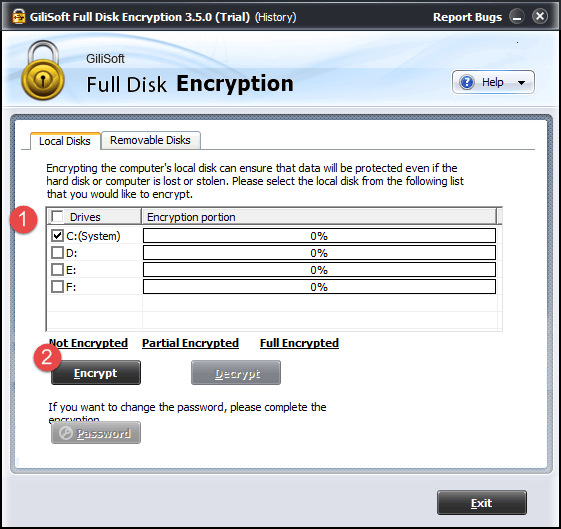
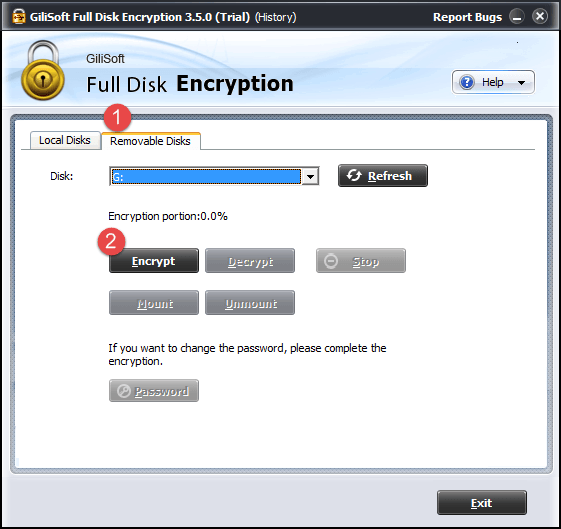
Use GiliSoft Full Disk Encryption for the intended drive, keep power stable, wait for completion, and test normal startup and the documented recovery path.
For every product control and supporting task, see the Full Disk Encryption user guide.
GiliSoft Full Disk Encryption Interface
These real product screenshots connect the advice above to the Windows workflow.
Review Before You Finish
- Keep the untouched source or a verified backup before changing protected data or media.
- Test the finished result in the real destination, recipient, or restart workflow.
- Document passwords, recovery material, ownership, and exceptions in an appropriate controlled location.
- Do not treat one product control as a replacement for authorization, backups, endpoint security, and policy.
Frequently Asked Questions
Will encryption slow down my laptop?
Performance impact depends on hardware, workload, and implementation. Measure the real workload after protection is enabled.
Where should recovery information be stored?
Keep it in a controlled location separate from the encrypted device, with access and retention appropriate to the organization.