
Choose a Wedding DVD Structure
| Project | Recommended structure | Reason |
|---|---|---|
| Short highlight film | Single title with simple menu | The main film remains the focus |
| Full ceremony and reception | Separate titles | Major parts are available from the main menu |
| Long ceremony | Chapters by moment | Viewers can jump to vows, rings, and recessional |
| Client delivery set | Disc plus ISO master | The finished project can be reproduced consistently |
Prepare the Wedding Films Before Authoring
Use final approved edits
Do not author from rough cuts or camera originals.
Balance the audio
Check vows, speeches, music, and transitions for comfortable playback.
Write concise labels
Use familiar moments such as Ceremony, Speeches, and First Dance.
Keep high-quality masters
DVD is a viewing format; archive the full-resolution final films separately.
Burn Wedding Videos to DVD: Step by Step
Add the final wedding videos
Import the approved highlight, ceremony, reception, and other finished films.
Arrange the viewing order
Place the highlight first if desired, then organize the full event sections logically.
Add chapters at important moments
Mark entrances, vows, rings, speeches, dances, and other natural scene changes.
Customize the wedding menu
Use the couple names, event date, restrained imagery, and labels that remain readable on a TV.
Preview the entire experience
Check every button, chapter, end action, transition, name, and audio segment.
Create and test the delivery master
Output a disc, ISO, or DVD folder and test playback before making delivery copies.


Build a Wedding DVD That Feels Finished
Keep the menu understated
A simple layout helps the wedding films remain the focus.
Choose useful chapters
Mark memorable moments rather than adding too many arbitrary stops.
Proofread names and date
Small title errors are highly visible in a keepsake project.
Test from a sofa distance
Confirm that labels and selected-button states are easy to see on a television.
Author the Wedding DVD with GiliSoft Movie DVD Creator
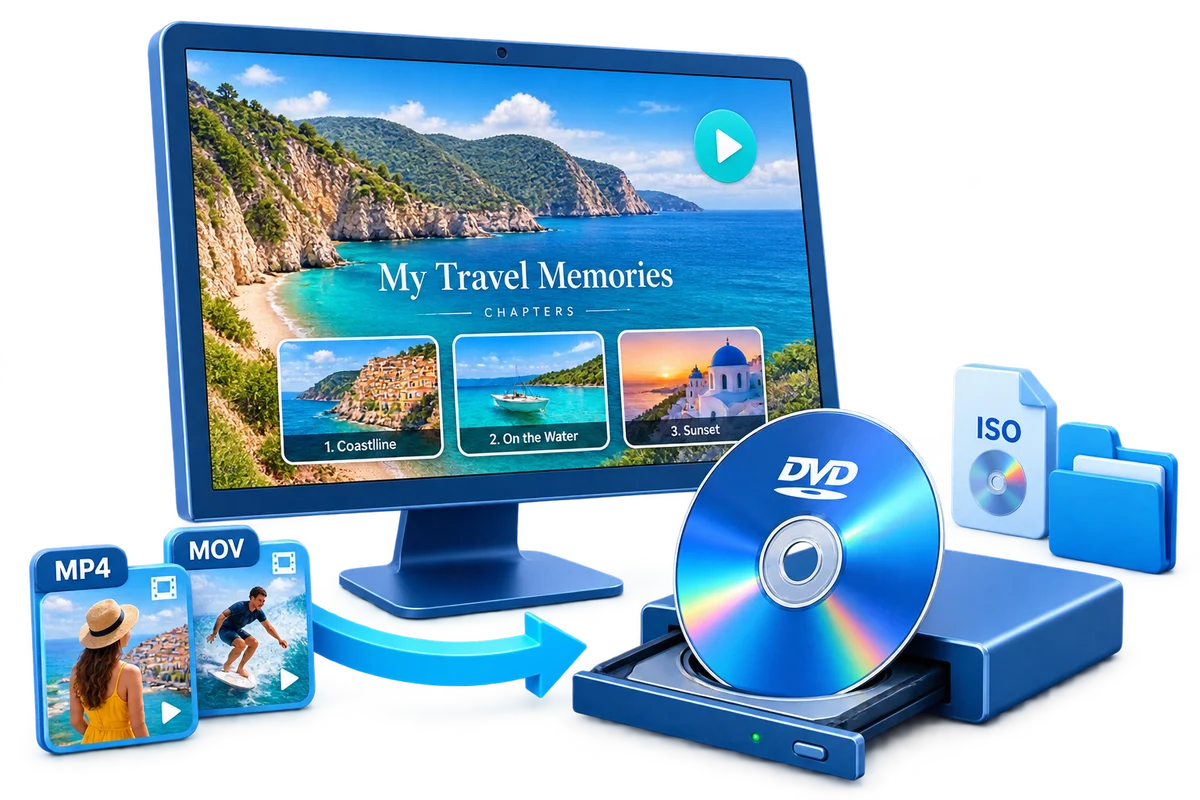
GiliSoft Movie DVD Creator brings video arrangement, basic trimming, chapter placement, menu design, preview, and disc, ISO, or DVD-folder output together on Windows. It helps produce a navigable viewing disc while preserving a repeatable master for future copies.
Troubleshooting
- A chapter begins too early: move it to a stable shot or clear scene transition.
- Speech volume changes sharply: correct the final video audio before authoring.
- The menu feels crowded: reduce the number of main choices and move detailed moments to chapters.
- The image looks softer than the source: DVD-Video is standard definition, so retain the HD or 4K master separately.
- A player rejects the disc: verify finalization, media compatibility, and the authored DVD-Video output.
Respect Rights, Privacy, and the Original Files
Create and distribute discs only from video, music, images, and personal recordings you are authorized to use. Keep source and high-resolution masters separately; an authored DVD is a delivery or viewing copy, not the only archive.
Frequently Asked Questions
Can ceremony and reception videos be separate menu items?
Yes. Use separate titles for major sections and chapters for individual moments.
Will a DVD keep the original 4K quality?
No. DVD-Video is standard definition, so preserve the high-resolution final files separately.
Can I use a wedding photo as the menu background?
Yes. Choose an image with enough quiet space and contrast for readable controls.
Should I create an ISO master?
Yes, especially for client delivery or future anniversary copies.
How many chapter points should I add?
Add only useful moments that viewers are likely to revisit.
Can I make copies of commercial wedding music?
Only use and distribute audio and video for which you have the necessary rights or permission.