
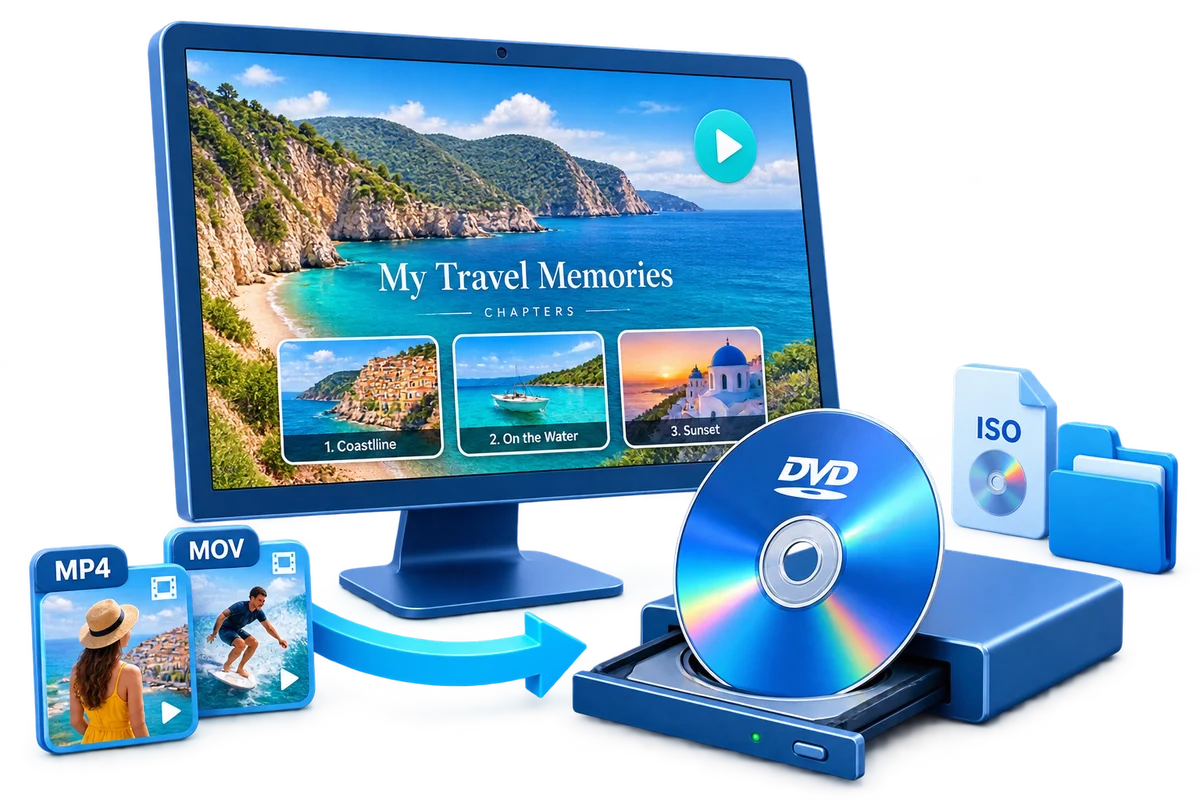
Choose the Output by How It Will Be Used
| Goal | Best choice | Why |
|---|---|---|
| One-file disc master | DVD ISO | Convenient for transfer and repeat image burns |
| Accessible authored files | DVD folder | Useful when the structure must remain visible |
| Immediate standalone playback | Physical DVD | Best when final media and writer are ready |
| Future editing or preservation | Original videos | Keep alongside, not inside, the delivery structure |
Prepare Before Creating the DVD
Use an empty destination
Prevent old DVD files from being mixed with the new output.
Allow enough space
Reserve temporary encoding space plus the completed folder.
Keep folder contents together
Do not rename, remove, or rearrange files inside the authored structure.
Finish authoring first
Menu links and title order must be correct before output.
How to Create a DVD Folder from Video Files: Step by Step
Add the final video files
Import local sources and arrange the viewing sequence.
Prepare titles and chapters
Complete edits and set useful navigation points.
Create the menu
Choose a template and label buttons clearly.
Preview the complete project
Test menu pages, title playback, and return behavior.
Choose DVD folder output
Select a new empty destination and the required PAL or NTSC standard.
Verify and preserve the folder
Confirm all output files exist, test compatible playback, and keep the structure intact.


DVD Folder, ISO, and Data Folder Compared
Authored DVD folder
Contains the files and structure created for DVD-Video playback.
ISO image
Packages the authored disc into one image file.
Ordinary video folder
Contains source files but no DVD menu or authored navigation.
Physical DVD
Places the authored result on recordable optical media.
Author the Complete Project with GiliSoft Movie DVD Creator
GiliSoft Movie DVD Creator keeps source preparation, titles, chapters, menu design, PAL or NTSC selection, preview, and disc, ISO, or DVD-folder output in one workflow. It is intended for creating DVD-Video, not merely copying loose video files to optical media.
Troubleshooting
- The folder does not play as a DVD: open it with software that supports DVD-folder navigation.
- Files are missing: recreate the output in an empty folder and wait for completion.
- Navigation breaks after moving files: move the whole folder without changing its internal structure.
- The output is too large: shorten content or revise project quality and target capacity.
- The folder was overwritten: use a unique project name and keep a verified backup.
Create Discs Only from Authorized Video
Use recordings you own or have permission to copy and distribute. DVD creation does not override copyright, privacy, licensing, or technical protection.
Frequently Asked Questions
What is a DVD folder?
It is the file-and-folder structure produced by an authored DVD project.
How is a DVD folder different from an ISO?
A folder exposes its contents directly; an ISO packages the complete disc into one image file.
Can a DVD folder include menus?
Yes, when it was created from a menu-based authored project.
Can I burn the folder later?
Yes, using a workflow that preserves the DVD-Video structure rather than copying it as unrelated files.
Should I edit files inside the folder?
No. Renaming, deleting, or moving internal files can break navigation and playback.
Should I keep the original videos too?
Yes. The DVD folder is a delivery structure, not a substitute for original-quality sources.