
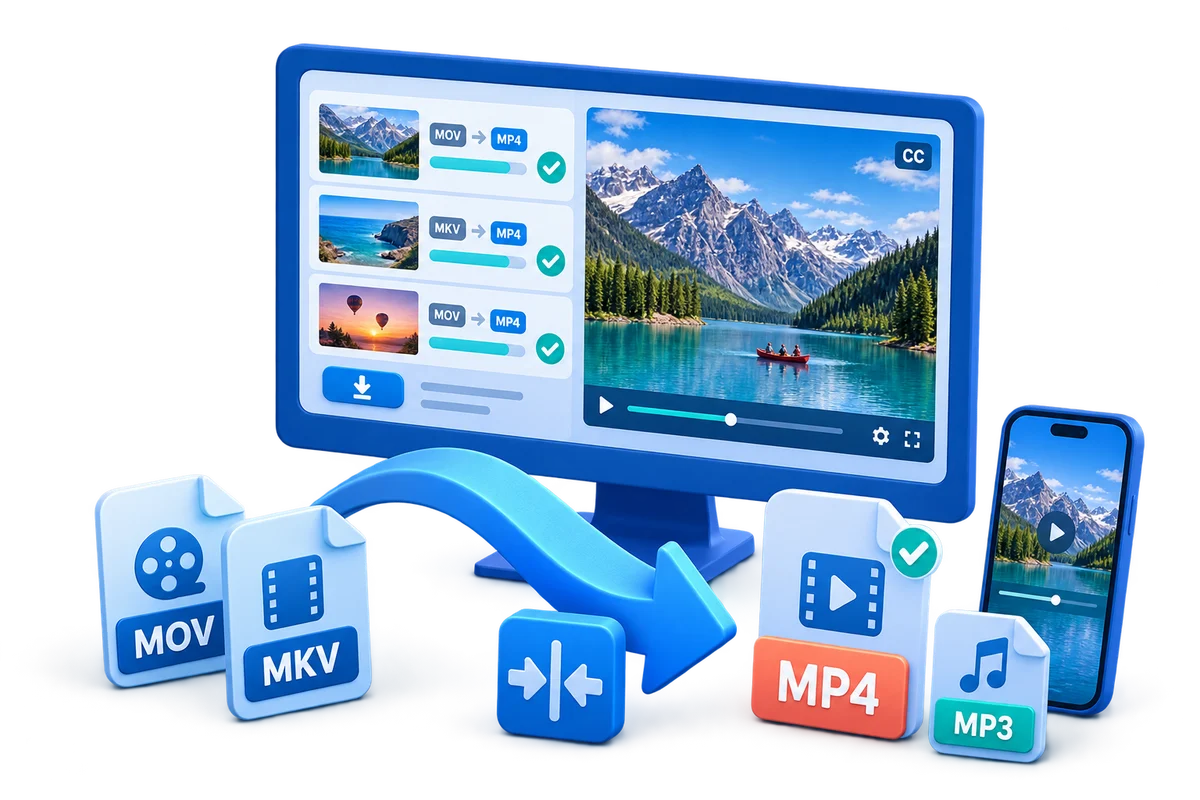
Convert Downloaded YouTube Video for a Phone
A legally saved video may still be too large, use an unsupported codec, or have dimensions that are impractical for a phone. Convert only after verifying the source file and destination device.
Quick answer
Use your own upload or another authorized local video. In GiliSoft Video Converter, choose a device-compatible MP4 output, preserve the original frame rate when practical, and make a short test before converting a long file.
Confirm Rights Before Editing
- Use your own video or material whose owner and platform permit downloading, modification, and intended distribution.
- Keep license, consent, attribution, and source records with the project.
- Do not remove ownership marks, required attribution, access controls, or evidence from material you do not control.
Match the Goal to the Workflow
| Situation | Recommended action | Review checkpoint |
|---|---|---|
| Phone will not open the file | Use a widely supported MP4 video and AAC audio combination | Test in the phone's normal player |
| File is too large | Reduce resolution or bitrate moderately | Check text and motion at actual screen size |
| Video is vertical or unusual | Preserve the intended orientation and aspect ratio | Confirm no stretching, cropping, or black-bar error |
Step-by-Step Workflow
- Verify the source and permission
Play the complete local file and confirm it is yours or authorized for conversion.
- Check the target phone
Note its player, screen orientation, available storage, and whether the file will be shared through messaging or local storage.
- Choose an output profile
In GiliSoft Video Converter, start with MP4 using a compatible codec and avoid increasing resolution beyond the source.
- Convert a short sample
Test a section containing speech, motion, captions, and fine detail before processing the complete video.
- Transfer and test on the phone
Play the beginning, middle, and ending on the actual device and keep the untouched source.
Verify the Export
- Play the beginning, middle, and ending outside the editor.
- Check timing, aspect ratio, text, overlays, audio sync, and destination compatibility.
- Keep the untouched source and clearly label the approved export.
Know the Limits
Source compression, motion, missing background detail, poor audio, or low resolution can limit the result. Upscaling does not recreate true source detail, and editing tools do not grant permission to copy, modify, or distribute protected material.
Frequently Asked Questions
Can I edit or convert any video I download?
No. Downloading, editing, and redistributing may require separate permissions. Use your own or explicitly authorized material.
Should I overwrite the downloaded source?
No. Keep an untouched source and export a new version so the workflow can be corrected or repeated.
Why should I export a short test?
It reveals codec, quality, timing, overlay, and audio problems before a long render.
Does editing software grant reuse rights?
No. Software provides technical tools; ownership, licenses, consent, and platform rules determine permitted use.