
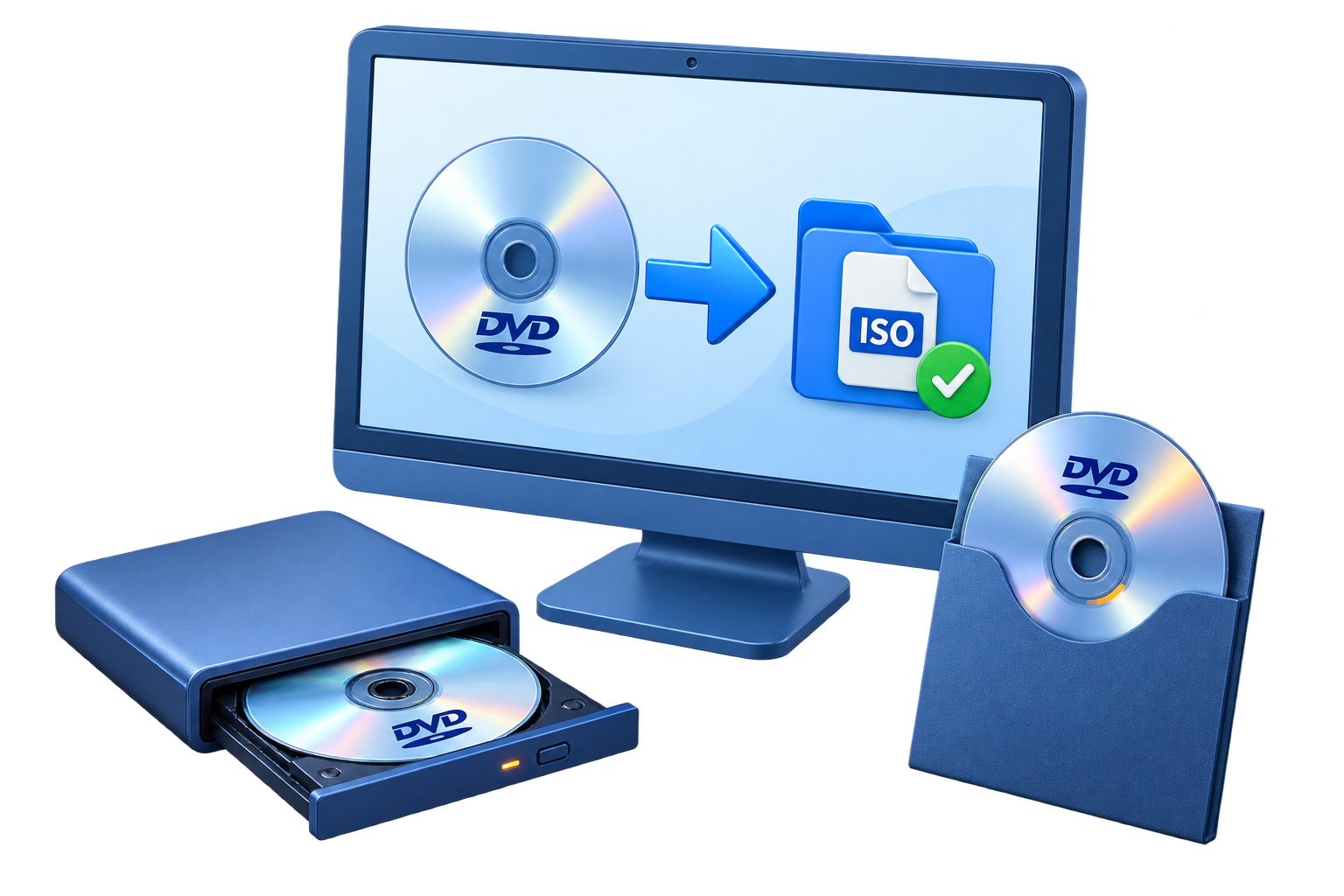
How to Copy a Home DVD on Windows
Choose the output according to what you need next: an ISO preserves a disc image for storage or later burning, a DVD folder is easy to inspect on disk, and a blank disc creates a physical duplicate.
Quick answer
For a home-authored or otherwise authorized DVD, insert the source, open GiliSoft Home DVD Copy, choose ISO, DVD folder, or blank-disc output, confirm capacity, run the copy, and play-test the result.
Choose ISO, Folder, or Blank Disc
| Goal | Copy path | Verify |
|---|---|---|
| Long-term local archive | Copy DVD to ISO | Storage space, filename, and mounted playback |
| Inspectable hard-drive copy | Copy to DVD/VIDEO_TS folder | Folder completeness and player support |
| Physical duplicate | Copy or burn to compatible blank DVD | Disc capacity, burner, media type, and finalization |
Complete and Verify the DVD Copy
- Confirm rights and disc condition
Use a home-authored or otherwise authorized source that does not require prohibited access-control circumvention. Clean the disc and confirm it plays.
- Choose the destination
Select DVD to ISO, DVD folder, or blank-disc copy in GiliSoft Home DVD Copy. Ensure the destination has sufficient capacity.
- Run the copy without interruption
Keep the source available, prevent sleep or ejection, and do not treat a completed progress bar as the only verification.
- Verify the actual output
Mount and play the ISO, inspect and play the folder, or reinsert and play the burned disc. Check menus, chapters, video, and audio.
See the Home DVD Copy user guide for ISO, folder, blank-disc, and virtual-drive workflows.
Home DVD Copy Interface


Backup Verification Checklist
- Confirm the output size and expected DVD structure.
- Test menus, chapters, video, audio, and content near the end.
- Keep the source until the backup and a second storage copy are verified.
- Label edited, archived, and burned copies clearly.
Frequently Asked Questions
Which output is best for backup?
ISO is convenient when you want one disc-image file; a folder is easier to inspect; a blank disc is useful when physical playback is required.
Does a successful copy guarantee playback?
No. Test the actual ISO, folder, or disc in the intended playback environment.