
Delete PDF Pages on Windows Without Losing the Original
Deleting a page can also break page references, bookmarks, or an approved document record. Work on a copy and confirm that the correct pages remain in the final file.
Quick answer
Open a copy in GiliSoft PDF Editor, inspect thumbnails and page numbers, remove unwanted pages with the available page-organization controls, then save and verify the new document.
Before You Start
- Record the original page count and identify page ranges precisely.
- Check whether the file is signed, protected, or subject to records retention.
- Keep the original and use a new filename for the shorter version.
Choose the Right Route
| Situation | Approach | What to verify |
|---|---|---|
| Unwanted blank or duplicate pages | Remove pages from a working copy | Remaining sequence is complete |
| Need only a page range | Extract or split the range to a new PDF | Original remains unchanged |
| Confidential content on a page | Use approved redaction or retention procedure | No hidden text remains in shared output |
Delete PDF Pages on Windows Without Losing the Original: Step by Step
- Open the document copy
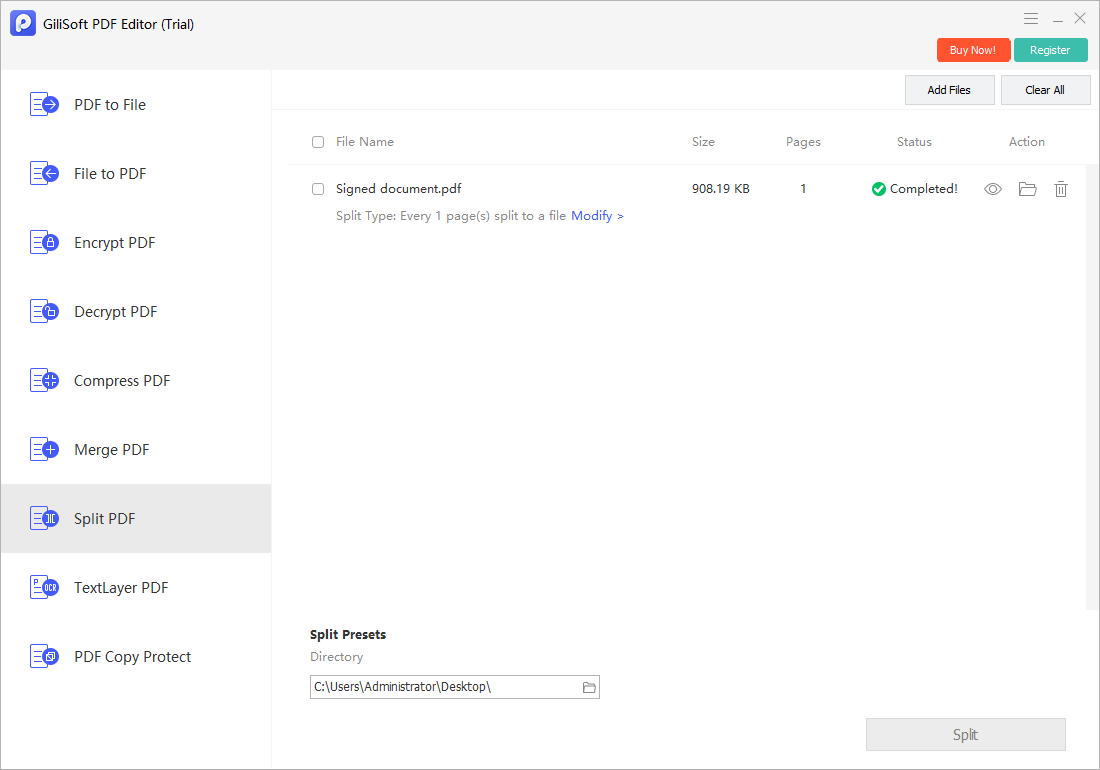
Use PDF Editor to inspect thumbnails and identify the pages to remove by content, not just number.
- Choose the page task
Remove the selected pages where the installed page controls allow it; if not, extract the pages to keep into a new PDF.
- Save a new PDF
Avoid overwriting a signed or approved source.
- Review the remaining file
Check sequence, page numbering, cross-references, links, forms, bookmarks, and the last page.
Check the Result Before Sharing
- Did the correct pages disappear, including blank backs or duplicate scans?
- Are references to removed pages now misleading?
- Does the final file still open and print normally?
Limits and Common Mistakes
Deleting visible pages is not secure redaction of confidential content. Signed PDFs may lose signature validity when altered; consult the approval owner before changing them.
Frequently Asked Questions
Can I restore deleted pages?
Use the preserved original or undo before saving; keep a backup until the new PDF has been checked.
Can I delete pages from a scanned PDF?
Yes, page organization works at the page level even when the text is image-only.
Does page deletion remove private information securely?
No. Use an appropriate redaction process and verify the saved file separately.