How to Use GiliSoft PDF Editor on Windows
Edit a document, fill a form, convert a file, or prepare a PDF for sharing. Choose a task below for its tool, settings, illustrated steps, and output checks.
What Would You Like to Do?
Edit PDF Text and Images
Use the main editor to correct an existing sentence, replace content, or adjust an image. Form filling and review annotations have their own tutorials below.
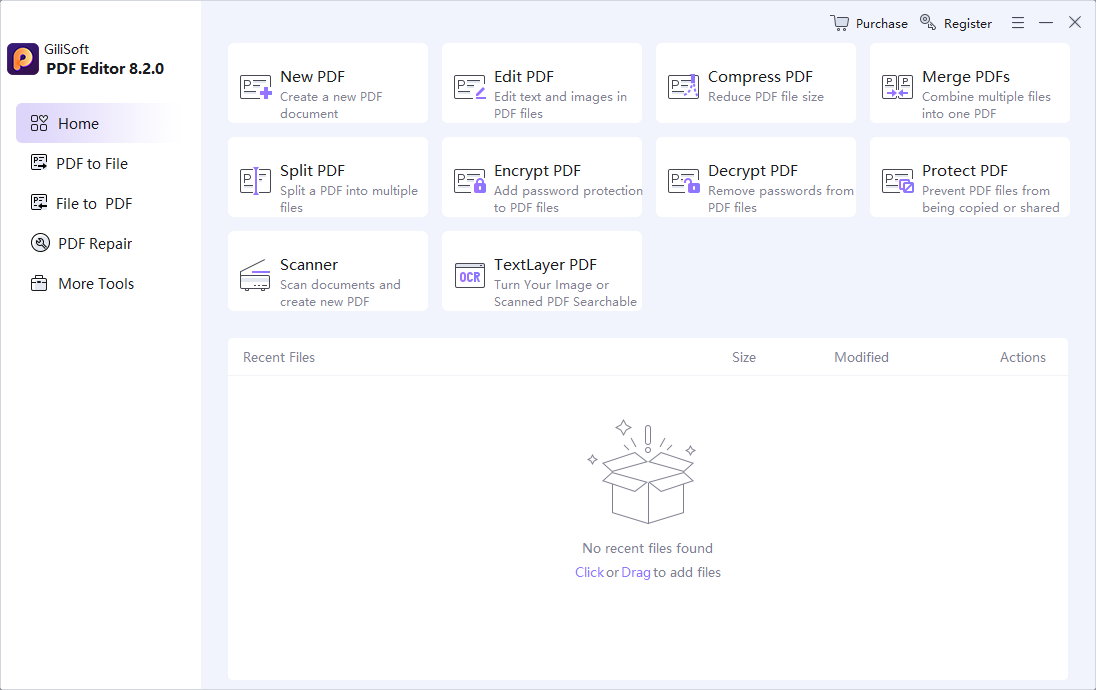
Open your PDF in Edit PDF
Launch GiliSoft PDF Editor, choose Edit PDF on Home, and open the document you want to change. Keep the source file so you can save the edited version separately.
Change the text or image
Use the Edit toolbar options to select an existing text or image object and make the required change. Use Add for new content where needed. Check line wrapping, spacing, and image placement before continuing through the document.
If the page is a single scanned image rather than selectable text, use TextLayer PDF for search and selection, or convert to Word for a larger rewrite. A text layer does not automatically rebuild editable paragraphs and tables.
Save your changes as a new PDF
Finish the current edit, then use the save-as option in File to save a new PDF copy. Choose a clear filename and destination so the finished document is easy to distinguish from the source.
Choose a name such as report-edited.pdf. A normal save updates the open document, while conversion and page tools create outputs in their own selected directories.
For sensitive content: a white shape or comment can cover text visually without removing it from the file. Do not treat a covering annotation as redaction.
Reopen and check the saved document
Open the saved copy in a second PDF viewer. Check the changed text, image positions, page layout, and page count. Confirm that you opened the new output rather than the unchanged original.
Check more than the edited line: nearby text can wrap differently after a change, and an image adjustment can affect the page's composition.
Fill Forms and Review Documents
Fill Out a PDF Form
- Open the form in Edit PDF
Choose Edit PDF on Home and open the form. For an interactive document, use Highlight Fields to find the available fields.
- Enter information in the right tool
Click each existing field and enter the required information. Edit Form changes the form's structure; it is not needed just to complete a field. If the form has no interactive fields, use the text-adding tool to position visible text on the page.
- Save and reopen the completed form
Finish the active entry and use the save-as option in File to create a completed copy. Reopen that copy and check every entered value before sharing it.
See how to fill out PDF forms on Windows for fields and flat forms.
Add Comments and Highlights
- Open the document and choose a review tool
Open the PDF in Edit PDF, then use the Comments menu or annotation toolbar. Choose a highlight, note, shape, or stamp for the review task.
- Place and review the annotation
Select the relevant text or position on the page and add the markup. Use a comment for feedback; use the content-editing tools when the underlying paragraph itself must change.
- Save the annotated PDF
Use File to save a new copy, reopen it in a PDF viewer, and check that the notes and highlights are visible on the intended pages.
The editor screenshot shows the Comments menu and annotation controls. Continue with the PDF annotation guide for a focused walkthrough.
Create a PDF or Scan Paper Pages
Create a PDF from Text or Images
- Open New PDF
Choose New PDF on Home, then select Start Now in its entry panel.
- Prepare the document content
Use the creation workflow to supply the text or images for the PDF. The entry panel lists TXT/RTF text and JPG/PNG images. Check the content and page layout before saving.
- Save the new PDF
Use the creation workspace's file controls to save the document with a clear PDF filename and destination. Reopen it to check text, images, orientation, and page order.
Convert Files to PDF
- Choose the source-file route
Open File to PDF in the left navigation and select the route matching your source, such as Word, WPS, Image, or E-Book to PDF.
- Add the source and set the destination
In the selected converter, add the files and review its input and output options. Confirm the intended file order when processing multiple sources.
- Convert and check the PDF
Run the selected conversion and open the resulting PDF. Compare fonts, tables, pictures, and page breaks with the source; for image input, check page orientation and readability.
Scan Paper Pages to PDF
- Open Scanner
Choose Scanner on Home and select Start Now. In the editor, follow File > New Document > From Scanner.
- Scan the pages
Select the scanner and an appropriate color or grayscale mode. Scan the required pages, then check their orientation, order, and readability.
- Save the scanned document
Save a new PDF and reopen it to check that every required page is present. If you need searchable words rather than only page images, continue with TextLayer PDF.
Convert PDF to Word or Other Formats
- Choose a conversion route
Open PDF to File. Choose Word for paragraphs, Excel for tables, PowerPoint for slides, Image for page pictures, or another offered output such as E-Book, Text, or HTML.
- Add the PDF and choose pages
Open the selected converter, add the source document, and set the page selection and output folder. For a scanned source, use the OCR workflow first if the converter does not recognize its text.
- Convert and inspect the output
Run the conversion and open the saved file. Check paragraphs and page breaks in Word, numbers and cell placement in Excel, or picture placement in PowerPoint. An image export contains page pictures rather than editable paragraphs.
Use the dedicated PDF to Word, PDF to Excel, or PDF to PowerPoint guide for a focused workflow.
Make a Scanned PDF Searchable
TextLayer PDF keeps the scanned page appearance and adds recognized text for search and selection.
- Open TextLayer PDF and add the scan
Choose TextLayer PDF on Home and select Add Files. Check the page count and Selection Page value so the intended pages are included.
- Choose the output and convert
Set the output Directory so you can keep the original scan, then select Convert to create the text-layer PDF.
- Check the recognized text
Open the output, search for a distinctive word, and copy a sentence into a text editor. Compare names, dates, punctuation, and numbers with the page image.
A searchable text layer does not rebuild the scan as a fully editable Word document. For extensive rewriting, convert to Word and review the recognized content and layout. See text-layer PDF creation or editing scanned PDFs on Windows for more detail.
Compress, Merge, and Split PDF Files
Reduce PDF File Size
- Open Compress PDF and add files
Choose Compress PDF on Home or in the left navigation, then select Add Files to load the source PDFs.
- Choose compression and destination
Select a Compression preset and an output Directory. Use Estimated Size as a guide, not a guaranteed final size.
- Compress and compare the result
Select Compress, then check the actual output size and readability. If you try a stronger preset, compare small text and diagrams; already optimized files may shrink only a little.
Merge PDF Files
- Add PDFs in the required order
Choose Merge PDF and add your documents. Use the row order controls to put the cover, main content, and appendices in the desired sequence.
- Set pages, output name, and folder
Review Selection Page, enter an Output file name, and choose the output Directory. Enable Unify page width only when a consistent width is wanted.
- Merge and check the document
Select Merge and open the combined PDF. Inspect the page order and each boundary between source documents to confirm no required page is missing.
Split a PDF into Separate Files
- Open Split PDF and add the document
Choose Split PDF and load the PDF to divide.
- Choose how pages will be grouped
Select Modify next to Split Type and set the intended grouping. Choose the output Directory before starting.
- Split and verify the outputs
Select Split, then check the number of output files and open them to confirm the required pages. The screenshot's completed example uses one page per output file.
The merge, split, and compress guide provides more detail on these tasks.
Add or Remove a PDF Opening Password
Password-Protect a PDF
- Open Encrypt PDF and add the source
Choose Encrypt PDF and select Add Files to load the PDF you want to protect.
- Set the password and output folder
Enter the required Password and choose the output Directory. Keep the password available so the new copy can be opened.
- Encrypt and test the protected copy
Select Encrypt, then reopen the output and confirm it asks for the password. If sending the document, send the password separately.
Remove a Known PDF Password
- Open Decrypt PDF and add the protected file
Choose Decrypt PDF for a PDF you can open and whose current password you know. Add the source and complete any password prompt.
- Choose the destination and decrypt
Set an output Directory and select Decrypt to create an unprotected copy.
- Check the new file
Open the new output, confirm its password behavior, and inspect the required pages. Keep the original protected file if it is still needed.
Decrypt PDF is not forgotten-password recovery. Protect PDF on Home is a separate content-protection entry; use Encrypt PDF when the task is to require a password to open a standard PDF.
Repair a Damaged PDF or Recover a Missing File
Open PDF Repair in the left navigation. Choose the entry for an existing damaged document or for a deleted or lost file.
Repair a Damaged PDF
- Choose Fix Corrupted PDF
Open PDF Repair > Fix Corrupted PDF when the document still exists but will not open correctly or appears damaged.
- Add a copy and run repair
Keep the original unchanged. In the selected repair tool, add a copy of the damaged PDF and use its available repair controls.
- Save and inspect the repaired output
Save a separate result and open it in a PDF viewer. Check the page count, text, pictures, and required content before using it in place of the damaged copy.
A password prompt needs the correct password, not corruption repair.
Recover a Deleted or Lost PDF
- Choose PDF Recovery
Open PDF Repair > PDF Recovery when the document was deleted or cannot be found. Avoid saving new files to the affected drive.
- Scan the original storage
In the recovery tool, choose the source location and recovery option matching the loss. Run the scan and inspect the PDFs it finds, using previews where available.
- Recover to another drive and check the file
Save the selected documents to a different drive, then open them to verify the content. If a restored file is still damaged, keep it and assess it separately with the repair workflow.
GiliSoft PDF Editor FAQ
How do I edit text in a PDF with GiliSoft PDF Editor?
Choose Edit PDF, open your document, and use the text-editing option in the Edit toolbar to select existing text. If the page is a scan rather than selectable text, use TextLayer PDF for search and selection, or convert the recognized content to Word for larger rewrites. Save your edited document as a new copy.
Can I fill out a PDF form and add comments?
Yes. Open the PDF in Edit PDF, select an interactive form field, and enter your information. Use the Comments tools for notes, highlights, or shapes. A scanned form has no interactive fields; adding text over it fills the visible page but does not create the same field structure.
Does OCR turn a scanned PDF into a fully editable document?
TextLayer PDF adds recognized text so that you can search and select content while keeping the scanned page appearance. It does not automatically rebuild the document as editable paragraphs and tables. For extensive text editing, convert to Word and review the recognized text and layout.
How do I convert a PDF to Word or Excel?
Open PDF to File and choose PDF to Word or PDF to Excel. Add the source document in the selected tool, set the page selection and destination, and run the conversion. Open the output to check paragraphs, tables, numbers, and page breaks before using it.
How can I reduce a PDF file's size?
Choose Compress PDF, add your file, select a Compression preset, and set the output Directory. Use Estimated Size as a guide, then compress and check the actual result. A stronger setting may reduce image detail, and an already optimized PDF may shrink only a little.
Can I merge PDFs in a chosen order or split them into separate pages?
Yes. In Merge PDF, add the files, use the order controls, and set the Output file name and Directory before merging. In Split PDF, use Modify beside Split Type to choose the page grouping. Reopen the results to confirm the order and that every required page is present.
How do Encrypt PDF and Decrypt PDF differ?
Encrypt PDF creates a password-protected output: add your PDF, enter a Password, choose a Directory, and select Encrypt. Decrypt PDF is the separate workflow for producing an unprotected copy when you can open the protected source and provide its password if prompted. It is not a forgotten-password recovery tool.
Does PDF Repair also recover deleted PDFs?
The PDF Repair category has two separate entries. Fix Corrupted PDF works on a damaged file that is still available, while PDF Recovery is for a lost or deleted PDF. Choose the entry that matches your situation; repairing a damaged file and finding a missing file are different tasks.
Why are my PDF edits or form entries missing after saving?
Check that you saved the edited document rather than only closing its preview, and confirm the output folder and filename. Reopen that exact copy in a second PDF viewer and inspect the changed text, form entries, and comments. If a page tool or conversion created another output, open that output rather than the original PDF.
More PDF editing and conversion guides
Use these focused tutorials when you need more detail on one task.