
Compare DVD Authoring Features Before You Choose
| Project | Recommended structure | Reason |
|---|---|---|
| DVD-Video authoring | Essential | Creates the structure expected by standard DVD players |
| Menus and chapters | Important for long or multi-video projects | Makes content easier to navigate with a remote |
| Full project preview | Essential before output | Finds broken buttons and wrong end actions |
| Disc, ISO, and DVD folder | Best for repeat work | Supports immediate burning, testing, and reusable masters |
| PAL and NTSC choice | Important for regional delivery | Matches the intended playback environment |
Define Your Authoring Requirements
Identify the player
Decide whether the disc must work in set-top DVD players, computers, or both.
Estimate the project size
Large projects may need shorter runtime, lower bitrate, or multiple discs.
Plan navigation
Decide whether viewers need titles, chapters, direct play, or several menu pages.
Choose the master format
Use ISO or DVD folder output when testing or repeat production matters.
Evaluate DVD Authoring Software in Six Steps
Confirm it creates DVD-Video
Do not assume that a disc-burning feature also creates television-compatible DVD structure.
Test your real source formats
Import representative camera, phone, and edited video files before committing to a workflow.
Build a realistic menu
Check title capacity, chapter pages, label readability, and customization controls.
Preview every navigation route
Test button targets, selected states, page changes, Home behavior, and end actions.
Create an ISO or DVD folder first
Inspect the authored master before using blank media or producing multiple copies.
Test the final disc on target hardware
Use the same type of player, television, and disc media expected by the audience.


Why Authoring Is Different from Copying Files
A data disc stores files
Playback depends on whether the device understands each file format.
DVD-Video adds structure
Authored discs contain navigation, titles, chapters, and player-compatible video structure.
Preview protects the workflow
A visual check can reveal wrong links before blank media is used.
A master improves consistency
ISO or DVD-folder output supports testing and repeat creation.
A Practical Windows Choice: GiliSoft Movie DVD Creator
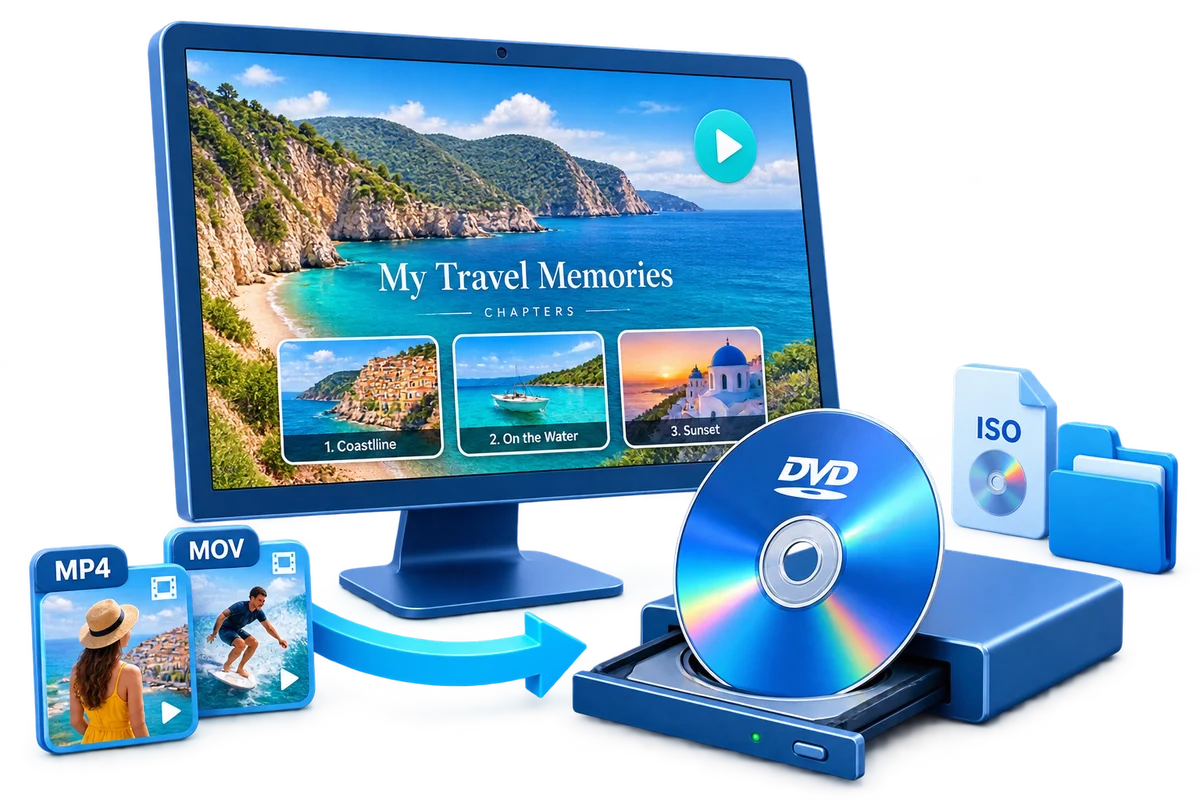
GiliSoft Movie DVD Creator is designed for the complete authoring path rather than file copying alone. It combines basic source preparation, title and chapter organization, customizable menus, PAL or NTSC selection, preview, and output to disc, ISO image, or DVD folder.
Troubleshooting
- The software only copies MP4 files: look for explicit DVD-Video authoring and menu creation.
- The menu cannot fit the project: use multiple pages or simplify the title structure.
- The preview works but a player fails: check disc type, burn quality, finalization, and player compatibility.
- Output quality is lower than HD: DVD-Video is standard definition; preserve the HD or 4K master.
- Repeat copies differ: create and use one verified ISO master.
Respect Rights, Privacy, and the Original Files
Create and distribute discs only from video, music, images, and personal recordings you are authorized to use. Keep source and high-resolution masters separately; an authored DVD is a delivery or viewing copy, not the only archive.
Frequently Asked Questions
What is DVD authoring software?
It converts prepared video into DVD-Video structure with titles, chapters, menus, and player navigation.
Is Windows file burning the same as DVD authoring?
No. File burning creates a data disc, while authoring creates DVD-Video for compatible set-top players.
What outputs should DVD authoring software support?
Disc, ISO image, and DVD folder outputs provide the most flexible workflow.
Why are PAL and NTSC settings important?
They help match the authored video standard to the intended region and playback equipment.
Should I test an ISO before burning?
Yes. Testing the master can catch structural or navigation errors before blank media is used.
Can DVD preserve HD or 4K quality?
Standard DVD-Video cannot; retain the original high-resolution files separately.