

DVD to MPEG Converter for Windows
A DVD to MPEG conversion creates a standalone video file for playback, editing, or archive workflows. The important decision is whether the destination expects MPEG-1, MPEG-2, or a different modern format such as MP4.
Quick answer
For a DVD source, MPEG-2 is normally the relevant MPEG output when you need DVD-like standard-definition quality or compatibility with older editing and playback systems. MPEG-1 is intended for older, lower-resolution workflows. If the destination asks for MP4 or MPEG-4, use the dedicated DVD to MPEG-4 or DVD to MP4 workflow instead.
MPEG, MPG, MPEG-2, and MPEG-4 Are Not the Same
| Term | Typical use | What to know |
|---|---|---|
| MPEG-1 | Older low-resolution players and legacy VCD-era workflows | Broad legacy support, but lower efficiency and quality than newer formats. |
| MPEG-2 | DVD-Video, older editors, broadcast and standard-definition workflows | A natural choice when the target explicitly needs an MPEG-2 program stream. |
| .MPG / .MPEG | Common filename extensions for MPEG program streams | The extension alone does not tell you whether the video is MPEG-1 or MPEG-2. |
| MPEG-4 | Modern compressed video standards | Often delivered in MP4 rather than an MPG program-stream file. |
| MP4 | Current computers, phones, TVs, browsers, and sharing workflows | A container commonly used with efficient modern video and audio codecs. |
Choose MPEG Settings for a DVD Source
| Setting | Practical choice | Why it matters |
|---|---|---|
| Profile | Use MPEG-2 unless the destination explicitly requires MPEG-1. | The wrong MPEG generation may not play or may unnecessarily reduce quality. |
| Resolution | Preserve the DVD source dimensions or use a tested target preset. | DVD is standard definition; upscaling cannot restore missing detail. |
| Aspect ratio | Keep the intended 16:9 or 4:3 display shape. | Incorrect signaling stretches faces or squeezes the picture. |
| Frame rate | Keep the source timing unless the destination requires another rate. | Unnecessary conversion can introduce judder or duplicate frames. |
| Interlacing | Deinterlace only when lines appear during motion on progressive displays. | Incorrect handling can reduce motion clarity. |
| Video bitrate | Use a standard-definition bitrate that balances detail and file size. | Too low causes blocking; excessive bitrate makes a larger file without new detail. |
| Audio and subtitles | Select the intended language, channels, and subtitle behavior. | The default DVD tracks may not match the required output. |
How to Convert a DVD to MPEG with GiliSoft
- Load the authorized DVD source
Open GiliSoft Home DVD Converter and load the readable disc, ISO image, or complete VIDEO_TS folder.
- Identify the correct title
Compare title durations and preview the content instead of selecting the longest title automatically.
- Choose MPEG-1 or MPEG-2
Select the MPEG profile required by the target player, editor, archive system, or delivery specification.
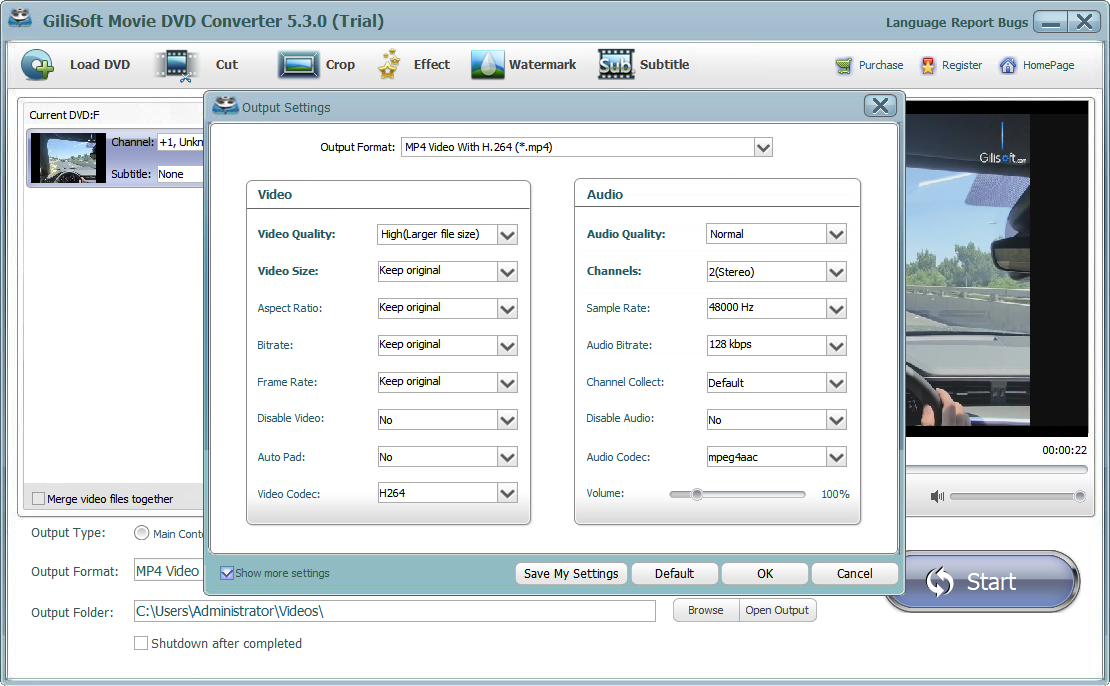
- Set picture, audio, and subtitle options
Confirm aspect ratio, resolution, frame rate, bitrate, interlacing, audio language, and subtitles.
- Convert a representative sample
Test motion, dialogue, music, subtitles, and seeking in the actual destination.
- Convert and verify the complete title
Inspect the beginning, middle, and end for quality, sync, geometry, missing scenes, and track selection.

Preserve DVD Quality Without Creating an Oversized File
DVD video is usually already encoded as MPEG-2, but exporting a standalone MPG file can still involve decoding, track selection, editing, and re-encoding. Avoid assuming that a higher number always means better quality.
- Keep the original disc, ISO, or VIDEO_TS folder until the MPEG output is verified.
- Match the source aspect ratio and timing whenever the destination permits.
- Use deinterlacing only when the source needs it for progressive playback.
- Test a representative clip before committing to a high bitrate for the full title.
- Avoid repeated lossy conversion because each generation can reduce quality.
Troubleshoot DVD to MPEG Conversion
| Problem | Likely cause | What to try |
|---|---|---|
| MPEG will not play | The target does not support the selected MPEG generation, profile, or audio stream. | Check the destination specification and test a compatible MPEG-2 or MPEG-1 preset. |
| Horizontal lines during motion | Interlaced DVD footage is being shown on a progressive display. | Enable a suitable deinterlacing option and compare a motion-heavy sample. |
| Picture looks stretched | The 16:9 or 4:3 display aspect ratio is incorrect. | Restore the source geometry and avoid forcing square dimensions. |
| File is too large | Video or audio bitrate is higher than the workflow needs. | Lower bitrate carefully and compare detail in a representative scene. |
| Audio is missing or wrong | Unsupported audio codec or incorrect DVD audio track. | Select the required language and choose audio supported by the destination. |
| Audio and video drift apart | Frame-rate conversion or irregular source timing. | Keep the source rate and test another MPEG profile before full conversion. |
DVD to MPEG Converter FAQ
Should I choose MPEG-1 or MPEG-2 for a DVD source?
Choose MPEG-2 when you need DVD-like standard-definition quality or compatibility with software that expects MPEG-2. MPEG-1 is mainly for older, lower-resolution workflows.
Is MPEG the same as MP4?
No. MPEG is a family of standards. MP4 is a modern container commonly used with MPEG-4 or H.264 video. A file named MPG or MPEG commonly contains MPEG-1 or MPEG-2 video.
Does converting DVD to MPEG copy the original DVD without quality loss?
Not necessarily. Creating a standalone MPEG file may re-encode the source. Matching sensible source settings limits unnecessary quality loss, but it is different from copying the DVD structure to ISO or VIDEO_TS.
Why are horizontal lines visible in the MPEG video?
The DVD source may be interlaced. Enable deinterlacing when the output will be viewed on progressive computer, phone, or modern TV displays and lines are visible during motion.
Can I convert a DVD ISO or VIDEO_TS folder to MPEG?
Yes. GiliSoft Home DVD Converter can load supported physical DVDs, ISO images, and VIDEO_TS folders for authorized conversion.
Why is the MPEG file very large?
MPEG file size depends on duration, resolution, video bitrate, audio bitrate, and profile. Use a bitrate appropriate for standard-definition DVD video and test quality before converting the full title.