

Easy File Locker for Windows 11/10
File locking, hiding, change prevention, encryption, and monitoring solve different problems. Start with the exact access rule you need and test recovery before protecting important data.
Quick answer
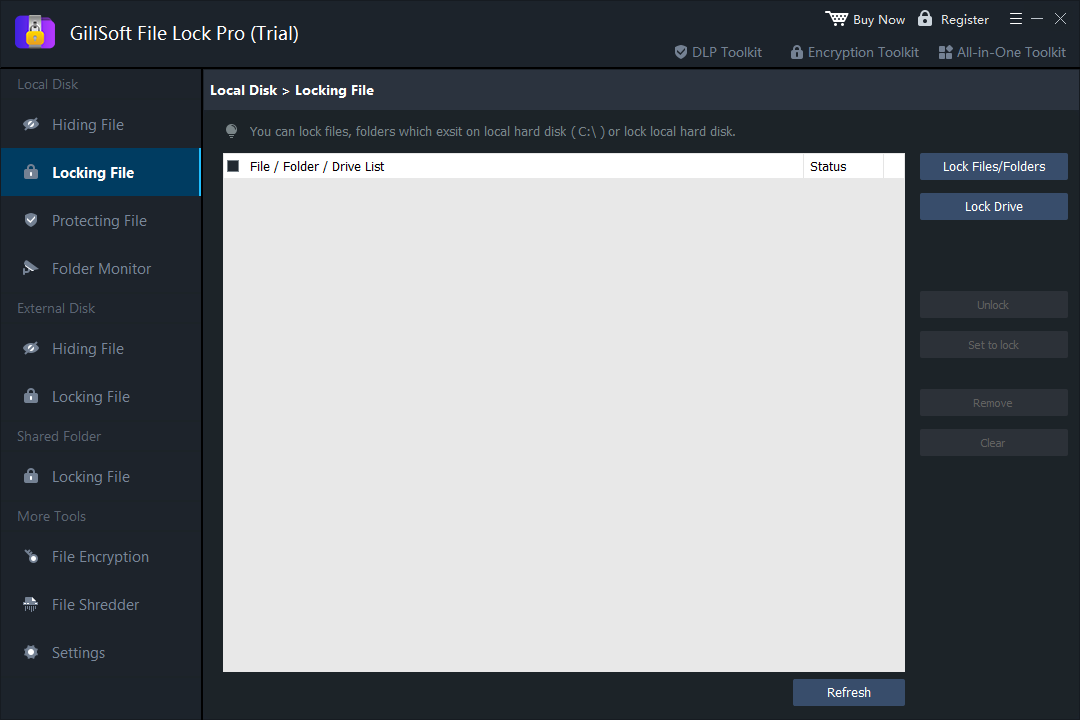
Use Locking File to require a password, File Hiding to remove items from ordinary browsing, Protecting File to block changes while keeping content visible, and Folder Monitor to review activity. Choose one control that matches the real risk instead of applying every restriction at once.
Choose the file-locking task
| Goal | Feature | Important boundary |
|---|---|---|
| Require a password before access | Locking File | Test applications that need the path |
| Remove an item from normal browsing | File Hiding | Hiding is not full-disk encryption |
| Prevent edit, rename, move, or deletion | Protecting File | Keep a recovery path for administrators |
| Create a portable encrypted package | Encrypt File | Recipients need the correct password and workflow |
| Review selected folder activity | Folder Monitor | It does not replace Windows security auditing |
How to lock files, folders, or data drives
- Back up the target.
Use noncritical test data first and verify a separate copy.
- Set the master password and recovery email.
Use a unique password and confirm the recovery route before enabling stealth options.
- Open the matching protection section.
Choose hiding, locking, protecting, encryption, or monitoring according to the intended result.
- Add the exact item.
Confirm the path, close applications using it, and apply the selected rule.
- Test permitted and blocked actions.
Verify both recovery and ordinary use before expanding the rule to important data.
Keep file locking recoverable
- Do not lock Windows, Program Files, or application data paths without a tested plan.
- Keep the recovery email and installer information available to an authorized administrator.
- Exclude required system and backup locations before applying broad rules.
- Review the program log after changing protection settings.

Frequently asked questions
Is Easy File Locker the same as full-disk encryption?
No. File locking and hiding control access to selected items. Full-disk encryption protects the underlying drive data against offline access.
Can I lock both files and folders?
Yes. GiliSoft File Lock Pro can lock or hide selected files, folders, and supported data drives.
Can I prevent a file from being deleted without hiding it?
Yes. Use protection rules when an item should remain visible but changes, deletion, rename, or writing must be restricted.
Can I monitor changes to a folder?
Yes. Folder Monitor records activity for selected folders and provides review and export controls.
What if I forget the master password?
Set and verify a recovery email before relying on the protection, and keep recovery information outside the protected location.