

Top 10 Tools to Password Protect Folders on Windows 11
Need a password on a private folder, not just a password on your Windows account? This guide compares direct folder lockers, encrypted containers, password-protected archives, and Windows security tools so you can choose the right kind of protection.
GiliSoft File Lock Pro is the best overall choice when you want a direct Windows 11 folder lock, hidden folders, protection against deletion or renaming, and support for local, external, USB, and shared-folder locations. VeraCrypt is better for an encrypted container, 7-Zip for a password-protected archive, and BitLocker for a complete drive.
Quick Comparison: Windows 11 Folder Password Tools
Not every entry creates the same kind of password prompt. The table separates direct folder locking from containers, archives, account-based encryption, and full-drive encryption.
| Tool | Protection type | Best for | Local / USB folders | Learning curve |
|---|---|---|---|---|
| GiliSoft File Lock Pro | Direct lock, hide, protect, encrypt | Best overall | Both | Low |
| Wise Folder Hider | Hide and lock | Basic private folders | Both | Low |
| Folder Lock | Locker and encryption | Encrypted vault use | Both | Medium |
| IObit Protected Folder | Folder access control | Simple local folder privacy | Mainly local | Low |
| Easy File Locker | Hide and access restrictions | Lightweight controls | Mainly local | Low |
| VeraCrypt | Encrypted container | Strong container encryption | Both | High |
| 7-Zip | Password-protected archive | Sending or storing a snapshot | Both | Medium |
| Windows EFS | Windows account-based encryption | Separate Windows accounts | NTFS local folders | Medium |
| BitLocker | Full drive encryption | Entire internal or removable drive | Drive level | Medium |
| AxCrypt | File encryption | Encrypted individual files | Both | Medium |
How we compared: direct folder access, hiding, protection against changes, local and removable-drive support, and the amount of setup required. Product capabilities can change, so confirm edition details before purchase.
Top 10 Folder Password Tools for Windows 11
The first five are closest to a traditional folder locker. The remaining tools protect data through containers, archives, Windows account encryption, drive encryption, or file encryption.
GiliSoft File Lock Pro
File Lock Pro is built for users who want to select a normal folder and control access without first creating a virtual disk or compressed archive. It can lock or hide files, folders, and drives; protect content against changes; work with external disks and shared folders; and record folder activity.
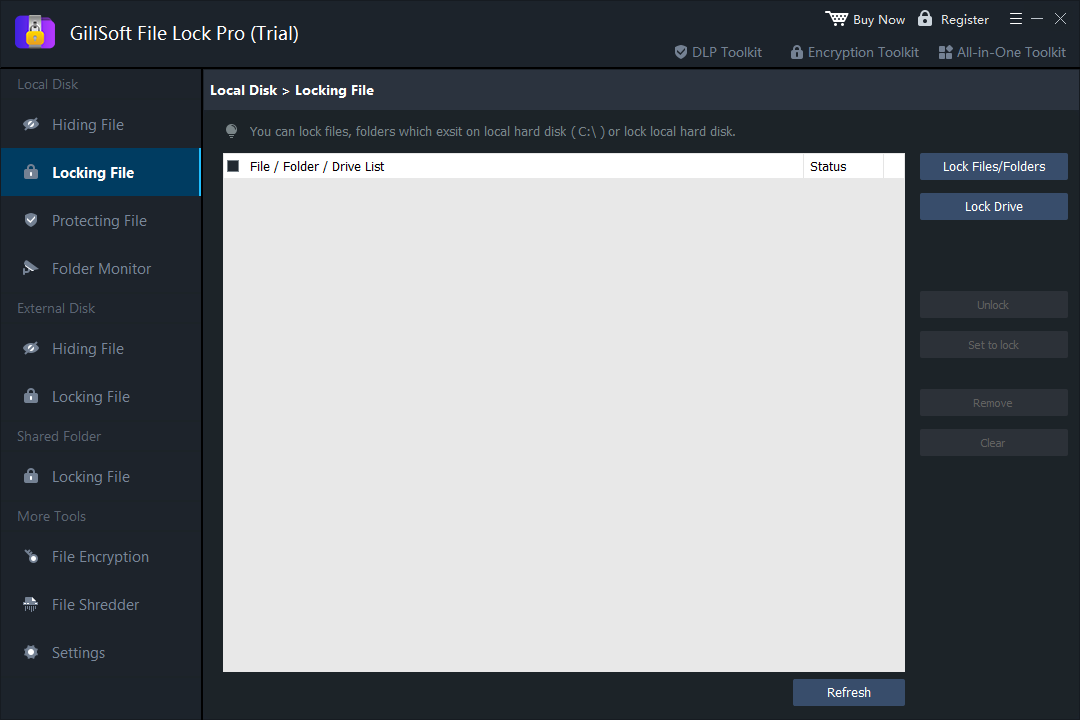
Choose a local file, folder, or drive, then apply the lock from one Windows interface.
Why it stands out
- Direct lock, hide, read-only protection, and encryption choices.
- Supports local drives, USB storage, external disks, and LAN shared folders.
- Includes folder monitoring, logs, self-protection, and password recovery options.
Choose it when
- You need everyday folder privacy rather than whole-drive encryption.
- You want private folders to disappear from normal browsing and Windows Search.
- You also need to prevent renaming, editing, or deletion.
Wise Folder Hider
Wise Folder Hider focuses on hiding private files and folders, with lock controls that can restrict reading, writing, deletion, and renaming. It is approachable for simple personal privacy, although users seeking shared-folder monitoring, drive controls, and a broader local protection toolkit may prefer File Lock Pro.

A lighter option for users whose main goal is hiding selected content.
Folder Lock
Folder Lock is designed around locked or encrypted storage areas. It is useful when you are comfortable keeping protected files inside a dedicated locker, but that workflow differs from locking ordinary folders in their current locations.

IObit Protected Folder
IObit Protected Folder is aimed at users who want a short add-folder-and-protect process. It fits straightforward home use, while more varied storage locations, folder activity review, and additional protection modes call for a broader tool.
Easy File Locker
Easy File Locker uses a small interface to hide files or restrict opening, writing, and deletion. It is attractive for lightweight needs, though its presentation and management model are more basic than current commercial folder-protection suites.
VeraCrypt
VeraCrypt creates an encrypted volume that is mounted as a drive after authentication. This provides a strong local container, but it is not the same as clicking an existing folder and giving that folder its own password. Choose it when the container model and additional setup are acceptable.

7-Zip
7-Zip can put a folder into an encrypted 7z or ZIP archive. It works well for sending or storing a fixed copy, but it is less convenient for a folder that changes every day because files must be extracted, edited, and archived again.

Windows Encrypting File System (EFS)
EFS can encrypt files and folders so access follows the authorized Windows account and its certificate. It does not add an independent folder password box, and availability depends on the Windows edition and storage format. Backing up the encryption certificate is essential.

EFS appears under Advanced Attributes when the Windows edition, policy, and file system support it.
Microsoft BitLocker
BitLocker protects an entire drive rather than one ordinary folder. It is the stronger match when a laptop, partition, or removable drive needs protection as a whole, but it is excessive when the task is simply to lock a few personal folders.

AxCrypt
AxCrypt is oriented toward encrypting files and integrating encryption into normal file work. It can suit users protecting selected documents, but direct hide, lock, drive, shared-folder, and folder-monitoring controls are a different product category.

How to Password Protect a Folder with GiliSoft File Lock Pro
This method keeps the target in its existing location and applies direct access control from File Lock Pro.
Open File Lock Pro
Launch the program and enter the master password used to manage protected items.
Choose Locking File
Under Local Disk, open Locking File. For removable storage, use the corresponding External Disk section.
Add the target folder
Select Lock Files/Folders, choose the folder, and add it to the protection list.
Apply and test the lock
Apply the locked state, then try to open the folder from Windows Explorer to confirm the expected password behavior.
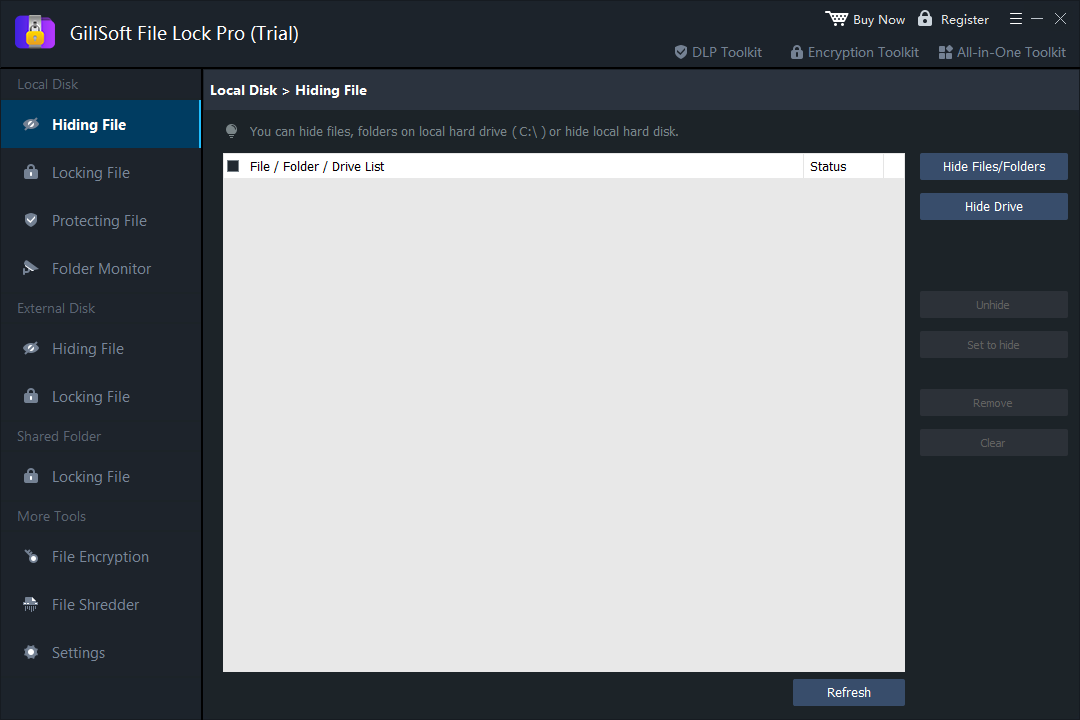
Use Hiding File instead when the folder should not appear in normal browsing or search results.
Folder Password Protection FAQ
Can Windows 11 put a password directly on a normal folder?
Windows provides account permissions, EFS, and BitLocker, but it does not provide one universal button that gives an ordinary folder its own independent password prompt.
Which tool is best for Windows 11 Home?
A direct folder locker such as GiliSoft File Lock Pro avoids relying on EFS availability and is easier than creating a BitLocker virtual drive.
Is hiding a folder the same as encrypting it?
No. Hiding removes the folder from ordinary discovery, locking controls access, and encryption transforms the stored data. File Lock Pro offers these as different actions.
What should I use for a USB folder?
Use File Lock Pro when you need to lock or hide selected files and folders on removable storage. Use GiliSoft USB Encryption when you want a dedicated encrypted area on the USB device.
Should I use 7-Zip for a folder I edit every day?
It is better for a fixed archive. A direct folder locker is more convenient when files are opened, edited, or replaced frequently.
Can folder protection prevent deletion and renaming?
Yes, with a tool that provides operation restrictions. Check the selected protection mode rather than assuming every password or archive tool blocks all file operations.
Related Folder Protection Guides
Choose direct folder protection for everyday Windows 11 privacy
Lock, hide, protect, encrypt, and monitor files, folders, drives, USB storage, and shared folders without moving private data to a cloud service.