

How to Encrypt Video, Audio, and Image Files for Free
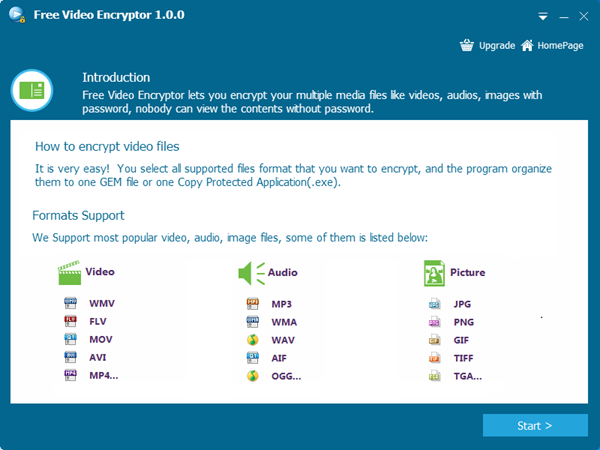
Free Video Encryptor packages supported video, audio, and image files into protected output for local Windows delivery. Choose GEM when recipients can use the free player, or EXE when a self-contained Windows package is more convenient. Always test the finished package on a separate supported PC before distribution.
Quick answer
Add the source files, choose GEM or EXE output, set the destination and protection options, create the package, and test it with the same playback path your recipient will use.
Choose GEM or EXE Output
| Output | Best fit | Check before sharing |
|---|---|---|
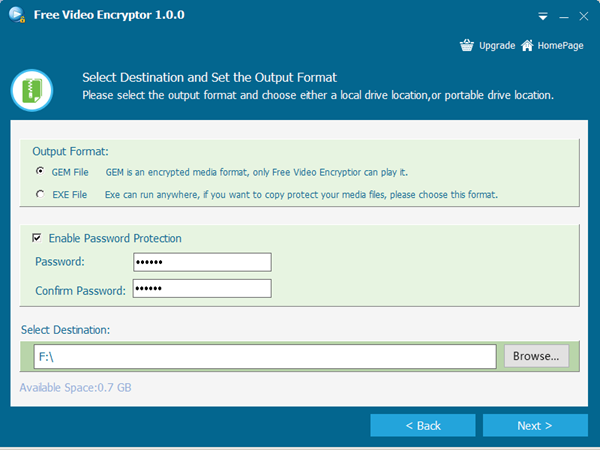
| GEM | Multiple supported media files played with the free GiliSoft player | Recipient can install or run the compatible player |
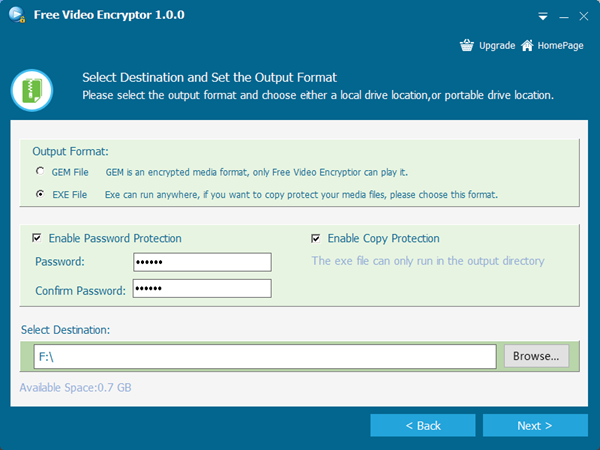
| EXE | A self-contained package for a supported Windows PC | Windows security policy permits the executable |
| Another format | Recipients use macOS, mobile devices, or restricted PCs | Use a delivery format approved for that environment |
Step-by-Step Workflow
- Prepare clean source files
Keep an unmodified backup, confirm the files play correctly, and remove material that should not be included in the package.
- Add the media files
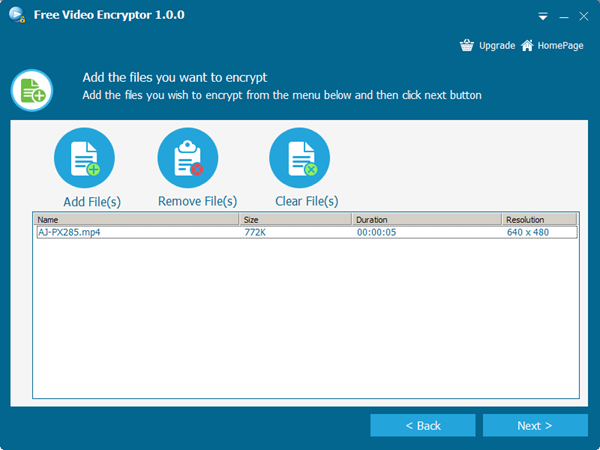
Open GiliSoft Free Video Encryptor, choose Add File, and select the video, audio, or image files intended for the same protected package.
- Choose GEM or EXE
Select GEM for player-based delivery or EXE for a self-contained supported Windows package, then choose a destination outside the source folder.
- Create the protected output
Review the file list and settings, start the build, and wait for the application to finish before moving or renaming the output.
- Test protected playback
Open the finished GEM package with the free player, or run the EXE package on a separate supported Windows PC and verify representative files.
- Share the package carefully
Send any password through a separate channel and tell the recipient which Windows playback method is required.
Product Interface
These real GiliSoft screenshots connect the workflow to the controls used on Windows.
Important Limits and Safety Checks
Frequently Asked Questions
What is the difference between GEM and EXE?
GEM uses the compatible GiliSoft player and can package supported media together. EXE creates a Windows executable package, which can be convenient but may be blocked in restricted environments.
Does a recipient need the full encryption application?
A GEM recipient needs the compatible free player. An EXE package is designed to run as a self-contained package on a supported Windows PC.
Is this the same as DRM?
No. File encryption protects the package and controls opening with its configured credentials. DRM adds capabilities such as licensing, device binding, expiry, revocation, or more detailed playback policy.
Can I distribute the original files too?
Keep originals in your own controlled storage, but do not distribute them alongside the protected package if protection is the purpose of the workflow.