- "Cool!!! Hide your folder completely. Unless you unhide it yourself, nobody can find it. "
--------------Bill - "Lock and hide files & folders from children."
-------------- William - "Lock, hide, password protect files and folders from unwanted access."
-------------- James - "Hidden data can be displayed and unhidden only when the user enters the valid password."
-------------- Henry
Hide Folders with File Lock
Hide Folders with Folder Lock
Hide Data from Prying Eyes
How to hide folder in Windows 11,win8,win7,vista,xp ?
As you konw,privacy is hard to come by these days. Whether you are sharing a computer or are generally suspicious of peers who occasionally have access to your computer, you may have the desire to store sensitive information or private files in a safe place.
Most people have many files or folders on their computer which they do not want to others see or use them. If you are interested in protecting your personal information, GiliSoft File Lock is just what you are searching for. With GiliSoft File Lock you will protect your files avoiding them to be being modified, seen or erased by other users.


This article provides a summary of two quick and easy ways to hide folders in Windows 11,8,7,vista,xp.The following steps will tell us how to use GiliSoft File Lock to hide folder and how to unhide them when needed.
How to hide folder with GiliSoft File Lock - Method 1:
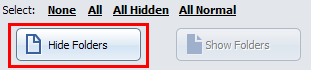
Step 1: Run GiliSoft File Lock, enter "Hide Data ----> Hide Folders " screen.

Step 2: Select 'Add Folders' to select folder which you want to hide, that folder will be added to list.

Step 3: Click the 'Hide Folders' button to finish folder hidding.
How to hide folder with GiliSoft File Lock - Method 2:
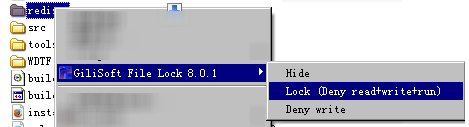
The easiest way to hide one folder is right-click the folder you want to hide and click 'GiliSoft File Lock'-->'Hide'
then the folder will magically disappear on your computer.
Just as this picture:
How to unhide hidden folders with GiliSoft File Lock?
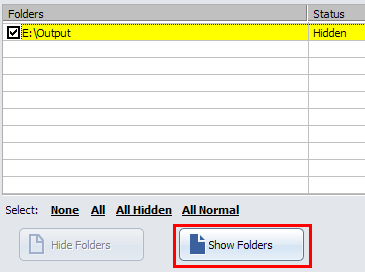
Once you wish to access your folder, do as the follow steps to make hidden folders visible.Step 1: Run GiliSoft File Lock, enter "Hide Data ----> Hide Folders " screen.
Step 2: Select hidden folders you want to make visible from list , click 'Show Files' button to unhide selected folders.