

How to Restrict Access to a Windows Data Drive
Locking a data drive inside Windows can restrict ordinary access on that computer. It does not encrypt every sector or replace full-volume protection for a lost, stolen, or removed drive. Choose the control according to the threat.
Quick answer
Create a verified backup and document the File Lock Pro administrator password and recovery method. Back up the target first, apply the narrowest useful rule, and test both authorized access and the action that should be blocked.
Choose Drive Locking or Full-Volume Encryption
| Situation | Recommended approach | Check carefully |
|---|---|---|
| Stop ordinary access on the current PC | Use File Lock Pro drive locking | Administrator and recovery access |
| Protect a lost or removed drive | Use supported full-volume encryption | Recovery key and hardware compatibility |
| Control writes but allow reading | Use a read-only protection rule | Applications that need to save or update |
| Protect a removable drive used elsewhere | Use a portable USB encryption workflow | Recipient software and platform support |
Step-by-Step Workflow
- Identify the exact data drive
Confirm the drive letter and ensure it is not the Windows system or recovery volume.
- Back up and prepare recovery
Create a verified backup and document the File Lock Pro administrator password and recovery method.
- Add the drive to the locking workspace
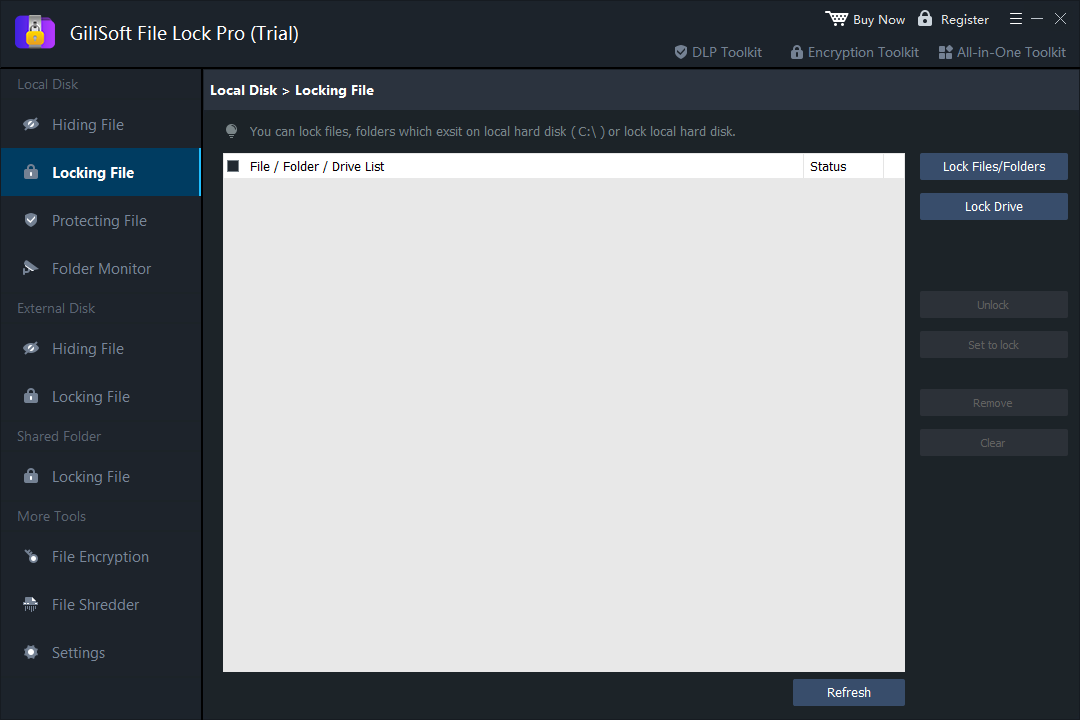
Open File Lock Pro, choose the appropriate local drive protection task, and select only the intended volume.
- Apply and test the lock
Close the product and test ordinary access from a standard account, then reopen the drive through the authorized workflow.
- Review whether encryption is also needed
If physical loss or offline disk access is in scope, use an appropriate full-volume encryption product in addition to ordinary access control.
See the File Lock Pro user guide for every workspace, password recovery, and related protection task.
GiliSoft File Lock Pro Interface
These product screenshots connect the workflow to the relevant local Windows controls.

Review the Protection Boundary
- Keep a verified backup before applying broad access or write restrictions.
- Use a standard user account to test both the permitted workflow and the blocked action.
- Protect the administration password and document how authorized recovery works.
- Keep Windows Security enabled and use encryption when offline data exposure is in scope.
Frequently Asked Questions
Does locking a drive encrypt it?
No. Locking controls ordinary access in the protected environment; encryption protects stored data against offline access.
Can I lock the Windows system drive?
Do not apply a broad File Lock rule to the system volume. Use supported full-disk encryption and Windows controls.
Can I use this on an external drive?
For portable media, use a workflow designed for external-drive locking or USB encryption and test it on every destination PC.
What should I do before enabling the lock?
Verify a backup, recovery password, correct drive letter, and an authorized unlock test.