

How to Lock a File in Windows 11/10
Need to keep one file on a Windows PC from being opened without authorization? GiliSoft File Lock Pro can password-protect selected files. This guide shows how to apply and test the lock, and explains when encryption or write protection is the better fit.
Quick answer
Start GiliSoft File Lock Pro, enter the administrator password, and choose the local locking workspace. Back up the target first, apply the narrowest useful rule, and test both authorized access and the action that should be blocked.
Choose File Locking or Encryption
| Situation | Recommended approach | Check carefully |
|---|---|---|
| Require controlled access on this Windows PC | Lock the selected file | Recovery password and authorized applications |
| Protect a copy sent to another person | Create an encrypted GFL or EXE package | Recipient compatibility and password delivery |
| Only prevent editing or deletion | Use Protect instead of Lock | Applications that must save the file |
| Protect an entire lost or stolen drive | Use full-volume encryption | Recovery key and boot recovery |
Step-by-Step Workflow
- Back up the file and close its application
Keep a verified copy outside the protected path and close software that currently has the file open.
- Open Local Disk and Locking File
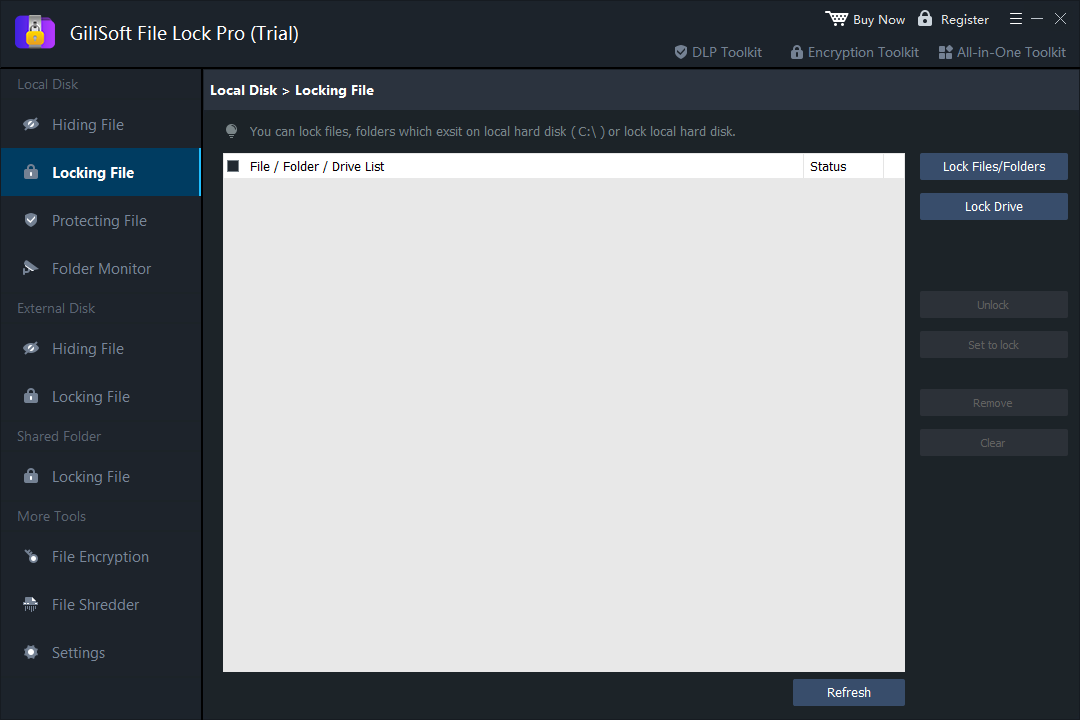
Start GiliSoft File Lock Pro, enter the administrator password, and choose the local locking workspace.
- Add the exact file
Click Lock Files/Folders, select the intended file, and confirm the full path before applying protection.
- Apply the lock and test access
Use Set to lock, close the management window, and confirm that ordinary opening is blocked as intended.
- Unlock and verify recovery
Restore access with the authorized password and compare the recovered file with the backup before wider use.
See the File Lock Pro user guide for every workspace, password recovery, and related protection task.
GiliSoft File Lock Pro Interface
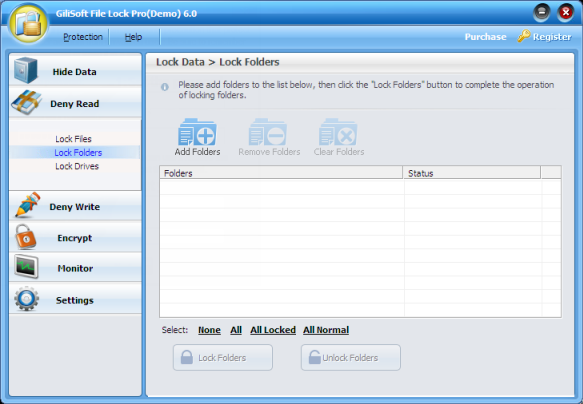
These product screenshots connect the workflow to the relevant local Windows controls.
Review the Protection Boundary
- Keep a verified backup before applying broad access or write restrictions.
- Use a standard user account to test both the permitted workflow and the blocked action.
- Protect the administration password and document how authorized recovery works.
- Keep Windows Security enabled and use encryption when offline data exposure is in scope.
Frequently Asked Questions
Does locking a file encrypt it?
No. Locking and encryption are separate controls. Use File Encryption when you need a separate encrypted output.
Can I lock a file on a USB drive?
Use the External Disk workspace for supported removable-drive files and test the result after reconnecting the drive.
Why can an application no longer update the file?
The lock may block the application too. Unlock the file for authorized work or choose a narrower protection rule.
What if I forget the password?
Configure and verify the supported recovery information before locking important data.