
How to Merge, Split, and Compress PDF Files on Windows
Combining reports, separating a document, and shrinking an attachment are different tasks. This guide walks through each one in GiliSoft Formathor, with the settings shown in the actual PDF workspaces.
Quick Answer
Open PDF Tools in Formathor. Choose Merge PDF for one combined document, Split PDF for separate output files, or Compress PDF to reduce file size. Add your files, choose the output location, run the task, and check the saved result before sharing it.
Choose the Right PDF Task
| Your goal | Use | Check afterward |
|---|---|---|
| Send several reports as one attachment | Merge PDF | Document sequence and total page count |
| Separate a large PDF into individual outputs | Split PDF | Which pages each output contains |
| Keep the document together but reduce its size | Compress PDF | Actual file size and image readability |
You do not need to run all three operations. A report packet may need merging and compression; a document sent to different reviewers may need splitting only.
Before you start
- Keep the original PDFs and save results to a separate folder.
- Open each source once to check that it is readable and complete.
- For a merged packet, make a short list of the intended document order.
- Check the recipient's actual attachment or upload limit before choosing compression settings.
How to Merge PDF Files into One Document
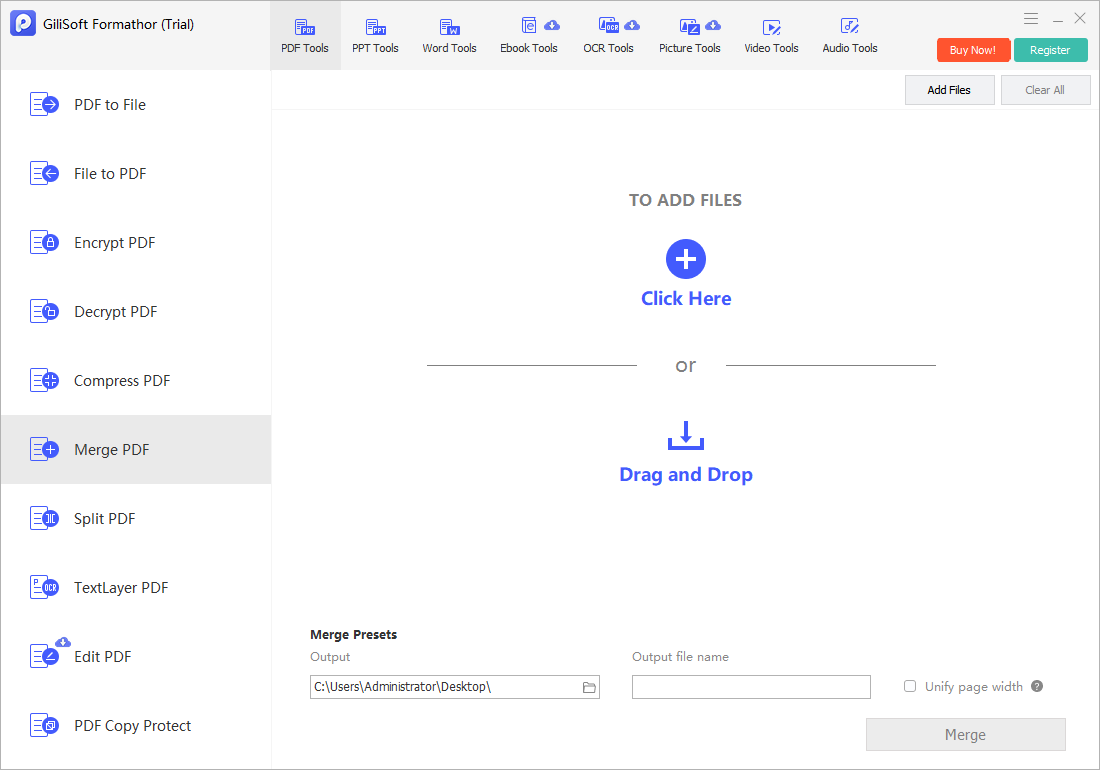
Use this for a cover sheet, report, and supporting documents that should arrive as one packet. The Formathor merge workspace provides an output folder, an output file name, and an optional Unify page width setting.
- Open the Merge PDF workspace.
Launch GiliSoft Formathor, select PDF Tools at the top, then choose Merge PDF on the left.
- Add the source PDFs and check their sequence.
Click Add Files or use the drop area. Check the displayed file order before continuing; do not assume that selecting files in Explorer guarantees the intended reading order.
- Set the output folder and file name.
Under Merge Presets, choose Output and enter an Output file name. Leave Unify page width unchecked when original page dimensions matter; test a copy with it enabled if consistent page width is required.
- Merge and inspect the new document.
Click Merge. Open the saved PDF, check where each source begins and ends, and compare its page count with the source documents.
Example: a 2-page cover letter, a 10-page report, and a 3-page appendix should produce a 15-page packet when all source pages are included. Check the transitions between those documents, not just the first page.
How to Split a PDF into Separate Files
Splitting changes how the content is packaged. It does not automatically remove sensitive information or reduce the quality of scanned pages.
- Select Split PDF.
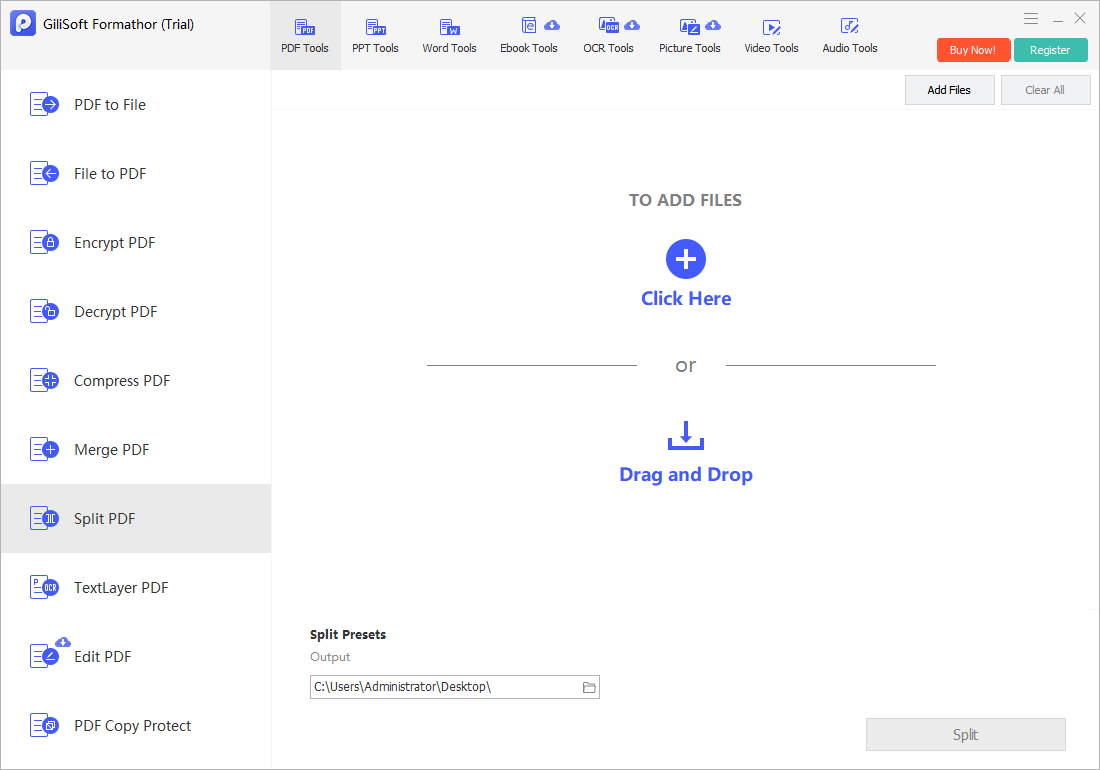
In GiliSoft Formathor, open PDF Tools > Split PDF.
- Add one PDF for a test.
Click Add Files and select the source. Check any settings available after import against the output you need.
- Choose a separate output folder.
Set Output under Split Presets. An empty destination folder makes it easier to identify and inspect the generated files.
- Run the split and review every output.
Click Split. Check the resulting file names, page counts, and first and last pages before distributing the files.
How to Compress a PDF for Email or Upload
Compression is the right task when all pages must stay together but the file exceeds the delivery limit. Image resolution and other embedded content can contribute to a large PDF; the achievable reduction varies by file.
- Open Compress PDF and add your file.
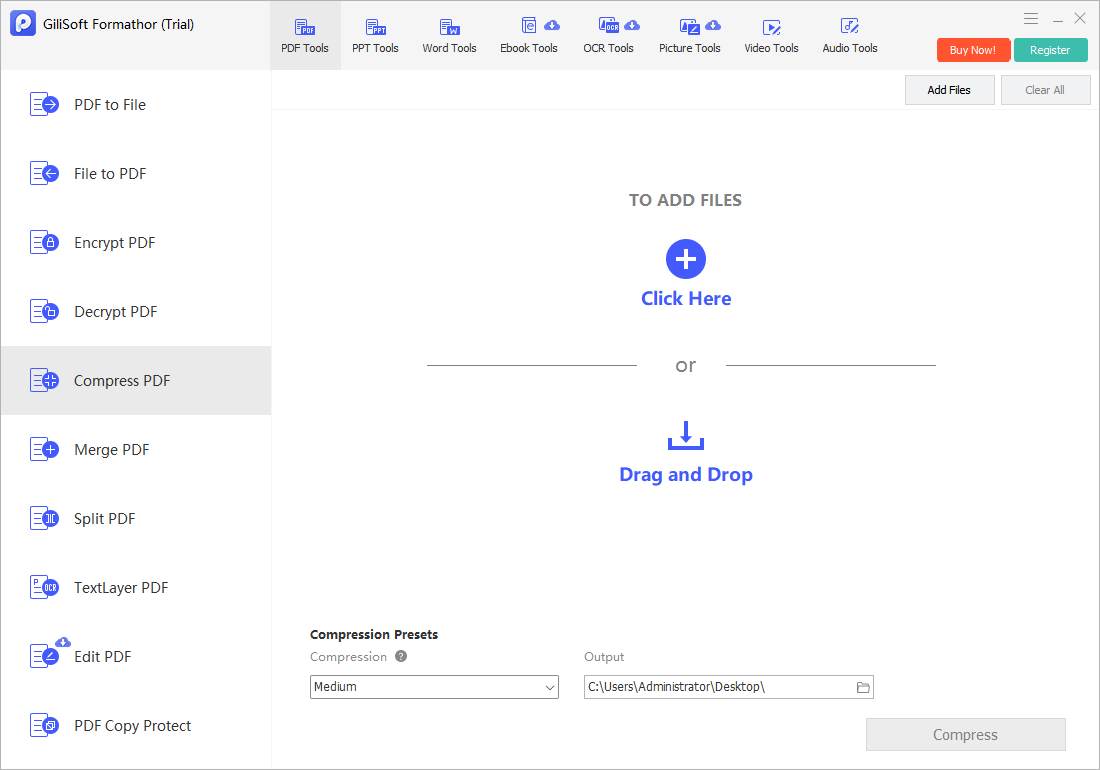
Choose PDF Tools > Compress PDF in GiliSoft Formathor, then click Add Files.
- Start with the Medium compression preset.
The screenshot shows Medium in the Compression list. Use it as a first test, then compare the result with the original before trying another available setting.
- Choose where to save the compressed copy.
Set Output to a separate folder under Compression Presets, then click Compress.
- Compare size and readability.
Check the saved file's size in Windows File Explorer. Open the PDF and inspect small text, scanned stamps, diagrams, and photographs at normal reading size and when zoomed in.
Do not repeatedly compress the same output to chase a smaller number. Return to the original for another test. If the PDF still exceeds the limit, consider splitting it when permitted or using an approved file-sharing method.
Compression can involve quality trade-offs. Compare small text, images, and diagrams in the saved PDF with the original, and choose the setting that meets your delivery limit without sacrificing necessary detail.
Check the Final PDF Before Sharing
For one combined packet, a practical order is merge → verify → compress if needed → verify again. For separate recipients, split first and check each output individually. Apply any required protection only after document preparation, then test access to the final copy.
- Content: expected pages are present, in order, with no accidental duplicates.
- Readability: small text, charts, scans, and photographs remain usable.
- Function: test important links, bookmarks, searchable text, or form fields rather than assuming they were preserved.
- Delivery: confirm the actual output size, file name, destination, and recipient permissions.
Common PDF Processing Problems
The merged pages are in the wrong order
Check the source file sequence and confirm each source's internal page order. Rebuild the packet from the originals. When documents have mixed dimensions, inspect the effect of the page-width option separately.
The compressed PDF is still too large
The source may already be optimized or contain content that is difficult to reduce further. Check whether a smaller output is worth the loss of detail; a lower file size is not useful if the document becomes unreadable. See why a PDF can be too large to email.
The file will not open or process
Open the source in a PDF viewer first. Check whether a password is required, the download is incomplete, or the destination folder is writable. Try one ordinary, unprotected PDF to separate a source-file problem from a setup problem.
The split output is not the section I expected
Inspect the available split settings after import and check the generated files before sending them. If your required range or chapter mode is unavailable, use a tool with that specific page-selection feature.
Merge, Split, and Compress PDF FAQ
Can I merge, split, and compress PDFs in one Windows application?
Yes. GiliSoft Formathor has separate Merge PDF, Split PDF, and Compress PDF tools. Choose the task you need under PDF Tools and test the output before processing important files.
Should I merge or compress PDFs first?
For a single final packet, merge the documents and verify their order first, then compress the combined output if it exceeds the delivery limit. Keep the uncompressed originals.
Can compression make every PDF smaller without losing quality?
No. Results depend on the document and compression setting. Image-heavy PDFs may become smaller at the expense of detail, while already optimized files may change very little. Compare both file size and readability.
Does splitting a PDF redact confidential information?
No. Splitting separates content into output files; it is not a redaction tool. Inspect every page you plan to send and use a dedicated redaction workflow when sensitive content must be removed.
Can I process a password-protected PDF?
Use only files you are authorized to manage. Obtain the required password or an unrestricted source copy from the owner if protection prevents the operation. Do not assume these tools bypass permissions.
Can I split a PDF by bookmarks or a target file size?
These options are not shown in the Formathor screenshot used here. Check the controls available after adding your file, and do not assume another PDF application's split modes are supported.