
PDF Encrypt, Decrypt, Compress, Merge and Split Software
PDF preparation works best in a deliberate order. Start with accessible source files, arrange and divide the content, compress only the delivery copy, then apply password protection after every visual and structural check is complete.
Quick answer
Keep an untouched source, then use only the tools required for the delivery job. Decrypt a PDF only when you have authorization and the required password, merge files in reading order, split confidential or recipient-specific sections, compress while checking clarity, and encrypt the final verified copy. GiliSoft Formathor brings these tasks together with broader PDF and Office conversion tools.
Choose the Correct PDF Processing Order
| Stage | Task | Why this order helps |
|---|---|---|
| 1 | Open or decrypt an authorized working copy | Later tools need legitimate access to the content |
| 2 | Merge related files | Establish the complete reading sequence |
| 3 | Split recipient-specific sections | Avoid sharing pages that a recipient does not need |
| 4 | Edit or correct supported content | Finish substantive changes before optimization |
| 5 | Compress the delivery copy | Evaluate size against readability after content is final |
| 6 | Encrypt and verify the final PDF | Apply access controls after all processing is complete |
The exact order can vary, but repeatedly decrypting, recompressing, and re-encrypting the same working file creates avoidable risk. Preserve the source and use named intermediate outputs.
Prepare PDFs Before Processing
- Confirm ownership and authorization.
Do not remove restrictions, extract pages, or modify documents without permission.
- Keep an untouched source.
Work on copies in a separate folder with clear version names.
- Open every input file.
Check for damage, missing fonts, incorrect rotation, signatures, certification, forms, attachments, and existing security.
- Define the recipient and output.
Decide which pages are required, the size limit, and whether an open password or permissions restrictions are appropriate.
- Record passwords securely.
Use a password manager or approved organizational process, and share passwords through a separate secure channel.
Merge and Split PDF Files in Formathor
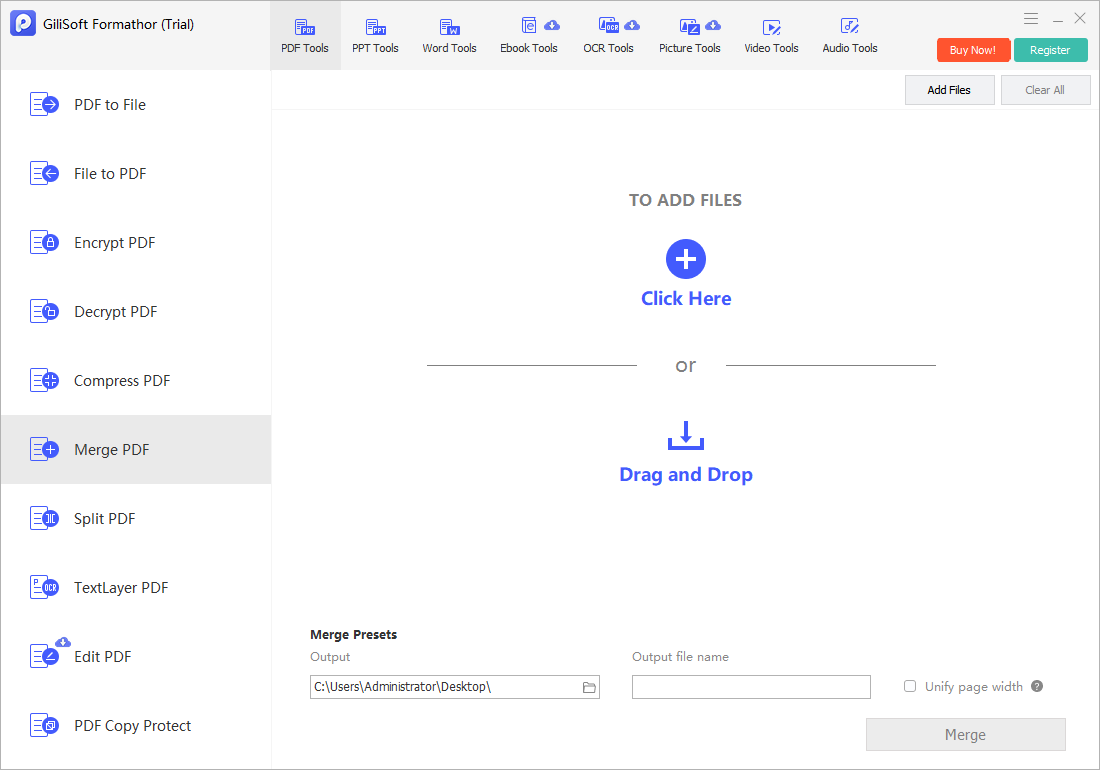
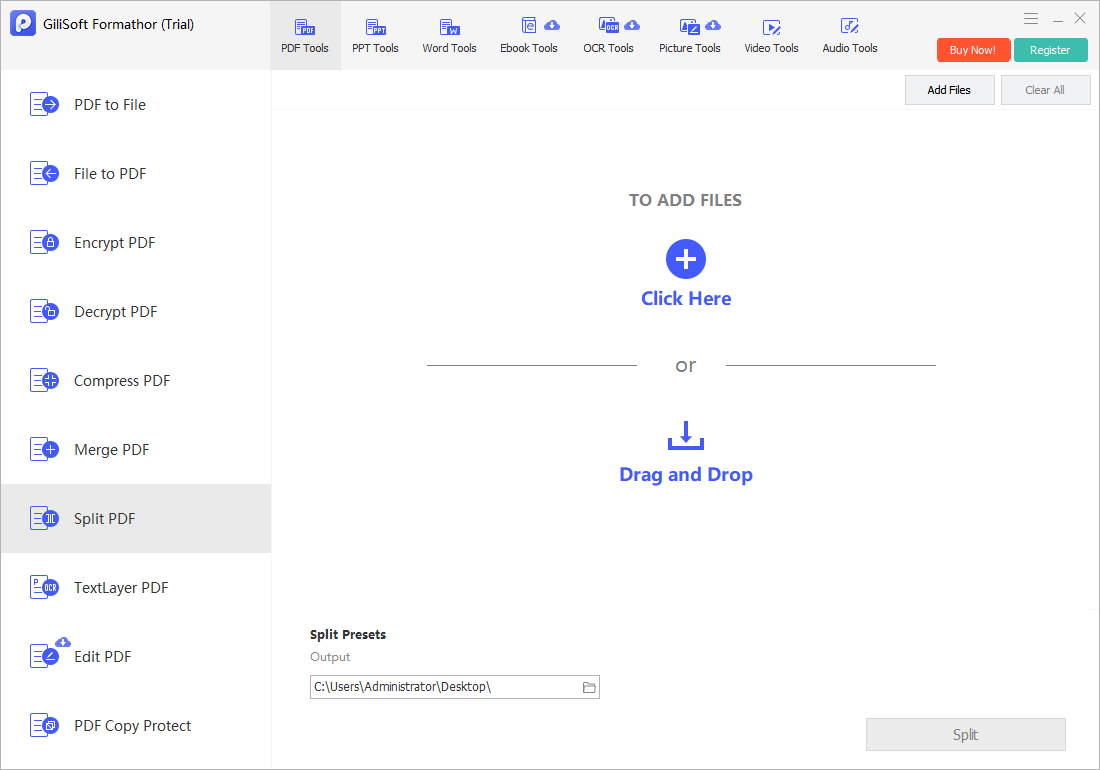
Use Merge PDF to build one ordered packet from related documents. Use Split PDF to create smaller sections, remove unrelated recipient material from a delivery copy, or separate pages for different workflows.
| Need | Use | Verify |
|---|---|---|
| One client or project packet | Merge PDF | File order, page order, orientation, and bookmarks |
| Separate chapters or departments | Split PDF | Page ranges and filenames |
| Different content for each recipient | Split, then inspect each output | No confidential page remains in the wrong file |
| Mixed protected and unprotected inputs | Resolve authorized access first | Every source opens and permits the intended action |
Compress the PDF Without Losing Required Clarity
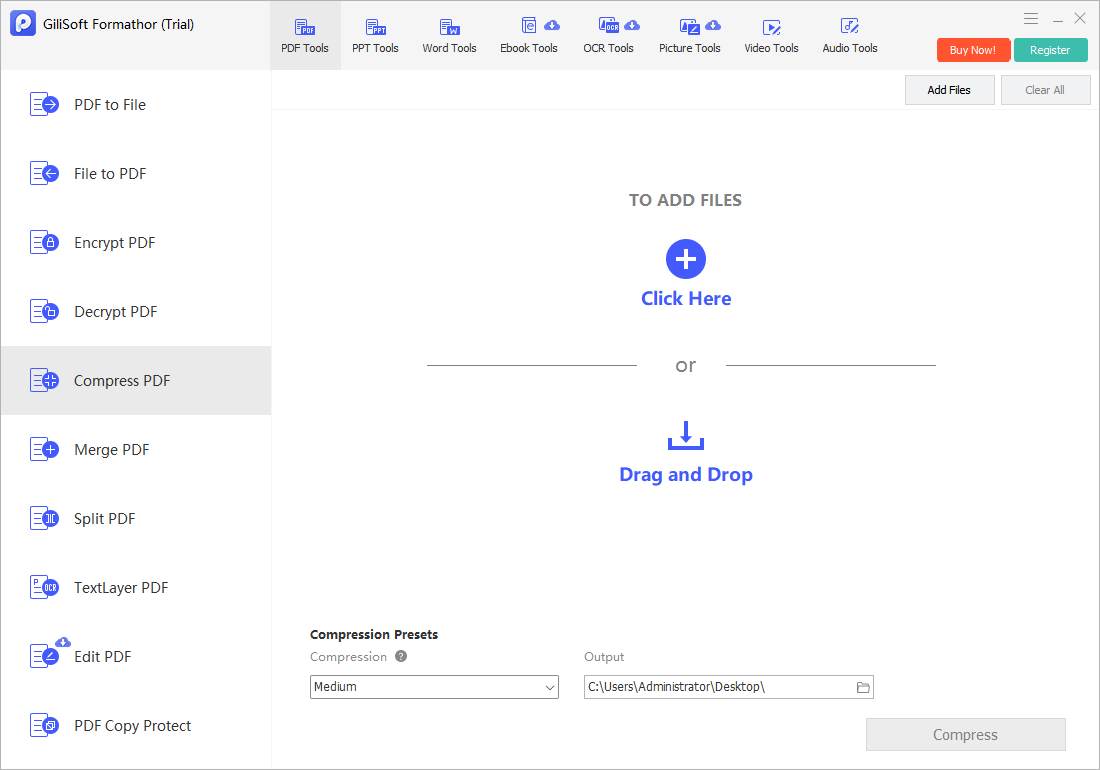
Compression usually has the greatest visible effect on scanned pages and embedded images. A smaller file is not automatically better if text, signatures, diagrams, stamps, barcodes, or fine print become unreadable.
- Start from the final organized PDF.
Avoid compressing files that will still be edited or repeatedly processed.
- Choose a separate output.
Keep the higher-quality version for archive or later reuse.
- Compare size and readability.
Inspect small text, line art, photos, signatures, and scanned stamps.
- Test search and links.
Confirm that searchable text, bookmarks, and expected links still work.
Encrypt or Decrypt PDFs Only with Authorization
An open password controls whether a recipient can view the document. Permissions settings can restrict actions such as editing, copying, or printing in compatible software. These controls are not a substitute for redaction, digital signatures, rights-management systems, or secure recipient identity verification.
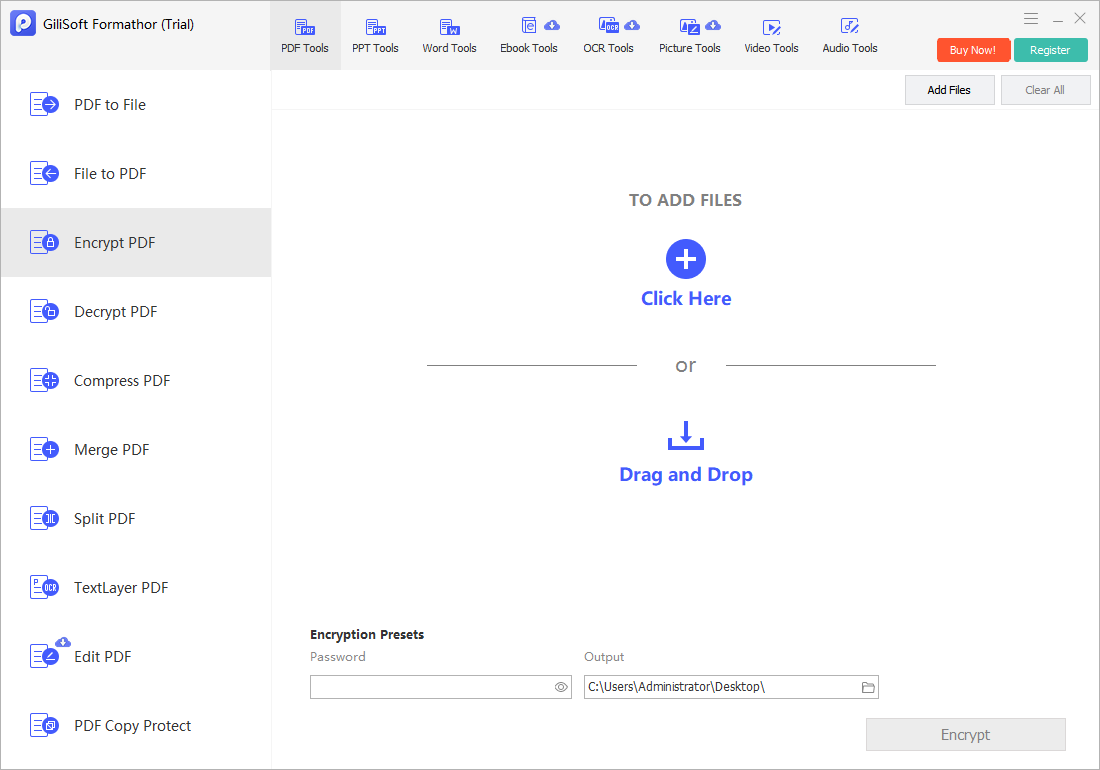
- Encrypt the final verified copy.
Use a strong unique password and avoid including it in the same email as the PDF.
- Test the open password.
Close the file completely and reopen it in the reader recipients will use.
- Review permissions.
Confirm printing, copying, and editing behavior where supported.
- Decrypt only authorized files.
Provide the valid password or required permission and save a controlled unprotected working copy.
Verify the Final PDF Before Delivery
- Open the final file outside Formathor.
Use a separate PDF reader and, when practical, a second device.
- Check every first and last page.
Confirm complete merge order and split boundaries.
- Inspect visual quality.
Zoom into text, images, signatures, stamps, and diagrams after compression.
- Test search, links, and security.
Verify searchable text, bookmarks, open password, and intended permissions.
- Retain the source and approved final.
Keep version names and access details in the proper controlled location.
PDF Preparation Software FAQ
Should I merge or compress PDFs first?
Usually merge and arrange the final content first, then compress a delivery copy. This lets you evaluate the size and quality of the complete packet and avoids repeatedly compressing intermediate files.
Can I decrypt any password-protected PDF?
No. Decrypt only a document you own or are authorized to modify, using the valid password or required permission. If credentials are unavailable, contact the document owner.
What is the difference between an open password and a permissions password?
An open password is required to view the PDF. Permissions settings restrict supported actions such as editing, copying, or printing. Test the exact behavior in the recipient reader.
Will PDF compression reduce text quality?
Born-digital text may remain sharp, but scanned pages and embedded images can lose detail. Inspect small print, signatures, stamps, line art, and barcodes after compression.
Can encrypted PDFs always be merged or split?
Not necessarily. Existing security can prevent processing until the file is legitimately opened or restrictions are removed with authorization. Signed or certified documents may also require special handling.
Does password protection permanently remove confidential information?
No. Password protection controls access; it does not redact hidden or visible data. Use a proper redaction and sanitization workflow when information must be permanently removed.