
Quick Answer
Decide Which Audio Files Must Stay Private
Source recordings
Protect interviews, voice notes, raw takes, multitrack sessions, and location recordings.
Project assets
Include stems, scripts, cue sheets, artwork, session files, and client notes when they contain sensitive information.
Delivery copies
Keep intentionally shareable exports separate from private sources and working files.
Protect Audio Files in a USB Secure Area
Back up original audio
Copy source recordings and project files to separate storage and open several files.
Confirm capacity and file systems
Check the USB drive letter, free space, and whether large audio files fit the public and secure layout.
 Confirm the correct device and allocate public and secure capacity.
Allocate private storage
Reserve enough secure capacity for audio, waveform caches, project files, and future revisions.
Create and open the secure area
Set a strong password, mount the private drive, and keep recovery information elsewhere.
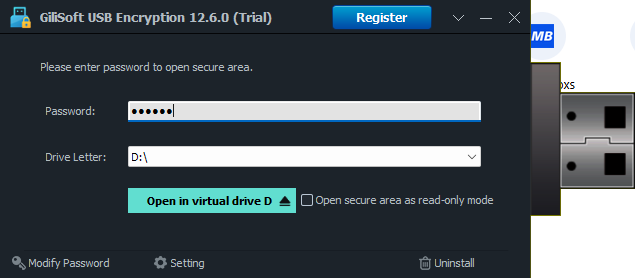 Open the secure area through a password-mounted drive letter.
Move private audio and projects
Place confidential sources and working files inside the mounted drive, then remove exposed duplicates.
Close, reconnect, and test playback
Reopen the secure area and test representative audio in the intended player or editor.
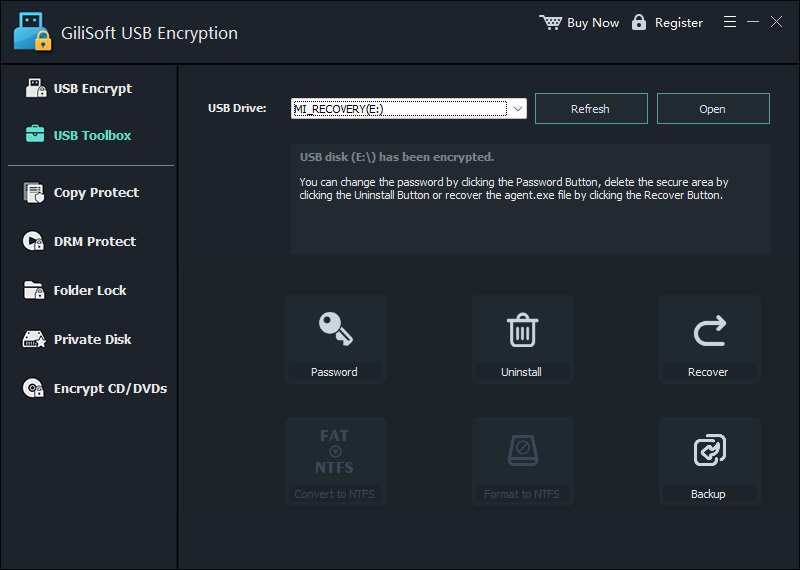 Review management and recovery options before relying on the device.
Verify Privacy and Audio Usability
Private sources
Confirm raw recordings and sessions do not remain in public storage.
Playback
Open representative WAV, MP3, FLAC, or project files after unlocking.
Dependencies
Check linked media, fonts, presets, and project-relative paths when moving sessions.
Delivery
Export shareable copies to a separate reviewed folder rather than exposing the working archive.
Common Mistakes
- Encrypting the only copy of an original recording.
- Protecting the audio export but leaving scripts or project files public.
- Breaking editing projects by moving linked media without testing.
- Assuming file encryption prevents recording playback after authorized unlock.
- Unplugging while an editor is writing waveform, cache, or project data.
- Giving a client the working drive instead of a reviewed delivery copy.
Frequently Asked Questions
Does encryption change audio quality?
Storage encryption does not intentionally re-encode the audio. Verify the unlocked file with the intended application.
Can I protect WAV, MP3, FLAC, and project files together?
Yes. The secure area stores ordinary files, but project dependencies and linked media still need careful organization.
Can a car stereo or music player open the protected audio?
Usually not. Consumer devices generally cannot display the software password workflow, so keep approved playback copies separate.
Should I encrypt unreleased music and client recordings?
Encryption can help protect data at rest during transport, provided passwords and recovery records are handled separately.
Does encryption stop recipients from copying audio after unlock?
No. Once authorized users can open a file, delivery policy and licensing controls remain separate concerns.
What if an editing project cannot find its media?
Restore the original folder structure or relink the files after mounting the secure area, then save a tested portable project copy.