

How to Write Protect a Folder on Windows
Folder write protection is useful for stable templates, reference libraries, and approved deliverables. Because the rule can affect every descendant, test applications that create temporary files, indexes, lock files, or autosave data inside the folder.
Quick answer
Test the planned behavior on representative noncritical data. Back up the target first, apply the narrowest useful rule, and test both authorized access and the action that should be blocked.
Check Whether Folder Write Protection Fits
| Situation | Recommended approach | Check carefully |
|---|---|---|
| Reference library that should not change | Protect the selected folder from writes | Search indexes and metadata updates |
| Shared active project folder | Protect only stable subfolders | Collaboration and autosave |
| Private folder that should not be opened | Use Lock instead | Recovery and authorized access |
| Critical data requiring recovery | Use versioned backup as well | Corruption, hardware failure, and malware |
Step-by-Step Workflow
- Inventory the folder and required writers
List nested folders, users, applications, sync clients, backup tools, and scheduled processes that modify the location.
- Create a verified backup and pilot copy
Test the planned behavior on representative noncritical data.
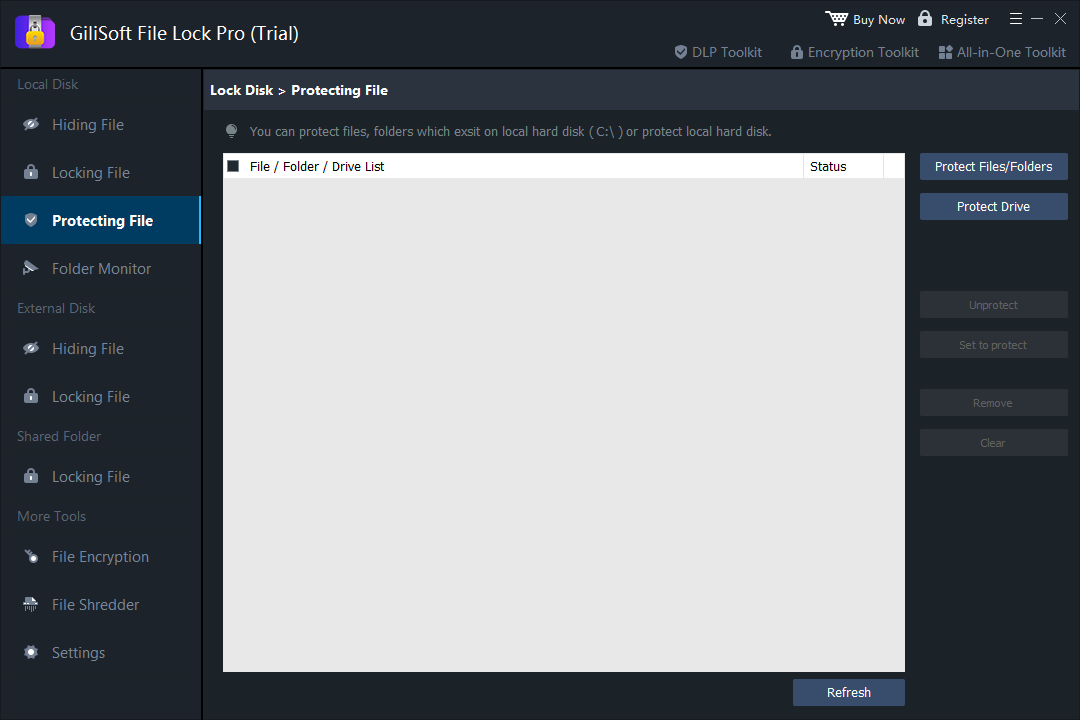
- Open Protecting File and add the folder
Choose Protect Files/Folders, select the exact path, and avoid a drive root or broad parent folder.
- Apply the rule and test normal work
Test reading, creating, editing, renaming, moving, deleting, synchronization, backup, and application autosave.
- Document exceptions and recovery
Record the owner, scope, reason, temporary update process, and how to remove the rule safely.
See the File Lock Pro user guide for every workspace, password recovery, and related protection task.
GiliSoft File Lock Pro Interface
These product screenshots connect the workflow to the relevant local Windows controls.

Review the Protection Boundary
- Keep a verified backup before applying broad access or write restrictions.
- Use a standard user account to test both the permitted workflow and the blocked action.
- Protect the administration password and document how authorized recovery works.
- Keep Windows Security enabled and use encryption when offline data exposure is in scope.
Frequently Asked Questions
Can users still open files in the folder?
A write-protection rule is intended to allow reading, but verify the exact selected options and application behavior.
Does the rule include subfolders?
It may affect descendants. Test representative nested content before production use.
Why did synchronization stop?
Sync tools often need to create, rename, and delete files. Narrow the rule or use a different workflow.
Does this replace a backup?
No. It cannot recover files from every failure or attack.