

How to View Log Files in Windows 11 and Windows 10
Windows logs can reveal when a failure occurred, which application or component reported it, and whether an error code, DLL, Visual C++ runtime, .NET component, service, or driver is involved. Read the evidence first, then choose a repair that matches it.
Quick answer
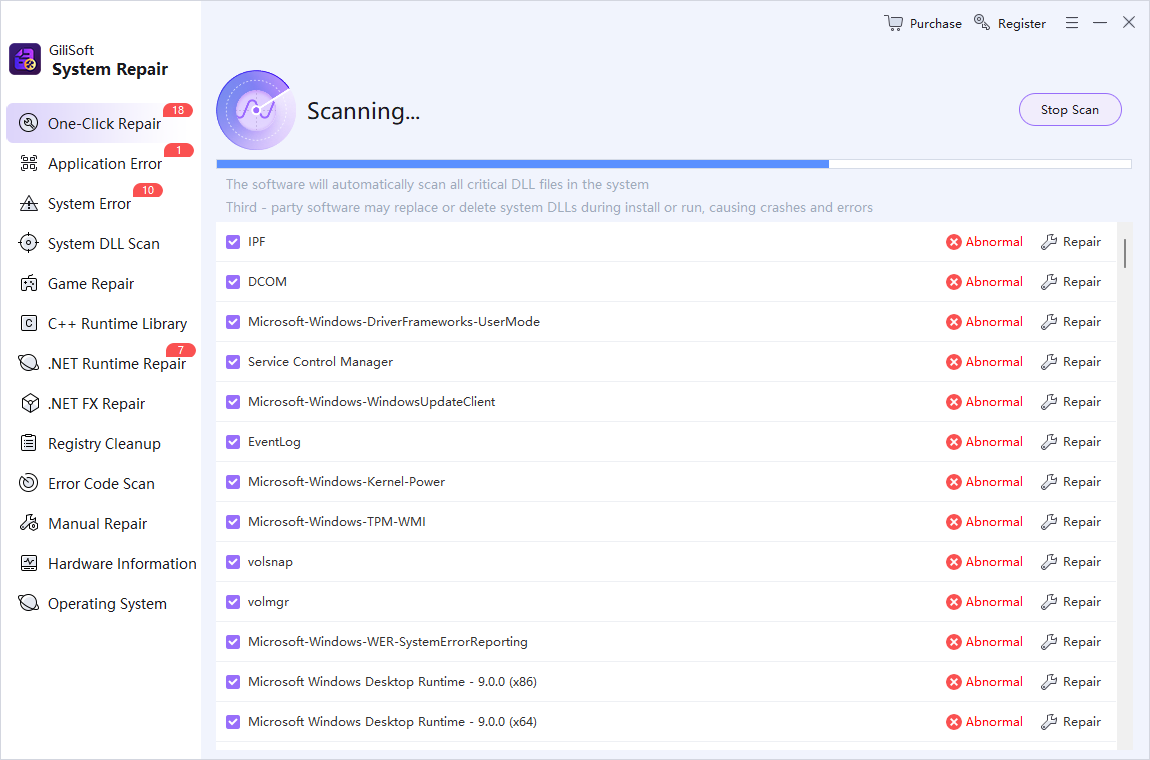
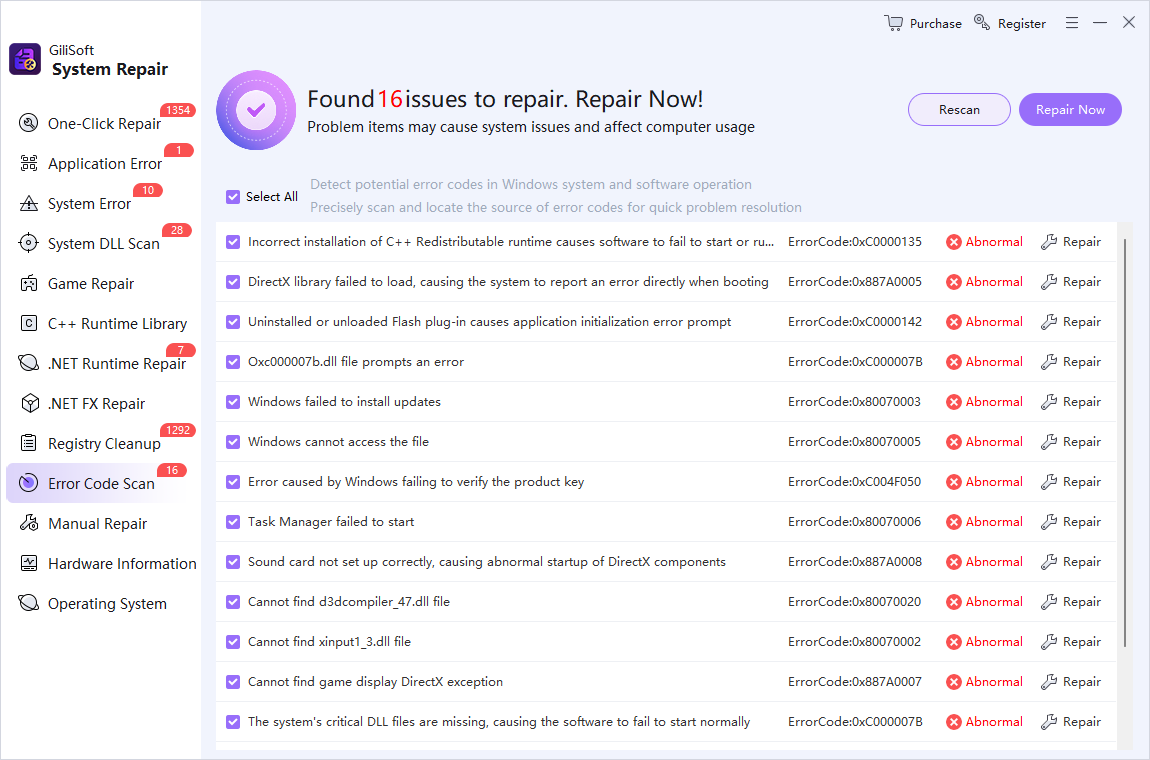
Open Event Viewer, expand Windows Logs, and check Application or System around the time the problem occurred. Record the event source, event ID, error code, and any named DLL or runtime. GiliSoft Total Repair does not open EVTX files; use those clues to choose its Application Error, System Error, System DLL Scan, Visual C++ Runtime, .NET, or Error Code Scan module.
Choose the log that matches the problem
| Where to look | Best for | Useful evidence |
|---|---|---|
| Event Viewer > Windows Logs > Application | Programs that crash, freeze, or will not open | Application name, faulting module, exception code |
| Event Viewer > Windows Logs > System | Windows services, drivers, storage, and startup problems | Event source, event ID, device or service name |
| Reliability Monitor | A simpler timeline of crashes and failed updates | Failure date, affected application, technical details |
| Application LOG or TXT file | Software-specific startup, update, or task failures | Timestamp, failed action, file path, error code |
View Windows logs with Event Viewer
- Reproduce the problem once.
Note the exact time so you can separate the relevant event from older warnings.
- Open Event Viewer.
Press Windows, search for Event Viewer, and open it with the permissions appropriate to the log.
- Check Application or System.
Expand Windows Logs, select the likely category, and use Filter Current Log to narrow the time and severity.
- Open the matching event.
Compare its timestamp with the failure and read both the General and Details tabs.
- Record the evidence.
Save the source, event ID, error code, faulting module or DLL, runtime name, and affected application.
Open application LOG and TXT files
Plain-text application logs can usually be opened with Notepad. Check the program folder, %ProgramData%, %LocalAppData%, or the software's own Help and Diagnostics screen. Copy a log before editing it, keep timestamps intact, and avoid publishing logs that contain usernames, file paths, device names, or other private details.
Use the log clue to choose a Total Repair module
Total Repair is the repair step, not the log viewer. Match the evidence you found to the narrowest relevant module.
| Log clue | Total Repair module | When it fits |
|---|---|---|
| Desktop program crashes or will not start | Application Error | The event points to an application or common launch dependency |
| Missing or abnormal Windows DLL | System DLL Scan or Manual Repair | The event names a DLL or known component |
| Visual C++ or .NET runtime failure | Visual C++ Runtime, .NET Runtime, or .NET Framework | The message identifies the relevant runtime family |
| Known Windows or software error code | Error Code Scan | You have an exact code to investigate |
| Several unexplained Windows problems | One-Click Repair or System Error | No single component explains the failures |
Diagnose first, repair second
- Back up important files and close open work.
System maintenance should not begin while irreplaceable work is open or unprotected.
- Identify the relevant log event.
Confirm the timestamp, source, code, and affected component.
- Open the matching Total Repair category.
Prefer the specific DLL, runtime, application, or error-code tool when the cause is known.
- Review the scan result.
Check what was detected before applying a repair.
- Restart when requested and repeat the original action.
Verify the same program or Windows task rather than assuming the repair worked.
- Compare the new log entry.
If the problem remains, determine whether the source or error has changed before trying another repair.
When Total Repair is not the right next step
Use the hardware manufacturer's diagnostics for failing storage or memory, the affected software vendor for an application-specific defect, and Microsoft or an administrator for security, policy, driver-signing, or managed-domain issues. A repair utility cannot correct failing hardware, incompatible software, or every third-party application bug.
Frequently asked questions
Can Total Repair open Windows EVTX log files?
No. Open EVTX files with Event Viewer or PowerShell. Total Repair uses the error information you identify to guide the choice of a repair module.
Which Windows log should I check when a program will not open?
Start with Windows Logs > Application and match events to the exact launch time. Record the application name, faulting module, exception code, and event source.
Should I repair every warning shown in Event Viewer?
No. Many warnings are routine or unrelated. Focus on events that match the failure time and symptoms, then use the narrowest appropriate repair.
Can Notepad open Windows event logs?
Notepad can open plain LOG and TXT files, but native EVTX files require Event Viewer, PowerShell, or another compatible parser.
Should I clear the logs after a repair?
Do not clear logs merely to hide errors. Keep or export relevant evidence, restart if required, reproduce the original task, and compare the new events.