

How to Lock a Folder on a Shared Computer or Network
A shared folder can mean a folder used by several accounts on one PC or an SMB folder opened from several computers. The protection method changes with the location. On one PC, Windows accounts and NTFS permissions are the baseline. Across a LAN, the host also applies share permissions and authenticates the connecting user. File Lock Pro adds a simpler password-managed layer for selected local, external, and reachable shared folders.
First Identify What “Shared Computer” Means
| Situation | Start with | What it controls |
|---|---|---|
| Several people sign in to one PC | Separate standard accounts + NTFS permissions | Which signed-in users can open or change the folder |
Several PCs open \\PC\Share | SMB authentication + share permissions + NTFS permissions | Who reaches the share and what they may do inside it |
| One selected folder needs a local master password | Recommended option File Lock Pro | Locking, hiding, or protecting the selected folder |
| Users may read but must not edit originals | Read permission or File Lock Pro protection | Opening is allowed while modification is restricted |
| Sensitive traffic crosses an untrusted network | SMB encryption on supported Windows/Server configurations | Protects SMB data in transit from interception |
Do not begin by looking for a universal “folder password” switch. Windows normally protects network shares through user identity and permissions. Decide first whether the folder must be invisible, unreadable, read-only, or merely unavailable to selected accounts.
Before Changing Access, Record the Existing Share
Permission changes belong on the PC or server that physically stores the folder, not only on the computer that maps it.
Keep the current path, such as \\Office-PC\Finance, and note who should approve future access.
Prefer named accounts or managed groups over a shared administrator login or a broad Everyone entry.
Permission changes, locking, and encryption are not substitutes for a recoverable copy stored outside the shared folder.
Method 1: Lock a Reachable Shared Folder with File Lock Pro
File Lock Pro includes a dedicated Shared Folder > Locking File workspace. Use it when the LAN folder is already reachable from the Windows PC running File Lock Pro and the selected folder needs an additional password-managed control without changing every other share.

One interface for local and shared folders
Lock a selected folder to block opening, hide content that should not appear in ordinary browsing, or protect readable files from unwanted changes.
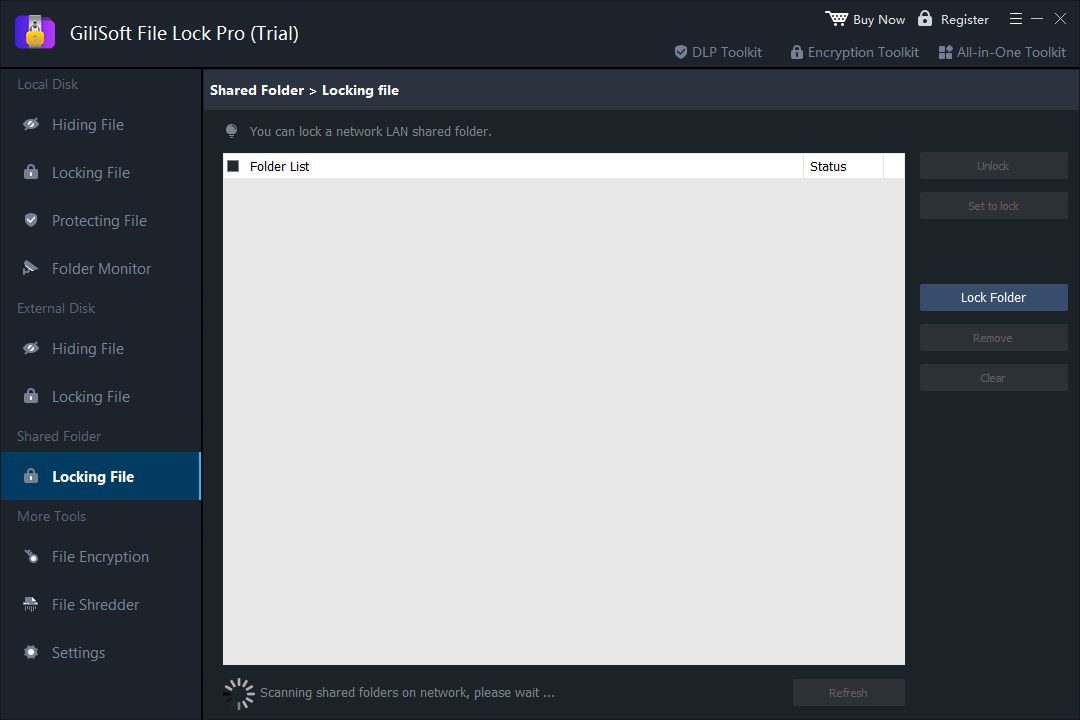
- Open the shared folder in File Explorer first and confirm the current Windows account can reach it.
- Start File Lock Pro and enter the master password.
- Choose Shared Folder > Locking File.
- Select Lock Folder, add the target shared folder, and apply Set to lock.
- Test from the host and from another intended workstation before relying on the rule.
Method 2: Lock a Folder Used by Several Accounts on One PC
For a family, classroom, front desk, or office PC, each person should have a separate Windows account. Keep daily users as standard users and store private content inside the owner’s profile instead of Public folders.
- Create or review accounts under Settings > Accounts > Other users.
- Right-click the folder and open Properties > Security > Advanced.
- Confirm the owner, inherited entries, and the exact users or groups that currently have access.
- Grant only the required rights: Read for viewing, Modify for normal editing, or no access for private folders.
- Sign in with the other account and test opening, creating, renaming, and deleting files.
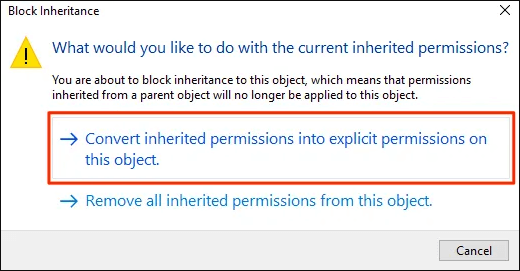
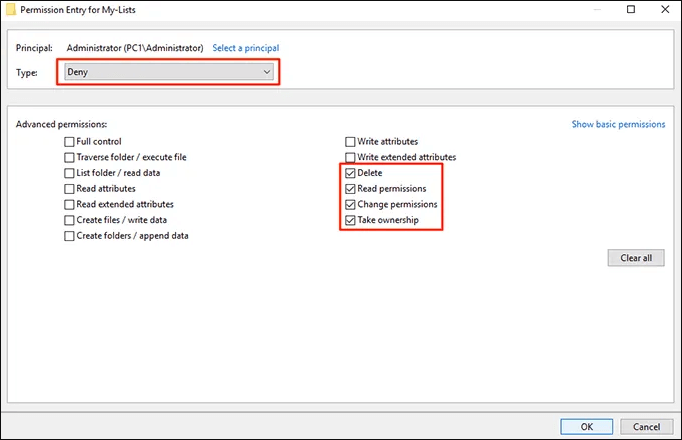
Administrator reality: a local administrator can often take ownership and change NTFS permissions. If the administrator is not trusted, use content encryption and protect the recovery material separately.
How Share and NTFS Permissions Work Together
Share permissions apply when the folder is reached through SMB. NTFS permissions apply to the files and folders on the disk. Effective network access is constrained by both layers, so a permissive share does not cancel a restrictive NTFS rule and a restrictive share can limit broader NTFS rights.
Choose rights by task
| User need | Typical access | Important consequence |
|---|---|---|
| View approved documents | Read | The user can normally copy content they are allowed to read. |
| Create and update files | Modify | Usually includes writing, renaming, and deleting. |
| Manage permissions | Full control | Reserve for administrators or data owners. |
| No folder access | Remove unnecessary Allow access | Prefer clear group membership over complex Deny rules. |
When Users Should Read but Not Change the Folder
Reference libraries, templates, approved policies, and training material often need read access without modification. Give consumers Read rights and keep editors in a separate group with Modify rights. File Lock Pro Protecting File is another option when a selected folder should remain readable while common file changes are restricted.
- Use locking when unauthorized users should not open the folder.
- Use hiding when the folder should not appear in ordinary browsing.
- Use protecting when approved users may read but should not change originals.
- Keep editable drafts separate from approved reference copies.
Stronger Controls for Business File Shares
Least-privilege groups
Assign access through role-based groups such as Finance-Read and Finance-Modify instead of maintaining many individual exceptions.
Access-based enumeration
On supported Windows Server shares, ABE can hide folders a user lacks permission to read. Permissions still provide the actual access boundary.
SMB encryption and signing
Supported SMB configurations can protect network data against interception and tampering. Compatibility depends on client and server versions.
File and share auditing
Audit successful or failed access for sensitive folders only after planning event volume and review responsibilities.
Hiding a share name with a trailing dollar sign or enabling access-based enumeration improves navigation privacy, but neither replaces share and NTFS permissions.
Troubleshoot “Access Denied” Without Weakening the Share
Confirm the host PC is on, connected to the same trusted network, and that File and Printer Sharing is allowed for the correct network profile.
Disconnect the mapped drive and reconnect with the account that was actually granted access.
Review the Security tab and effective access for the exact user or group.
Inspect Advanced Security Settings before breaking inheritance or adding a Deny entry.
Do not enable the legacy protocol casually. Update or replace the device and follow current Microsoft security guidance.
Recommended Setup by Shared-Folder Scenario
Family or roommate PC
Separate standard accounts, private profile folders, Windows + L when leaving, and File Lock Pro for selected personal folders.
Small-office LAN share
Named users, specific share audience, NTFS groups, verified backup, and periodic permission review.
Approved document library
Read access for consumers, Modify access for editors, separate drafts, and protection against accidental changes.
Finance or HR records
Least-privilege groups, no broad Everyone access, auditing, encrypted transport where appropriate, and documented recovery.
Shared Folder Security Checklist
- Use named accounts rather than one shared administrator login.
- Grant the minimum level of access required for each job.
- Review both Sharing and Security tabs for network folders.
- Test opening, editing, renaming, deleting, and copying from another account.
- Keep SMB shares on trusted networks and avoid direct internet exposure.
- Back up important data outside the shared or locked folder.
- Review access after staff, family members, or project roles change.
- Document File Lock Pro recovery information if product locking is used.
Frequently Asked Questions
Can I put one password directly on a Windows shared folder?
Modern Windows sharing normally authenticates a user account rather than assigning one separate password to each folder. File Lock Pro can add master-password-managed locking to a selected reachable shared folder.
Can File Lock Pro lock a LAN shared folder?
Yes. File Lock Pro includes a Shared Folder Locking workspace for reachable LAN shared folders.
Are share permissions and NTFS permissions the same?
No. Share permissions govern SMB access to the share, while NTFS permissions govern the files and folders on disk. Both can restrict network access.
Does Read permission stop users from copying files?
No. A user who can read a file can generally copy its contents. Do not grant Read access when copying itself is unauthorized.
Can I hide folders users cannot access?
Access-based enumeration can hide unavailable folders in supported shared-folder environments, but share and NTFS permissions remain the actual access control.
Should I use Everyone on a home network?
Use Specific people when privacy matters. Everyone may be acceptable for genuinely public LAN content, but it is not a good default for personal or business records.
Why can a user connect but still receive Access Denied?
The user may pass SMB authentication and share permissions but lack NTFS rights to the target folder, or the subfolder may inherit a more restrictive rule.
Protect the folder that matters without closing the whole share
Use GiliSoft File Lock Pro to lock local, external, and reachable LAN folders from one Windows interface.
Download TrialBuy File Lock Pro- Microsoft Support: File sharing over a network in Windows
- Microsoft Learn: Access Control Overview
- Microsoft Learn: SMB protocol authentication
- Microsoft Learn: SMB file sharing overview
- Microsoft Learn: SMB security enhancements
- Microsoft Learn: File share and file system auditing
- CISA: Configure file, directory, and network-share permissions with least privilege