The file or player will not open
Check that the full download completed and that the supplied player matches the protected format and target platform. Compare the file list with the publisher's release record before reissuing passwords.

Sell downloadable lessons without handing over unrestricted video files. Encrypt your courses, authorize learner playback, and keep access tied to your course rules.
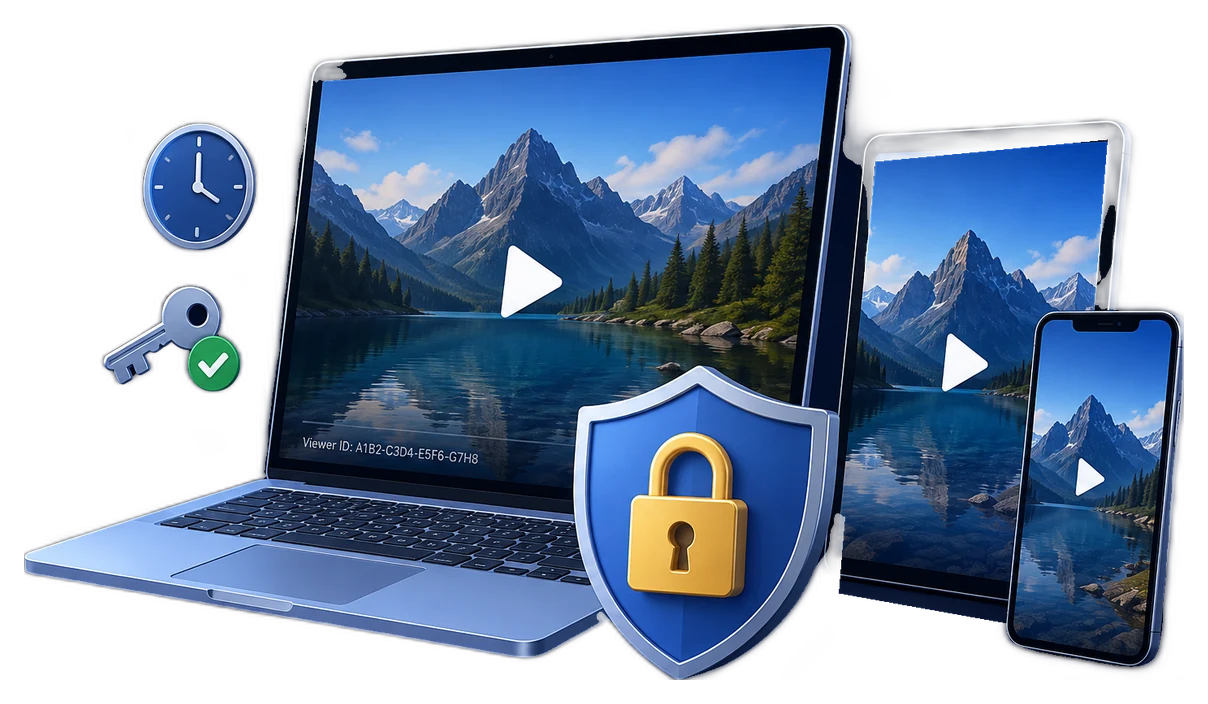
A purchaser should be able to download your course and start learning without receiving an unrestricted set of MP4 files. Use GiliSoft Video DRM Protection to turn a downloadable video course into a protected delivery: prepared lesson files, the intended player, clear activation instructions, and a Playback Password for the approved learner.
Encrypt the lessons before publishing the download. After verifying a purchase, provide the protected files and opening instructions. For Windows PC Binding, the learner opens the course on their intended computer and sends its Machine Code; you generate the matching Playback Password and send that credential back. The protection controls viewing of the content even if someone copies the package.
This is a publisher-managed workflow. Keep checkout and activation connected through your records; a completed payment does not automatically generate a GiliSoft credential unless that integration has been implemented.
| Item | Include in the learner delivery | Keep with the publisher |
|---|---|---|
| Lesson content | The completed protected output for the purchased course | Original MP4 files, editable masters, and private instructor recordings |
| Player | The intended player or opening instructions for the selected package format | Player preparation and publishing records |
| Activation | Instructions for obtaining the Machine Code when Windows PC Binding is used | The Project ID and matching Encryption Key |
| Playback credential | The generated Playback Password for the approved learner or device | A record linking that password to the purchase, course, device, and access period |
| Help and updates | A support route, supported device information, and the course edition label | Internal administration logins and blacklist management details |
For the same course and protection settings, you can deliver one protected package to multiple purchasers while issuing individual playback access. Create separate packages when the lessons or intended access groups differ.
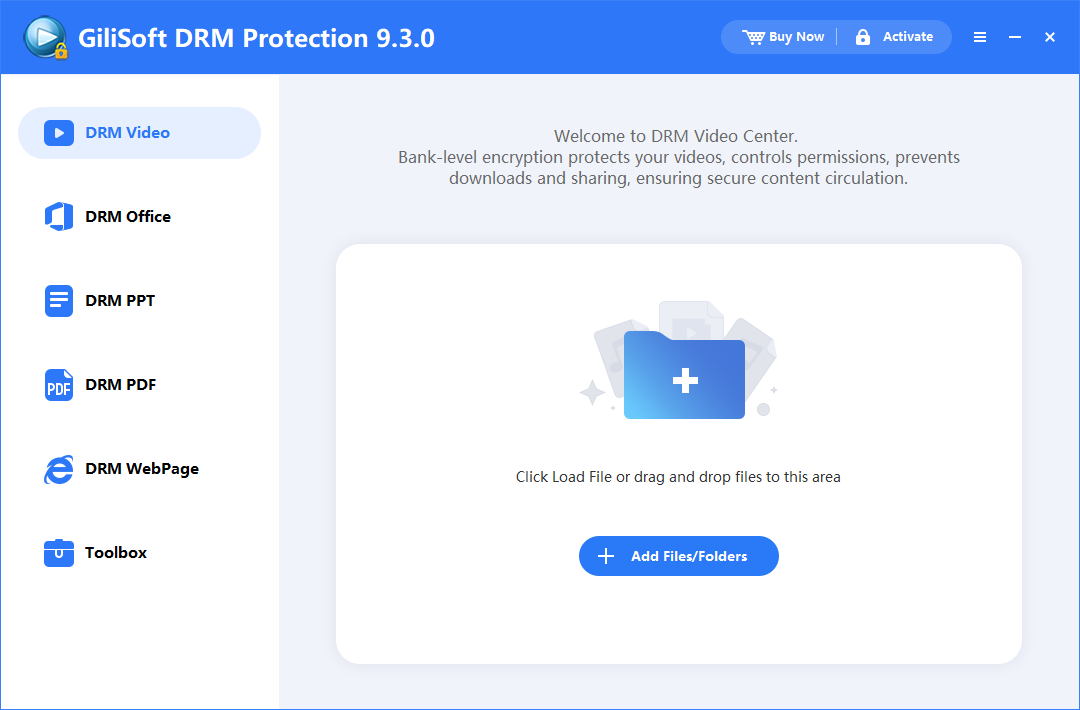
The screenshots below show the publisher's setup and password tools. Prepare the protected delivery on Windows, then choose the player and output for your learners' devices. The Machine Code example describes Windows PC Binding.
Open DRM Video and add the approved lessons. Keep previews, separate paid modules, and private student recordings out of a shared course package unless they belong to that same delivery group.
Common source formats include MP4, AVI, WMV, MPG, RM, RMVB, FLV, and VOB. Use a short representative lesson to complete the full delivery test before processing the entire course.
In Encryption Settings, save the Project ID and Encryption Key with your course records. Choose the output and binding mode before export. PC Binding is the appropriate path when a credential should authorize an approved Windows computer; one fixed password shared by the class does not provide that same individual device control.
Configure watermark appearance in Basic Settings. If later cancellation is part of the course policy, prepare online blacklist verification before exporting. Keep required online checks compatible with the anti-copy settings you choose.
Choose an output folder separate from the original videos and publisher records. Select combined or separate packaging as appropriate, start encryption, and wait for completion before uploading the files to your purchaser area.
Match the delivery format to the player: GEM files use the intended GiliSoft playback workflow, while an EXE is a Windows executable. Label the course edition and list the files buyers should receive so an incomplete download is easier to identify.
After the purchase is verified, have the learner open the protected course on the approved Windows PC and send its Machine Code with the order reference. Open Create Play Password and use the Encryption Key for the delivered course with that Machine Code.
Set the learner's Text Watermark and explicit Expiration Date where required, generate the Playback Password, and record it before sending it to the learner. The watermark's appearance comes from the earlier Basic Settings configuration.
For the full set of interface options, use the Video DRM Protection user guide. Keep replay and seeking practical for learning; limits should follow your course policy rather than being enabled automatically.
Adapt these instructions to the format and player you actually supply. State the supported learner devices before purchase, and keep the activation contact beside the download instructions.
Do not put the publisher Encryption Key into this message, a readme, or the downloadable course folder. Learners need their Playback Password, not the key used to create the protected course.
| Test | Pass condition |
|---|---|
| Test purchase and download | The buyer reaches the correct course edition and receives every required protected file and player instruction, without the source videos or publisher key. |
| First activation on an approved PC | The Machine Code comes from that PC, the corresponding password works, and the lesson plays with sound. |
| Copied package on another PC | The first computer's PC-bound password does not authorize the other computer simply because the files were forwarded. |
| Watermark and access period | The learner identifier is readable and the explicit expiration date matches the purchased course terms. |
| Configured online cancellation | A test password works on its approved device before blacklisting, then fails there when the player checks the updated list. Another learner's valid credential remains valid. |
| Normal study conditions | Replaying, pausing, seeking, captions, and the expected network conditions work as intended for the supplied package and player. |
A download link controls retrieval. A Playback Password and its configured rules control access to the saved course content. Keep both paths clear in your release test and learner support process.
Check that the full download completed and that the supplied player matches the protected format and target platform. Compare the file list with the publisher's release record before reissuing passwords.
Check the course edition, matching Encryption Key, and issued credential. For PC Binding, confirm the Machine Code came from the buyer's intended computer rather than a different device.
Review the configured expiration date, play count, and any entry in the online blacklist. Check whether the learner changed computers or is opening a different course package.
Approve the device under your course policy and issue a password for its Machine Code. For replacements, renewals, and refunds, follow the course access-change workflow.
Yes. Encrypt the course videos and distribute the protected output instead of the original MP4 files. Supply the intended player or opening instructions and issue Playback Passwords according to the course's access rules. Learners still receive files to download, but viewing the protected content requires the selected authorization.
For the same course content and protection settings, you can distribute the same protected package and issue learner-specific Playback Passwords. With Windows PC Binding, create each password for the approved computer's Machine Code. Use separate packages when the included lessons or access groups differ; do not place private material in a package shared by all purchasers.
For Windows PC Binding, the learner opens the protected course on the computer they will use and obtains that computer's Machine Code. The publisher uses it with the matching Encryption Key to create a Playback Password. Collecting a code from a different support or test computer would authorize the wrong device.
The workflow on this page uses publisher-managed authorization. A checkout confirmation does not automatically create a GiliSoft Playback Password. The product has a Password Generation API Pack among its integration tools, but connecting payment verification, device information, password issuance, and delivery requires a specifically implemented integration.
Approve each computer, collect its Machine Code, and issue a separate Playback Password for each. Record both under the learner's purchase. This is a manual device-approval policy, not an automatic two-device subscription quota, and the first PC's bound password should not be treated as the second PC's credential.
No. A link controls future file retrieval, not viewing of an already saved copy. Use the protected package's Playback Password, binding, expiration, and configured verification rules to manage playback after delivery. Also remove any alternate unrestricted source-video links from the purchaser area.
Yes, when online blacklist verification was configured before the protected output was delivered. Add the exact issued Playback Password to the configured blacklist. Rejection takes effect when the player checks the updated list; it does not erase a downloaded file or instantly reach a learner who stays disconnected.
This workflow protects the course files learners download and open through the intended GiliSoft playback workflow. An ordinary video embedded in the website is a separate delivery path; creating a protected package does not automatically apply DRM to that browser player.
Create protected output on Windows, then choose the supported GiliSoft package and player combination for the learner's platform. Protected playback can be delivered across supported desktop and mobile scenarios, but a Windows EXE does not run on a phone. The Machine Code steps on this page specifically describe Windows PC Binding.
Prepare a sample lesson, issue a test learner password, and verify the complete download-to-playback journey with GiliSoft Video DRM Protection.