
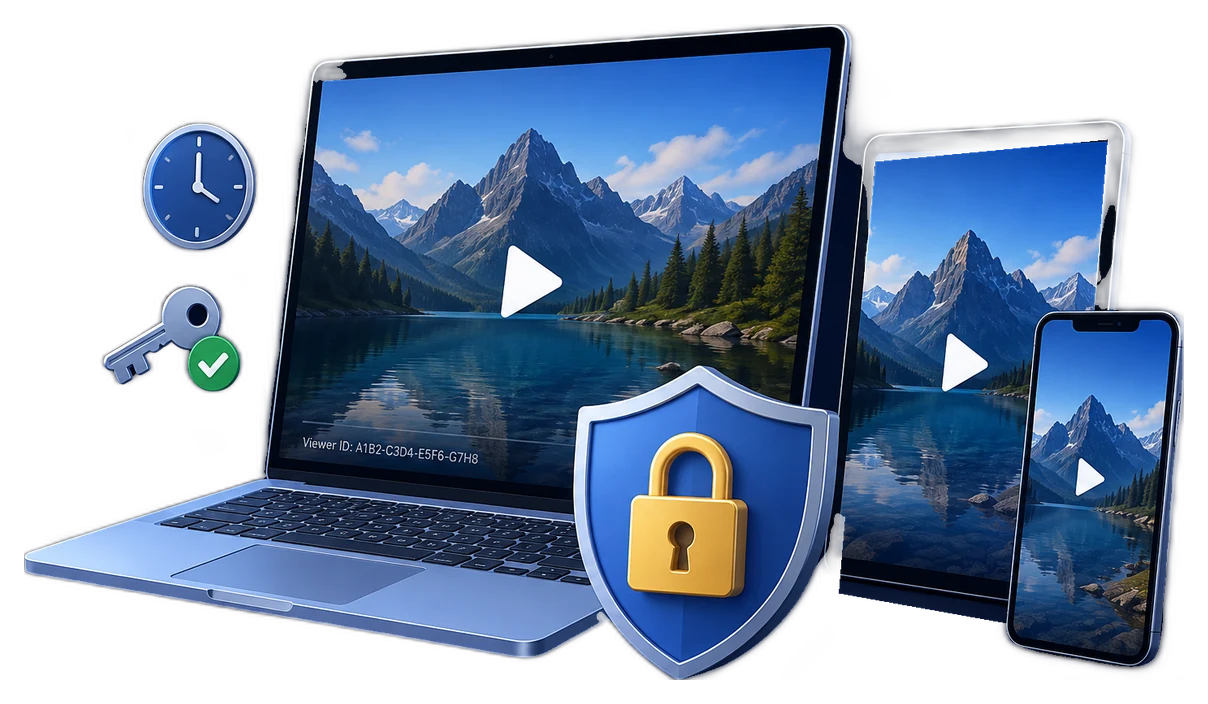
Secure Coaching Videos for Client Delivery
Coaching recordings may contain personal goals, feedback, or identifiable conversations. Before protection settings, decide what should be recorded, who may receive it, and when the client should no longer need access.
Quick answer
With the client’s permitted recording ready, GiliSoft Video DRM Protection can package the video, add a Playback Password and optional watermark, and limit playback to an approved device when appropriate.
Set a Client-Focused Access Policy
| Situation | Approach | Check before release |
|---|---|---|
| Client uses multiple devices | Avoid rigid PC Binding | Password sharing and viewer support |
| Highly private single-client file | Consider client-specific password and watermark | Name exposure in visible watermark |
| Session expires after a program | Set an agreed expiration | Client notice and legitimate archive needs |
| Client changes computer | Plan a new password for a verified device | Do not leave the client locked out unexpectedly |
How to Protect and Deliver the Videos
- Review consent and file scope
Confirm the client agreed to recording and delivery. Remove unrelated participants, private intake notes, or material outside the agreed session.
- Create the protected recording
Add the approved video to GiliSoft Video DRM Protection, set a client-specific Project ID, and keep the Encryption Key in the publisher record.
- Choose practical access rules
Select a Playback Password, expiry, watermark, or PC Binding only when the client can use that mode. Export the protected file.
- Test the client experience
Open the delivered format on the client’s intended player, verify audio and any captions, and explain where support or password replacement comes from.
The Video DRM Protection user guide shows the matching settings, password maker, and supported package workflow.
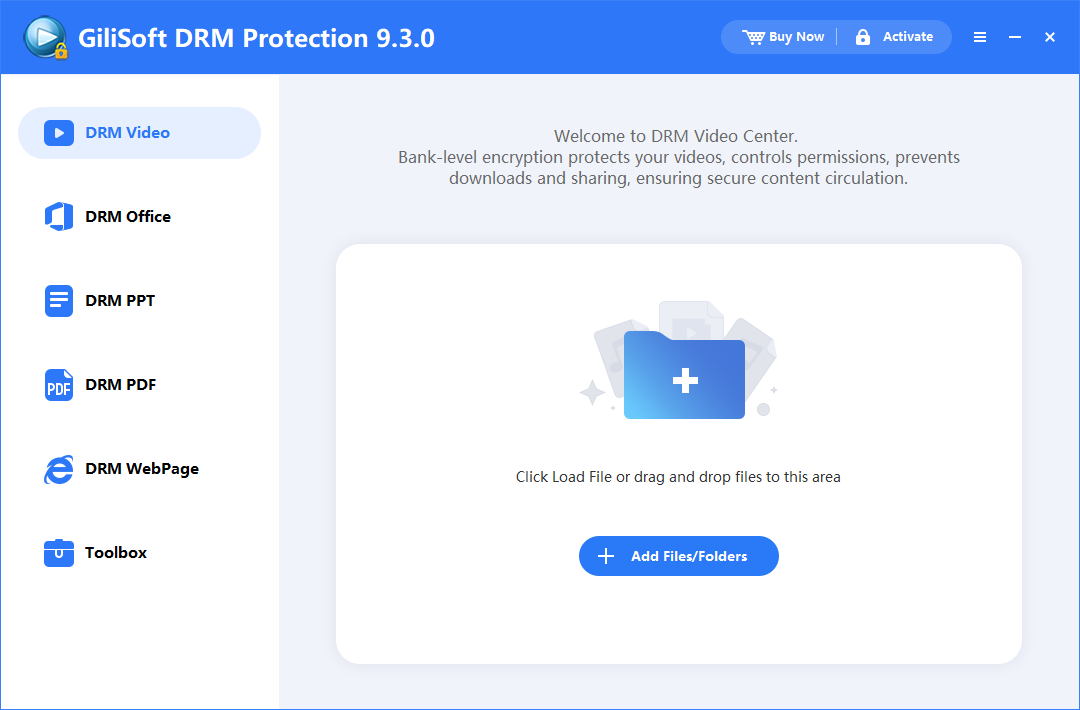
Product Interface for This Workflow
Use the actual GiliSoft Video DRM Protection screens to confirm project settings, protected output, and viewer credentials.


Check the Viewer Experience
- Keep the publisher Encryption Key and Project ID separate from the viewer Playback Password.
- Test the completed GEM or EXE package in the supported playback environment, not just the original source video.
- Check expiry, device changes, caption or transcript access, and a reachable support route.
- When using an online blacklist, confirm it was configured before release and verify the next online check.
Frequently Asked Questions
Should every coaching recording be device-bound?
No. Device binding can be too restrictive for clients who move between computers; choose it only with a clear support plan.
Can software prevent a client from filming the screen?
No. Watermarks and anti-capture settings deter some misuse but cannot stop every method of re-recording.